



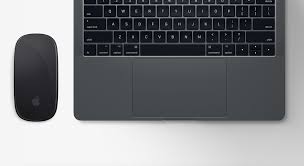
The Synaptics touchpad driver is essential for smooth touchpad performance on many Windows 11 laptops. If the driver is missing, outdated, or incompatible, the touchpad may stop working, lose gestures, or behave unpredictably.
This guide explains how to download and install the Synaptics touchpad driver on Windows 11, how to check if your laptop uses Synaptics, and how to fix common touchpad problems.
What Is the Synaptics Touchpad Driver?
The Synaptics touchpad driver allows Windows 11 to properly communicate with the touchpad hardware. It enables basic movement as well as advanced features like multi-finger gestures, scrolling, and palm rejection.
Without the correct driver:
- The touchpad may not respond
- Gestures may stop working
- Touchpad settings may be missing
- The device may not appear in settings
Windows 11 may install a generic driver, but Synaptics-specific drivers usually offer better performance.
How to Check If Your Laptop Uses a Synaptics Touchpad
Before downloading the driver, confirm whether your laptop uses Synaptics hardware.
Method 1: Check Device Manager
Steps:
- Right-click the Start button
- Open Device Manager
- Expand Mice and other pointing devices
- Look for Synaptics Touchpad or Synaptics HID Device
If Synaptics appears, your laptop uses that driver.
Method 2: Check Touchpad Settings
Steps:
- Open Settings
- Go to Bluetooth and devices
- Select Touchpad
- Scroll down to touchpad details
If Synaptics is listed, you need the Synaptics driver.
Download Synaptics Touchpad Driver for Windows 11
The safest way to download the driver is through your laptop manufacturer.
Recommended Sources
- Laptop manufacturer support website
- Windows Update optional driver updates
Avoid downloading drivers from unknown third-party sites.
Download from Manufacturer Website
Steps:
- Visit your laptop manufacturer’s support page
- Enter your laptop model number
- Select Windows 11 as the operating system
- Download the Synaptics touchpad driver
- Save the installer file
This ensures compatibility with your hardware.
Install Synaptics Touchpad Driver
Installation Steps
- Double-click the downloaded driver file
- Follow the on-screen instructions
- Restart your laptop after installation
After restarting, the touchpad should work normally.
Enable Synaptics Touchpad Features and Gestures
Once installed, you can configure gestures and sensitivity.
Steps:
- Open Settings
- Go to Bluetooth and devices
- Select Touchpad
- Enable the touchpad if disabled
- Adjust sensitivity and gestures
Advanced gesture options depend on the driver version.
Fix Synaptics Touchpad Not Working on Windows 11
If the touchpad still does not work, try these fixes.
Restart the Touchpad
- Press Fn + function key with touchpad icon
- Restart your laptop
Some laptops allow disabling the touchpad with a shortcut.
Reinstall the Driver
Steps:
- Open Device Manager
- Right-click the Synaptics device
- Select Uninstall device
- Restart the PC
- Reinstall the downloaded driver
Check BIOS Settings
Steps:
- Restart your PC
- Enter BIOS or UEFI
- Look for Touchpad or Internal Pointing Device
- Make sure it is enabled
Frequently Asked Questions
Yes, if your laptop uses Synaptics hardware.
Yes. Windows Update may install generic drivers that remove advanced features.
Driver conflicts after Windows updates are common.
Use the driver recommended by your laptop manufacturer.


Discussion (0)
Be the first to comment.