




The Action Center in Windows 10 gives you one place to view notifications, toggle quick settings, and manage important alerts. Many users ask where the Action Center is located, especially after updates that may hide or change its appearance. This guide explains how to access it, what it does, and how to customize it so you never miss critical system notifications again.
Microsoft designed the Action Center to keep all your alerts in one consolidated panel. Whether you're checking system warnings, app notifications, or quick toggles like Wi-Fi and Bluetooth, the Action Center acts as the control hub for your Windows 10 device. If you're new to Windows 10 or returning after an update, the information below will help you locate and use it effectively.
Where To Find The Action Center
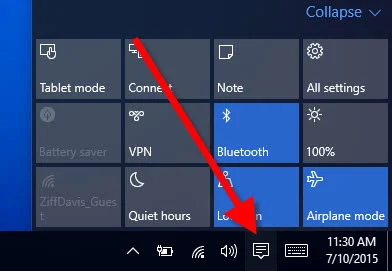
Windows 10 places the Action Center on the far right of the taskbar. It appears as a message-bubble icon that opens your notifications panel when clicked. If you don’t see the icon, it may be hidden, disabled, or affected by a recent update, but you can restore it easily.
Here are the ways you can open the Action Center:
- Click the Action Center icon on the right end of the taskbar.
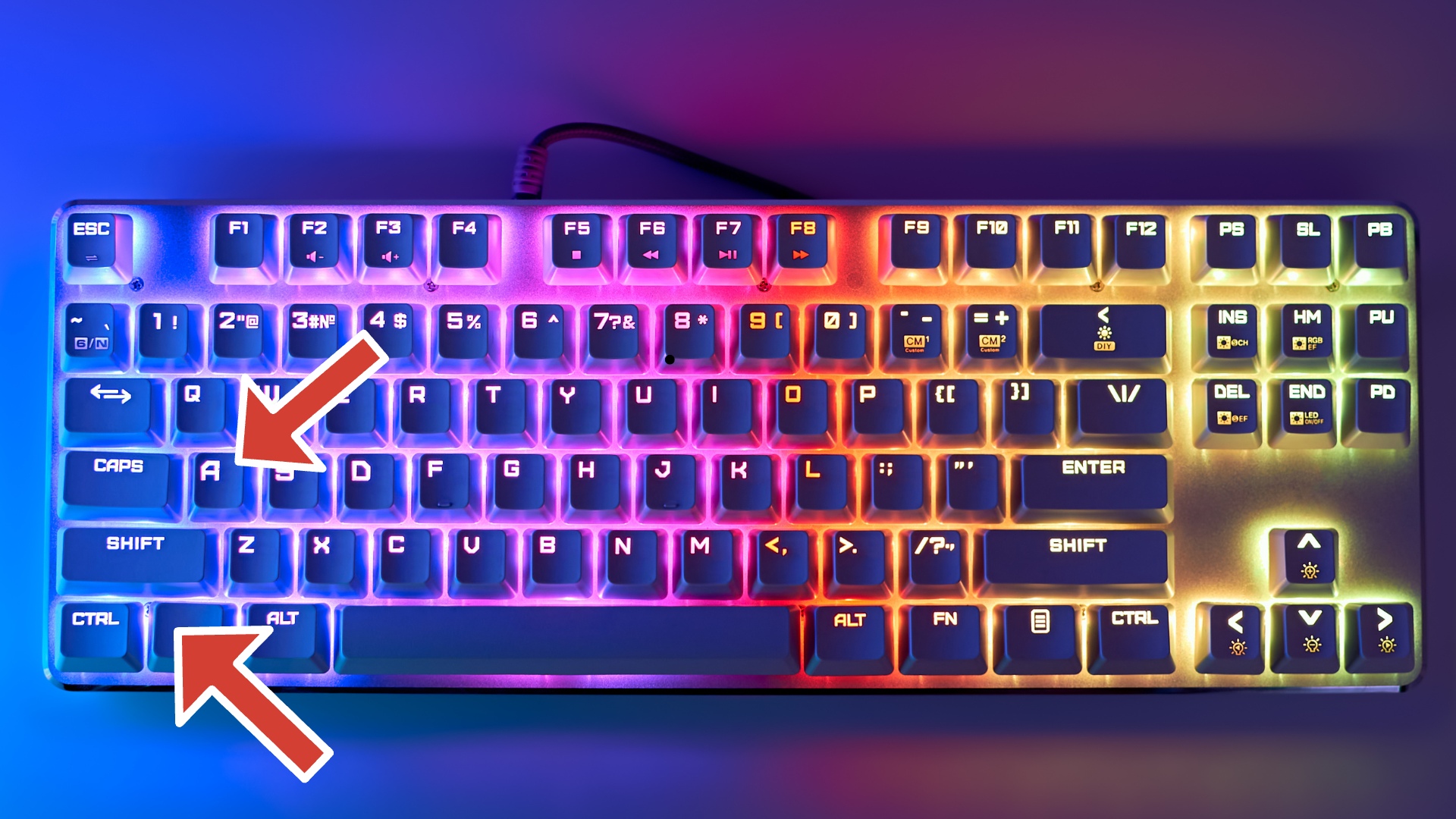
- Press Windows Key + A to open it instantly.
- Swipe in from the right edge of your touchscreen if you’re using a Windows tablet or 2-in-1 device.
How The Action Center Works
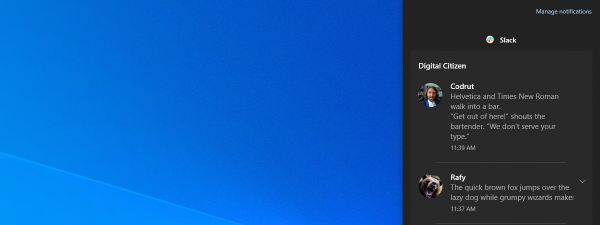
The Action Center organizes your Windows 10 notifications in chronological order. New alerts appear at the top, while older messages move down the list. You can expand certain notifications, take quick actions, or clear them entirely to keep your desktop organized.
The bottom section includes Quick Actions like Wi-Fi, Focus Assist, Bluetooth, Rotation Lock, and airplane mode. These shortcuts allow fast toggling without diving into Settings.
How To Customize The Action Center
Windows 10 allows deep customization so you control which alerts appear and what Quick Actions are visible. These options help you tailor the Action Center to your workflow and reduce unnecessary notifications.
- Open Settings > System > Notifications & actions.

- Select which apps can send notifications.
- Choose if banners appear on the screen.
- Rearrange or remove Quick Actions.
- Disable tips, suggestions, or unnecessary alerts.
Troubleshooting Common Problems
- Action Center icon missing: Go to Settings > Personalization > Taskbar and enable system icons.
- No notifications appearing: Make sure Notifications are turned on in the System settings.
- Shortcut not working: Restart your PC or check for pending Windows updates.
- Action Center won’t open: Restart Windows Explorer from the Task Manager.
Tips
- Use Focus Assist to reduce noise from unimportant alerts.
- Clear notifications daily to prevent clutter.
- Customize sound alerts to quickly identify important messages.
- Add Battery Saver or Night Light to Quick Actions for faster access.
FAQ
Why can’t I see the Action Center on my taskbar?
The icon may be disabled. Enable it under Taskbar system icons.
Does the Action Center still exist in Windows 10?
Yes, it remains active and supported at the time of writing.
Is the Action Center different from Windows 11?
Windows 11 separates Quick Settings and Notifications, but Windows 10 keeps them together.
Can I disable notifications completely?
Yes, you can disable notifications globally or per app in the Settings menu.
Summary
- The Action Center appears on the right end of the Windows 10 taskbar.
- You can open it using the icon, Windows Key + A, or a touchscreen gesture.
- Notifications and Quick Actions help you manage alerts and system settings.
- You can customize or troubleshoot it through the Settings app.
- The panel remains a primary part of Windows 10’s workflow and productivity tools.
The Action Center gives Windows 10 users a fast, central place to review notifications and toggle essential settings. With built-in customization, keyboard shortcuts, and support for all major system alerts, it remains a key tool for managing your device efficiently.
Discussion (0)
Be the first to comment.