




If you move large files a lot, you eventually ask what is eSATA external hard drive and why people still use it. In simple terms, an eSATA external hard drive is an external SATA drive that connects through an eSATA port to deliver desktop-level speeds for backups, media work, and other storage-heavy tasks.
Unlike a basic USB portable drive, an eSATA external drive behaves more like an internal hard disk that lives outside the case. That means lower latency, better sustained transfer rates, and more consistent performance for video editing, imaging, and other data-intensive workflows.
Overview Of eSATA External Hard Drives
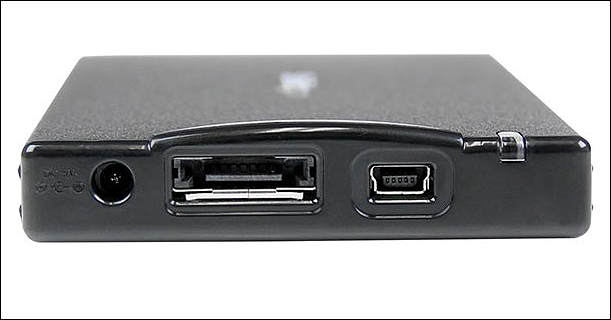
eSATA stands for External Serial Advanced Technology Attachment and extends the SATA interface outside the PC. An eSATA external hard drive uses the same SATA technology as an internal drive, but connects through a shielded eSATA cable on the back or side of your computer.
Because the eSATA drive talks almost directly to the system’s storage controller, it feels like a native high-speed external hard drive. That is why many pro users still rely on an eSATA hard drive dock or enclosure when they need predictable throughput.
How eSATA External Hard Drives Work

An eSATA external hard drive uses a dedicated eSATA cable that carries only data between the drive and the host controller. The system sees the device as another SATA disk, so it uses the same commands and features as an internal drive.
Because the eSATA connection does not carry power, most enclosures use a separate power brick or a powered eSATA port. Once powered and connected, the drive appears in your operating system like any other external SATA hard drive ready for formatting and use.
eSATA Vs USB for External Storage

When people research how to expand storage, they often compare an eSATA external hard drive vs USB 3.0 or USB 3.2. USB wins for convenience and compatibility because nearly every PC and laptop has multiple USB ports that can power portable drives.
eSATA usually wins on consistent throughput and lower latency for sustained reads and writes. If you move large video projects, disk images, or system backups regularly, an eSATA hard drive can feel more responsive than a similar USB drive under the same workload.
The tradeoff is clear: USB is the general-purpose interface with plug-and-play power delivery, while eSATA targets users who care more about raw storage performance than about universal compatibility.
Pros and Cons of eSATA External Hard Drives
Before you buy an eSATA external hard drive, you should understand where this interface shines and where it falls short. That helps you decide whether an eSATA drive or a USB drive makes more sense for your specific setup.
- Pros: High sustained transfer speeds, low latency, and direct communication with the SATA controller for better performance under heavy load.
- Pros: Great choice for video editing, disk imaging, large database files, and running apps or games directly from external storage.
- Cons: Requires a dedicated eSATA port or adapter and usually a separate power supply, so it is less convenient than a simple USB drive.
- Cons: Not hot-swappable like USB on many systems, so you should power down or safely disconnect before unplugging.
How To Set Up An eSATA External Hard Drive
Setting up an eSATA external hard drive feels similar to adding an internal drive, but all the hardware stays outside the case. Once everything is connected, Windows, macOS, or Linux treats the eSATA drive as another local disk.
- Verify that your desktop or laptop has an eSATA port or install a compatible eSATA expansion card or adapter.
- Connect the eSATA cable from the eSATA port on your PC to the matching eSATA port on the external hard drive enclosure.
- Plug the enclosure into a reliable power source using the included power adapter or a powered eSATA port.
- Turn on the external enclosure and then power on your computer so the SATA controller detects the eSATA drive during boot.
- Open your operating system’s disk management tool and initialize the new eSATA hard drive using your preferred file system.
- Create one or more partitions and format them so the external SATA drive appears in File Explorer or Finder.
After these steps, you can use the eSATA external hard drive for backups, project files, or as a dedicated scratch disk for apps that need fast storage.
How To Choose The Right eSATA External Hard Drive
When you evaluate what an eSATA external hard drive is worth buying, capacity and performance usually matter most. You also want to check the enclosure quality, as poor cooling can shorten the lifespan of a high-speed external hard drive.
- Pick a capacity that covers current projects plus room for growth, especially for 4K video or large photo libraries.
- Look for 7200 RPM hard drives or SSD-based eSATA enclosures if you need maximum throughput and fast random access.
- Check that the eSATA drive supports your operating system and that drivers or firmware are still maintained at the time of writing.
- Prefer metal enclosures with decent ventilation so the eSATA hard drive stays cool during long transfers and backups.
- Review warranty terms and support options, so you have help if the external SATA drive fails under heavy use.
Troubleshooting Common eSATA Drive Problems
Even a reliable eSATA external hard drive can act up, especially on older PCs or when cables loosen. Most hard drive issues come down to power, cabling, or controller settings rather than the disk itself.
- Drive Not Detected: Confirm the enclosure power switch is on, reseat the eSATA cable on both ends, and try another port or cable if available.
- Drive Appears But Does Not Open: Use your disk management tool to check partition status and run a file system check for errors.
- Unstable Connection: Avoid wiggling the cable, move the enclosure away from hubs, and test the drive on another computer with a known good eSATA port.
- Slow Speeds: Verify the eSATA controller runs at its full SATA speed and that no background tasks are saturating the disk or bus.
- Boot Delays: If the PC hangs at startup, adjust BIOS or UEFI boot order so the eSATA hard drive is not listed ahead of your system disk.
Tips For Using And Maintaining eSATA External Drives
Good habits help an eSATA external hard drive last longer and maintain consistent performance. Treat the enclosure like any other piece of sensitive hardware and avoid rough handling while the disk spins.
- Place the enclosure on a stable, vibration-free surface and avoid stacking heavy gear on top of it.
- Use a surge protector or battery backup to protect the eSATA drive and power adapter from spikes and outages.
- Always use the operating system’s safe removal option before powering down or unplugging the eSATA cable.
- Schedule regular backups from the eSATA external hard drive to another device or cloud storage for extra protection.
- Periodically check drive health with SMART tools and monitor temperatures during long transfers or backups.
FAQ
What Is An eSATA External Hard Drive Used For?
An eSATA external hard drive is ideal for high speed backups, video editing projects, disk imaging, and any workflow that needs a fast external SATA hard drive with low latency.
Is eSATA Faster Than USB For External Drives?
On many systems, eSATA offers more consistent throughput than older USB standards, especially for large sequential transfers. Modern USB 3.2 can match or exceed those speeds, but an eSATA drive still feels very responsive for heavy workloads.
Do I Need A Special Port For An eSATA External Hard Drive?
Yes, you need a dedicated eSATA port on your desktop or laptop or an add in card that exposes eSATA on the back panel. Some docks and enclosures also support combo eSATA and USB connections for flexibility.
Can I Use An eSATA External Drive With A Laptop?
You can use an eSATA external hard drive with a laptop that has an eSATA port or with a compatible adapter or docking station. You still need a separate power source for the enclosure unless it supports powered eSATA.
Is An eSATA External Hard Drive Still Worth It Today?
If you already have eSATA ports and you work with large media files or backups, an eSATA external hard drive still delivers solid performance. For new builds without eSATA, modern USB or Thunderbolt drives may be more practical.
Summary
- An eSATA external hard drive uses the SATA interface outside the case to deliver high speed external storage.
- eSATA offers low latency and stable throughput, which helps with video editing, imaging, and large backups.
- Setup requires an eSATA port, a dedicated cable, and a separate power source for the drive enclosure.
- Compared to USB, eSATA trades universal compatibility and power delivery for better sustained performance.
- Good cabling, safe removal, and regular health checks keep an eSATA external hard drive reliable over time.
Conclusion
When you understand what is eSATA external hard drive technology, it becomes easier to decide where it fits in your setup. If your desktop or workstation still offers an eSATA port and you push a lot of data, an eSATA hard drive can give you near internal performance without opening the case.
For everyday file storage, most users will stay with USB based drives and never miss eSATA. For power users who value fast, stable, external SATA storage, an eSATA external hard drive remains a focused tool that still gets the job done.
Discussion (0)
Be the first to comment.