




If your Seagate external hard drive is not detected in Windows, it may be due to a faulty connection, driver issues, or power issues. Follow these proven troubleshooting steps to get your drive back up and running without losing your data.
Check Connection and Power Supply
Start by ruling out simple hardware issues. A weak connection or lack of power is one of the most common reasons your Seagate drive isn’t detected in Windows.
- Inspect the USB cable: Ensure both ends are firmly connected. If the cable looks damaged, swap it for another compatible one.
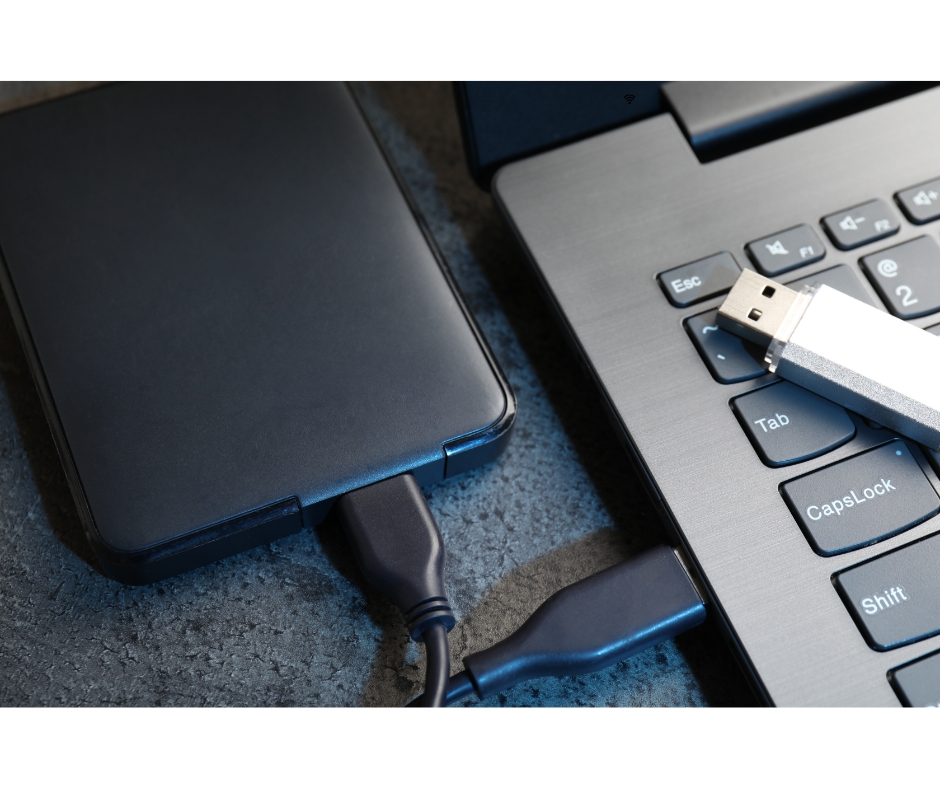
- Try another USB port: Plug your Seagate drive into a different USB port. Avoid using front-panel ports on desktops, as they often provide less power.
- Use a powered USB hub: Portable drives draw power from the USB connection. A powered hub ensures steady voltage to your external drive.
- Check the power adapter: For desktop Seagate models with a separate power supply, confirm the adapter is plugged in and functional.
- Restart your PC: After reconnecting everything, restart Windows to reinitialize device detection.
Update or Reinstall Device Drivers
Driver problems are another frequent cause for a Seagate external hard drive not being recognized in Windows. Here’s how to refresh them:
- Update via Device Manager: Press
Windows + X→ select Device Manager → expand Disk drives. Right-click your Seagate drive → Update driver → Search automatically. - Download from Seagate’s site: Visit Seagate Support, search for your model, and install the latest drivers.
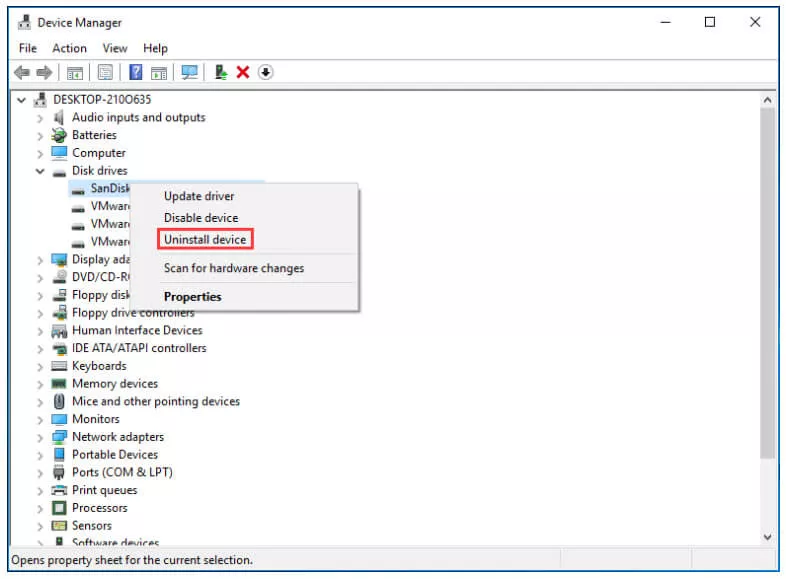
- Reinstall drivers: In Device Manager, right-click the Seagate device → Uninstall device → click Action → Scan for hardware changes to reinstall automatically.
Assign a New Drive Letter
If Windows detects your drive, but it doesn’t appear in File Explorer, it may lack a drive letter. Fix this with Disk Management:
- Press
Windows + X→ choose Disk Management. - Find your Seagate drive, right-click it → Change Drive Letter and Paths.
- Click Add or Change, assign a new letter, and press OK.
Enable or Initialize the Drive in Disk Management
Sometimes, a Seagate external hard drive appears in Disk Management but is marked as Offline or Not Initialized. Here’s how to fix it:
- Right-click the disk label (for example, “Disk 2”) → choose Online.
- If it says “Not Initialized,” right-click → Initialize Disk → select GPT (for modern PCs) or MBR (for older BIOS).

- After initialization, right-click the unallocated space → New Simple Volume → follow the wizard to create a partition.
Use the Seagate USB External Troubleshooter
Seagate provides an official troubleshooting tool that can automatically diagnose detection problems. You can follow these steps manually as well:
- Press
Windows + R, typecompmgmt.msc, and hit Enter. - In Computer Management, go to Device Manager → expand Disk drives. Check if your Seagate drive is listed.
- If it isn’t, expand Universal Serial Bus controllers to look for unknown devices. Right-click and uninstall them, then reconnect the drive.
- Open Disk Management again and check if it’s marked Offline or Unallocated. Right-click → Online or initialize as needed.
- Test with another USB cable or port to rule out hardware issues.
Run the Windows Hardware Troubleshooter
Windows includes built-in troubleshooters that can automatically fix hardware recognition issues.
- Press
Windows + X→ open Control Panel. - Select Troubleshooting → Hardware and Sound → Hardware and Devices.
- Follow the on-screen steps and apply any recommended fixes.
Format the Drive (If Necessary)
If the Seagate drive still isn’t detected or shows as unallocated, formatting may resolve the issue. Warning: this erases all data, so use a recovery tool like EaseUS or Disk Drill first if needed.
- Right-click the drive in Disk Management → choose Format.
- Pick NTFS for Windows-only use or exFAT if you’ll also use it on macOS.
- Click OK and wait for the process to finish.
Test the Drive on Another Computer
Connect your Seagate external hard drive to another computer to determine whether the problem lies with the drive or your system. If it works elsewhere, the issue is likely related to your Windows drivers or ports.
Seek Professional Assistance
If none of the methods above work, the drive could be physically damaged. In that case:
- Contact Seagate Support: Get official help and warranty options.
- Use data recovery services: If you need the files back, consult a trusted recovery specialist.
Conclusion
If your Seagate external hard drive is not detected in Windows, start by checking cables, power, and ports. Then, move on to updating drivers, assigning a new letter, or reinitializing the disk. Most drives can be fixed with these steps, but if yours still doesn’t appear, Seagate’s official support or a recovery expert can help you recover your data.

Discussion (0)
Be the first to comment.