



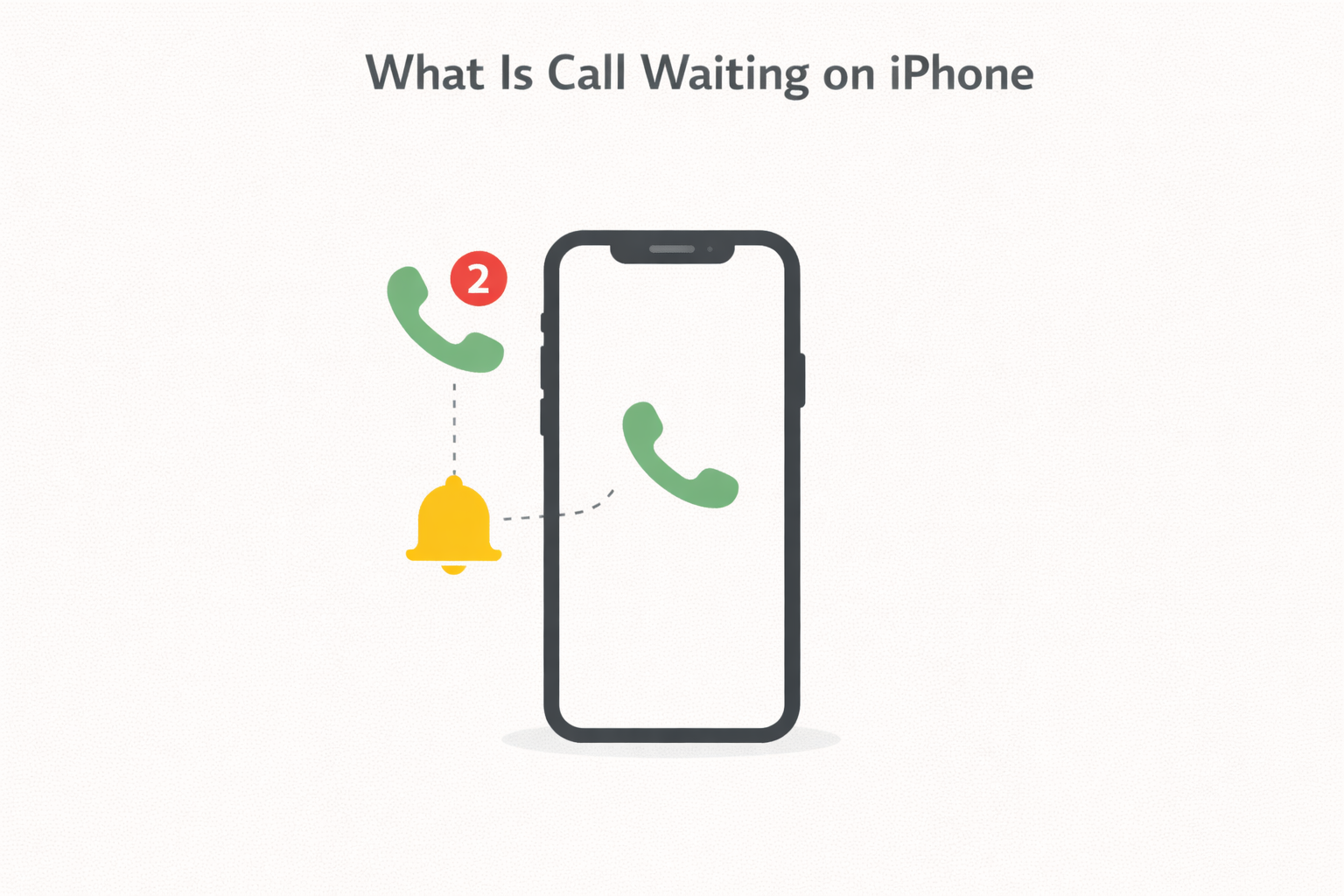
Call waiting on iPhone is a built-in phone feature that alerts you when a second call comes in while you are already on another call. Instead of missing the incoming call, your iPhone lets you choose how to handle it without ending your current conversation.
At the time of writing, call waiting works on most cellular networks and also supports Wi-Fi calling, depending on your carrier. When enabled, it gives you full control over incoming calls, even when your line is already in use.
How Call Waiting Works On iPhone
When call waiting is active and a second call comes in, your iPhone plays a short alert tone and shows the caller’s name or number on screen. You can then decide how to handle the incoming call.
The call screen presents options that let you answer the new call, decline it, or end your current call. If you take no action, the incoming call is sent to voicemail.
How To Turn Call Waiting On Or Off On iPhone
Enabling or disabling call waiting only takes a moment in the iPhone settings. If you use dual SIM, you can control call waiting separately for each line.
- Open the Settings app.
- Scroll down and tap Apps.
- Select Phone.
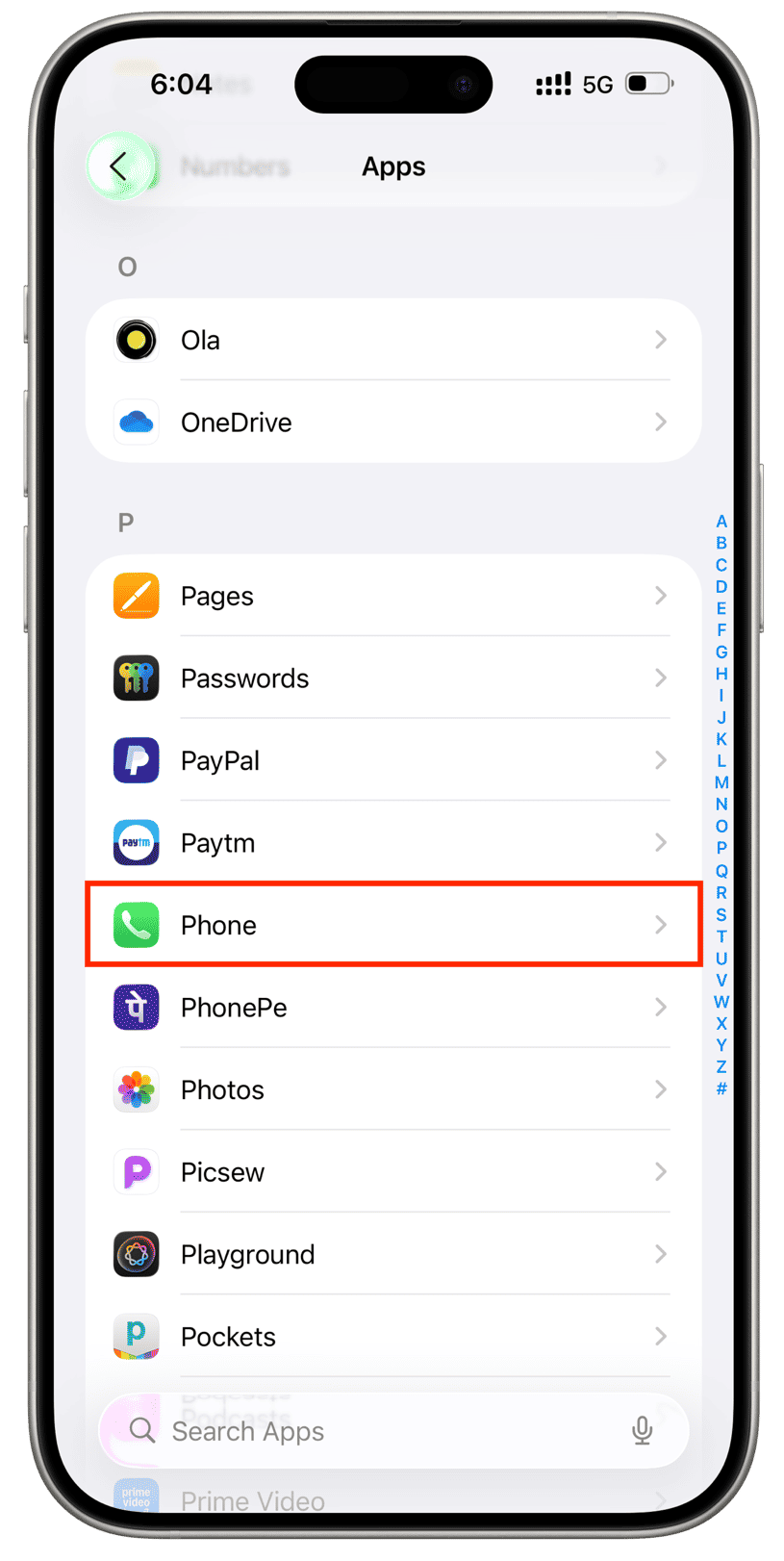
- Tap Call Waiting.

- Toggle Call Waiting on or off.
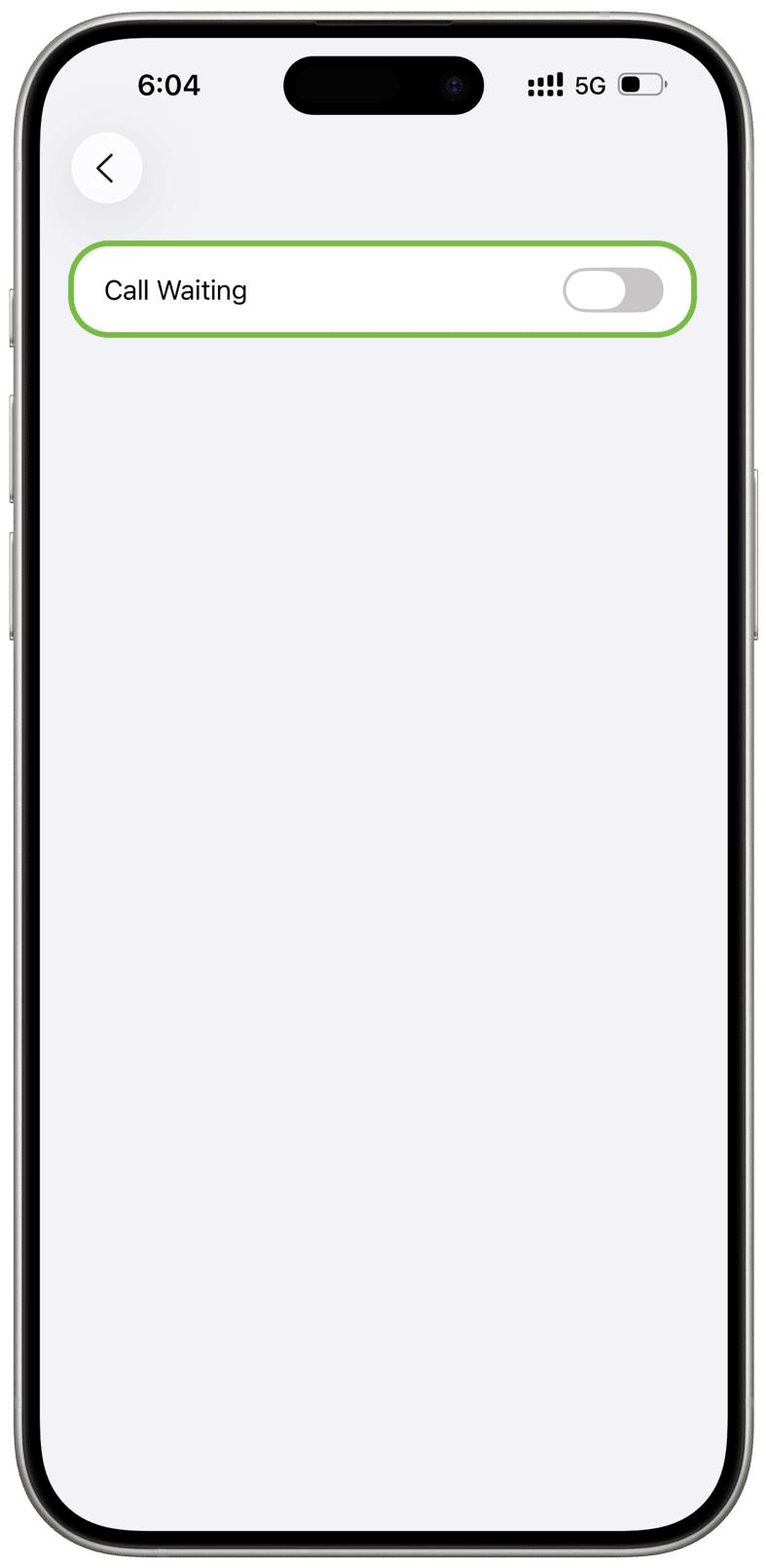
When call waiting is turned off, incoming calls automatically go to voicemail while you are on another call.
What Happens When You Receive A Second Call
When a second call arrives, iOS gives you several options to manage both calls without confusion.
- Hold & Accept places your current call on hold and answers the new one.
- End & Accept ends the active call and answers the incoming call.
- Decline sends the second call directly to voicemail.
If your carrier supports it, you can also merge calls into a conference call once both calls are connected.
Switching Between Calls On iPhone
After accepting a second call, you can easily switch between callers or combine them. This makes call waiting especially useful for work calls and time-sensitive conversations.
The Swap option switches between active and held calls, while Merge combines both calls into a single conference call when supported by your carrier.
Troubleshooting Common Problems
If call waiting does not appear, confirm that it is enabled in Settings and supported by your carrier. Some networks require call waiting to be activated on the carrier side.
For dual SIM users, call waiting may require Wi-Fi calling and an active data connection to work across both lines.
Tips
- Keep call waiting enabled to avoid missing urgent calls.
- Use Hold & Accept instead of ending important conversations.
- Enable Wi-Fi calling for better call handling indoors.
- Check carrier settings if call waiting does not work.
- Use conference calling to save time during group discussions.
FAQ
Does call waiting work with Wi-Fi calling? Yes, as long as your carrier supports call waiting over Wi-Fi.
Is call waiting free on iPhone? Most carriers include call waiting at no extra cost, but availability depends on your plan.
Can I use call waiting with dual SIM? Yes, but additional carrier requirements may apply.
Summary
- Call waiting alerts you to incoming calls during an active call.
- You can answer, decline, or switch between calls.
- The feature is controlled through iPhone settings.
- Carrier support is required for full functionality.
Conclusion
Call waiting on iPhone is a simple but powerful feature that helps you stay connected without missing important calls. Once enabled, it gives you flexibility and control over how you handle multiple conversations at the same time.


Discussion (0)
Be the first to comment.