




Did you need to record a phone call on your iPhone? You’re not the only one; I’ve needed that too! 🙂 For interviews, customer service calls, or just to make sure I didn’t forget what was said. The problem is that Apple hasn’t made this simple. Because the rules about recording phone calls change depending on where you live, Apple has kept the feature out of iOS for years. That’s why people searching for how to record a call on an iPhone while talking often end up installing call recording apps from the App Store… and regretting it. Most are overpriced subscriptions with complicated setups that hardly work, if they work at all. Still, there are a few reliable ways to record phone calls on iPhones. If you were hoping for iPhone call recording without announcements, Apple doesn’t let you do that, but depending on your iPhone model and iOS version, you’ve got two good, reliable options:

 Attention! Check the law and avoid scammy apps!
Image source: Pixabay
As for call recording apps from the App Store, they’re almost never worth it. Most require you to pay a monthly or yearly subscription, use clumsy workarounds like routing your calls through their own servers, and produce poor-quality audio. Some don’t work at all.
So, rule number one: know your local laws and don’t waste money on these so-called recording apps!
Attention! Check the law and avoid scammy apps!
Image source: Pixabay
As for call recording apps from the App Store, they’re almost never worth it. Most require you to pay a monthly or yearly subscription, use clumsy workarounds like routing your calls through their own servers, and produce poor-quality audio. Some don’t work at all.
So, rule number one: know your local laws and don’t waste money on these so-called recording apps!
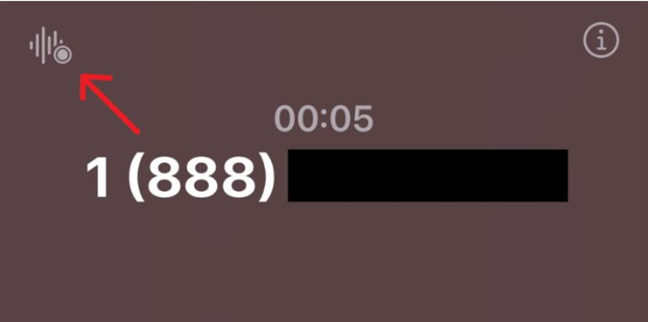
 Tap the record button in the top-left corner of the screen
Tapping it begins a short countdown, after which both you and the other person will hear a voice message saying the call is being recorded.
This notice can’t be removed, and it plays every time recording starts. Once the announcement has been made, you simply continue your conversation as usual.
Tap the record button in the top-left corner of the screen
Tapping it begins a short countdown, after which both you and the other person will hear a voice message saying the call is being recorded.
This notice can’t be removed, and it plays every time recording starts. Once the announcement has been made, you simply continue your conversation as usual.
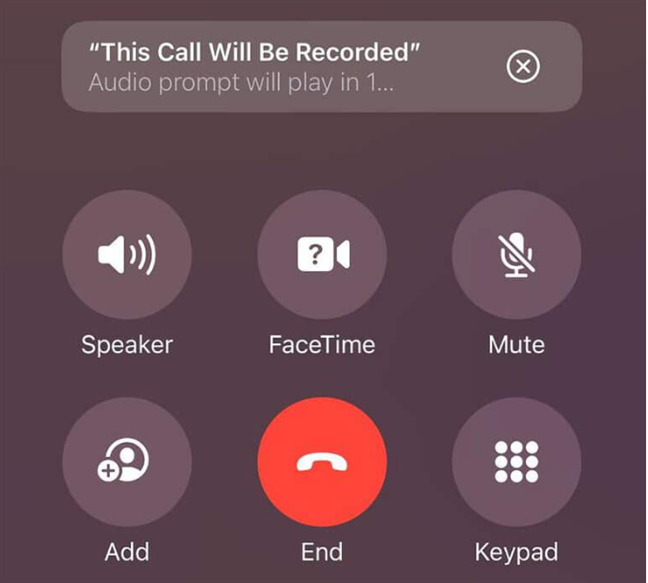
 An iPhone letting you know that This Call Will Be Recorded
The recording runs in the background until you either stop it manually or hang up.
An iPhone letting you know that This Call Will Be Recorded
The recording runs in the background until you either stop it manually or hang up.
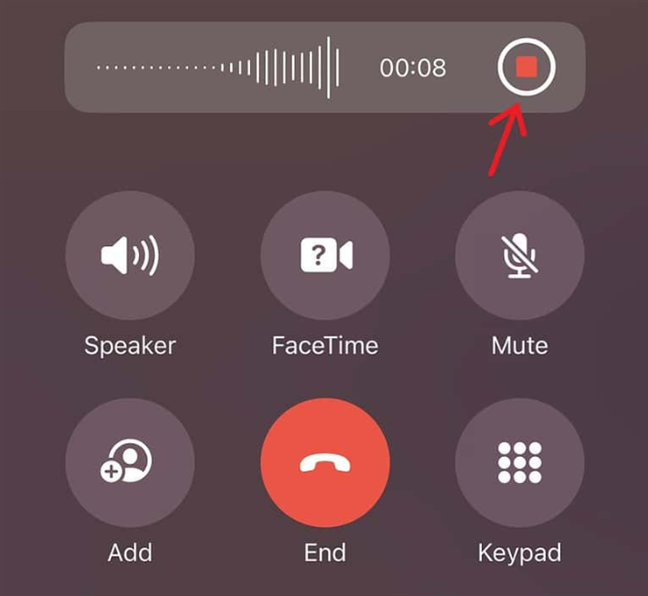
 Recording a call on an iPhone
After the call ends, your recording is automatically saved in the Notes app, inside a folder named Call Recordings.
Recording a call on an iPhone
After the call ends, your recording is automatically saved in the Notes app, inside a folder named Call Recordings.
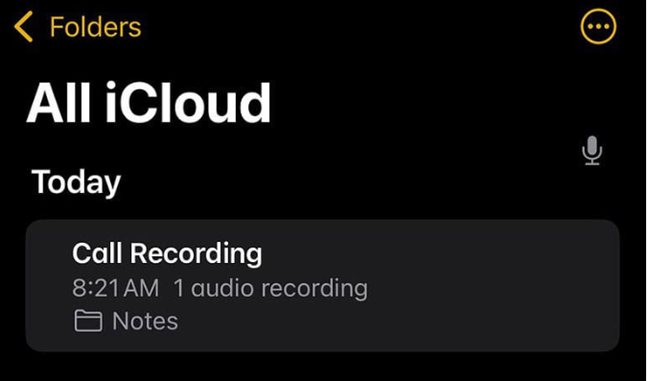
 Call recordings are stored inside Notes
That said, it’s important to keep in mind that because of the built-in audible message, this feature ensures you stay within the law in most countries that allow call recording. It removes the risk of forgetting to inform the other person, though it also means there’s no way to record silently. If they decide to end the call after hearing the notice, there’s nothing you can do to bypass it.
Call recordings are stored inside Notes
That said, it’s important to keep in mind that because of the built-in audible message, this feature ensures you stay within the law in most countries that allow call recording. It removes the risk of forgetting to inform the other person, though it also means there’s no way to record silently. If they decide to end the call after hearing the notice, there’s nothing you can do to bypass it.
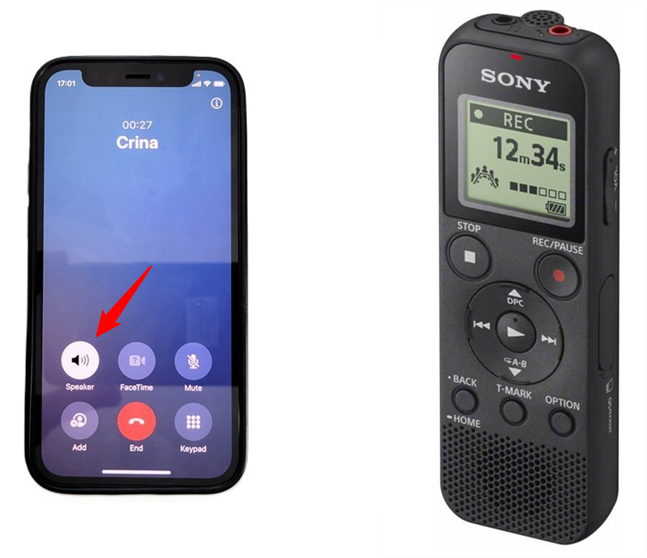
 Enable the speaker during conversation and record the call with the portable recorder
Although this is a rather primitive way of recording phone calls, it is also one that works on any iPhone, with any iOS version, and without Apple’s limitations. Just remember: you still have to follow the laws in your region and, in most cases, tell the other person you’re recording.
Enable the speaker during conversation and record the call with the portable recorder
Although this is a rather primitive way of recording phone calls, it is also one that works on any iPhone, with any iOS version, and without Apple’s limitations. Just remember: you still have to follow the laws in your region and, in most cases, tell the other person you’re recording.
Important things first: Check the law and avoid scammy apps!
Before you try to record any call, make sure it’s legal in your country or state. In many places, you can’t record a conversation without the other person’s consent, and violating that rule could get you into serious trouble.1. Record phone calls using the built-in recorder in iOS 18.1 and newer
With iOS 18.1, Apple finally added a built-in way to record phone calls on the iPhone. It works directly from the Phone app, has excellent audio quality, and even offers a transcription feature in some regions and languages. It’s a long-awaited addition, but it’s not available everywhere, and there are some rules you should know before using it:- This new tool is region-dependent, so you’ll only see it if you’re in a country where Apple allows call recording. If your location doesn’t support it, the record button won’t appear at all.
- You must be using an iPhone 15 Pro, iPhone 15 Pro Max, or a newer iPhone model in order to get access to this feature. I don’t have one, so in creating this guide, I used (with permission) images from The Mac Observer.
- You can only use it for one-on-one calls, whether they’re regular phone calls or FaceTime Audio calls, and group or conference calls aren’t supported.
2. Record phone calls using an external sound recorder
If you can’t use Apple’s new feature or need a method that works everywhere, an external recorder is your best option. You can use a dedicated digital recorder, another smartphone, a computer with a voice recording app, or even an old cassette recorder. Before or during a phone call, place the sound recorder near your iPhone and turn the speaker on your iPhone.


Discussion (0)
Be the first to comment.