



Instagram shows when you’re online or recently active by default, which can lead to unwanted messages or pressure to reply. If you prefer browsing privately, turning off your Active Status on Instagram removes that visibility and gives you more control over your online presence.
This guide explains what Instagram Active Status means, who can see it, how to turn it off on mobile and desktop, and what changes after you disable it.
What Active Status Means On Instagram
Instagram Active Status indicates whether you are currently using the app or were recently active. It appears as a green dot or labels such as “Active now” or “Active 5 minutes ago” in Instagram Direct Messages.
This feature helps conversations feel more immediate, but it also exposes your online activity to others.
Who Can See Your Active Status
Your Active Status is visible only to people you follow or accounts you have messaged directly. Random users and followers you have not interacted with cannot see your online status.
If you follow someone and exchange messages, both of you can see each other’s activity unless the feature is disabled.
Things To Know Before Turning It Off
Active Status is an all-or-nothing setting. When you disable it, no one can see when you’re online, but you also lose access to others’ activity indicators.
This setting applies across all devices logged into your Instagram account.
How To Turn Off Active Status On Instagram
You can disable Instagram Active Status in just a few taps. The steps are nearly identical on iPhone and Android.
On iPhone And Android
- Open the Instagram app and go to your profile.
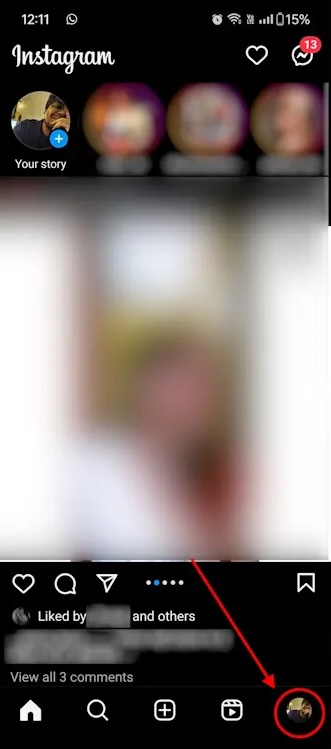
- Tap the three-line menu in the top-right corner.

- Select Messages And Story Replies.
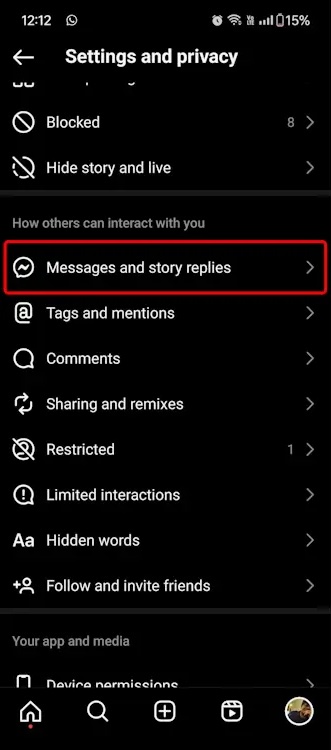
- Tap Show Activity Status.
- Turn off Show Your Active Status.
On Desktop (Web)
- Go to Instagram in a web browser and sign in.
- Click the More menu in the bottom-left corner.
- Select Settings.
- Open Messages And Story Replies.
- Turn off Show Activity Status.
What Happens After You Turn It Off
Once disabled, Instagram immediately hides your green dot and last active time from others. You also stop seeing when other users are online.
Your likes, comments, story views, and profile activity remain visible according to your account’s privacy settings.
Troubleshooting Common Problems
If Active Status does not turn off as expected, these steps usually resolve the issue.
- Update the Instagram app to the latest version.
- Log out and back into your account.
- Clear the app cache on Android.
- Check that you are signed into only one account.
Tips
- Turn off Active Status before opening Direct Messages to avoid brief visibility.
- Restrict specific users if you want limited interaction without blocking.
- Review Instagram privacy settings for additional control.
FAQ
Does turning off Active Status hide me completely?
No. It only hides your online and last active indicators.
Can I hide my status from one person only?
No. Active Status applies to everyone.
Does this affect read receipts?
No. Instagram still shows when messages are read.
Can I turn it back on later?
Yes. You can re-enable Active Status at any time.
Summary
- Active Status shows when you are online or recently active.
- You can disable it on mobile or desktop in Settings.
- Turning it off hides your status and others’ statuses.
- Likes, comments, and story views remain visible.
Conclusion
Turning off Active Status on Instagram is a simple way to browse privately without social pressure. While you lose visibility into others’ activity, you gain more control over when and how you engage.


Discussion (0)
Be the first to comment.