



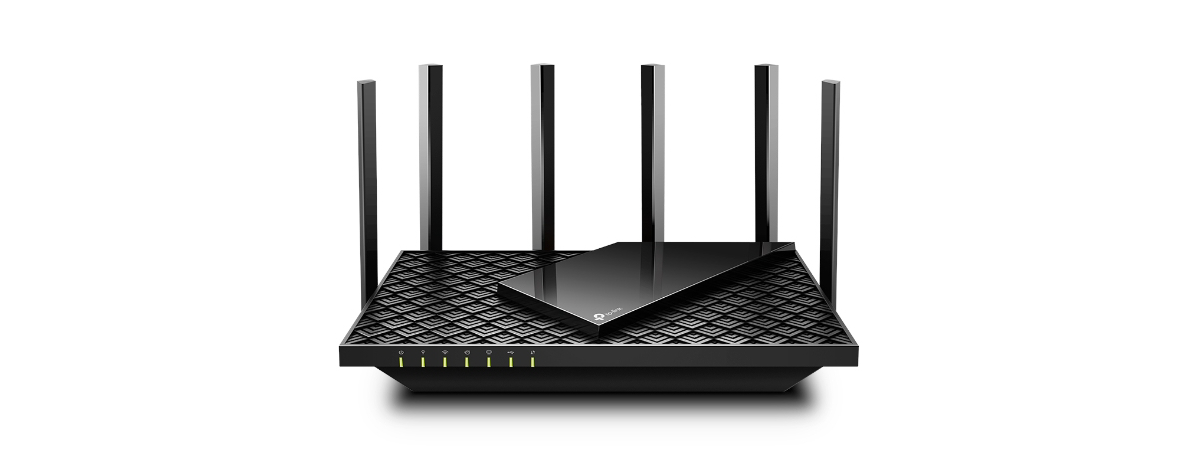
Midrange wireless routers are very competitive in terms of pricing and there’s a variety of options available. If you’re looking for a good Wi-Fi 6 router with useful advanced features, you’ll come across the TP-Link AX5400 or Archer AX73 in shops both online and offline. Before buying it, it’s a good idea to read an in-depth review like this one, check the router’s strengths and weaknesses, and understand whether what it offers suits your specific needs. So, without further ado, let’s get started:
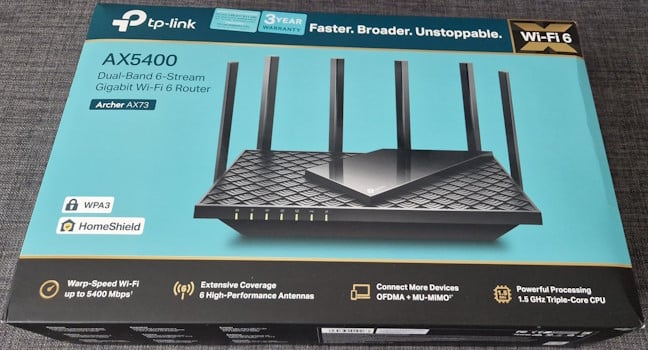
 The packaging used for TP-Link Archer AX73
On the back and sides of the box, the company promotes the router’s most important benefits, hardware specifications, and other features. One of the features that stand out is the OneMesh support, which allows you to create mesh Wi-Fi systems using this router alongside other TP-Link devices like routers or range extenders. For more information on how this works, here’s how to set up TP-Link OneMesh Wi-Fi 6 routers and range extenders.
When you open the box, you find the following items: the Archer AX73 router, its power adapter, a short CAT 5e network cable, the quick installation guide, a troubleshooting guide for Wi-Fi 6 connectivity issues, details about the license for this product and its software, and a sticker with information about the default network name and password used by the router.
The packaging used for TP-Link Archer AX73
On the back and sides of the box, the company promotes the router’s most important benefits, hardware specifications, and other features. One of the features that stand out is the OneMesh support, which allows you to create mesh Wi-Fi systems using this router alongside other TP-Link devices like routers or range extenders. For more information on how this works, here’s how to set up TP-Link OneMesh Wi-Fi 6 routers and range extenders.
When you open the box, you find the following items: the Archer AX73 router, its power adapter, a short CAT 5e network cable, the quick installation guide, a troubleshooting guide for Wi-Fi 6 connectivity issues, details about the license for this product and its software, and a sticker with information about the default network name and password used by the router.
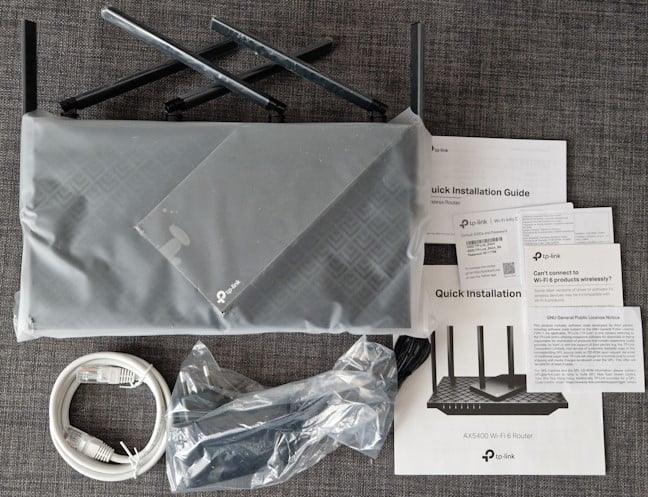
 Everything you find inside the box
Unboxing the TP-Link Archer AX73 wireless router is quick and easy. Reading the quick installation guide before getting started is a good idea. In the box, you find everything you need to set up your Wi-Fi.
Everything you find inside the box
Unboxing the TP-Link Archer AX73 wireless router is quick and easy. Reading the quick installation guide before getting started is a good idea. In the box, you find everything you need to set up your Wi-Fi.
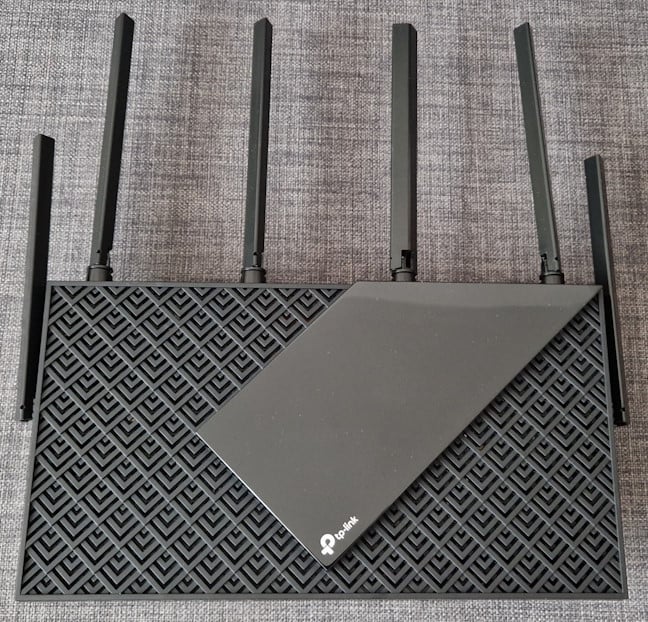
 TP-Link Archer AX73 has six external antennas
On the front, there are several LEDs which signal the status of the router: whether it is turned on or off, the status of the internet connection and of each wireless band, the Ethernet ports, USB port, and WPS.
TP-Link Archer AX73 has six external antennas
On the front, there are several LEDs which signal the status of the router: whether it is turned on or off, the status of the internet connection and of each wireless band, the Ethernet ports, USB port, and WPS.
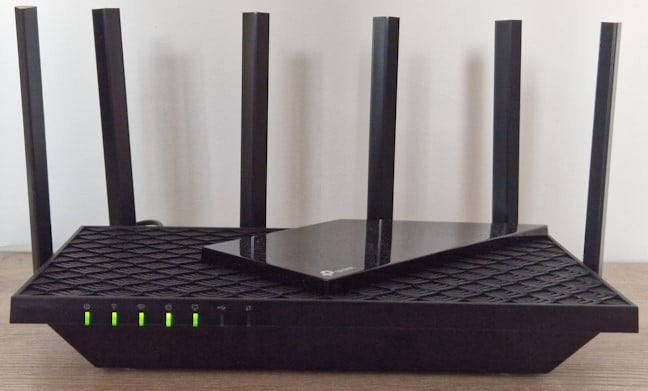
 The LEDs are rather discreet
On the back of the TP-Link Archer AX73, you find a button for controlling the LEDs on the front, the WPS feature, Wi-Fi transmission, and the Reset jack. There are also four Ethernet ports at 1 Gbps and the WAN port, again at 1 Gbps. Finally, you see the Power button and the Power jack.
The LEDs are rather discreet
On the back of the TP-Link Archer AX73, you find a button for controlling the LEDs on the front, the WPS feature, Wi-Fi transmission, and the Reset jack. There are also four Ethernet ports at 1 Gbps and the WAN port, again at 1 Gbps. Finally, you see the Power button and the Power jack.
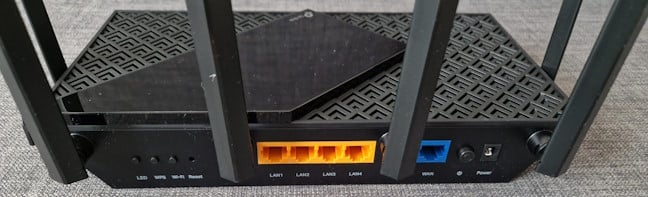
 The ports on the back of the TP-Link Archer AX73
This router also has a USB 3.0 port hidden on its left side.
The ports on the back of the TP-Link Archer AX73
This router also has a USB 3.0 port hidden on its left side.

 The USB 3.0 port is on the left side of the router
On the bottom, there’s a sticker with details about the router you’re using and the default name and password for the Wi-Fi. You also have plenty of ventilation grids, four rubber feet, and two holes for mounting the router on a wall.
The USB 3.0 port is on the left side of the router
On the bottom, there’s a sticker with details about the router you’re using and the default name and password for the Wi-Fi. You also have plenty of ventilation grids, four rubber feet, and two holes for mounting the router on a wall.
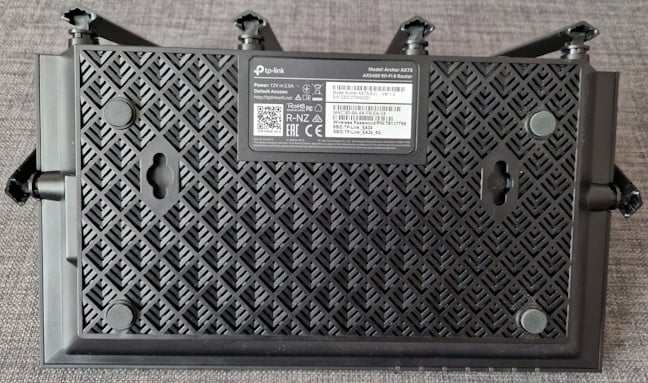
 TP-Link Archer AX73 can be mounted on walls
The hardware inside the TP-Link Archer AX73 is relatively impressive: the v1 version that I tested is powered by a triple-core Broadcom BCM6750 chip running at 1.5 GHz, 512 MB of RAM, and 128 MB of storage for the firmware. A v2 hardware revision of the same model features a quad-core Qualcomm IPQ5018 processor at 1 GHz.
The total theoretical maximum bandwidth offered by Archer AX73 is split as follows: 574 Mbps on the 2.4 GHz band and 4804 Mbps on the 5 GHz band when using the 802.11ax standard (Wi-Fi 6). The router also supports WPA3 encryption and 160 MHz channel width when using Wi-Fi 6. Wireless transmissions use 2x2 MU-MIMO on the 2.4 GHz band and 4x4 MU-MIMO on the 5 GHz band.
TP-Link Archer AX73 can be mounted on walls
The hardware inside the TP-Link Archer AX73 is relatively impressive: the v1 version that I tested is powered by a triple-core Broadcom BCM6750 chip running at 1.5 GHz, 512 MB of RAM, and 128 MB of storage for the firmware. A v2 hardware revision of the same model features a quad-core Qualcomm IPQ5018 processor at 1 GHz.
The total theoretical maximum bandwidth offered by Archer AX73 is split as follows: 574 Mbps on the 2.4 GHz band and 4804 Mbps on the 5 GHz band when using the 802.11ax standard (Wi-Fi 6). The router also supports WPA3 encryption and 160 MHz channel width when using Wi-Fi 6. Wireless transmissions use 2x2 MU-MIMO on the 2.4 GHz band and 4x4 MU-MIMO on the 5 GHz band.
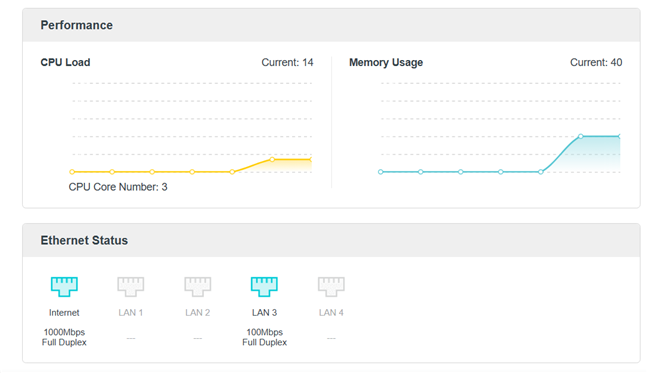
 TP-Link Archer AX73 has some solid hardware
For more information about this product and its specifications, go to this page: TP-Link Archer AX73.
TP-Link Archer AX73 has some solid hardware
For more information about this product and its specifications, go to this page: TP-Link Archer AX73.
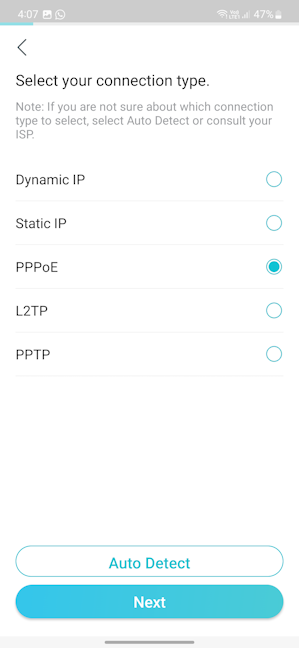
 Archer AX73 can work with these types of internet connections
You may need to make some additional settings depending on your internet connection. Then, you can configure your Wi-Fi and decide whether to use Smart Connect. You also choose if you want to keep your Archer AX73 updated automatically. I recommend enabling automatic updates and scheduling your router to check for these at night, at a late hour, when you’re likely to sleep.
Archer AX73 can work with these types of internet connections
You may need to make some additional settings depending on your internet connection. Then, you can configure your Wi-Fi and decide whether to use Smart Connect. You also choose if you want to keep your Archer AX73 updated automatically. I recommend enabling automatic updates and scheduling your router to check for these at night, at a late hour, when you’re likely to sleep.
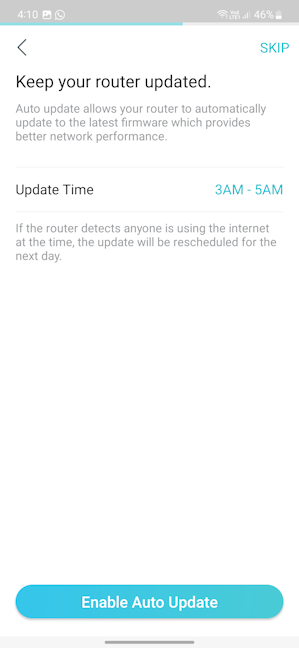 You should set a schedule for firmware updates
Finally, you see a summary of all your settings, and you get to apply them. After the router confirms that all is well and it is connected to the internet, you must decide whether you want to bind it to a TP-Link ID or cloud account, in order to control your network from anywhere.
You should set a schedule for firmware updates
Finally, you see a summary of all your settings, and you get to apply them. After the router confirms that all is well and it is connected to the internet, you must decide whether you want to bind it to a TP-Link ID or cloud account, in order to control your network from anywhere.
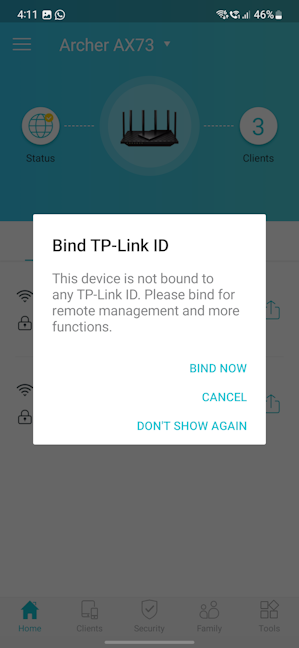 Bind your router to your TP-Link ID
Then, you can start using the Tether app to further finetune your settings. However, besides the basics, it offers access only to some mobile-exclusive features. I’m not too fond of this approach, and I’d like TP-Link to provide in the Tether app everything it has to offer in its web-based admin interface. In addition, the user experience would be simpler with everything in one place instead of having tools and features scattered across different mediums.
Bind your router to your TP-Link ID
Then, you can start using the Tether app to further finetune your settings. However, besides the basics, it offers access only to some mobile-exclusive features. I’m not too fond of this approach, and I’d like TP-Link to provide in the Tether app everything it has to offer in its web-based admin interface. In addition, the user experience would be simpler with everything in one place instead of having tools and features scattered across different mediums.
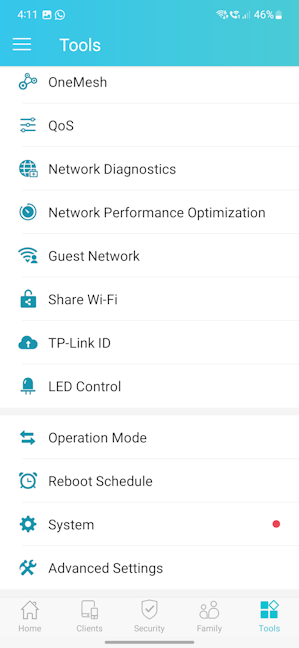 Some of the tools in the Tether app
Let’s talk about the admin web-based interface: it’s the same as it is on most TP-Link routers, split into the same logical sections. All the sections except for Advanced include only basic settings that most people should have no trouble understanding, even without technical knowledge.
Some of the tools in the Tether app
Let’s talk about the admin web-based interface: it’s the same as it is on most TP-Link routers, split into the same logical sections. All the sections except for Advanced include only basic settings that most people should have no trouble understanding, even without technical knowledge.
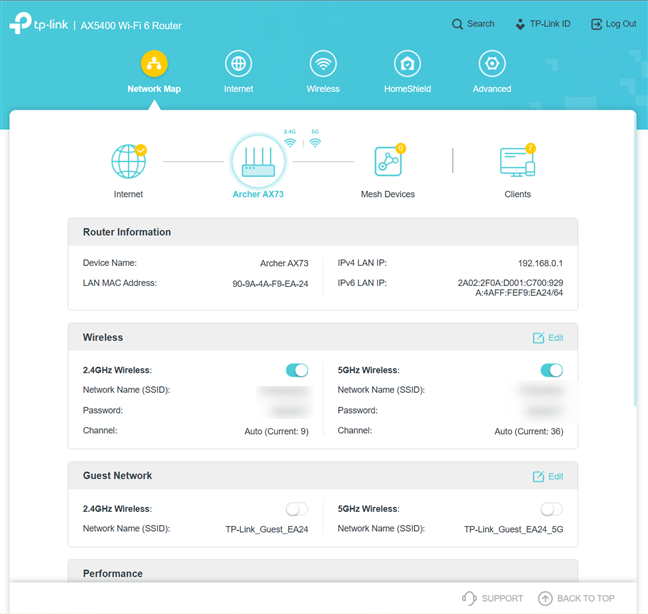
 The web-based admin interface
If you’re a skilled user, you want to visit the Advanced section instead of the others. This is where you find features like DDNS, NAT Forwarding, IPv6, and VPN Server. While no help documentation is available, all the settings are clearly explained. In addition, the Support options are available at the bottom of the interface, and it’s easy to provide feedback to TP-Link when needed. Another positive is that the user interface is available in 24 languages, making everyone’s life easier.
The web-based admin interface
If you’re a skilled user, you want to visit the Advanced section instead of the others. This is where you find features like DDNS, NAT Forwarding, IPv6, and VPN Server. While no help documentation is available, all the settings are clearly explained. In addition, the Support options are available at the bottom of the interface, and it’s easy to provide feedback to TP-Link when needed. Another positive is that the user interface is available in 24 languages, making everyone’s life easier.
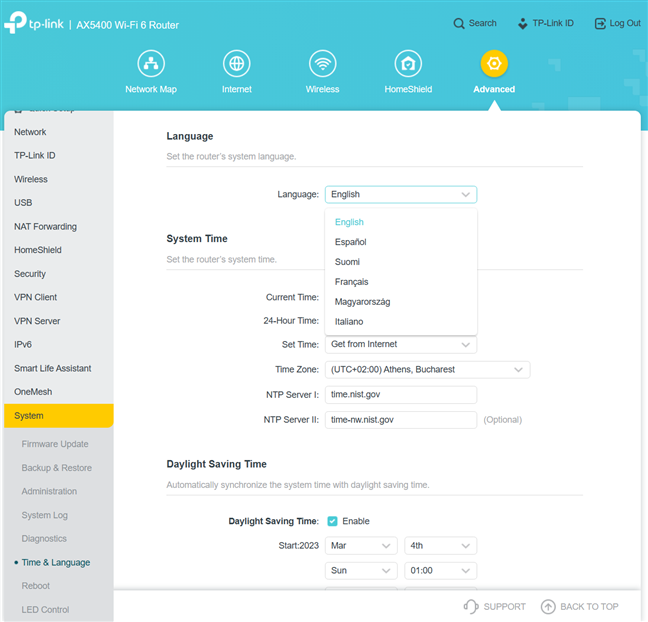 The interface is available in 24 languages
While using the TP-Link Archer AX73, I had no problems connecting my devices to the network. Also, the signal strength was good everywhere. However, transfers on the 2.4 GHz band suffered quite a bit of variability, with large swings from the lowest to the highest speed. I also noticed that the coverage area for this router is relatively limited.
For more details about this issue and the real-world performance offered by Archer AX73, including a comparison with other routers, go to the next page of this review, where I present detailed measurements.
The interface is available in 24 languages
While using the TP-Link Archer AX73, I had no problems connecting my devices to the network. Also, the signal strength was good everywhere. However, transfers on the 2.4 GHz band suffered quite a bit of variability, with large swings from the lowest to the highest speed. I also noticed that the coverage area for this router is relatively limited.
For more details about this issue and the real-world performance offered by Archer AX73, including a comparison with other routers, go to the next page of this review, where I present detailed measurements.
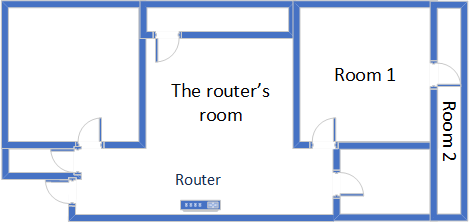
 The apartment where I tested TP-Link Archer AX73
I evaluated the quality of the wireless network managed by this router through measurements made in three different places:
The apartment where I tested TP-Link Archer AX73
I evaluated the quality of the wireless network managed by this router through measurements made in three different places:
 Signal strength on Wi-Fi 4 (2.4 GHz band)
Switching to Wi-Fi 6 on the 2.4 GHz band slightly decreased the signal strength in all rooms. However, this trend is normal for most Wi-Fi 6 routers, and the overall signal strength remained good everywhere in my apartment.
Signal strength on Wi-Fi 4 (2.4 GHz band)
Switching to Wi-Fi 6 on the 2.4 GHz band slightly decreased the signal strength in all rooms. However, this trend is normal for most Wi-Fi 6 routers, and the overall signal strength remained good everywhere in my apartment.
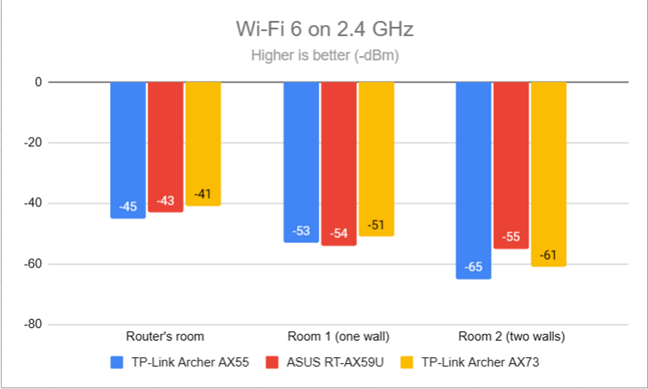
 Signal strength on Wi-Fi 6 (2.4 GHz band)
For the next measurement, I ran the SpeedTest app and used it to check the maximum speed you get when transferring data to and from the internet on the 2.4 GHz band. TP-Link Archer AX73 delivered the fastest download speed in the room where the router was placed.
Signal strength on Wi-Fi 6 (2.4 GHz band)
For the next measurement, I ran the SpeedTest app and used it to check the maximum speed you get when transferring data to and from the internet on the 2.4 GHz band. TP-Link Archer AX73 delivered the fastest download speed in the room where the router was placed.
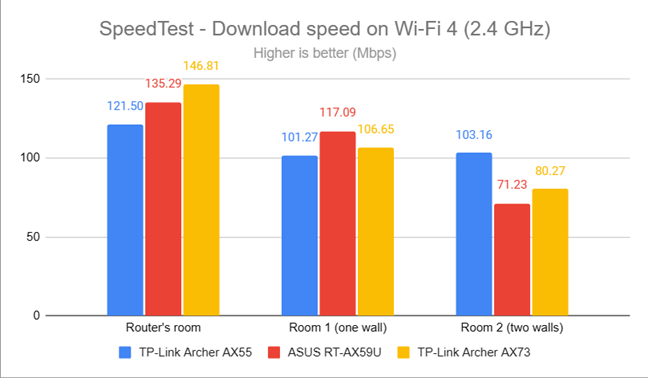
 SpeedTest - The download speed on Wi-Fi 4 (2.4 GHz)
Uploads were relatively fast in the rooms closer to the router and slow in the room furthest from it.
SpeedTest - The download speed on Wi-Fi 4 (2.4 GHz)
Uploads were relatively fast in the rooms closer to the router and slow in the room furthest from it.
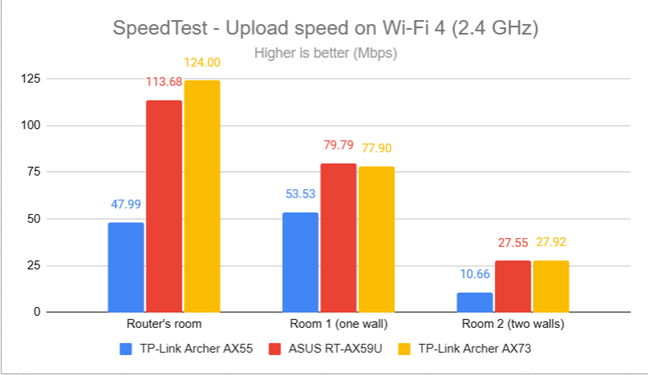
 SpeedTest - The upload speed on Wi-Fi 4 (2.4 GHz)
I switched to Wi-Fi 6 on the 2.4 GHz band and repeated the same measurements to see the difference. Unfortunately, the download speed offered by TP-Link Archer AX73 wasn’t as good as that of the other routers.
SpeedTest - The upload speed on Wi-Fi 4 (2.4 GHz)
I switched to Wi-Fi 6 on the 2.4 GHz band and repeated the same measurements to see the difference. Unfortunately, the download speed offered by TP-Link Archer AX73 wasn’t as good as that of the other routers.
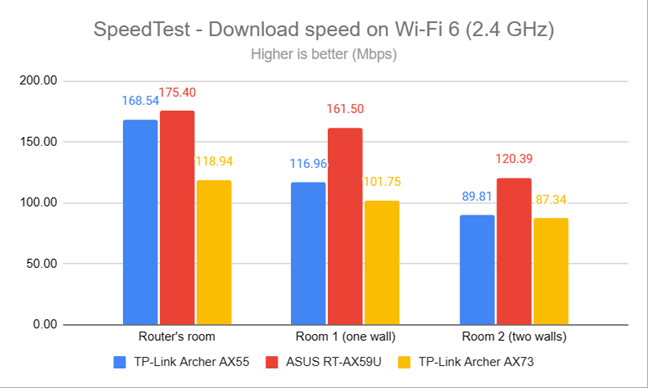
 SpeedTest - The download speed on Wi-Fi 6 (2.4 GHz)
However, the upload speed was, sometimes, significantly better when using Wi-Fi 6 on the 2.4 GHz band instead of Wi-Fi 4.
SpeedTest - The download speed on Wi-Fi 6 (2.4 GHz)
However, the upload speed was, sometimes, significantly better when using Wi-Fi 6 on the 2.4 GHz band instead of Wi-Fi 4.
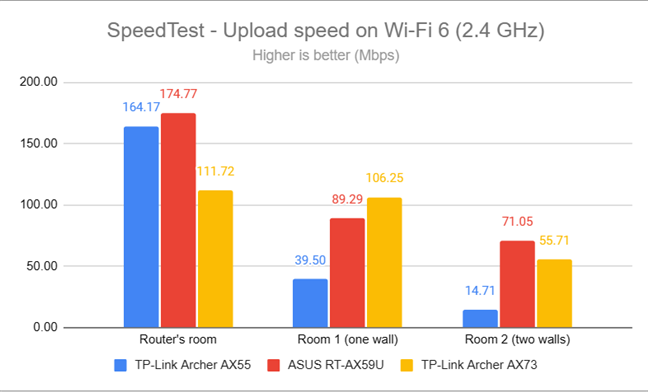
 SpeedTest - The upload speed on Wi-Fi 6 (2.4 GHz)
For the next set of measurements, I used the PassMark Performance test to transfer data between two computers connected to the network. Again, I was connected to the 2.4 GHz band, first with the Wi-Fi 4 standard turned on. TP-Link Archer AX73 delivered excellent download speeds in this test everywhere in my apartment.
SpeedTest - The upload speed on Wi-Fi 6 (2.4 GHz)
For the next set of measurements, I used the PassMark Performance test to transfer data between two computers connected to the network. Again, I was connected to the 2.4 GHz band, first with the Wi-Fi 4 standard turned on. TP-Link Archer AX73 delivered excellent download speeds in this test everywhere in my apartment.

 Network downloads on Wi-Fi 4 (2.4 GHz)
Unfortunately, the upload speed decreased quite a lot, especially in the room furthest from the router.
Network downloads on Wi-Fi 4 (2.4 GHz)
Unfortunately, the upload speed decreased quite a lot, especially in the room furthest from the router.
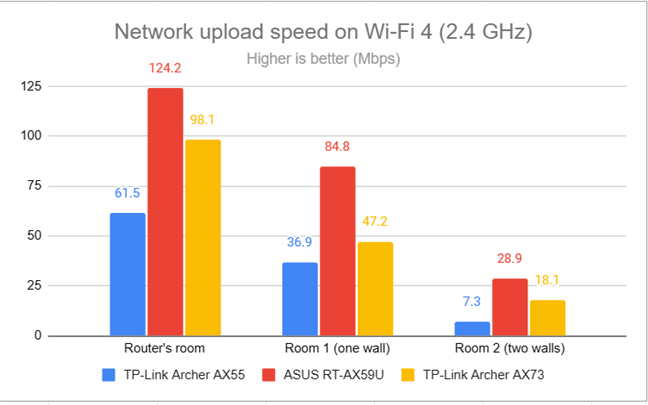
 Network uploads on Wi-Fi 4 (2.4 GHz)
Switching to Wi-Fi 6, on the 2.4 GHz band, meant that the download speed increased, sometimes by a large margin, when compared to Wi-Fi 4.
Network uploads on Wi-Fi 4 (2.4 GHz)
Switching to Wi-Fi 6, on the 2.4 GHz band, meant that the download speed increased, sometimes by a large margin, when compared to Wi-Fi 4.
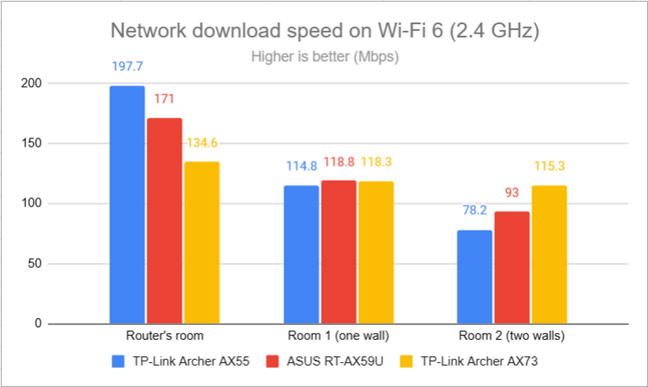 Network downloads on Wi-Fi 6 (2.4 GHz)
Uploads were faster too when using Wi-Fi 6.
Network downloads on Wi-Fi 6 (2.4 GHz)
Uploads were faster too when using Wi-Fi 6.
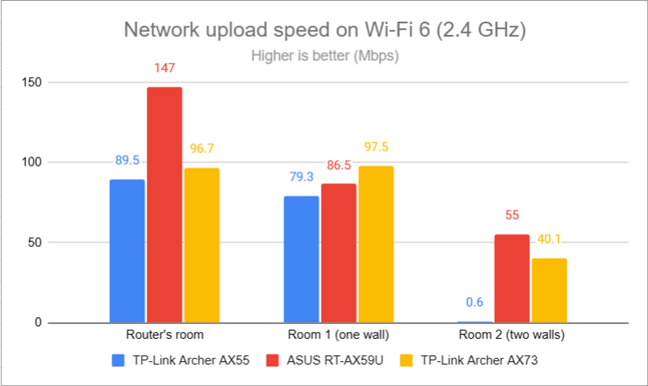
 Network uploads on Wi-Fi 6 (2.4 GHz)
My tests revealed that TP-Link Archer AX73 performed reasonably well on the 2.4 GHz band. However, the coverage area isn’t large, and the upload speed can get slow sometimes, especially in the rooms separated from the router by two walls or more.
Network uploads on Wi-Fi 6 (2.4 GHz)
My tests revealed that TP-Link Archer AX73 performed reasonably well on the 2.4 GHz band. However, the coverage area isn’t large, and the upload speed can get slow sometimes, especially in the rooms separated from the router by two walls or more.
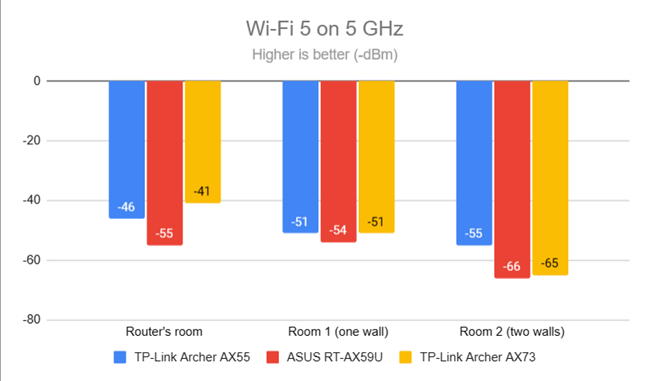
 Signal strength on Wi-Fi 5 (5 GHz band)
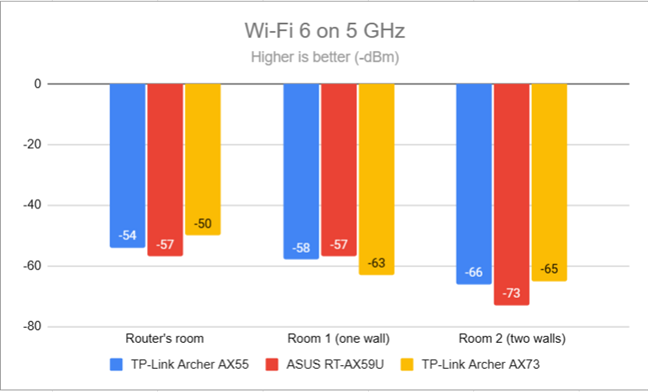
Switching to Wi-Fi 6 meant the signal strength lowered slightly but remained in line with other routers I used for this comparison.
Signal strength on Wi-Fi 5 (5 GHz band)
Switching to Wi-Fi 6 meant the signal strength lowered slightly but remained in line with other routers I used for this comparison.
 Signal strength on Wi-Fi 6 (5 GHz band)
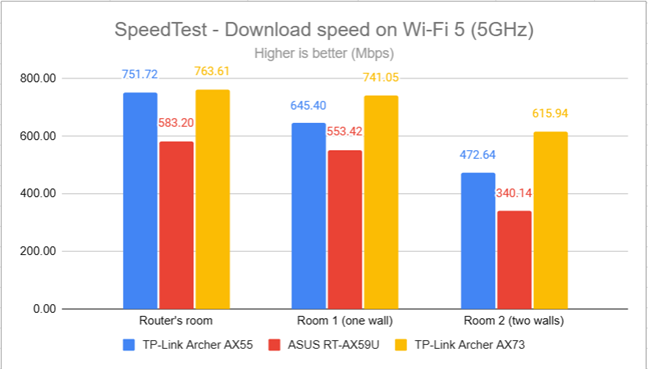
I moved on to the SpeedTest app. When using the Wi-Fi 5 standard, the download speed delivered by TP-Link Archer AX73 was excellent.
Signal strength on Wi-Fi 6 (5 GHz band)
I moved on to the SpeedTest app. When using the Wi-Fi 5 standard, the download speed delivered by TP-Link Archer AX73 was excellent.
 SpeedTest - The download speed on Wi-Fi 5 (5 GHz)
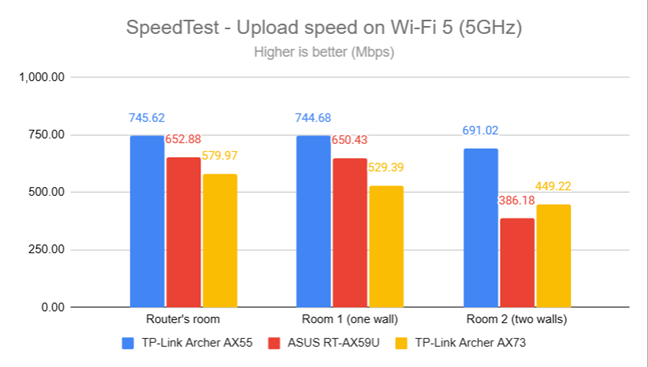
Uploads were a lot slower though, despite remaining at satisfactory speeds.
SpeedTest - The download speed on Wi-Fi 5 (5 GHz)
Uploads were a lot slower though, despite remaining at satisfactory speeds.
 SpeedTest - The upload speed on Wi-Fi 5 (5 GHz)
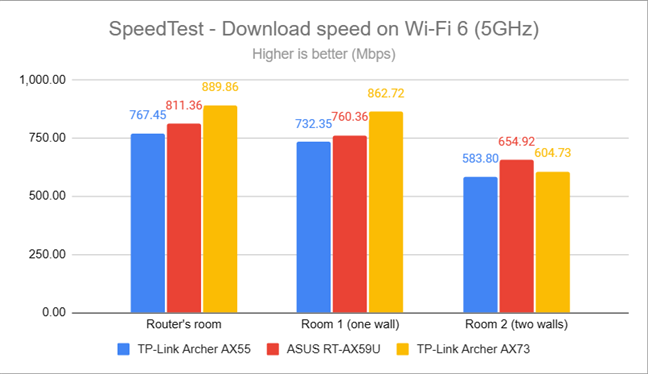
When I switched to Wi-Fi 6 on the 5 GHz band, download speeds increased even further.
SpeedTest - The upload speed on Wi-Fi 5 (5 GHz)
When I switched to Wi-Fi 6 on the 5 GHz band, download speeds increased even further.
 SpeedTest - The download speed on Wi-Fi 6 (5 GHz)
Uploads were fast, but the improvements were negligible compared to Wi-Fi 5.
SpeedTest - The download speed on Wi-Fi 6 (5 GHz)
Uploads were fast, but the improvements were negligible compared to Wi-Fi 5.
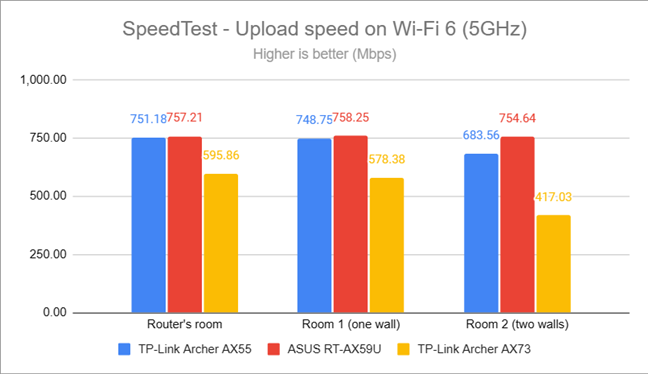 SpeedTest - The upload speed on Wi-Fi 6 (5 GHz)
For the next set of measurements, I used the PassMark Performance test to transfer data between two computers connected to the network. When using the Wi-Fi 5 standard on the 5 GHz band, TP-Link Archer AX73 got very close to the 1 Gbps mark. I enjoyed excellent download speeds everywhere in my apartment.
SpeedTest - The upload speed on Wi-Fi 6 (5 GHz)
For the next set of measurements, I used the PassMark Performance test to transfer data between two computers connected to the network. When using the Wi-Fi 5 standard on the 5 GHz band, TP-Link Archer AX73 got very close to the 1 Gbps mark. I enjoyed excellent download speeds everywhere in my apartment.
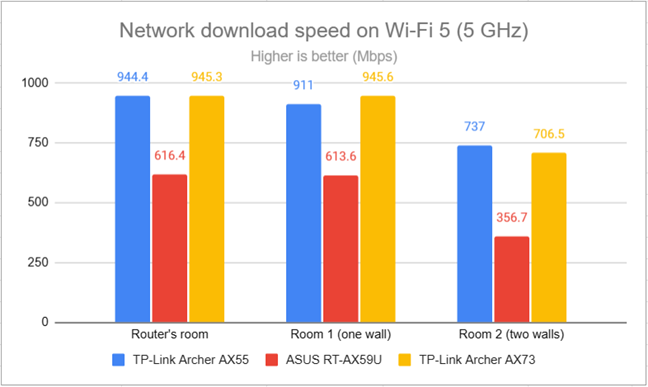 Network downloads on Wi-Fi 5 (5 GHz)
Uploads were a tad slower though, as with most wireless routers.
Network downloads on Wi-Fi 5 (5 GHz)
Uploads were a tad slower though, as with most wireless routers.
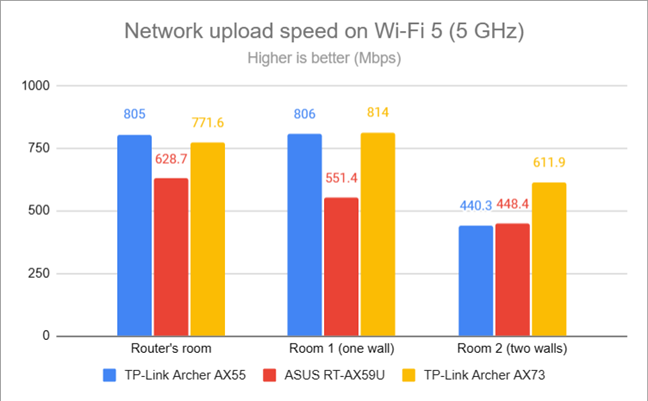
 Network uploads on Wi-Fi 5 (5 GHz)
I switched to Wi-Fi 6 on the 5 GHz band. Downloads had very similar speeds to the ones measured on Wi-Fi 5.
Network uploads on Wi-Fi 5 (5 GHz)
I switched to Wi-Fi 6 on the 5 GHz band. Downloads had very similar speeds to the ones measured on Wi-Fi 5.

 Network downloads on Wi-Fi 6 (5 GHz)
The same minor differences were noticed when measuring the upload speed too.
Network downloads on Wi-Fi 6 (5 GHz)
The same minor differences were noticed when measuring the upload speed too.
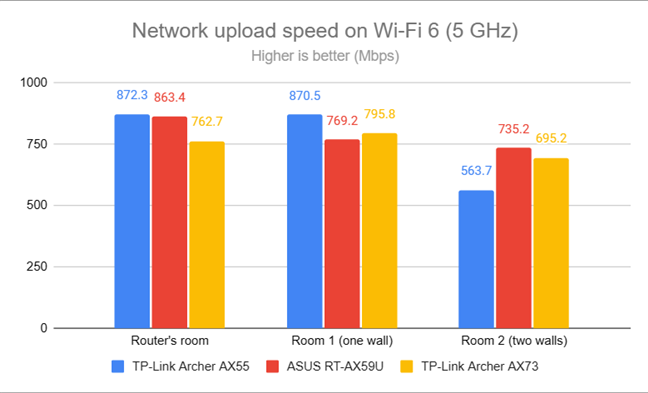
 Network uploads on Wi-Fi 6 (5 GHz)
TP-Link Archer AX73 performs well on the 5 GHz band. However, the differences between Wi-Fi 6 (802.11ax) and Wi-Fi 5 (802.11ac) are not great. Therefore, if you have problems with compatibility in your home network, you can revert to Wi-Fi 5 without getting a downgraded experience.
Network uploads on Wi-Fi 6 (5 GHz)
TP-Link Archer AX73 performs well on the 5 GHz band. However, the differences between Wi-Fi 6 (802.11ax) and Wi-Fi 5 (802.11ac) are not great. Therefore, if you have problems with compatibility in your home network, you can revert to Wi-Fi 5 without getting a downgraded experience.
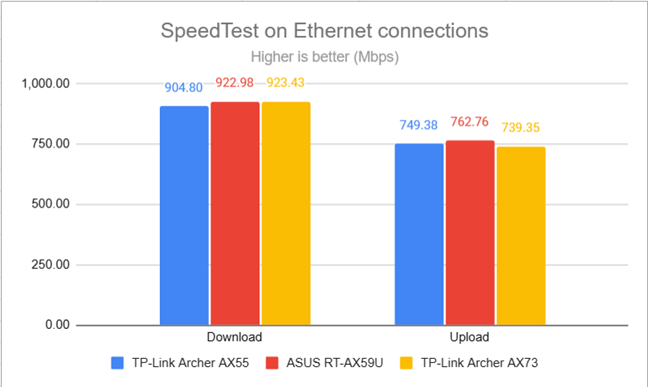 SpeedTest on Ethernet connections
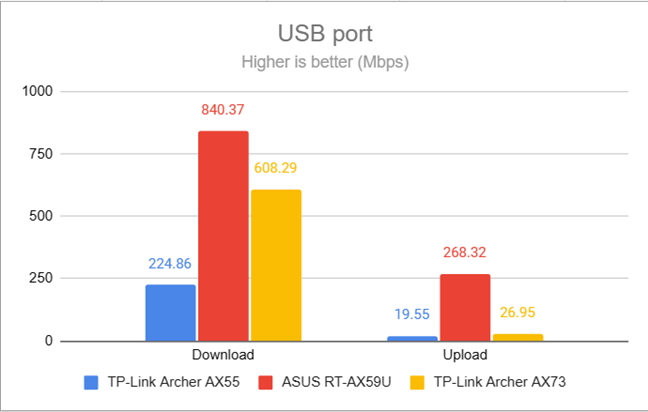
This router also has a USB 3.0 port to connect devices like an external hard drive. I plugged a fast SSD drive into it and made some data transfers to and from the SSD. As shown below, the download speed was excellent, while the upload speed was painfully slow. Unfortunately, this seems to be a weakness shared by several TP-Link routers I’ve tested in recent months.
SpeedTest on Ethernet connections
This router also has a USB 3.0 port to connect devices like an external hard drive. I plugged a fast SSD drive into it and made some data transfers to and from the SSD. As shown below, the download speed was excellent, while the upload speed was painfully slow. Unfortunately, this seems to be a weakness shared by several TP-Link routers I’ve tested in recent months.
 The speed of the USB port
TP-Link Archer AX73 has no problems handling 1 Gbps internet connections and 1 Gbps wired network connections for the devices you plug into it. However, its USB 3.0 port delivers mixed performance: downloading data from an SSD connected to this port is fast and satisfying while uploading data to it is painfully slow. This is an area that should be improved in future firmware updates.
The speed of the USB port
TP-Link Archer AX73 has no problems handling 1 Gbps internet connections and 1 Gbps wired network connections for the devices you plug into it. However, its USB 3.0 port delivers mixed performance: downloading data from an SSD connected to this port is fast and satisfying while uploading data to it is painfully slow. This is an area that should be improved in future firmware updates.
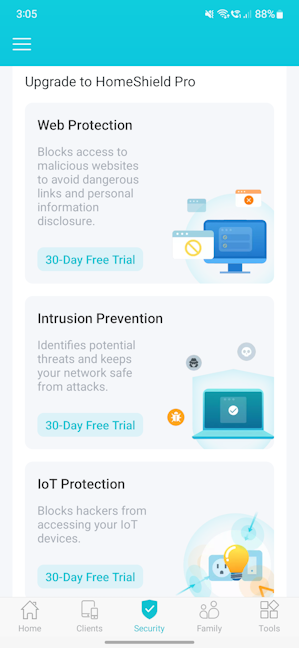 HomeShield Pro costs extra
 Archer AX73 can be integrated into your smart home
The features offered by TP-Link Archer AX73 are appropriate for a mid-range router. You get access to various useful tools, like VPN, DDNS, and more. However, remember that the HomeShield Pro security is under a paywall, increasing your acquisition costs.
Archer AX73 can be integrated into your smart home
The features offered by TP-Link Archer AX73 are appropriate for a mid-range router. You get access to various useful tools, like VPN, DDNS, and more. However, remember that the HomeShield Pro security is under a paywall, increasing your acquisition costs.
TP-Link Archer AX73: Who is it good for?
This wireless router is a smart choice for:- Internet connections of up to 1 Gbps
- Small to medium-sized apartments
- Families with children who need parental controls and advanced security
- Users who want to control their router using Alexa or Google Assistant
Pros and cons
Here are the things I like about TP-Link Archer AX73:
- Excellent Wi-Fi performance on the 5 GHz band
- It is easy to extend your network with TP-Link’s OneMesh feature
- An easy-to-use mobile app for controlling the router from anywhere
- It packs many useful features
- Excellent multilingual support
- The coverage area on the 2.4 GHz band isn’t great
- The USB 3.0 port offers slow writing/upload speeds
- The best security features and parental controls require a subscription
Verdict
TP-Link Archer AX73 is a popular mid-range router that offers solid wireless performance, especially on the 5 GHz band. This router makes it easy to extend your network using other TP-Link devices compatible with OneMesh, while its upcoming integration with the EasyMesh standard will make it even more appealing. However, this router isn’t perfect, and its performance and coverage on the 2.4 GHz band could be improved. Still, it ticks many important boxes, which should please a lot of users looking for a reliable Wi-Fi 6 router.Unboxing the TP-Link Archer AX73
TP-Link Archer AX73 is a dual-band AX5400 wireless router using the Wi-Fi 6 standard. It is packaged in a cyan cardboard box just like the one in the picture below. As you see, there’s a large picture of the router on the front cover. You’re also informed about this router’s most important features, like its support for WPA3 password encryption and the HomeShield security service available in its firmware.Hardware specifications and design
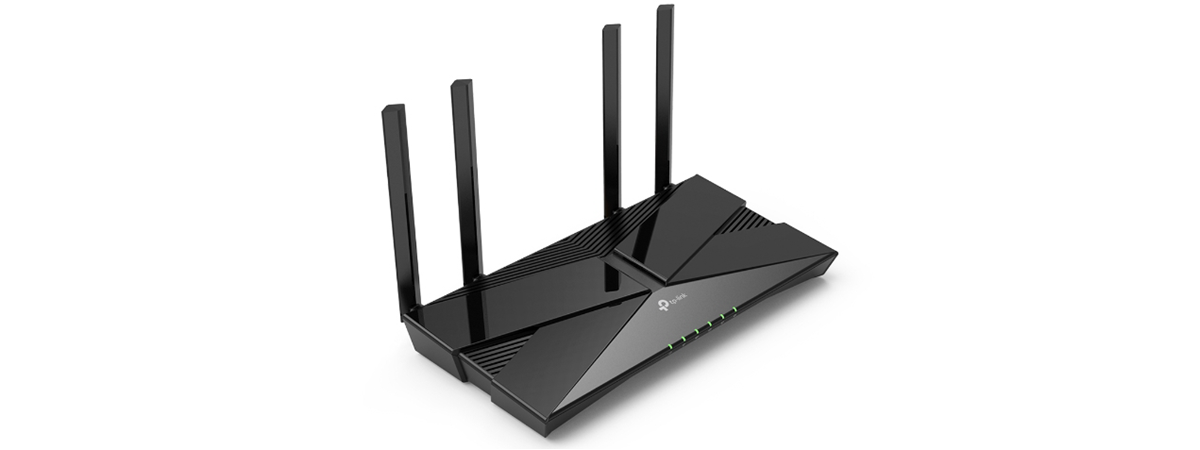
TP-Link Archer AX73 is available only in black, and it has a classic router design with six nondetachable external antennas. On the top, there’s a glossy plastic area with the TP-Link logo on it. Unfortunately, it tends to be a dust and fingerprint magnet, so you may need to clean it relatively frequently. Around this area, many ventilation grids help keep the router cool while operating. The router is 10.7 × 5.8 × 1.9 inches or 272.5 × 147.2 × 49.2 mm in width x depth x height, and it weighs around 650 grams or 1.43 pounds.Setting up and using the TP-Link Archer AX73
You can install and configure the TP-Link Archer AX73 using a laptop or PC connected to the router and a web browser or the Tether app on your smartphone or tablet. This time I chose the Tether app. The whole process starts by connecting to the Wi-Fi emitted by your router (see the sticker on its bottom or the one inside the box) and firing up the Tether app. Next, choose the router you’re setting up, create an admin password for it (it shouldn’t be the same as the password you plan to use for the Wi-Fi), and select the type of internet connection you’re using.Wireless network performance
My test apartment is set up like in the diagram below. I’ve placed the TP-Link Archer AX73 in a central position to provide good coverage in an area as large as possible.- The router’s room - I record the maximum speeds when no walls absorb the wireless signal in the room where the router is placed.
- Room 1 - is separated by one wall from the router, so the wireless signal and the Wi-Fi speed I get should be lower here.
- Room 2 - is separated from the router by two walls absorbing the wireless signal. Also, the wall between Room 1 and Room 2 is twice as thick as the one between The router’s room and Room 1. As a result, Room 2 can be a difficult challenge for many routers.
How the TP-Link Archer AX73 performs on the 2.4 GHz band
I first measured the signal strength using NetSpot, while connected to the 2.4 GHz band. When using the Wi-Fi 4 standard (802.11n), the signal strength delivered by TP-Link Archer AX73 was excellent in all rooms.How the TP-Link Archer AX73 performs on the 5 GHz band
I switched to the 5 GHz band and started measuring the signal strength with NetSpot. When using the Wi-Fi 5 (802.11ac) standard, TP-Link Archer AX73 delivered good signal strength in all the rooms.Wired network performance & USB port
After evaluating Wi-Fi performance, I wanted to check the performance you get when using Ethernet network connections. My internet connection offers a maximum of 1 Gbps for the download speed and 800 Mbps for the upload. When using SpeedTest, TP-Link Archer AX73 got close to the maximum potential of my internet connection.Extra features
Advanced users can enjoy several tools and features that they may find useful:- HomeShield - a cloud-based solution developed by TP-Link and Avira, provides built-in web protection, intrusion prevention protection, IoT protection, and easy-to-use parental controls to set advanced rules for how your children use your Wi-Fi. HomeShield has some free features, like a security scan that identifies problematic settings you may be using. However, the HomeShield Pro plan costs extra and can only be activated through the Tether app using a TP-Link cloud ID.
- VPN Client and VPN server - Archer AX73 can work as a VPN server using OpenVPN, PPTP, and L2TP/IPSec. You can also choose specific devices in your network and connect them automatically to specific VPN servers through different VPN protocols.
- OneMesh - the router works with other TP-Link OneMesh devices for creating your own mesh Wi-Fi system. The company also plans to introduce EasyMesh support, meaning the router should work with similar devices from other brands to create a mesh Wi-Fi network.
- Network Performance Optimization - analyzes the channel congestion in your area and suggests what you can change to improve Wi-Fi performance. This feature is available only in the Tether app.
- Wi-Fi Detective - another tool found only in the Tether app, which scans and identifies all the devices connected to your network. You can use the information it provides to assess whether there are unwanted guests on your network and take measures to block their access.
- Wireless schedule - you can set when the wireless network is automatically turned off. For example, you may not want it broadcasted while you sleep.
- Guest Network - you can enable two wireless guest networks with individual security and access settings, one on each band.
- DDNS - allows you to connect to your Archer AX73 from the internet, even if your internet provider assigns it a dynamic public IP address. This router can work with the following service providers: TP-Link, NO-IP, and DynDNS.
- Smart Life Assistant - with the Tether mobile app’s help, you can integrate your wireless router with Amazon Alexa and Google Assistant and control it using voice commands. You can also add your router to Google Home or IFTTT for all kinds of automation between your smart devices.

Discussion (0)
Comments are closed.