



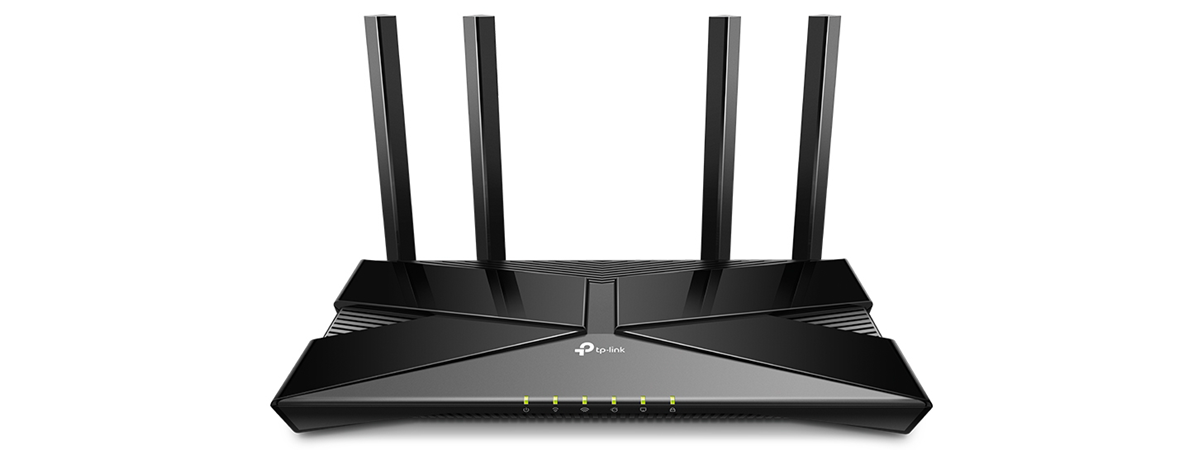
TP-Link Archer AX10 or TP-Link Archer AX1500 has a different name depending on the country and the shop you buy it from. However, it is the same router, with the same hardware and specifications in all countries. We wanted to test it because it is one of the most affordable routers with Wi-Fi 6, and many people are interested in it. Even Amazon recommends it as a top pick in its price range. But is it any good?
![Verdict]()

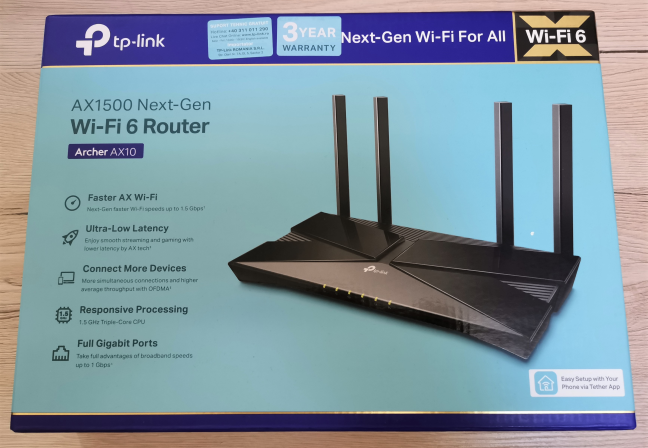
 The packaging used for TP-Link Archer AX10
You find plenty of information about this router on the sides of the box, including a good summary of its hardware configuration. As soon as you open the box, you see the Quick Installation Guide, a troubleshooting guide, and details about the warranty and the license used for this router’s firmware. It is an excellent idea to read the troubleshooting guide first because it informs you about driver issues that can negatively affect Wi-Fi 6 connectivity.
The packaging used for TP-Link Archer AX10
You find plenty of information about this router on the sides of the box, including a good summary of its hardware configuration. As soon as you open the box, you see the Quick Installation Guide, a troubleshooting guide, and details about the warranty and the license used for this router’s firmware. It is an excellent idea to read the troubleshooting guide first because it informs you about driver issues that can negatively affect Wi-Fi 6 connectivity.
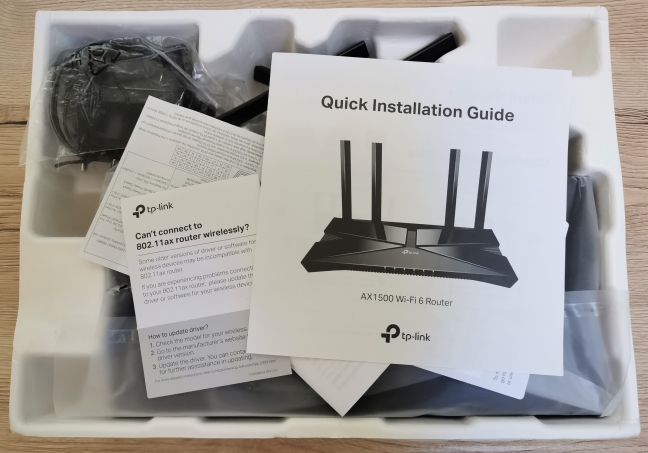
 Unboxing the TP-Link Archer AX10
When you unpack everything, you find the router itself, its power adapter, a CAT 5e network cable, and the leaflets mentioned earlier.
Unboxing the TP-Link Archer AX10
When you unpack everything, you find the router itself, its power adapter, a CAT 5e network cable, and the leaflets mentioned earlier.
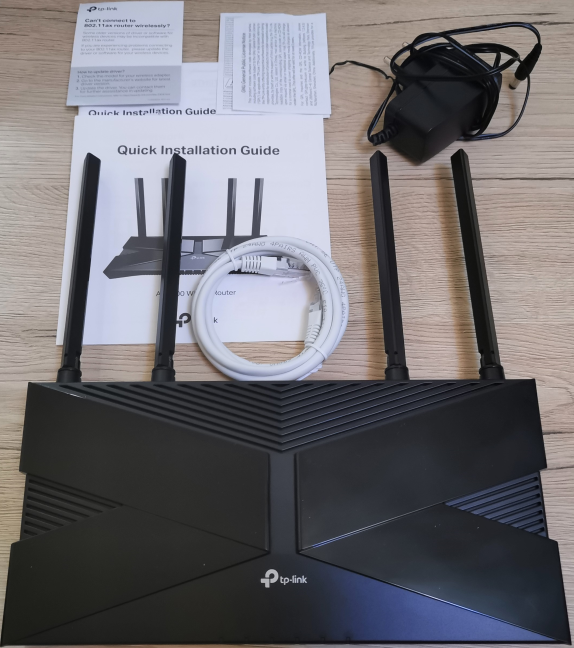
 TP-Link Archer AX10 - What you find inside the box
Unboxing the TP-Link Archer AX10 wireless router is a quick experience, and you can immediately start setting it up. Before you do that, don’t hesitate to browse the Quick Installation Guide. You will find it very helpful, especially if you are not familiar with networking equipment.
TP-Link Archer AX10 - What you find inside the box
Unboxing the TP-Link Archer AX10 wireless router is a quick experience, and you can immediately start setting it up. Before you do that, don’t hesitate to browse the Quick Installation Guide. You will find it very helpful, especially if you are not familiar with networking equipment.
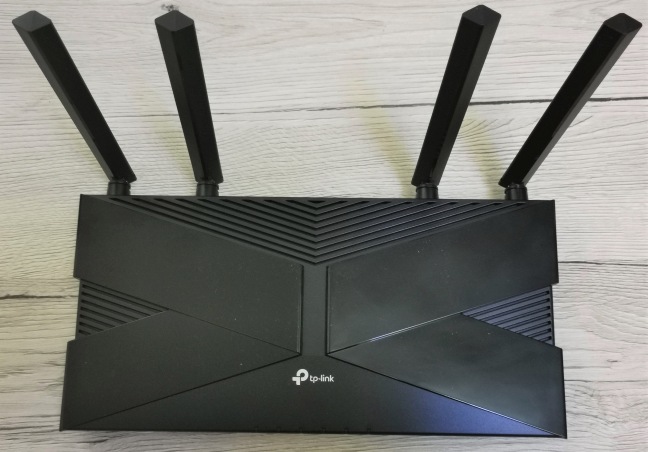
 The antennas on the TP-Link Archer AX10
On the front, you see several LEDs that signal the operational status of the router. If you find them distracting, you can turn them off from the firmware. There are also four non-detachable external antennas that can be rotated any way you wish. The top cover features the TP-Link logo and the letter X made of shiny black plastic that reflects the light, and it is also a dust and fingerprint magnet.
The antennas on the TP-Link Archer AX10
On the front, you see several LEDs that signal the operational status of the router. If you find them distracting, you can turn them off from the firmware. There are also four non-detachable external antennas that can be rotated any way you wish. The top cover features the TP-Link logo and the letter X made of shiny black plastic that reflects the light, and it is also a dust and fingerprint magnet.
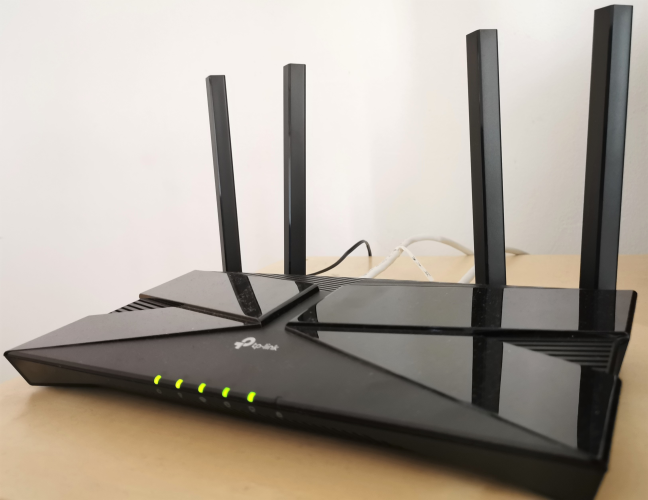
 The LEDs on the front of the TP-Link Archer AX10
On the bottom of the device, you find a sticker with the serial number of the router you bought and the default name and password for its Wi-Fi. There are also holes for mounting it on walls, a small feature that might make a difference for some users.
The LEDs on the front of the TP-Link Archer AX10
On the bottom of the device, you find a sticker with the serial number of the router you bought and the default name and password for its Wi-Fi. There are also holes for mounting it on walls, a small feature that might make a difference for some users.
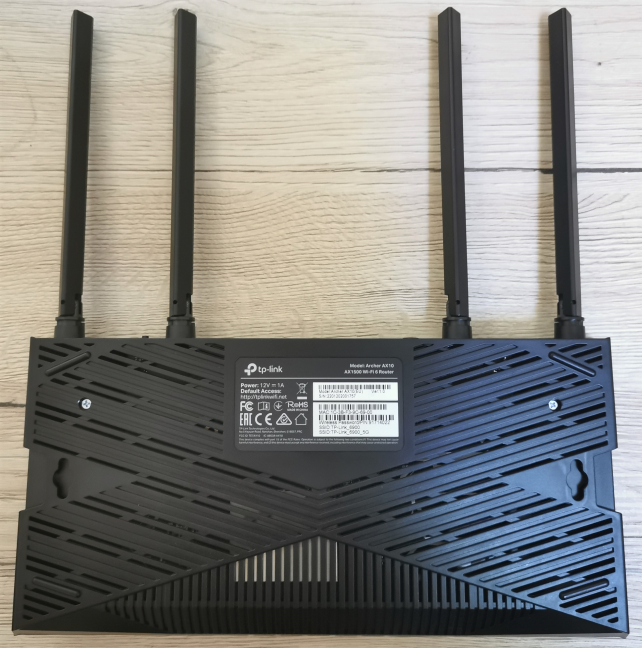
 The bottom side of the TP-Link Archer AX10
On the back, you find four Ethernet ports at 1 Gbps, the WAN port (also at 1 Gbps), the Power button, the Power jack, the Reset jack, a button for turning the Wi-Fi on and off, and the WPS feature.
The bottom side of the TP-Link Archer AX10
On the back, you find four Ethernet ports at 1 Gbps, the WAN port (also at 1 Gbps), the Power button, the Power jack, the Reset jack, a button for turning the Wi-Fi on and off, and the WPS feature.
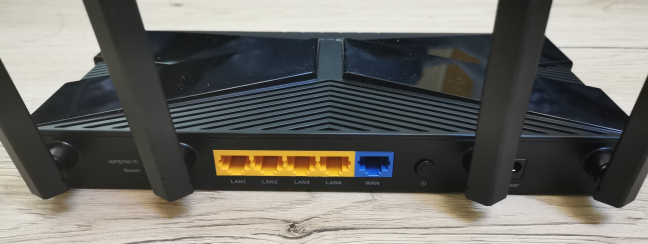
 The ports on the back of the TP-Link Archer AX10
TP-Link Archer AX10 is a dual-band wireless router with a total theoretical maximum bandwidth split as follows: 1201 Mbps for the 5 GHz band (or frequency) and 300 Mbps for the 2.4 GHz band. It works with all the modern wireless standards, including Wi-Fi 4 (802.11n), Wi-Fi 5 (802.11ac), and Wi-Fi 6 (802.11ax), and it has support for WPA3 wireless encryption. Also, wireless transfers are made using 2x2 MU-MIMO.
If you would like to learn more about this wireless router, go to this page: TP-Link Archer AX10 Specifications.
The ports on the back of the TP-Link Archer AX10
TP-Link Archer AX10 is a dual-band wireless router with a total theoretical maximum bandwidth split as follows: 1201 Mbps for the 5 GHz band (or frequency) and 300 Mbps for the 2.4 GHz band. It works with all the modern wireless standards, including Wi-Fi 4 (802.11n), Wi-Fi 5 (802.11ac), and Wi-Fi 6 (802.11ax), and it has support for WPA3 wireless encryption. Also, wireless transfers are made using 2x2 MU-MIMO.
If you would like to learn more about this wireless router, go to this page: TP-Link Archer AX10 Specifications.
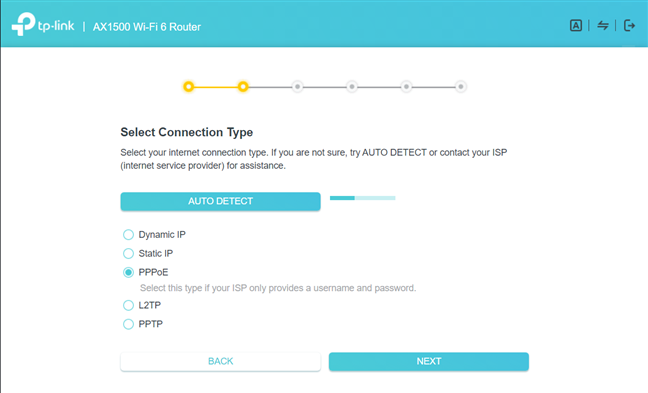
 TP-Link Archer AX10 - the quick setup wizard
Then, the router tests whether your internet connection works and if it can use it. If all is good, it recommends you to upgrade the firmware to the latest version. You should do that to access advanced features like WPA3 encryption (it isn’t available in the first release of firmware) and improved Wi-Fi performance and stability.
TP-Link Archer AX10 - the quick setup wizard
Then, the router tests whether your internet connection works and if it can use it. If all is good, it recommends you to upgrade the firmware to the latest version. You should do that to access advanced features like WPA3 encryption (it isn’t available in the first release of firmware) and improved Wi-Fi performance and stability.
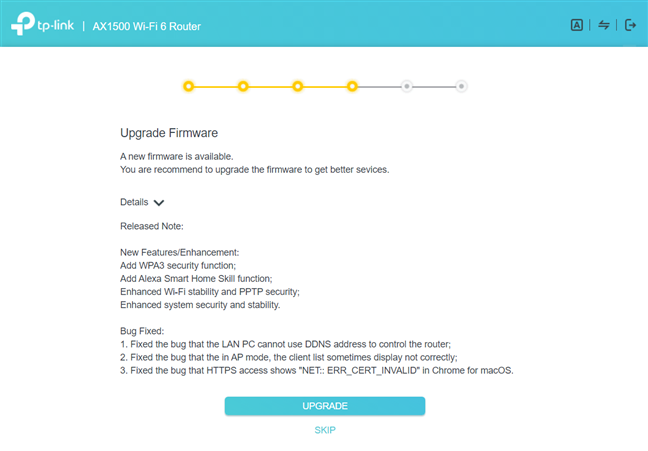
 TP-Link Archer AX10 - upgrading the firmware
Once the firmware upgrade is complete, you see a summary of your settings, and you can log into the router and change its advanced settings. One cool aspect is that you can connect it with a TP-Link ID and remote control your router from anywhere on the internet, both from a web browser and using the mobile Tether app.
The firmware of the TP-Link Archer AX10 looks friendly and straightforward. At first, it presents only the basic settings that anyone can understand, even if they are unfamiliar with networking devices and concepts.
TP-Link Archer AX10 - upgrading the firmware
Once the firmware upgrade is complete, you see a summary of your settings, and you can log into the router and change its advanced settings. One cool aspect is that you can connect it with a TP-Link ID and remote control your router from anywhere on the internet, both from a web browser and using the mobile Tether app.
The firmware of the TP-Link Archer AX10 looks friendly and straightforward. At first, it presents only the basic settings that anyone can understand, even if they are unfamiliar with networking devices and concepts.
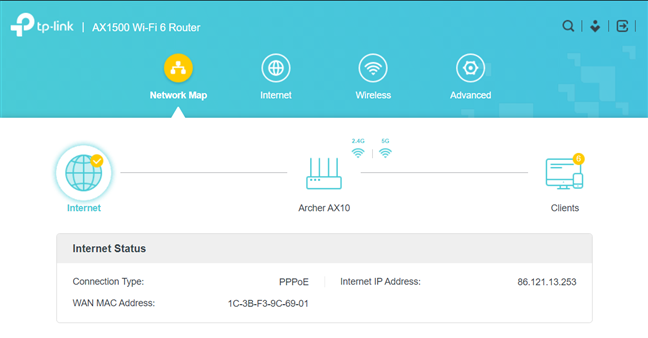
 The firmware on the TP-Link Archer AX10
If you want more, you click or tap on Advanced, and then you get a list with all the settings available for your router and all its features. This part is not that complex either, so most people should have no problems setting things up. However, there’s no help documentation available in the firmware, which may be a downside for some users. Luckily, the user interface is available in more than 20 languages, making everyone’s life easier.
The firmware on the TP-Link Archer AX10
If you want more, you click or tap on Advanced, and then you get a list with all the settings available for your router and all its features. This part is not that complex either, so most people should have no problems setting things up. However, there’s no help documentation available in the firmware, which may be a downside for some users. Luckily, the user interface is available in more than 20 languages, making everyone’s life easier.
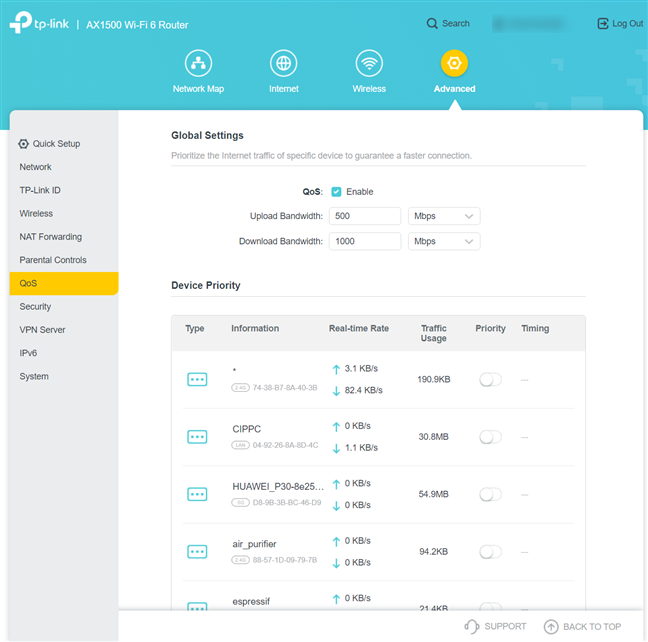
 TP-Link Archer AX10 - advanced settings
The Tether mobile app for Android and iOS is simple and easy to use. It offers access to the basics you need, including some remote troubleshooting tools that might come in handy when your family has problems with the router, and you are not home to help them.
TP-Link Archer AX10 - advanced settings
The Tether mobile app for Android and iOS is simple and easy to use. It offers access to the basics you need, including some remote troubleshooting tools that might come in handy when your family has problems with the router, and you are not home to help them.
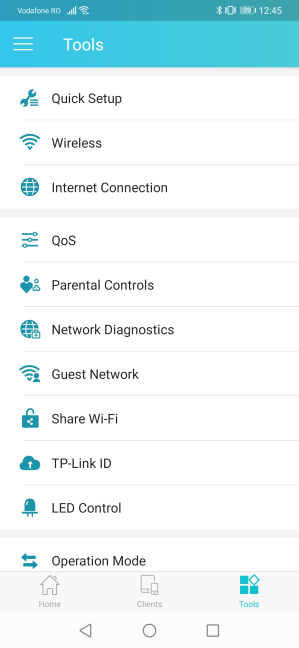
 The Tether mobile app for TP-Link Archer AX10
Unfortunately, there’s always the problem with older devices not being able to “see” Wi-Fi 6 networks. This is the case with all routers with support for this standard, and the key is to update the drivers for the network cards inside your computers. If that doesn’t work either, you can always set the TP-Link Archer AX10 (AX1500) router to use the Wi-Fi 5 standard instead of Wi-Fi 6.
The wireless network offered by this router is fast if you are using the Wi-Fi 5 and Wi-Fi 6 standards. However, when using the Wi-Fi 4 standard on the 2.4 GHz band, the average speed was a bit underwhelming. Other routers with similar hardware were faster in our testing.
To check the quality of the Wi-Fi broadcast by TP-Link Archer AX10, we took our laptop and moved to a room that is separated by one wall from the router. We made a wireless transfer on it, using a specialized app that measures the average speed and the network transfer variability. The variability of wireless transfers when using Wi-Fi 4 was reasonable, but the average speed wasn’t high.
The Tether mobile app for TP-Link Archer AX10
Unfortunately, there’s always the problem with older devices not being able to “see” Wi-Fi 6 networks. This is the case with all routers with support for this standard, and the key is to update the drivers for the network cards inside your computers. If that doesn’t work either, you can always set the TP-Link Archer AX10 (AX1500) router to use the Wi-Fi 5 standard instead of Wi-Fi 6.
The wireless network offered by this router is fast if you are using the Wi-Fi 5 and Wi-Fi 6 standards. However, when using the Wi-Fi 4 standard on the 2.4 GHz band, the average speed was a bit underwhelming. Other routers with similar hardware were faster in our testing.
To check the quality of the Wi-Fi broadcast by TP-Link Archer AX10, we took our laptop and moved to a room that is separated by one wall from the router. We made a wireless transfer on it, using a specialized app that measures the average speed and the network transfer variability. The variability of wireless transfers when using Wi-Fi 4 was reasonable, but the average speed wasn’t high.
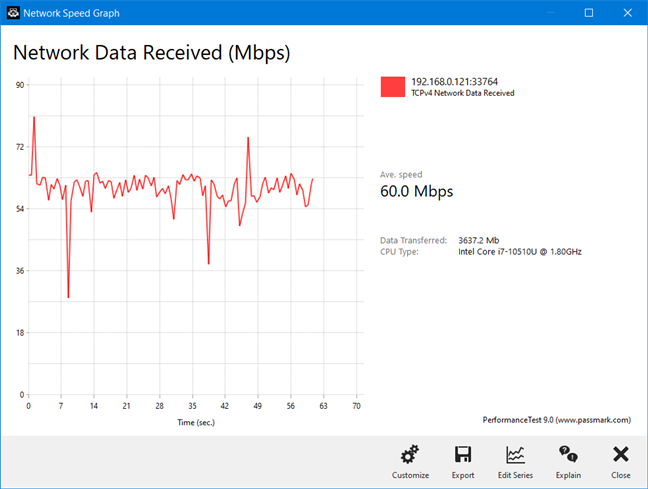
 TP-Link Archer AX10 - Transfer on Wi-Fi 4
When switching to Wi-Fi 5 on the 5 GHz band, the average speed was a lot better, and the network transfers were relatively steady. A much better experience in our view.
TP-Link Archer AX10 - Transfer on Wi-Fi 4
When switching to Wi-Fi 5 on the 5 GHz band, the average speed was a lot better, and the network transfers were relatively steady. A much better experience in our view.
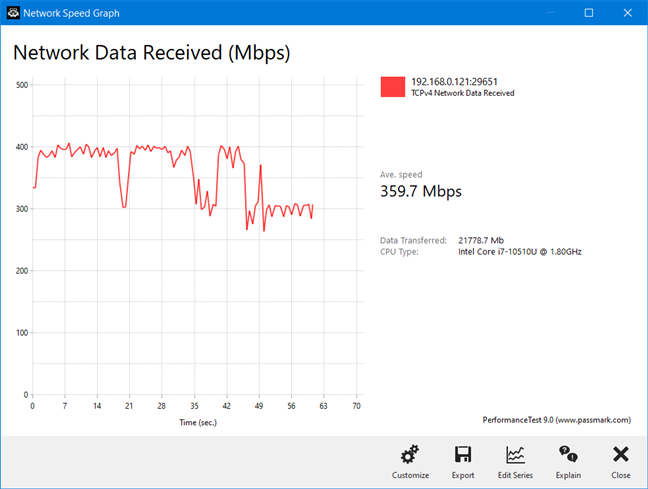 TP-Link Archer AX10 - Transfer on Wi-Fi 5
On the 5 GHz band with Wi-Fi 6, the average speed increased slightly, but the variability was higher than when using the Wi-Fi 5 standard. We believe that this aspect should be improved in future firmware updates so that users can benefit from stabler and even faster transfers on Wi-Fi 6.
TP-Link Archer AX10 - Transfer on Wi-Fi 5
On the 5 GHz band with Wi-Fi 6, the average speed increased slightly, but the variability was higher than when using the Wi-Fi 5 standard. We believe that this aspect should be improved in future firmware updates so that users can benefit from stabler and even faster transfers on Wi-Fi 6.
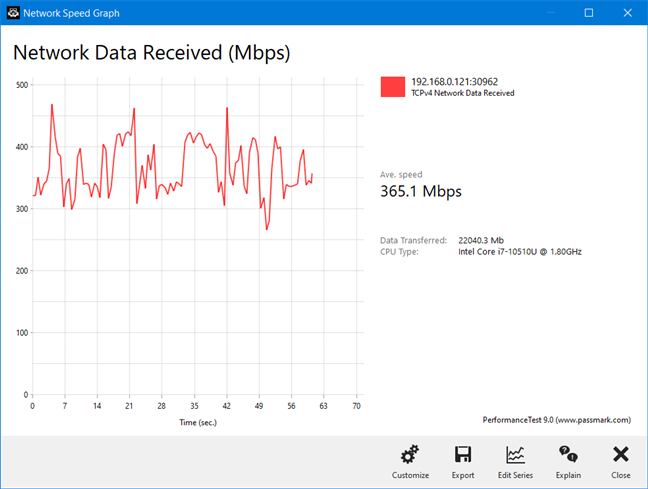 TP-Link Archer AX10 - Transfer on Wi-Fi 6
You get a good experience using the TP-Link Archer AX10 router and the newer Wi-Fi 5 and Wi-Fi 6 standards. Network connections are fast, the router can handle many devices, and you can control it even from your smartphone. However, the average speed when using the Wi-Fi 4 standard is a bit underwhelming.
If you want to know more about the real-world performance offered by TP-Link Archer AX10, including comparisons with other wireless routers, go to the next page of this review.
TP-Link Archer AX10 - Transfer on Wi-Fi 6
You get a good experience using the TP-Link Archer AX10 router and the newer Wi-Fi 5 and Wi-Fi 6 standards. Network connections are fast, the router can handle many devices, and you can control it even from your smartphone. However, the average speed when using the Wi-Fi 4 standard is a bit underwhelming.
If you want to know more about the real-world performance offered by TP-Link Archer AX10, including comparisons with other wireless routers, go to the next page of this review.
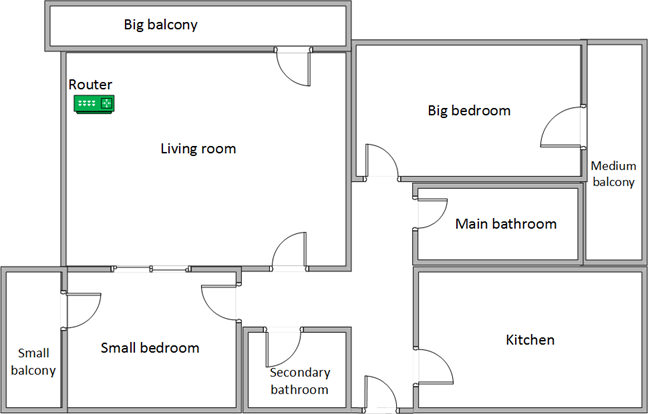
 The apartment in which we tested TP-Link Archer AX10
Our testing was done using a fast 1 Gigabit Internet connection capable of uploads on the internet of up to 500 Mbps. We evaluated the Wi-Fi emitted by TP-Link Archer AX10 using the following standards: Wi-Fi 4 on the 2.4 GHz band, Wi-Fi 5, and Wi-Fi 6 on the 5 GHz band.
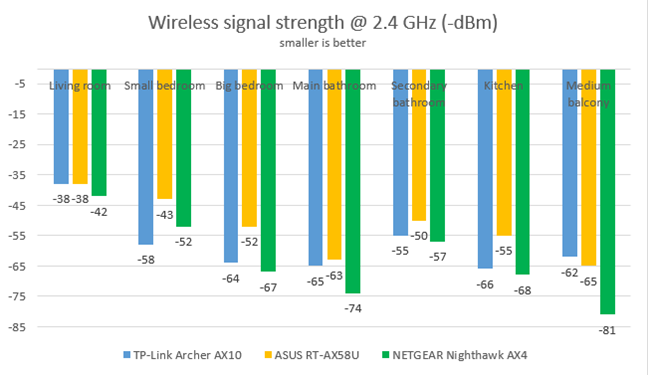
To get a better idea of the performance offered by TP-Link Archer AX10 (AX1500), we compared it with ASUS RT-AX58U (a competing model that uses the same Broadcom SoC) and NETGEAR Nighthawk AX4 (one of the first routers with Wi-Fi 6). We analyzed the 2.4 GHz band first when using the Wi-Fi 4 standard, and we measured the signal strength with NetSpot. The signal strength offered by TP-Link Archer AX10 was relatively similar to that of the routers we compared it to. However, ASUS RT-AX58U performed slightly better in this comparison.
The apartment in which we tested TP-Link Archer AX10
Our testing was done using a fast 1 Gigabit Internet connection capable of uploads on the internet of up to 500 Mbps. We evaluated the Wi-Fi emitted by TP-Link Archer AX10 using the following standards: Wi-Fi 4 on the 2.4 GHz band, Wi-Fi 5, and Wi-Fi 6 on the 5 GHz band.
To get a better idea of the performance offered by TP-Link Archer AX10 (AX1500), we compared it with ASUS RT-AX58U (a competing model that uses the same Broadcom SoC) and NETGEAR Nighthawk AX4 (one of the first routers with Wi-Fi 6). We analyzed the 2.4 GHz band first when using the Wi-Fi 4 standard, and we measured the signal strength with NetSpot. The signal strength offered by TP-Link Archer AX10 was relatively similar to that of the routers we compared it to. However, ASUS RT-AX58U performed slightly better in this comparison.
 TP-Link Archer AX10 - Signal strength on the 2.4 GHz band
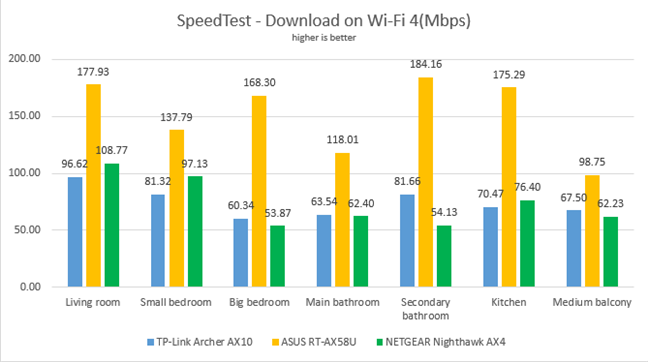
We used SpeedTest to measure the speed of the internet connection when connected to the 2.4 GHz band on Wi-Fi 4. As you can see below, the download speed offered by TP-Link Archer AX10 was lower than 100 Mbps in all the rooms of our test apartment.
TP-Link Archer AX10 - Signal strength on the 2.4 GHz band
We used SpeedTest to measure the speed of the internet connection when connected to the 2.4 GHz band on Wi-Fi 4. As you can see below, the download speed offered by TP-Link Archer AX10 was lower than 100 Mbps in all the rooms of our test apartment.
 TP-Link Archer AX10 - Downloads in SpeedTest on Wi-Fi 4
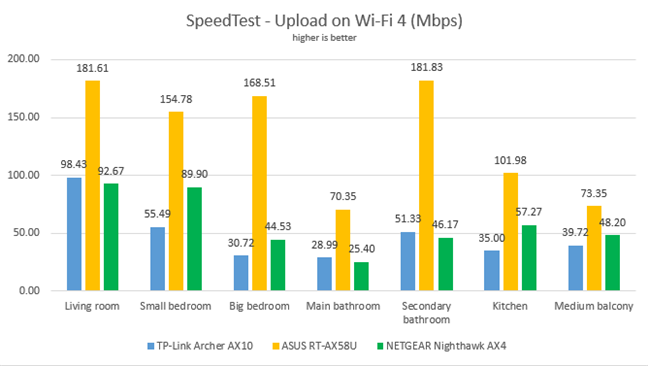
Uploads were slower than downloads in all the rooms of our test apartment.
TP-Link Archer AX10 - Downloads in SpeedTest on Wi-Fi 4
Uploads were slower than downloads in all the rooms of our test apartment.
 TP-Link Archer AX10 - Uploads in SpeedTest on Wi-Fi 4
We used the PassMark Performance test to transfer data between two computers connected to the network on the 2.4 GHz band when using Wi-Fi 4. TP-Link Archer AX10 was a decent performer in all rooms, but the download speed was much lower than that offered by ASUS RT-AX58U.
TP-Link Archer AX10 - Uploads in SpeedTest on Wi-Fi 4
We used the PassMark Performance test to transfer data between two computers connected to the network on the 2.4 GHz band when using Wi-Fi 4. TP-Link Archer AX10 was a decent performer in all rooms, but the download speed was much lower than that offered by ASUS RT-AX58U.
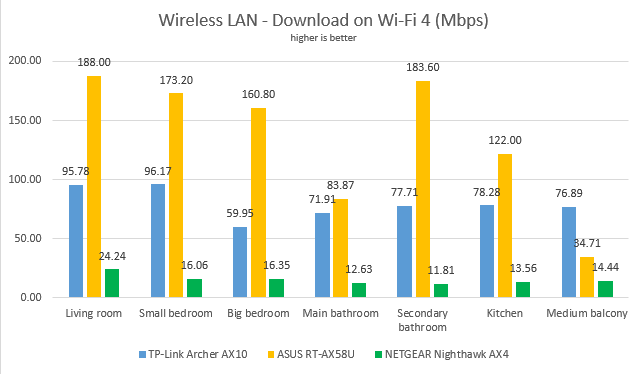
 TP-Link Archer AX10 - Network downloads on Wi-Fi 4
Again, uploads were slower than the downloads.
TP-Link Archer AX10 - Network downloads on Wi-Fi 4
Again, uploads were slower than the downloads.
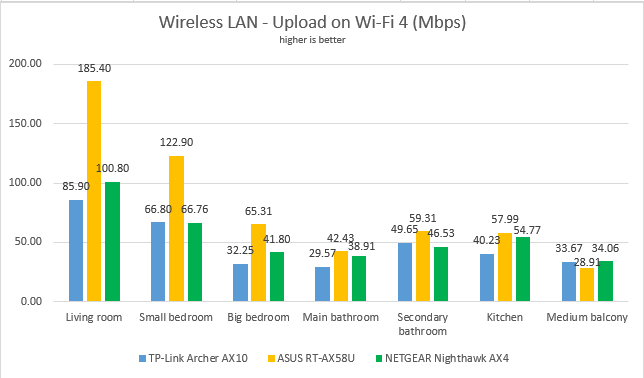
 TP-Link Archer AX10 - Network uploads on Wi-Fi 4
On the 2.4 GHz band, when using the Wi-Fi 4 standard, TP-Link Archer AX10 delivers reasonable performance, but competitors with similar hardware outmatch it.
For the next set of measurements, we analyzed the performance of the 5GHz wireless band, using Wi-Fi 5. We looked at the evolution of the signal strength from room to room. As you can see below, the signal strength offered by TP-Link Archer AX10 was on the lower side of the spectrum.
TP-Link Archer AX10 - Network uploads on Wi-Fi 4
On the 2.4 GHz band, when using the Wi-Fi 4 standard, TP-Link Archer AX10 delivers reasonable performance, but competitors with similar hardware outmatch it.
For the next set of measurements, we analyzed the performance of the 5GHz wireless band, using Wi-Fi 5. We looked at the evolution of the signal strength from room to room. As you can see below, the signal strength offered by TP-Link Archer AX10 was on the lower side of the spectrum.
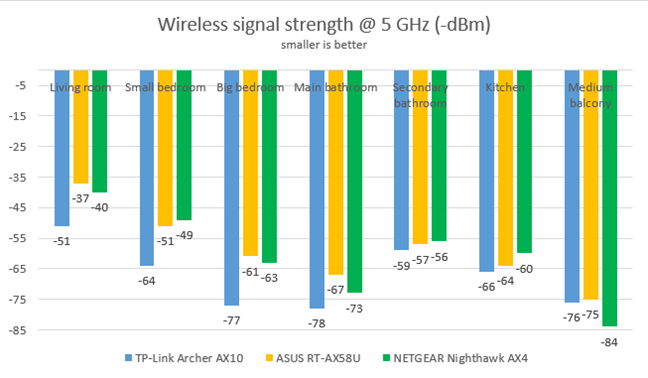
 TP-Link Archer AX10 - Signal strength on the 5 GHz band
We used SpeedTest to measure the speed of the internet connection when connected to the 5 GHz band when using the Wi-Fi 5 standard. TP-Link Archer AX10 offered the fastest downloads in quite a few rooms, managing to outperform the expectations we had after the 2.4 GHz band results.
TP-Link Archer AX10 - Signal strength on the 5 GHz band
We used SpeedTest to measure the speed of the internet connection when connected to the 5 GHz band when using the Wi-Fi 5 standard. TP-Link Archer AX10 offered the fastest downloads in quite a few rooms, managing to outperform the expectations we had after the 2.4 GHz band results.
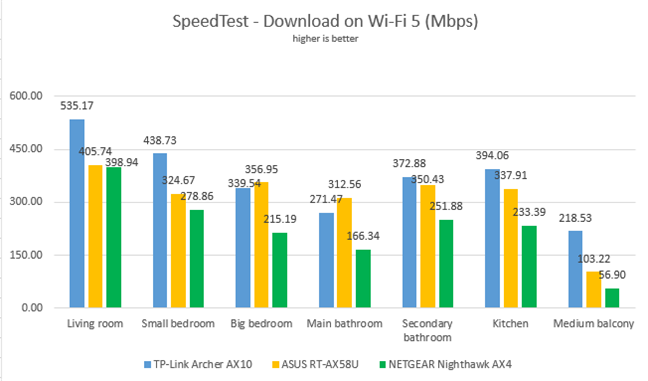
 TP-Link Archer AX10 - Downloads in SpeedTest on Wi-Fi 5
We noticed a similar picture when evaluating the upload speed. Again, TP-Link Archer AX10 performed well in many rooms.
TP-Link Archer AX10 - Downloads in SpeedTest on Wi-Fi 5
We noticed a similar picture when evaluating the upload speed. Again, TP-Link Archer AX10 performed well in many rooms.
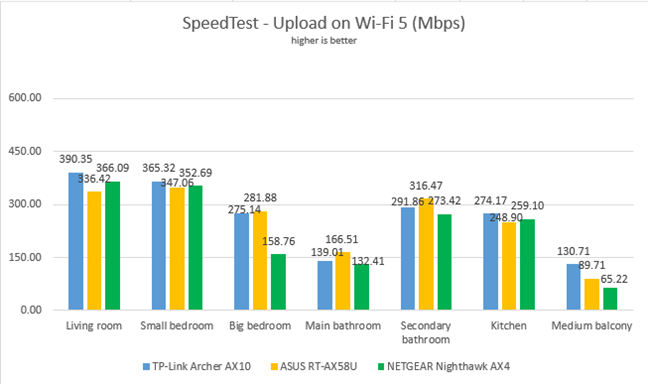
 TP-Link Archer AX10 - Uploads in SpeedTest on Wi-Fi 5
We then used the PassMark Performance test to transfer data between two computers connected to the network using Wi-Fi 5. TP-Link Archer AX10 was the fastest router in our comparison in the room where it was placed, and in the room furthest away from it. A fun result if you ask us. 🙂
TP-Link Archer AX10 - Uploads in SpeedTest on Wi-Fi 5
We then used the PassMark Performance test to transfer data between two computers connected to the network using Wi-Fi 5. TP-Link Archer AX10 was the fastest router in our comparison in the room where it was placed, and in the room furthest away from it. A fun result if you ask us. 🙂
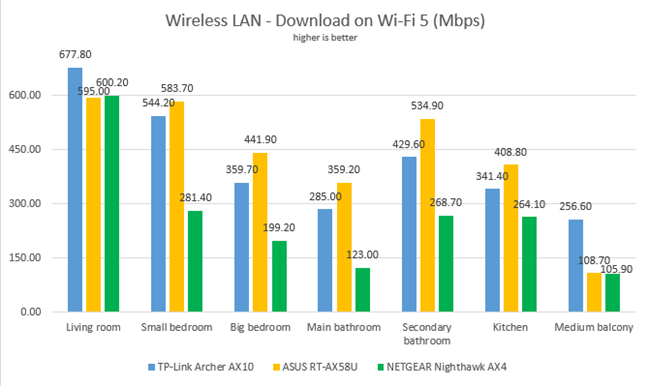
 TP-Link Archer AX10 - Network downloads on Wi-Fi 5
Similar results were also noticed when measuring the upload speed.
TP-Link Archer AX10 - Network downloads on Wi-Fi 5
Similar results were also noticed when measuring the upload speed.
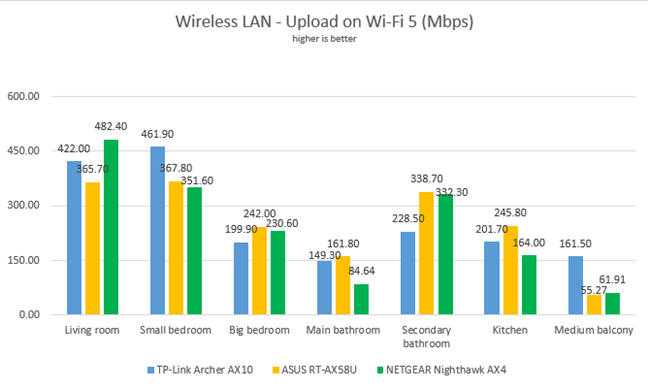
 TP-Link Archer AX10 - Network uploads on Wi-Fi 5
When using the 5 GHz band and the Wi-Fi 5 standard, TP-Link Archer AX10 is a really good router, which offers speeds that don’t disappoint.
We remained on the 5 GHz wireless band, but we switched to using the Wi-Fi 6 standard. Unfortunately, the laptop we had when we reviewed previous Wi-Fi 6 routers was not compatible with this standard, so we cannot compare TP-Link Archer AX10 with other routers. However, this model should be featured in future reviews for routers that support Wi-Fi 6, so stay tuned.
We first used SpeedTest to see how fast the internet connection is when using Wi-Fi 6 on a desktop computer with a PCI-Express network card that supports this standard. The maximum speed we achieved is 667.03 Mbps for the download and 384.97 Mbps for the upload. For a router in its price range, these are good speeds. However, they are not spectacular for the Wi-Fi 6 standard. More expensive Wi-Fi 6 routers can deliver more.
TP-Link Archer AX10 - Network uploads on Wi-Fi 5
When using the 5 GHz band and the Wi-Fi 5 standard, TP-Link Archer AX10 is a really good router, which offers speeds that don’t disappoint.
We remained on the 5 GHz wireless band, but we switched to using the Wi-Fi 6 standard. Unfortunately, the laptop we had when we reviewed previous Wi-Fi 6 routers was not compatible with this standard, so we cannot compare TP-Link Archer AX10 with other routers. However, this model should be featured in future reviews for routers that support Wi-Fi 6, so stay tuned.
We first used SpeedTest to see how fast the internet connection is when using Wi-Fi 6 on a desktop computer with a PCI-Express network card that supports this standard. The maximum speed we achieved is 667.03 Mbps for the download and 384.97 Mbps for the upload. For a router in its price range, these are good speeds. However, they are not spectacular for the Wi-Fi 6 standard. More expensive Wi-Fi 6 routers can deliver more.

 TP-Link Archer AX10 - The maximum speeds you get with Wi-Fi 6
For more realistic results, we used our laptop with Wi-Fi 6 and ran SpeedTest in all the rooms of our apartment. The graph below shows the download speed we got in all the rooms of our apartment. They are good, but the increase from Wi-Fi 5 to Wi-Fi 6 is a bit underwhelming.
TP-Link Archer AX10 - The maximum speeds you get with Wi-Fi 6
For more realistic results, we used our laptop with Wi-Fi 6 and ran SpeedTest in all the rooms of our apartment. The graph below shows the download speed we got in all the rooms of our apartment. They are good, but the increase from Wi-Fi 5 to Wi-Fi 6 is a bit underwhelming.
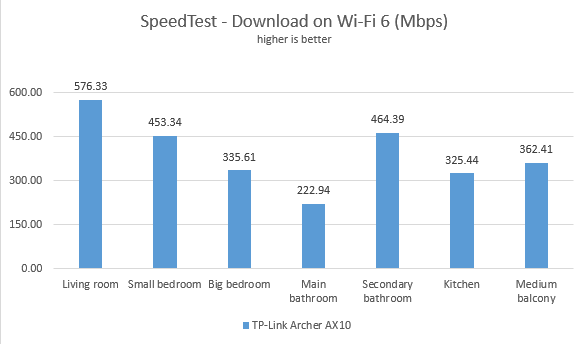
 TP-Link Archer AX10 - Downloads in SpeedTest on Wi-Fi 6
Uploads followed a similar trend, but they were slower than the downloads in all rooms.
TP-Link Archer AX10 - Downloads in SpeedTest on Wi-Fi 6
Uploads followed a similar trend, but they were slower than the downloads in all rooms.
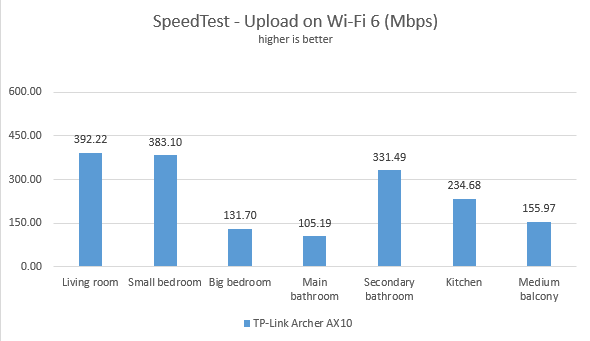
 TP-Link Archer AX10 - Uploads in SpeedTest on Wi-Fi 6
For the last round of comparisons, we used the PassMark Performance test to transfer data between two computers connected to the network using Wi-Fi 6. We enjoyed faster downloads than in the previous test, proving that switching to Wi-Fi 6 can have more significant benefits for data transfers between the devices that are part of the same network.
TP-Link Archer AX10 - Uploads in SpeedTest on Wi-Fi 6
For the last round of comparisons, we used the PassMark Performance test to transfer data between two computers connected to the network using Wi-Fi 6. We enjoyed faster downloads than in the previous test, proving that switching to Wi-Fi 6 can have more significant benefits for data transfers between the devices that are part of the same network.
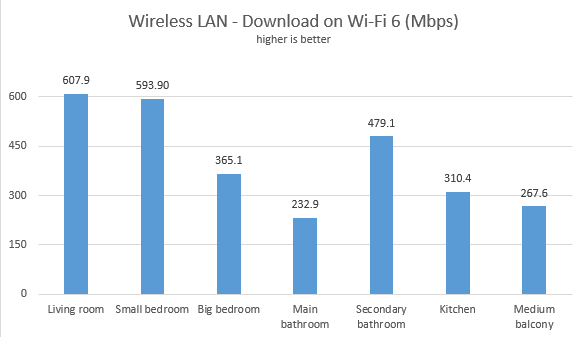
 TP-Link Archer AX10 - Network downloads on Wi-Fi 6
The upload speeds were good in most of the rooms from our test apartment, but they were slower than the downloads.
TP-Link Archer AX10 - Network downloads on Wi-Fi 6
The upload speeds were good in most of the rooms from our test apartment, but they were slower than the downloads.
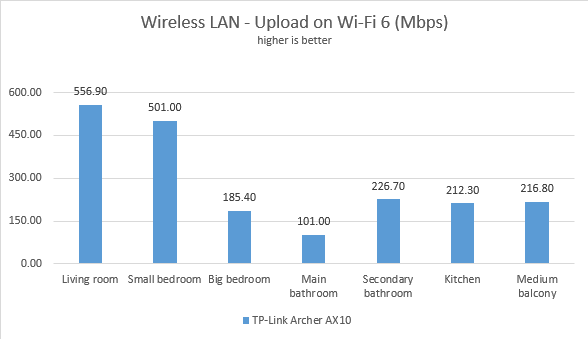
 TP-Link Archer AX10 - Network uploads on Wi-Fi 6
When using Wi-Fi 6, TP-Link Archer AX10 performs reasonably well, but it doesn’t beat its competitors. However, at its price point, you won’t find a faster router.
TP-Link Archer AX10 - Network uploads on Wi-Fi 6
When using Wi-Fi 6, TP-Link Archer AX10 performs reasonably well, but it doesn’t beat its competitors. However, at its price point, you won’t find a faster router.
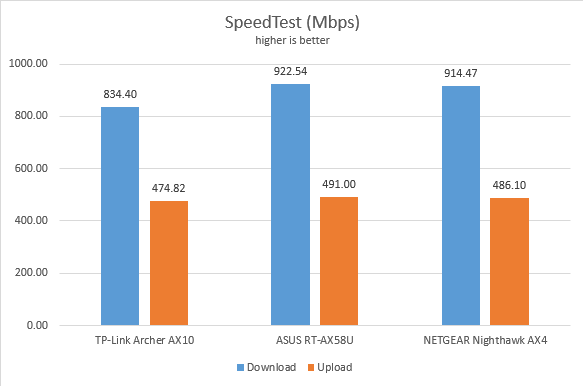
 TP-Link Archer AX10 - SpeedTest on Ethernet connections
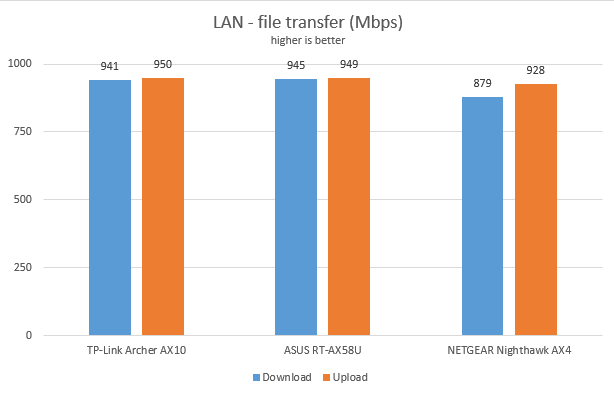
Then, we ran a network transfer between two computers using the PassMark Performance test.
This time, TP-Link Archer AX10 performed at speeds close to 1 Gbps, as promised in its technical specifications.
TP-Link Archer AX10 - SpeedTest on Ethernet connections
Then, we ran a network transfer between two computers using the PassMark Performance test.
This time, TP-Link Archer AX10 performed at speeds close to 1 Gbps, as promised in its technical specifications.
 TP-Link Archer AX10 - Network transfers on Ethernet connections
While TP-Link Archer AX10 can reliably offer Ethernet network transfers at 1 Gbps, this router seems to be a good match for internet connections that are up to 850 Mbps.
TP-Link Archer AX10 - Network transfers on Ethernet connections
While TP-Link Archer AX10 can reliably offer Ethernet network transfers at 1 Gbps, this router seems to be a good match for internet connections that are up to 850 Mbps.
TP-Link Archer AX10: Who is it good for?
This wireless router is a suitable choice for:- People who want an affordable router with support for Wi-Fi 6
- Small houses, two-bedroom, or three-bedroom apartments
- People who want to remotely control their router from anywhere on the internet
- Users who want to control their home network using the Alexa voice assistant
- People who want task automation services from their wireless router, through IFTTT (If This, Then That)
Pros and cons
Here are the things we like about TP-Link Archer AX10:
- Support for the newest wireless standard – Wi-Fi 6 or 802.11ax
- Good performance when using the Wi-Fi 5 standard
- Excellent price
- Solid hardware that can handle many network clients and connections
- You can control it remotely with a mobile app from anywhere on the internet
- Great multilingual support
- Performance should be improved on the 2.4 GHz band when using the Wi-Fi 4 standard
- It doesn’t have a USB port
- It cannot fully utilize 1 Gbps internet connections
Verdict
TP-Link Archer AX10 (AX1500) is not perfect, but it doesn’t try to be. This wireless router wants to become one of the best-selling models on the market, bundling all the basics people need, with good hardware and support for Wi-Fi 6, all at an excellent price that many can afford. We confirm that its mission is accomplished. TP-Link Archer AX10 is a great buy for anyone who wants to jump on the Wi-Fi 6 bandwagon without breaking the piggy bank.Unboxing the TP-Link Archer AX10 (AX1500) with Wi-Fi 6
TP-Link Archer AX10 or TP-Link Wi-Fi 6 AX1500, as it is named in some shops, comes in a cyan cardboard box, with a big picture of the router on its top. TP-Link aggressively promotes this router’s top features and the fact that it works with the new Wi-Fi 6 standard.Hardware specifications and design
TP-Link Archer AX10 or TP-LINK Archer AX1500 is one of the most affordable routers with Wi-Fi 6, yet that doesn’t come at the cost of low-end hardware. On the contrary, this model features a surprisingly powerful Broadcom BCM6750 triple-core system-on-a-chip (SoC), running at 1.5 GHz, 256 MB of RAM, and 16 MB of storage space for the firmware of the router. TP-Link Archer AX10 is a thin router, made of plastic materials, with a rather classic look, typical for most devices of its type. Its size is 10.2 × 5.3 ×1.5 inches or 260.2 × 135.0 × 38.6 mm in width, depth, and height. It is also very light, weighing about 1.7 pounds or 800 grams.Setting up and using the TP-Link Archer AX10 (AX1500) router
You can set up the router using a web browser on your computer or the Tether for Android and iOS. We chose the browser route, and it starts with you setting up the administrator password. Then, you select your time-zone and the type of internet connection you are using, enter the necessary connection details (if applicable), and personalize your basic wireless settings.Wireless network performance
First, let’s look at the apartment used in our testing and how it is set up. The router is placed in the living room. With most wireless routers, the signal strength is not good in places like the Kitchen and the Medium balcony.Wired network performance
TP-Link Archer AX10 has four Ethernet ports that you can use to connect your computers and devices to the network. Our internet connection offers a maximum of 1 Gbps for the download speed and 500 Mbps for the upload. We first used SpeedTest to see if this router can reach the maximum potential of our connection. The routers we compared it to were capable of slightly higher speeds. We found this a bit strange, considering that the TP-Link Archer AX10 uses the same SoC (System on a Chip) as ASUS RT-AX58U. Most probably, this is a firmware issue that needs to be fixed in a future update.Extra features
The firmware on the TP-Link Archer AX10 has a couple of advanced features that some users are going to appreciate:- IPv6 – support for IPv6 addresses that are going to replace IPv4. Our internet connection works with IPv6, and the router handled it well.
- VPN server – you can set the router to work as a VPN server using OpenVPN and PPTP.
- QoS – a basic Quality of Service feature that helps you control how the total bandwidth is split between devices.
- Parental Controls - a manual set of parental controls that you can use to set time limits for your children or block access to some sites.
- Wireless schedule - you can set when the wireless network is automatically turned off. For example, you may not want it broadcasted while you sleep.
- Guest Network – you can enable two wireless guest networks with individual security and access settings, one on each band.
- DDNS – a service that allows you to connect to the router from the internet, even if your internet provider assigns you a dynamic public IP address. This router can work with the following service providers: TP-Link, NO-IP, and DynDNS.
- Integration with Amazon’s Alexa and IFTTT – with the Tether mobile app’s help, you can integrate the router with Amazon Alexa and control it using voice commands. You can do the same with the If This Then That (IFTTT) service, which allows you to automate tasks that might otherwise be repetitive or unable to “talk to each other.”

Discussion (2)
I have ordered AX10 router, but I saw afterwards that the C80 seems working better at wifi 4 and 5 zone, as it has more speed according the specs. But the cpu and ram seems weaker than ax10, so which one would you suggest? Does 160MHz lack future means that this is not a real wifi6 router finally? Also is it supporting mu-mimo or not?
I would no longer buy old routers. Wi-Fi 6 routers are the way to go in my view, due to their more powerful hardware.