



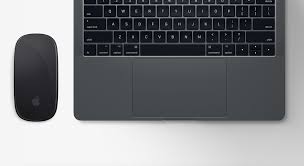
If your touchpad is not working on Windows 11, the problem is usually caused by a disabled setting, keyboard shortcut, or driver issue. In most cases, the touchpad is not broken and can be fixed in a few minutes.
This guide walks you through all working fixes, starting with the easiest checks and moving to advanced solutions if needed.
Why the Touchpad Stops Working on Windows 11
A touchpad can stop working for several reasons, most of which are software-related.
Common causes include:
- Touchpad disabled in settings
- Accidental keyboard shortcut pressed
- Driver missing or corrupted
- Windows update conflicts
- External mouse disabling the touchpad
- BIOS settings changed
Hardware failure is less common.
Quick Checks Before Troubleshooting
Before changing system settings, try these quick steps.
- Restart your laptop
- Disconnect any external mouse
- Clean the touchpad surface
- Try using the keyboard to navigate
If the touchpad works in BIOS or during startup, the issue is almost certainly software-related.
Enable Touchpad in Windows 11 Settings
The touchpad may simply be turned off.
Steps
- Open Settings
- Go to Bluetooth and devices
- Select Touchpad
- Turn the Touchpad toggle On
Also check related options like tap-to-click and gestures.
Use Keyboard Shortcut to Enable Touchpad
Many laptops allow disabling the touchpad using a shortcut.
Try pressing:
- Fn + F6
- Fn + F8
- Fn + F10
- A function key with a touchpad icon
The exact key depends on your laptop brand.
Check Touchpad in Device Manager
The touchpad driver may be disabled.
Steps
- Right-click the Start button
- Open Device Manager
- Expand Mice and other pointing devices
- Right-click your touchpad
- Select Enable device if available
If you see Disable device, it is already enabled.
Update or Reinstall Touchpad Drivers
Driver issues are a common cause on Windows 11.
Update Touchpad Driver
Steps:
- Open Device Manager
- Right-click the touchpad device
- Select Update driver
- Choose Search automatically
Reinstall Touchpad Driver
Steps:
- Right-click the touchpad device
- Select Uninstall device
- Restart your laptop
Windows will reinstall the driver automatically.
Fix Touchpad Not Working After Windows Update
If the problem started after an update, try these fixes.
Roll Back the Driver
Steps:
- Open Device Manager
- Right-click the touchpad device
- Select Properties
- Go to Driver tab
- Click Roll Back Driver
Install Manufacturer Touchpad Driver
Generic drivers may not support gestures.
Steps:
- Visit your laptop manufacturer’s support website
- Download the Windows 11 touchpad driver
- Install and restart
This is especially important for Synaptics or ELAN touchpads.
Check BIOS Touchpad Settings
The touchpad can be disabled in BIOS.
Steps
- Restart your laptop
- Enter BIOS or UEFI
- Look for Touchpad or Internal Pointing Device
- Make sure it is enabled
- Save changes and exit
When the Touchpad Is a Hardware Issue
If none of the fixes work, hardware may be the cause.
Signs of hardware failure:
- Touchpad does not work even in BIOS
- Touchpad not detected at all
- Physical damage or liquid exposure
In this case, professional repair may be required.
Final Thoughts
A touchpad not working on Windows 11 is almost always caused by settings or drivers rather than hardware failure. By checking settings, shortcuts, drivers, and BIOS options in order, most users can restore touchpad functionality quickly.
If the touchpad still does not work after all fixes, the issue may require professional service.
FAQs
Why does my touchpad stop working randomly?
Usually due to driver glitches or accidental shortcuts.
Does an external mouse disable the touchpad?
Some laptops disable the touchpad automatically when a mouse is connected.
Can Windows updates break the touchpad?
Yes. Driver conflicts after updates are common.
Should I reset Windows to fix the touchpad?
Only as a last resort. Most issues are fixed without resetting.


Discussion (0)
Be the first to comment.