




When Telegram gets stuck on Connecting, the problem almost always comes from your network, device restrictions, or blocked traffic. Follow the steps below in order, starting with the fastest checks and moving toward deeper fixes only if needed.
Table of contents
- Confirm Telegram is not down
- Restart the connection
- Fix Telegram stuck on connecting on Android
- Fix Telegram stuck on connecting on iPhone
- Fix Telegram stuck on connecting on Windows and macOS
- Disable VPN, proxy, or ad blockers
- Use a Telegram proxy if Telegram is blocked
- Reset Telegram as a last resort
- Tips to prevent Telegram connection issues
- FAQs
- Summary
Confirm Telegram is not down
Before changing settings, rule out a Telegram-wide outage.
Check Telegram server status
- Open a browser on any device.
- Visit a Telegram status page or check Telegram’s official X account.
- Look for reports mentioning delayed messages or connection issues.
If servers are down, no local fix will work until service returns.
Restart the connection
These steps fix most cases in under a minute.
Toggle airplane mode
- Open Settings on your phone.
- Turn Airplane mode on.


- Wait 10 seconds.
- Turn Airplane mode off.
- Open Telegram and check the connection.
Switch between Wi-Fi and mobile data
- Turn off Wi-Fi and enable Mobile data, or do the reverse.
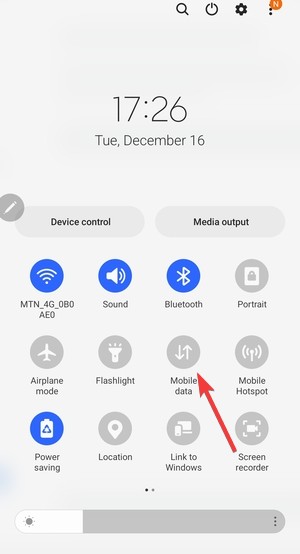

- Reopen Telegram.
If Telegram connects on one network but not the other, the issue comes from the blocked connection.
Fix Telegram stuck on connecting on Android
Android often blocks background network access.
Force stop Telegram
- Open Settings.
- Tap Apps → Telegram.
- Tap Force stop.
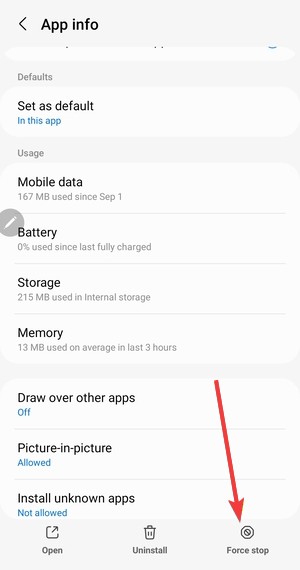

- Reopen Telegram.
Clear Telegram cache
- Open Settings → Apps → Telegram.
- Tap Storage.
- Tap Clear cache.
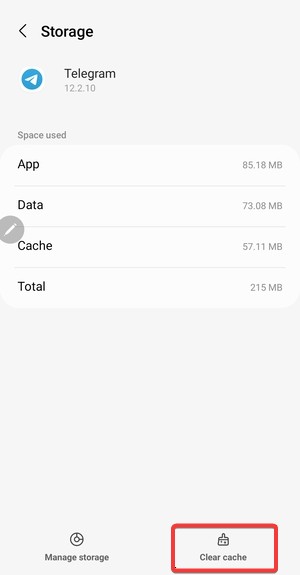

This removes corrupted temporary files without deleting chats.
Disable battery optimization for Telegram
- Open Settings → Battery.

- Tap Battery optimization or Background usage limits.
- Find Telegram.
- Select Unrestricted or Don’t optimize.
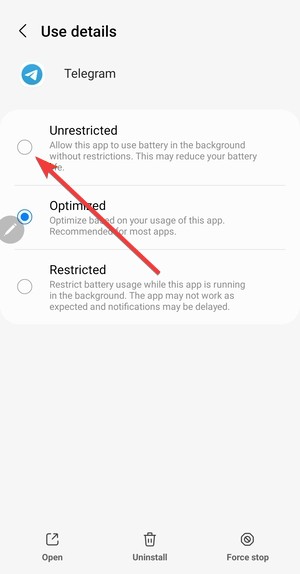

This allows Telegram to keep a stable connection.
Fix Telegram stuck on connecting on iPhone
iOS limits background activity aggressively.
Enable mobile data and background app refresh
- Open Settings → Telegram.
- Enable Mobile Data.
- Go back to Settings → App → Telegram → Background App Refresh.


- Turn it On for Telegram.
Restart the iPhone
- Press and hold the Side button and either Volume button.
- Drag Slide to power off.


- Wait 20 seconds.
- Press and hold the Side button to turn the iPhone back on.
This clears temporary network and system issues.
Fix Telegram stuck on connecting on Windows and macOS
Desktop issues usually relate to firewalls or frozen sessions.
Fully close and reopen Telegram Desktop
- Right-click the Telegram icon in the system tray or dock.
- Select Quit.
- Open Telegram again from the Start menu or Applications folder.
Check firewall or antivirus blocking Telegram
- Open your antivirus or firewall app.
- Find Allowed apps or Exceptions.
- Make sure Telegram Desktop has internet access.
- Save changes and restart Telegram.
Disable VPN, proxy, or ad blockers
VPNs and DNS filters frequently block Telegram traffic.
Turn off VPN and test Telegram
- Disable your VPN app completely.
- Reopen Telegram.
If Telegram connects, the VPN caused the issue.
Remove custom DNS or ad-blocking profiles
- Open Settings → Network or Wi-Fi.
- Remove any custom DNS such as AdGuard or Pi-hole.
- Restart the connection and test Telegram again.
Use a Telegram proxy if Telegram is blocked
In some regions, Telegram requires a proxy to connect at all.
Enable MTProto proxy in Telegram
- Open Telegram.
- Go to Settings → Data and Storage → Proxy Settings.
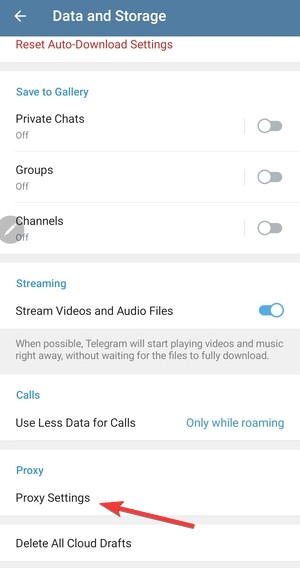

- Enable Use proxy.


- Add an MTProto proxy.
Telegram’s native proxy often works better than VPNs for blocked networks.
Reset Telegram as a last resort
Only use these steps if everything else fails.
Update Telegram
- Open the App Store, Play Store, or your desktop app store.
- Search for Telegram.
- Install any available updates.
Reinstall Telegram
- Uninstall Telegram from your device.
- Restart the device.
- Reinstall Telegram and sign back in.
Your chats will restore automatically if cloud sync is enabled.
Tips to prevent Telegram connection issues
- Use stable Wi-Fi or trusted mobile networks.
- Avoid always-on VPNs unless necessary.
- Keep Telegram updated.
- Disable aggressive battery or data savers.
FAQs
Why does Telegram say connecting but never loads?
Telegram usually cannot reach its servers due to blocked traffic, VPNs, or network restrictions.
Does Telegram work without a VPN?
Yes. Telegram works normally without a VPN in most regions.
Is Telegram blocked in some countries?
Yes. Some ISPs and countries restrict Telegram traffic.
Will reinstalling Telegram delete my chats?
No. Telegram restores chats from the cloud after login.
Summary
- Check if Telegram servers are down.
- Reset your network connection.
- Apply Android, iPhone, or desktop fixes.
- Disable VPNs or use Telegram’s proxy.
- Reinstall Telegram only as a last step.
Most Telegram connection issues come from network interference, not the app itself. Start with quick checks, follow device-specific steps, and reset the app only if nothing else works.


Discussion (0)
Be the first to comment.