




Switching MetroPCS phones with a SIM card takes only a few minutes if both devices support the network. Most people simply move the SIM from one phone to another, but compatibility checks and network settings help you avoid activation problems.
Table of contents
Check phone compatibility before switching
You avoid activation errors when you confirm the new device works with Metro’s network. This also ensures the phone supports VoLTE and 5G.
Confirm the device is unlocked
Locked phones reject Metro SIM cards. An unlocked device accepts the SIM and registers on the network.

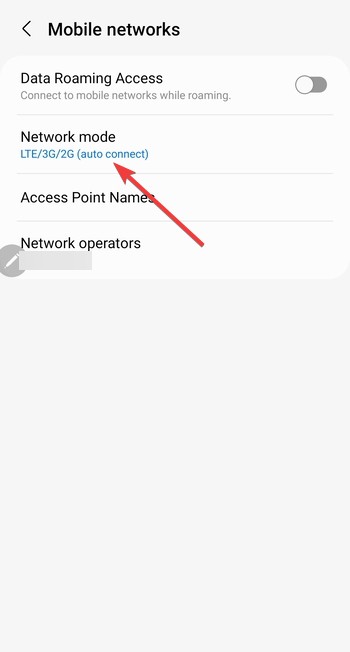
Verify LTE and 5G band support
Phones that support T-Mobile’s LTE bands and 5G bands deliver faster data and more stable calls. You reduce the chance of missing features like VoLTE or hotspot.
Use Metro’s IMEI checker
Metro’s IMEI checker confirms whether the phone is eligible for the network. It also detects blocked or incompatible IMEIs before you swap your SIM.
How to switch MetroPCS phones with your SIM card
Follow these steps to move your SIM safely and get the new device online.
Remove the SIM from your old phone
Power off your phone. Use a SIM tool or paperclip to eject the SIM tray. Remove the SIM carefully so you avoid bending or scratching it.
Insert the Metro SIM into your new phone
The next step is to insert the SIM into the new phone’s SIM tray. Insert it firmly and make sure it sits in the correct orientation.

Power on and test the signal and data
Turn on the device and check for bars and mobile data. If you see LTE or 5G, the SIM connects correctly.
Switching between iPhone and Android
Platform changes sometimes require extra setup. These steps help you keep data, texting, and calling features running.
iPhone to Android
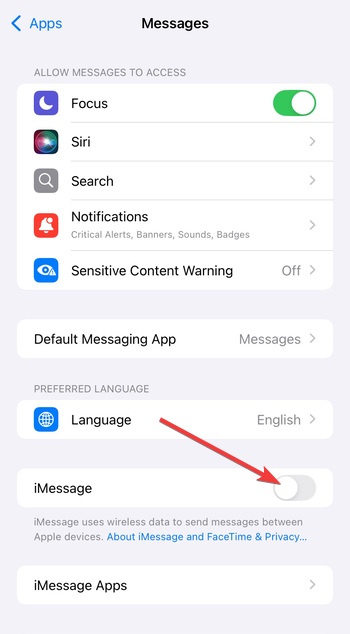
Turn off iMessage on your old iPhone so texts route normally on Android. Check APN settings if data or MMS fails. Sign in to your Google account to sync messages and apps.
Android to iPhone
Update carrier settings when the iPhone prompts you after inserting the SIM. Sign out of your Android device so apps and messaging services switch over. Check Visual Voicemail after activation.
Additional activation steps sometimes required
Some phones need small adjustments before they run at full performance.
Update carrier settings
Carrier settings updates load Metro’s network configuration. Accept the update when your phone requests it.
Reset or edit APN settings
Metro APN settings ensure your phone uses the correct gateway for data, MMS, and hotspot. Resetting APNs often fixes missing internet or slow data.
Enable VoLTE and 5G
Turn on VoLTE so your calls stay clear. Enable 5G to unlock faster speeds if the phone supports it.
When a SIM swap will not work
- Phone still locked to another carrier
- IMEI blocked or blacklisted
- Metro’s 180-day device lock policy
Troubleshooting SIM card issues after switching
- SIM not provisioned MM#2: This error usually means the network has not linked the SIM to your account. Restart the phone, reseat the SIM, or contact Metro to refresh provisioning.
- No service or no 5G data: Reset network settings and check the APN. Make sure the phone supports Metro’s 5G bands.
- VoLTE or MMS not working: Turn on VoLTE in the mobile network menu. Check APN settings if MMS or group texts fail.
Tips for a smooth Metro SIM transfer
- Keep the SIM clean and avoid bending it.
- Restart both phones before and after the swap.
- Update software on the new device.
- Confirm hotspot works before you rely on it.
- Test calls, texts, and data immediately.
FAQs
Can I move my Metro SIM to any unlocked phone? Yes, if the phone supports T-Mobile’s network bands and VoLTE.
Do I need to contact Metro to switch phones? Most users do not, but Metro may refresh network provisioning for SIM errors.
Can I switch between iPhone and Android? Yes. Both platforms work with Metro once you complete the setup steps.
Will 5G work on the new phone? It works only if the device supports T-Mobile’s 5G bands, such as n41 and n71.
Summary
- Check device compatibility and unlock status.
- Remove the SIM from the old phone.
- Insert the SIM into the new phone.
- Update carrier settings and APNs.
- Fix issues like VoLTE or data failures with quick troubleshooting.
You switch MetroPCS phones easily once you confirm compatibility and move the SIM. Most users get back online within minutes. If the phone still struggles to connect, check the IMEI, reset APNs, or contact Metro support for provisioning help.


Discussion (0)
Be the first to comment.