




A new SIM card lets your phone connect to your carrier so you can place calls, send texts, and use mobile data. Most phones use a simple tray mechanism, but steps vary by device type, SIM size, and whether your phone supports dual SIM or eSIM.
This guide shows how to insert a SIM card correctly and prevent issues like “No SIM detected” or activation failures.
1) Check your phone’s SIM compatibility
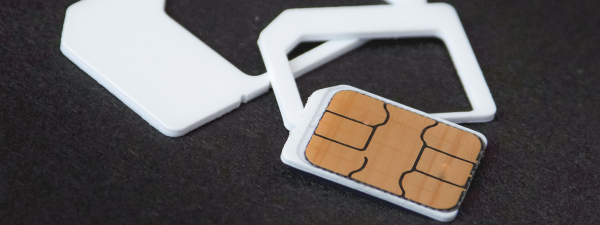
Phones use nano, micro, or standard SIM sizes. Most modern devices use nano SIM cards, so checking the required size prevents damage or a loose fit.

Physical SIM vs eSIM
Some phones support eSIM in addition to a physical SIM. Inserting a physical SIM may change the default line for calls or data, so checking your settings afterward helps avoid disruptions.
Dual-SIM and hybrid SIM trays
Dual-SIM trays let you use two numbers on one device. Hybrid trays share space with a microSD card, so you must choose whether to use storage or a second SIM.
2) Prepare your phone and SIM card
Turn off your phone before inserting a SIM card. This protects the SIM contacts and helps the phone detect the card correctly when you power it back on.
Remove any case covering the tray area. Check the SIM’s notched corner to align it properly in the tray.
3) Insert a SIM card in common phone types
Android with side SIM tray
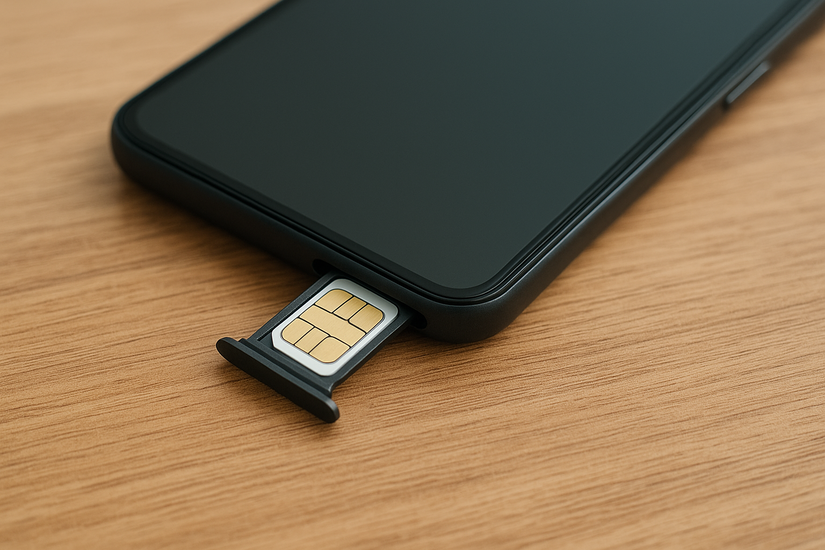
Turn off your phone and insert the SIM ejector into the small pinhole until the tray pops out. Place the SIM in the tray with the metal contacts facing down. Next, slide the tray back in until it clicks.
You can now turn on your phone and check the signal indicator.
Android with a removable battery
Turn off the phone, remove the back cover, and take out the battery. Next, slide the SIM into the slot matching the notched corner. Now, reinsert the battery and cover.
Lastly, turn on the phone and check for a network signal.

iPhone
Turn off your iPhone and insert the SIM tool into the pinhole to release the tray. Next, place the SIM inside with the contacts facing down. Now, push the tray back into place and power on the device.
Foldables and rugged phones
Many foldables place the tray on the top edge, while rugged phones hide it under a protective rubber flap. Ensure the tray or cover seals properly to maintain water resistance.
4) Turn the phone back on and verify network connection
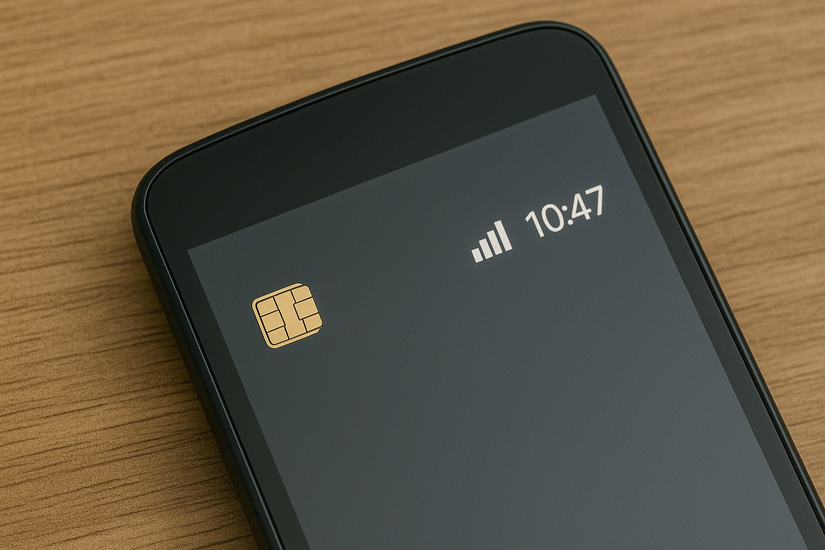
After powering on, check for your carrier name and signal bars. Some devices show a setup prompt for a new SIM, which helps activate voice, text, and data.
5) Manage SIM settings after insertion
Phones let you choose the default SIM for data, calls, and messages. These settings help control roaming, billing, and which number apps use.
Switching between SIMs in dual-SIM setups
You can toggle which SIM handles data or calls. This is useful if one SIM has a better data plan or roaming coverage.
6) Activate your SIM (if required)
Many US carriers activate automatically once the SIM registers on the network. If activation is required, instructions appear on the device or in your carrier’s app. Keep the SIM card’s packaging, as it includes your activation number or PIN.
7) Common issues after inserting a new SIM
- Phone shows “No SIM” or “SIM not detected”: The SIM may be misaligned, or the tray may not be fully closed. Reseat the SIM and clean the tray area.
- Phone shows “SIM locked”: This indicates a PIN-protected SIM. Enter the correct SIM PIN or request the PUK code from your carrier.
- No service or no mobile data: Your phone may need updated APN settings or refreshed network registration. Toggling Airplane mode sometimes restores the connection.
- Device might be carrier-locked: A carrier-locked phone rejects SIM cards from other networks. If you see a carrier lock message, you must unlock the device before using a new SIM.
FAQs
Why does my phone not detect the SIM card? Misalignment, dirt on the contacts, or a damaged tray may prevent detection.
Can I use two SIM cards at the same time? Many Android phones support dual SIM. You can choose which SIM handles calls, texts, and data.
Will inserting a SIM erase my phone data? No. SIM insertion does not delete your phone’s apps, photos, or settings.
Do eSIM and physical SIM work together? Some phones support both. You can use an eSIM for one line and a physical SIM for another.
Summary
- Check your phone’s SIM size and compatibility.
- Power off your phone before inserting the SIM.
- Follow the steps for your device type: Android, iPhone, or foldable.
- Turn the phone on and confirm carrier detection.
- Adjust SIM settings for calls, texts, and data.
- Troubleshoot issues like “No SIM” or activation errors.
Conclusion
Inserting a new SIM card is a quick process once you identify your phone’s tray type and SIM size. Most users connect to their carrier within minutes and can manage dual-SIM or eSIM settings with a few taps. If your phone does not detect the SIM, reseating it or checking carrier compatibility usually resolves the issue.


Discussion (0)
Be the first to comment.