



If you share your Netflix account or recently signed in on a device you no longer use, signing out is a smart move. Netflix allows you to log out on individual devices or sign out of all devices at once to protect your profiles, viewing history, and recommendations.
This guide walks through every reliable method to sign out of Netflix on phones, computers, and TVs, plus how to log out remotely if you do not have physical access to a device.
How To Sign Out Of Netflix On A Computer Or Web Browser
Signing out on a desktop or laptop is the quickest option if you have browser access. This method works on Windows, macOS, and Chromebooks.
- Open Netflix in a web browser
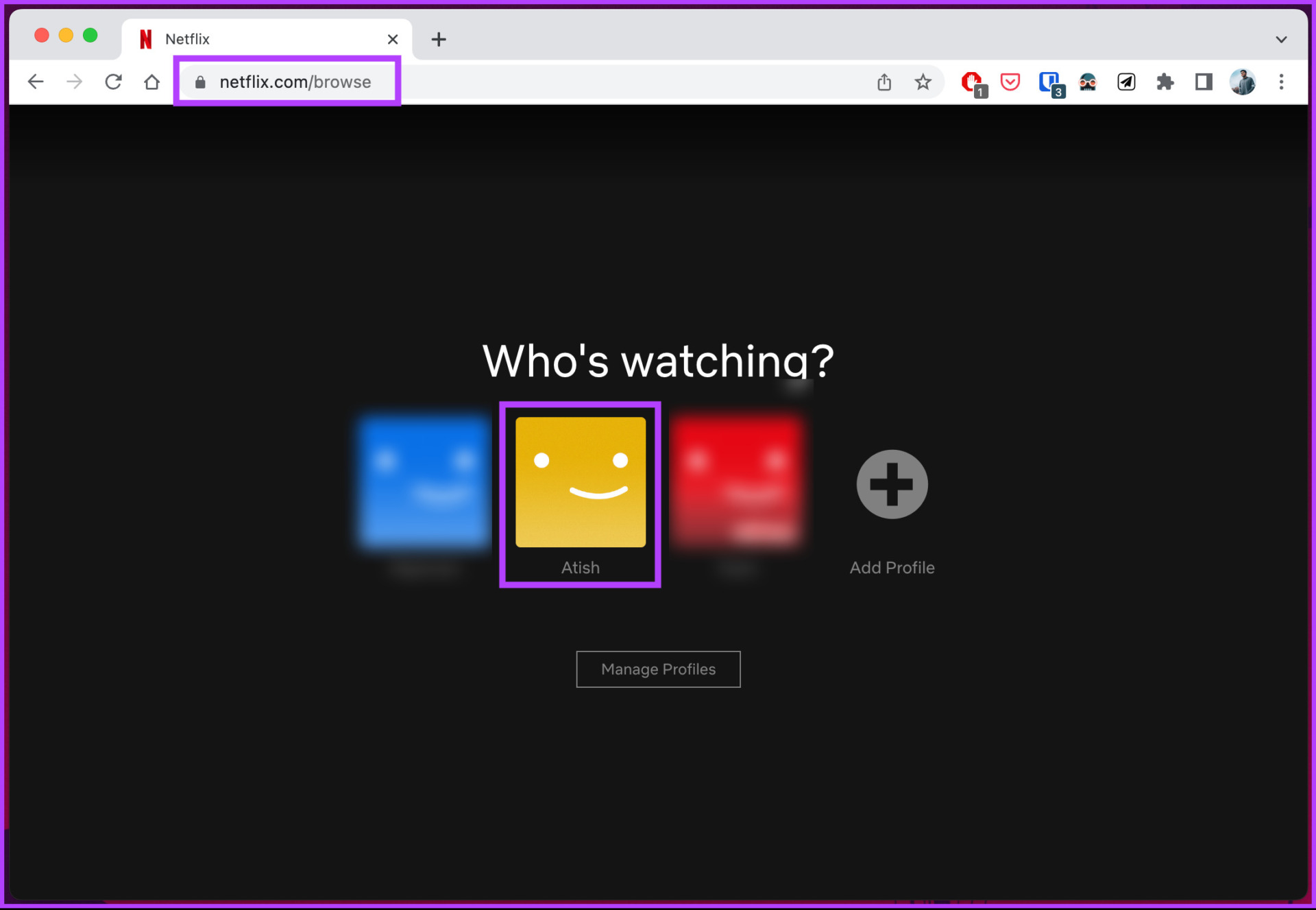
- Select a profile.
- Hover over the profile icon in the top-right corner.
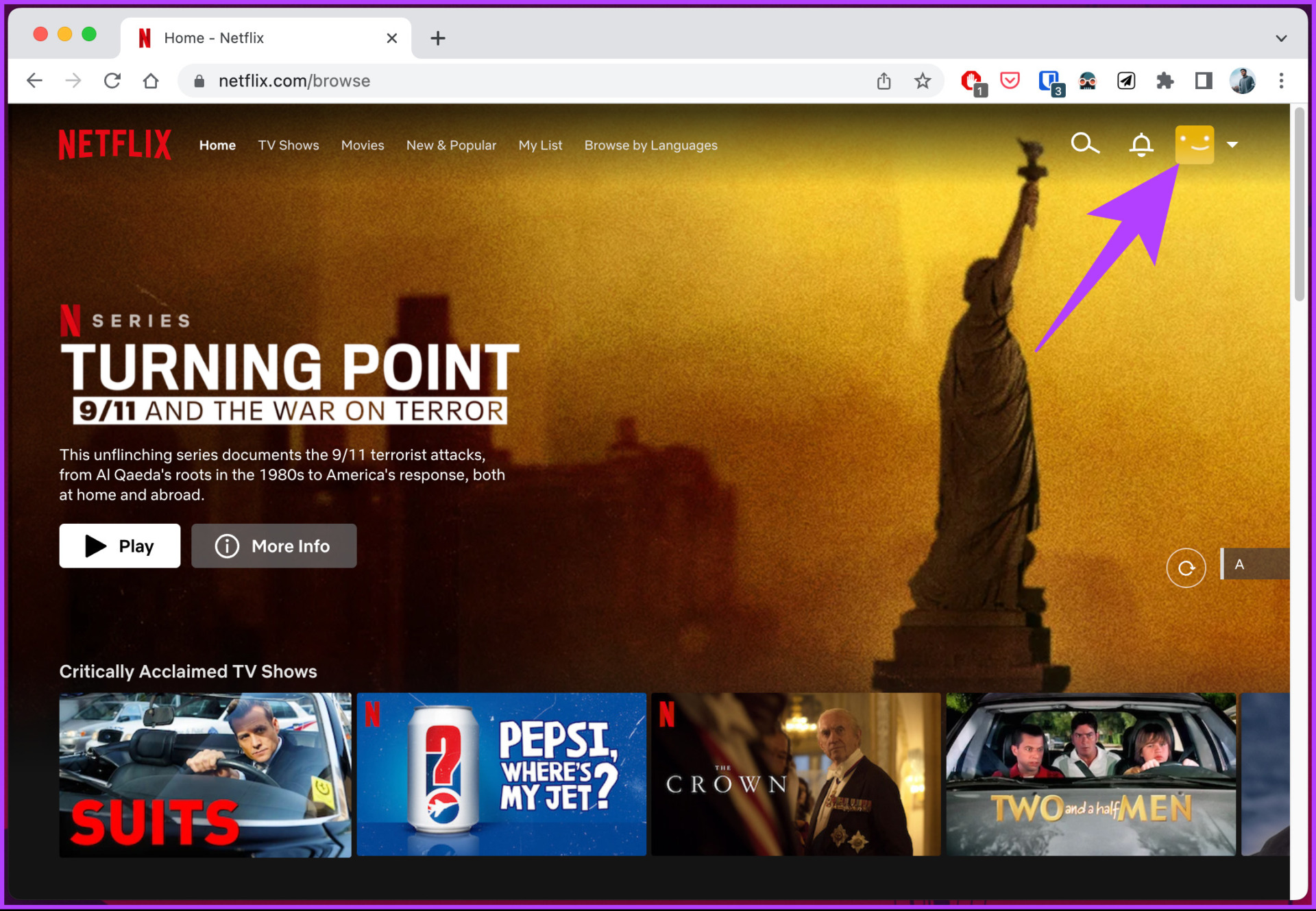
- Select Sign Out Of Netflix.
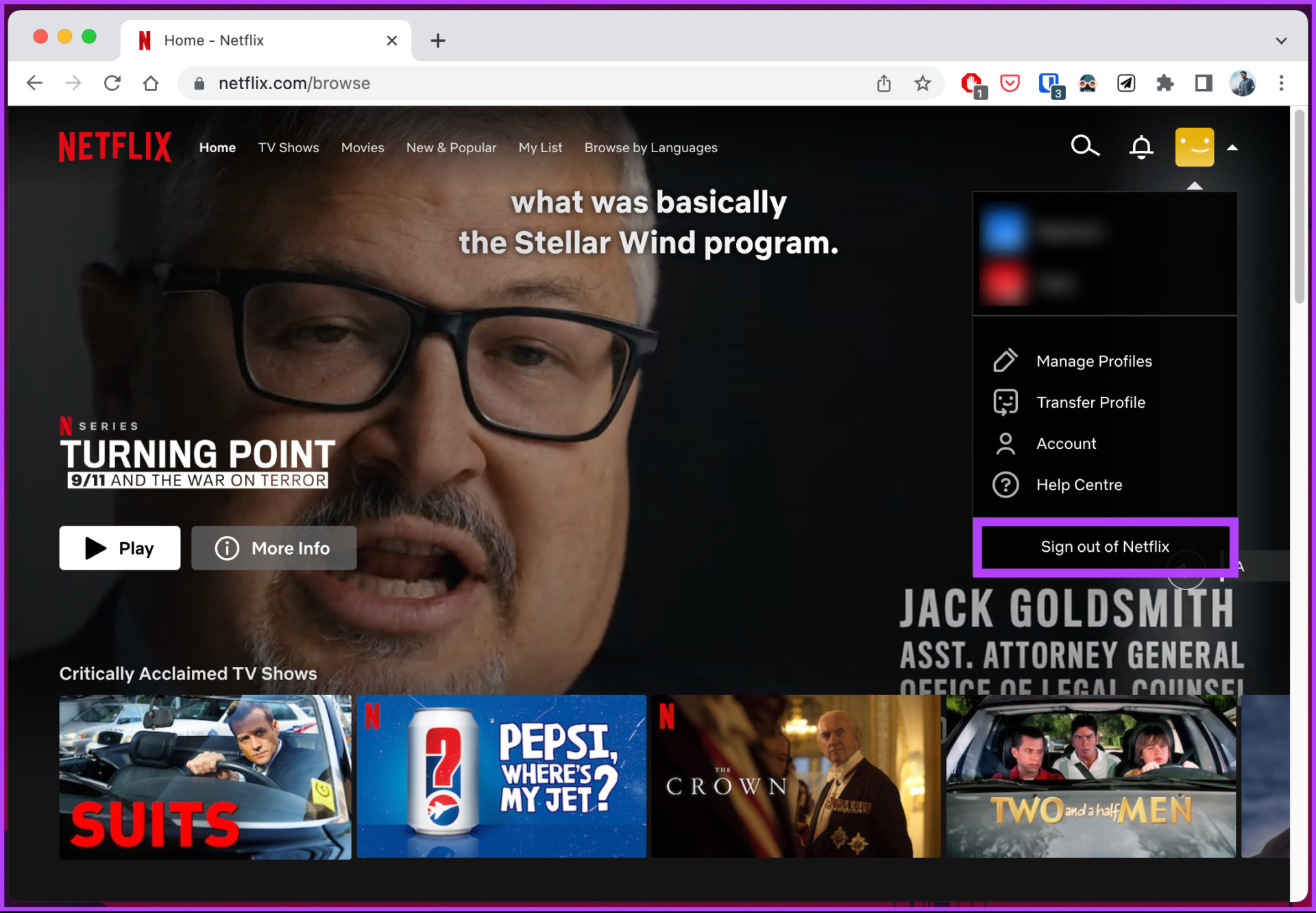
- Confirm if prompted.
Once signed out, the browser will no longer have access to your account unless someone signs back in.
How To Sign Out Of Netflix On iPhone Or iPad
The Netflix app on iOS places the sign-out option inside account settings. The steps may look slightly different over time, but the location remains consistent.
- Open the Netflix app and choose a profile.
- Tap My Netflix or the profile icon.
- Open the menu and select Sign Out.
- Confirm to disconnect the device.
After signing out, the app returns to the profile selection screen.
How To Sign Out Of Netflix On Apple TV Or Smart TVs
Netflix on TVs uses in-app menus instead of account pages, and the wording may vary depending on the platform.
- Open the Netflix app on the TV.
- Enter a profile.
- Open the side menu or press the menu button on the remote.
- Select Settings or Get Help.
- Choose Sign Out and confirm.
If you do not see a sign-out option, restarting the app usually reveals the correct menu.
How To Sign Out Of Netflix On All Devices Remotely
If you no longer have access to a device or suspect someone else is using your account, Netflix allows you to log out everywhere at once.
- Open Netflix on a browser or mobile app.
- Go to Account.
- Select Access And Devices or Devices.
- Choose Sign Out Of All Devices.
- Confirm the action.
This process may take a few minutes to fully disconnect all devices.
Troubleshooting Common Problems
If Netflix does not sign out as expected, try these fixes:
- Force close and reopen the Netflix app.
- Restart the device and try again.
- Sign out using a web browser instead of the app.
- Wait several minutes after remote sign-out for changes to apply.
Tips
- Change your Netflix password after signing out of all devices.
- Review active devices regularly under account settings.
- Remove devices you no longer recognize immediately.
- Avoid staying signed in on public or shared TVs.
FAQ
Does signing out of Netflix remove profiles?
No. Signing out only disconnects the device. Profiles and watch history remain intact.
How long does remote sign-out take?
Most devices sign out within minutes, but some TVs may take longer.
Can I sign out of just one device?
Yes. Use the device list in account settings to remove specific devices.
Will changing my password log everyone out?
Yes. Changing the password forces all devices to sign in again.
Summary
- Netflix allows signing out on individual devices or all devices.
- You can log out from phones, TVs, browsers, or remotely.
- Remote sign-out helps secure accounts quickly.
- Changing your password adds an extra layer of protection.
Conclusion
Signing out of Netflix is a simple but effective way to keep your account secure and under control. Whether you are cleaning up old devices or responding to suspicious activity, Netflix gives you the tools to manage access in minutes.


Discussion (0)
Be the first to comment.