




Boost Mobile lets you share your phone’s data connection with laptops, tablets, and other devices. Hotspot works well when you are aware of your plan's limits and configure the feature correctly. This guide shows how to set up a hotspot on Android and iPhone, manage data, and fix common issues.
But before delving into the guide fully, note that some Boost Mobile plans include hotspot data, while others require an add-on. Open your account dashboard and verify that hotspot support appears in your plan details. This step ensures the toggle works when you enable it in settings.
1) How to set up hotspot on Android
Enable hotspot
To enable hotspot on your Android, open Settings and tap Network & Internet. Next, select Hotspot & Tethering > Mobile Hotspot and turn on the Hotspot switch. This turns your phone into a Wi-Fi access point that other devices can join, depending on your device type.

Change hotspot name, password, and band settings
A strong password and proper band selection improve security and performance. You can tap Hotspot Name to edit the SSID and Hotspot Password to create a secure key. Switch between 2.4GHz and 5GHz to improve compatibility or speed, depending on your devices.

Connect other devices to your Android hotspot
Join from your laptop, tablet, or other devices by selecting your hotspot network in the Wi-Fi list. Enter the hotspot password and confirm the connection. This process verifies that your Boost Mobile data flows through correctly.
2) How to set up hotspot on an iPhone
Enable personal hotspot on iOS
Open Settings and tap Personal Hotspot. Next, turn on Allow Others to Join. With this, your iPhone broadcasts its network once you enable the toggle.

Customize your hotspot name and password
Tap Wi-Fi Password to set a secure password. A unique passphrase helps protect your data. You can adjust your device name in Settings → General → About, which changes the hotspot’s broadcast name.
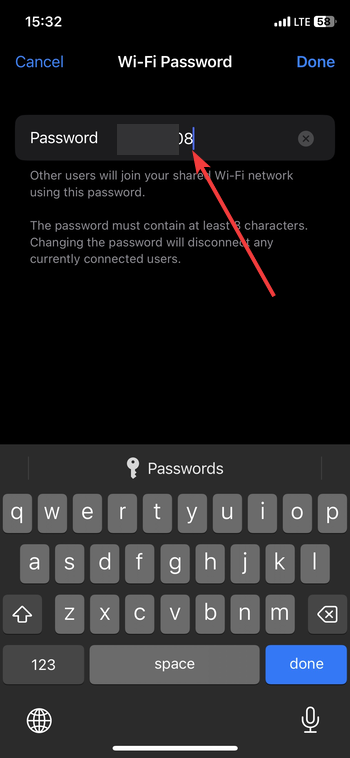
Connect other devices to your iPhone hotspot
Select the hotspot from the Wi-Fi list on your connecting device. You can also use Bluetooth or USB if you want a more stable link. These methods help when Wi-Fi signals fluctuate.
3) Managing hotspot data on Boost Mobile
Boost Mobile hotspots draw from your high-speed data allowance. Understanding how the data counts prevents surprise slowdowns.
How hotspot data counts toward your plan
Every connected device uses data from your primary high-speed allotment. Heavy tasks like streaming and cloud backups drain data quickly. This awareness helps you track usage before you hit a speed cap.
Adding more hotspot data
Boost Mobile offers data add-ons that expand your hotspot allowance. Upgrading your plan or adding more data often resolves issues where the hotspot toggle refuses to turn on.
4) Fix hotspot not working on Boost Mobile
- Verify plan and data status: Check your account and ensure your plan includes hotspot access. When your high-speed data runs out, the hotspot may not activate.
- Restart the phone and toggle airplane mode: A quick restart refreshes your mobile radios. Turning Airplane Mode on and off also resets your signal and clears temporary network conflicts.
- Reset hotspot settings and re-enter password: Disconnect your devices, turn the hotspot off, and reconfigure the name and password. This step solves issues where devices connect but show No Internet.
- Update Android or iOS software: Outdated operating systems can block hotspot activation. Install the latest update to improve stability and compatibility.
- Contact Boost Mobile support: If hotspot activation fails even after troubleshooting, your account may require provisioning. Carrier support can refresh your line or correct a plan setting that prevents hotspot usage.
FAQs
Can Boost Mobile throttle hotspot speeds? Yes, speeds may slow after you use your high-speed hotspot allowance.
Why do connected devices show no internet? This usually happens when high-speed data has run out or the phone’s radios need a reset.
Can prepaid plans use hotspot? Many prepaid plans support hotspot, but some require add-ons. Check your plan details to confirm.
How do I check remaining hotspot data? You can view your high-speed data balance in your account dashboard.
Summary
- Confirm your Boost Mobile plan supports hotspot.
- Enable hotspot from Android → Hotspot & Tethering or iOS → Personal Hotspot.
- Edit your hotspot name and password for security.
- Connect your laptop, tablet, or other devices through Wi-Fi.
- Manage data usage and add more hotspot data when needed.
- Use built-in troubleshooting steps if hotspot will not activate.
Conclusion
Setting up a hotspot on Boost Mobile takes only a few taps when your plan supports it. Android and iPhone users can share data quickly by enabling the built-in hotspot controls and securing their network. If issues appear, simple resets and data checks usually restore normal operation.


Discussion (0)
Be the first to comment.