




Activating a new SIM card on Verizon connects your phone to the carrier’s 4G or 5G network. The steps are simple, but the process can vary depending on whether you’re using a physical SIM or an eSIM. This guide walks you through everything - from preparing your phone to testing your connection.
But before you begin the activation process, verify that your phone is unlocked and supports Verizon’s network. Also, have your Verizon account username, password, billing ZIP code, and the last four digits of your account holder’s SSN ready. You will need them during activation.
Step 1: Insert and prepare the SIM card
Use a SIM ejector tool or a paperclip to open the tray. On most Androids, it sits along the side; on iPhones, it usually sits on the right edge. Now, place the SIM with the metal contacts facing down and match the notched corner. Slide the tray back until it clicks securely.

Lastly, reboot your device so it can recognize and register the new SIM on Verizon’s network.
Step 2: Activate the SIM on Verizon’s network
Activate via the My Verizon app
Install or open the My Verizon app, sign in, and tap Devices > Activate or Switch Device. Next, follow the prompts to add your SIM or eSIM. Now, wait for confirmation before restarting your phone.

Activate using the Verizon website
Open the activation page and sign in to your account. Next, enter your SIM ID or IMEI number and confirm your device, and wait for the activation complete message.
Activate through customer service
If errors appear or you can’t access your account, call 1-800-922-0204 or start a chat through Verizon’s support center. Keep your account details handy to speed up the process.
Step 3: Setting up an eSIM on Verizon
Verizon sends an eSIM QR code by email or displays it in your My Verizon account. Open your phone’s Cellular or Mobile Data settings, select Add eSIM, and scan the code.
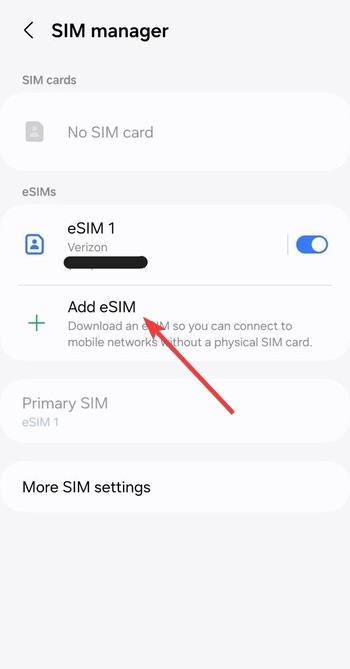
After scanning, your Verizon plan appears under Settings > Cellular > Cellular Plans. Restart the phone if it doesn’t connect automatically.
Step 4: Verify and test your connection
Once activation completes, confirm that everything works as expected. The first thing to do is to look for signal bars in the status area and verify that the Verizon network name appears.
Next, place a quick test call and open a web page. If both work, your new SIM or eSIM is active. Finally, if prompted, install the carrier update to ensure the latest Verizon network features are available on your phone.
Troubleshooting common activation issues
- SIM not recognized or Invalid SIM: Reinsert the SIM, wipe the metal contacts, and restart your phone. If it still fails, reset network settings or try another SIM slot.
- Activation taking too long: Network registration can take up to 15 minutes. Wait, then reboot. If it persists, check your Verizon account for pending confirmations.
- Locked or incompatible device: Phones locked to another carrier can’t use a Verizon SIM. Verify your unlock status and contact your previous provider if necessary.
Tips for smooth activation
- Keep your old SIM until activation completes
- Back up contacts and data
- Know prepaid vs postpaid differences
FAQs
Can I use my old SIM in a new Verizon phone? Only if the phone is Verizon-compatible and unlocked.
How long does activation usually take? Most activations complete within 15 minutes, though eSIM setups may take slightly longer.
Do I need Wi-Fi for eSIM setup? Yes, a stable Wi-Fi connection ensures the QR code and carrier settings download properly.
What happens to my old number? Your number transfers automatically once activation completes.
How can I switch from physical SIM to eSIM? Use My Verizon to request an eSIM conversion and scan the code provided.
Summary
- Check your phone’s compatibility and unlock status.
- Insert or activate the SIM or eSIM properly.
- Use the My Verizon app or website for activation.
- Restart and test your connection.
- Troubleshoot or contact Verizon if setup fails.
Conclusion
Setting up a new SIM card on Verizon takes only a few minutes when you follow the right steps. Whether you’re inserting a physical SIM or activating an eSIM, preparation is key - make sure your phone is compatible, your account details are ready, and your connection is stable.
Once activated, verify your signal, make a quick test call, and update your carrier settings. If activation doesn’t complete, try reinserting the SIM, restarting the phone, or contacting Verizon support for help. With your new SIM active, your device is ready to use on Verizon’s fast and reliable 5G network.


Discussion (0)
Be the first to comment.