




Windows Security, also known as Microsoft Defender, comes built into Windows 10 and Windows 11 to protect against malware, ransomware, and phishing threats. While it works well for most users, some choose to remove Windows Security permanently due to performance concerns, false positives, or switching to third-party antivirus software.
Before disabling Microsoft Defender, it’s important to understand the risks. Removing Windows Security leaves your system without built-in protection, so you should always have an alternative antivirus solution ready.
Things To Know Before Removing Windows Security Permanently
Windows Security integrates deeply into the operating system, which means removing it incorrectly can cause system instability. Microsoft also re-enables certain protection features automatically after major updates.
Creating a system restore point and backing up important files helps prevent permanent data loss if something goes wrong.
- Windows Security protects against viruses, malware, and ransomware by default
- Disabling it can increase vulnerability without third-party antivirus software
- Some Windows updates may attempt to re-enable Microsoft Defender
Method 1: Disable Windows Security Using Group Policy Editor
The Local Group Policy Editor provides a reliable way to turn off Microsoft Defender Antivirus on supported Windows editions.
- Press Windows + R to open Run
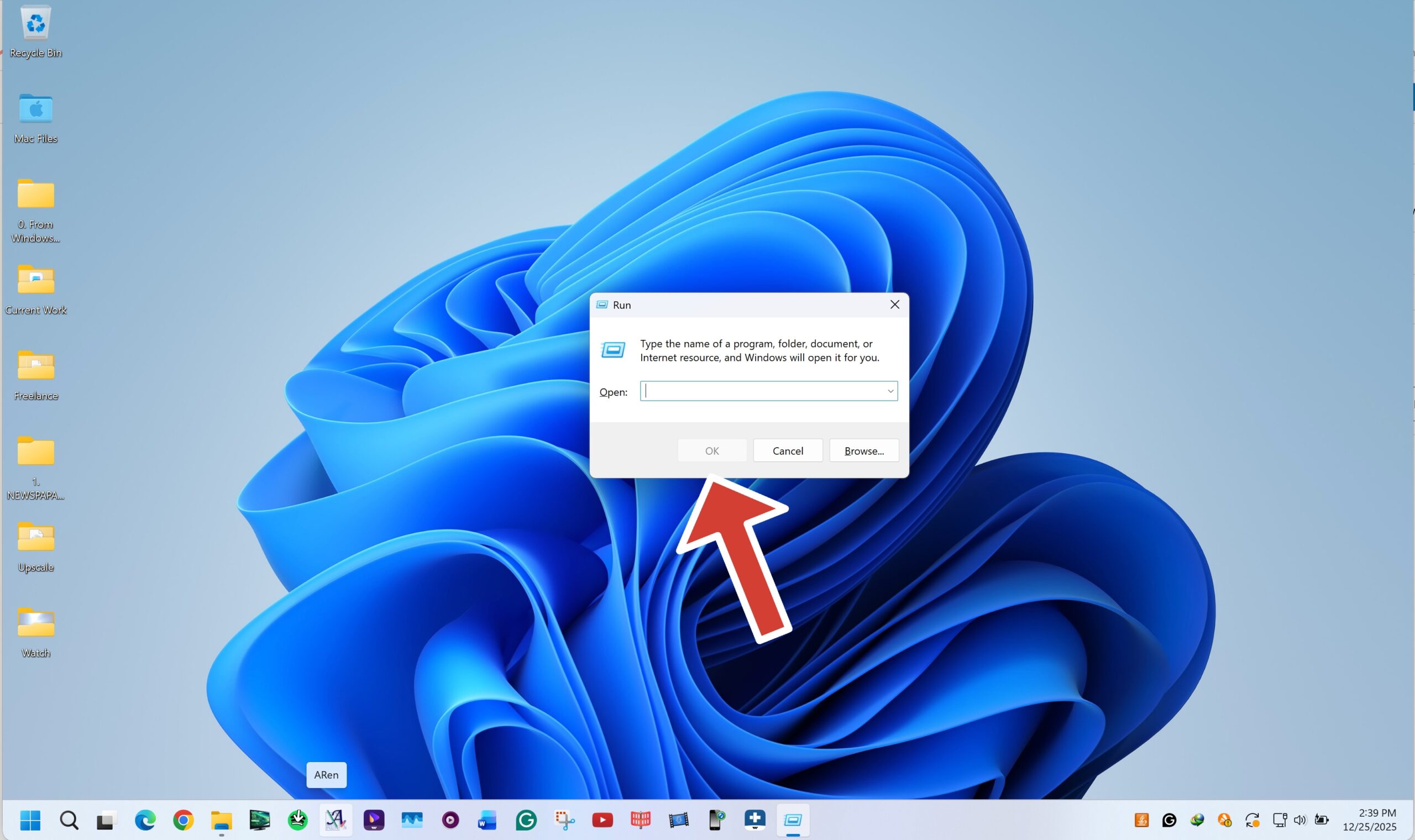
- Type gpedit.msc and press Enter
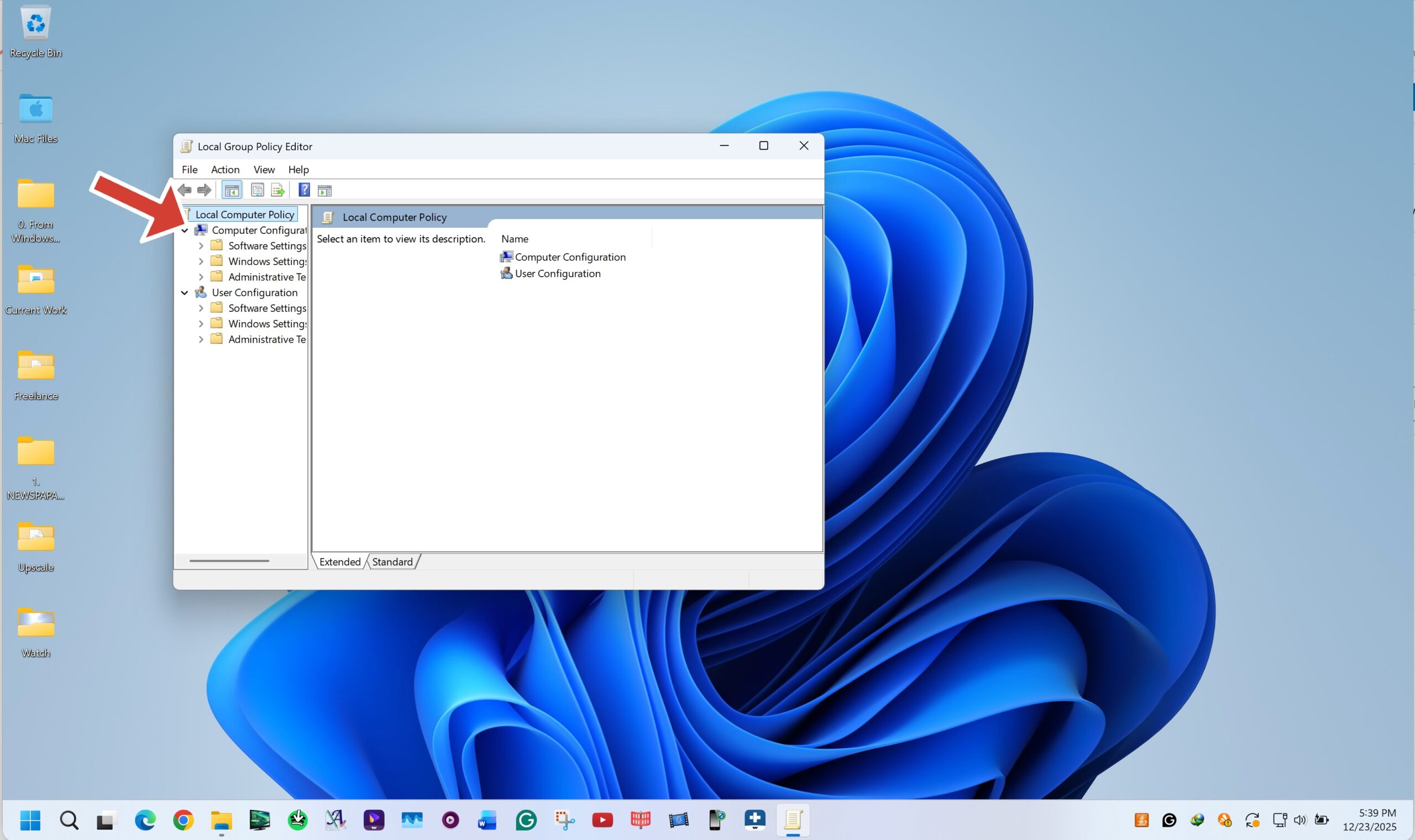
- Navigate to Computer Configuration > Administrative Templates > Windows Components > Microsoft Defender Antivirus
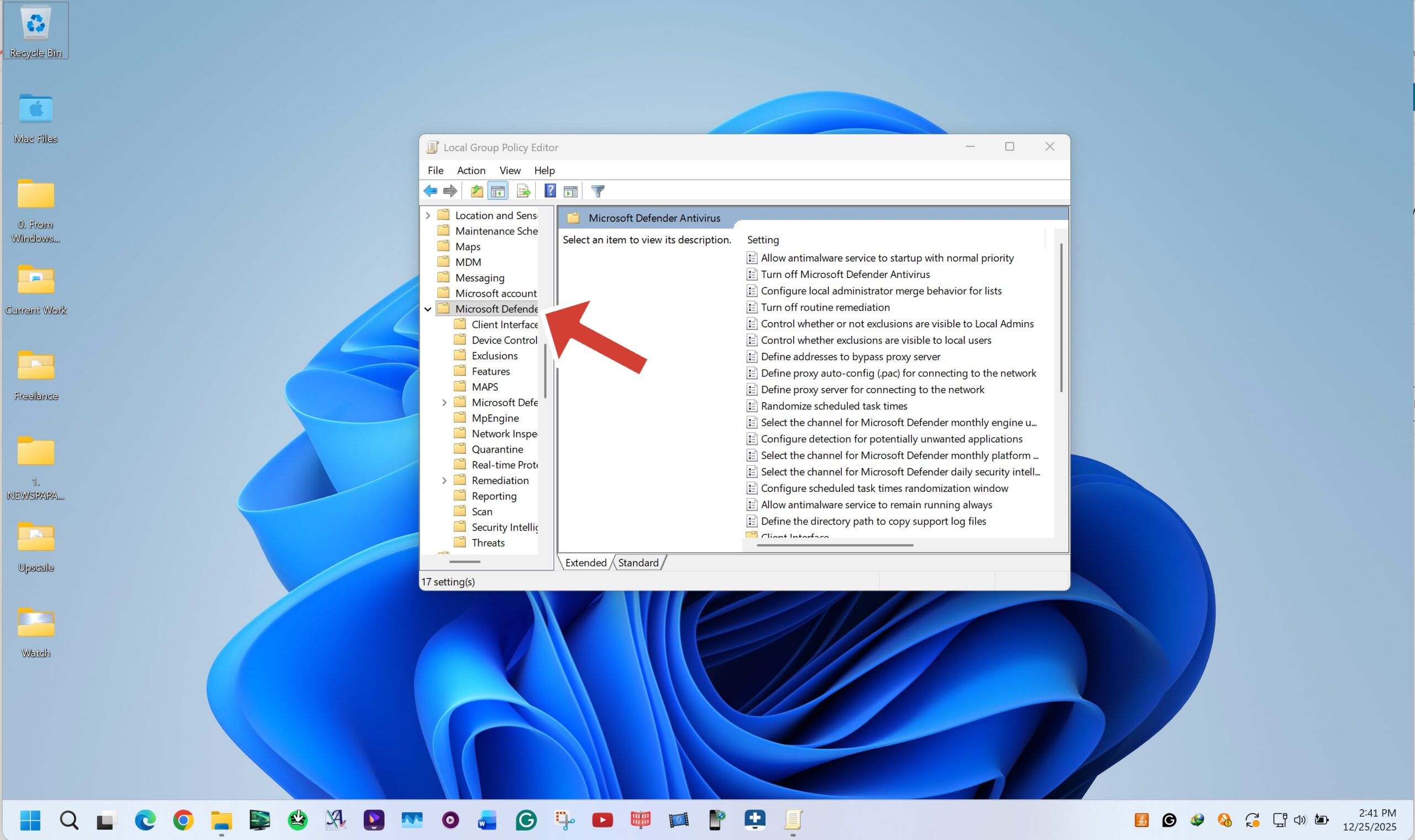
- Double-click Turn Off Microsoft Defender Antivirus
- Select Enabled, then click Apply and OK
- Restart your PC
This method disables Defender permanently but may still leave the Windows Security interface visible.
Method 2: Disable Windows Security Using Registry Editor
Registry edits allow you to disable core Defender components at the system level. This method works on both Windows 10 and Windows 11.
- Press Windows + R and type regedit
- Navigate to HKEY_LOCAL_MACHINE\SOFTWARE\Policies\Microsoft\Windows Defender
- Right-click and create a new DWORD (32-bit) Value
- Name it DisableAntiSpyware
- Set the value to 1
- Restart your PC
This approach disables Windows Defender services but does not remove the Windows Security app.
Method 3: Turn Off Tamper Protection
Windows Security includes Tamper Protection to prevent unauthorized changes. You must disable it before applying advanced methods.
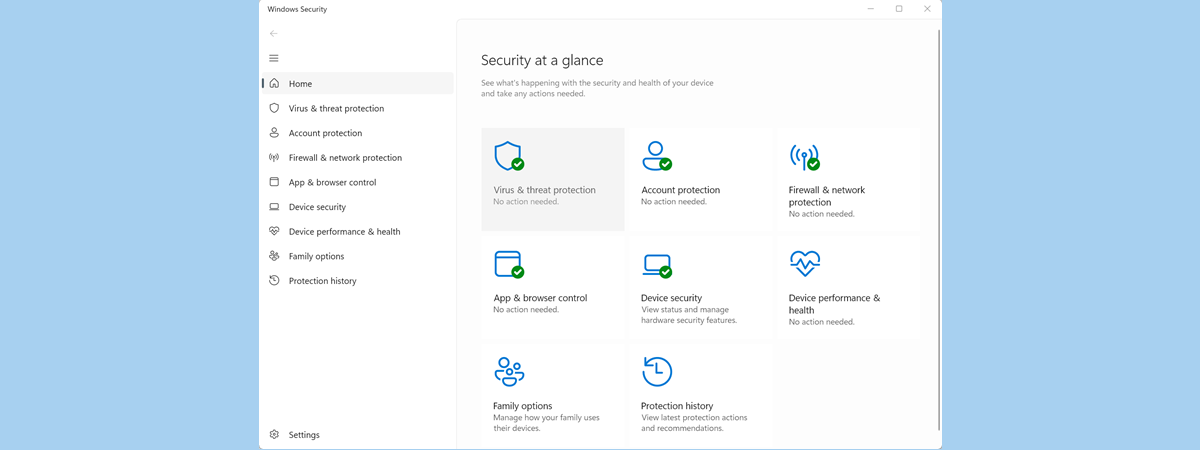
- Open Windows Security from Start
- Select Virus & Threat Protection
- Click Manage Settings
- Turn off Tamper Protection
Disabling this feature allows registry and policy changes to remain effective.
Method 4: Remove Windows Security Using Defender Removal Tools
Advanced users may use dedicated Windows Defender removal tools or PowerShell scripts. These methods remove Windows Security components entirely but carry higher risk.
- Download a trusted Defender removal tool
- Run the tool as administrator
- Follow on-screen instructions carefully
Always verify the source before running any third-party removal utility.
Troubleshooting Common Problems
If Windows Security re-enables itself, Windows Update may have restored Defender services. Recheck Group Policy and Tamper Protection settings.
If system errors appear, use System Restore to revert to a previous working state.
Tips
- Install third-party antivirus software before disabling Windows Security
- Keep Windows updates enabled for system stability
- Use exclusions instead of full removal when possible
- Restart after every major change
FAQ
Is it safe to remove Windows Security permanently?
Only if you install reliable antivirus software immediately.
Does disabling Microsoft Defender improve performance?
It can reduce background CPU and disk usage on low-end systems.
Will Windows updates restore Windows Security?
Major updates may partially re-enable Defender features.
Can I re-enable Windows Security later?
Yes, reversing registry or Group Policy changes restores it.
Summary
- Windows Security protects against malware by default
- Group Policy and Registry edits disable Defender effectively
- Tamper Protection must be turned off first
- Third-party antivirus software is strongly recommended
Conclusion
Removing Windows Security permanently can solve performance issues and false positives, but it comes with real security risks. If you choose to disable Microsoft Defender, always replace it with trusted antivirus software and keep your system updated to stay protected.
Discussion (0)
Be the first to comment.