




Apple Wallet makes it easy to store boarding passes, event tickets, transit passes, and payment cards in one place. Over time, expired passes and unused cards can clutter the Wallet app, making it harder to find what you need when it matters.
Removing old Apple Wallet items helps keep everything organized and ensures faster access on both iPhone and Apple Watch. The steps below show how to delete tickets, passes, and cards safely without affecting your Apple ID or payment accounts.
Remove Tickets And Passes From Apple Wallet On iPhone
You can delete active or expired passes directly from the Wallet app on your iPhone. Changes sync automatically if you use the same Apple ID across devices.
To remove an active ticket or pass:
- Open the Wallet app on your iPhone
- Select the ticket or pass you want to remove
- Tap the three dots in the top-right corner
- Select Remove Pass
- Tap Remove to confirm
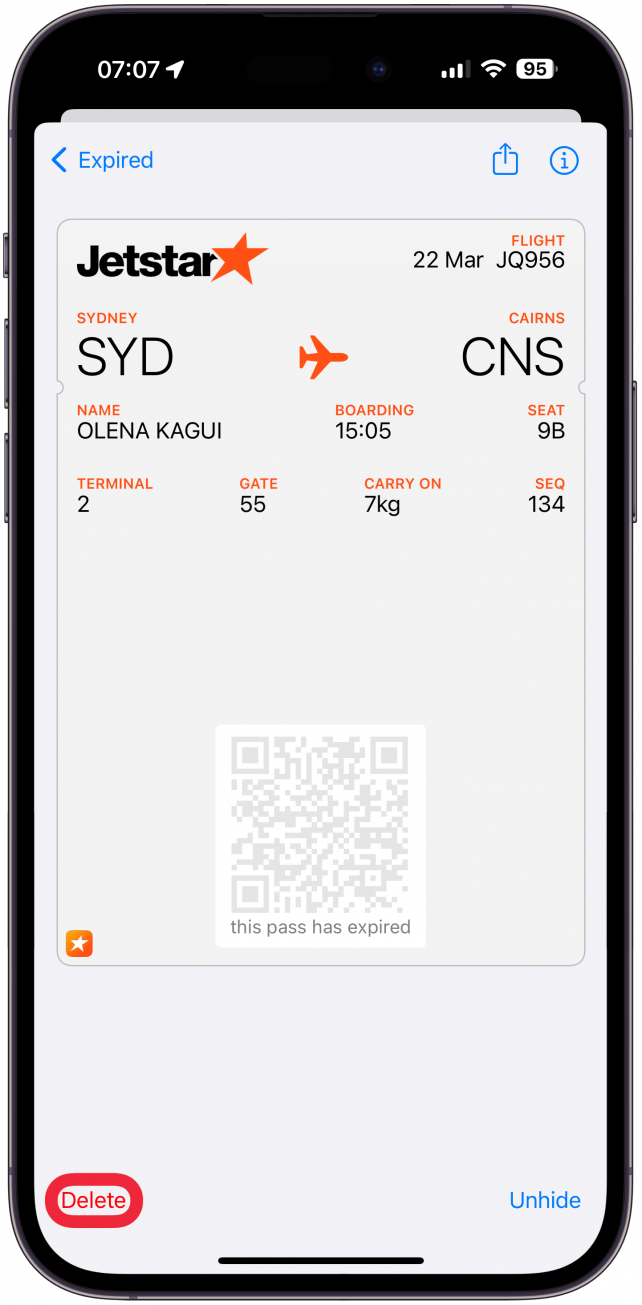
To delete expired passes:
- Open the Wallet app
- Scroll down and tap View Expired Passes
- Select a pass to remove it individually, or tap Edit
- Select multiple expired passes
- Tap Delete and confirm
Remove Tickets And Passes From Apple Wallet On Apple Watch
If you use Apple Wallet on Apple Watch, you can manage passes directly from your wrist. Expired items must be removed one at a time.
To remove an active pass:
- Open the Wallet app on Apple Watch
- Select the pass you want to remove
- Scroll down and tap Remove Pass
- Confirm the removal
To remove expired passes:
- Open the Wallet app

- Tap the three dots at the top
- Select View Expired Passes

- Choose a pass and tap Remove/Delete
Remove Cards From Apple Wallet On iPhone
Deleting a debit or credit card from Apple Wallet does not cancel the account. It only removes the card from your device.
- Open the Wallet app
- Select the card you want to remove
- Tap the three dots in the top-right corner
- Select Card Details
- Tap Remove Card
- Confirm the action
Remove Cards From Apple Wallet On Apple Watch
You can also remove cards directly from Apple Watch, with changes syncing across devices.
- Open the Wallet app on Apple Watch
- Select the card you want to remove
- Scroll down and tap Remove
- Confirm the removal
Troubleshooting Common Problems
If a pass or card won’t delete, make sure your device is signed in to the correct Apple ID and connected to the internet. Restarting your iPhone or Apple Watch often resolves sync issues.
If the Wallet app appears frozen, close and reopen it, then try again. For persistent issues, check iCloud sync settings to ensure Wallet is enabled.
Tips
- Remove expired passes regularly to keep Apple Wallet clutter-free
- Deleting a card from Wallet does not affect your bank account
- Use iPhone for bulk pass removal since Apple Watch removes items one at a time
- Wallet changes sync automatically when iCloud is enabled
FAQ
Does removing a card from Apple Wallet cancel it?
No. Removing a card only deletes it from Apple Wallet. The account remains active with your bank.
Will deleted passes reappear on other devices?
No. If iCloud Wallet sync is enabled, removing a pass deletes it across all signed-in devices.
Can I recover a deleted ticket or pass?
No. Once removed from Apple Wallet, passes cannot be restored.
Summary
- Apple Wallet can store tickets, passes, and payment cards in one place
- Expired items can be removed on iPhone or Apple Watch
- Card removal does not close financial accounts
- Keeping Wallet clean improves speed and usability
Conclusion
Keeping Apple Wallet organized makes everyday tasks faster, whether you’re boarding a flight, entering an event, or paying at checkout. Removing unused tickets, passes, and cards ensures you always find what you need without distractions.


Discussion (0)
Be the first to comment.