




Welcome to our complete guide on how to use your Onn over-ear headphones! Whether you're listening to music, gaming, or making calls, these headphones provide an immersive audio experience with advanced features like Bluetooth connectivity, noise-canceling capabilities, and more. In this article, we’ll walk you through everything from setup and pairing to comfort adjustments, controls, and troubleshooting.
Onn over-ear headphones are designed to offer both high-quality sound and comfort, making them perfect for a variety of uses. At the time of writing, these headphones have gained popularity for their ease of use and versatile functionality. Let’s explore how to get the best out of your headphones and make the most of their features.
Step 1: Charging Your Onn Over-Ear Headphones
The first step to getting started with your Onn over-ear headphones is to charge them properly. A full charge ensures that you get the best battery performance for long listening sessions. Here's how to charge your headphones:
- Locate the charging port on your headphones.

- Plug the included USB cable into the charging port and the other end into a power source, such as a USB wall adapter or computer.
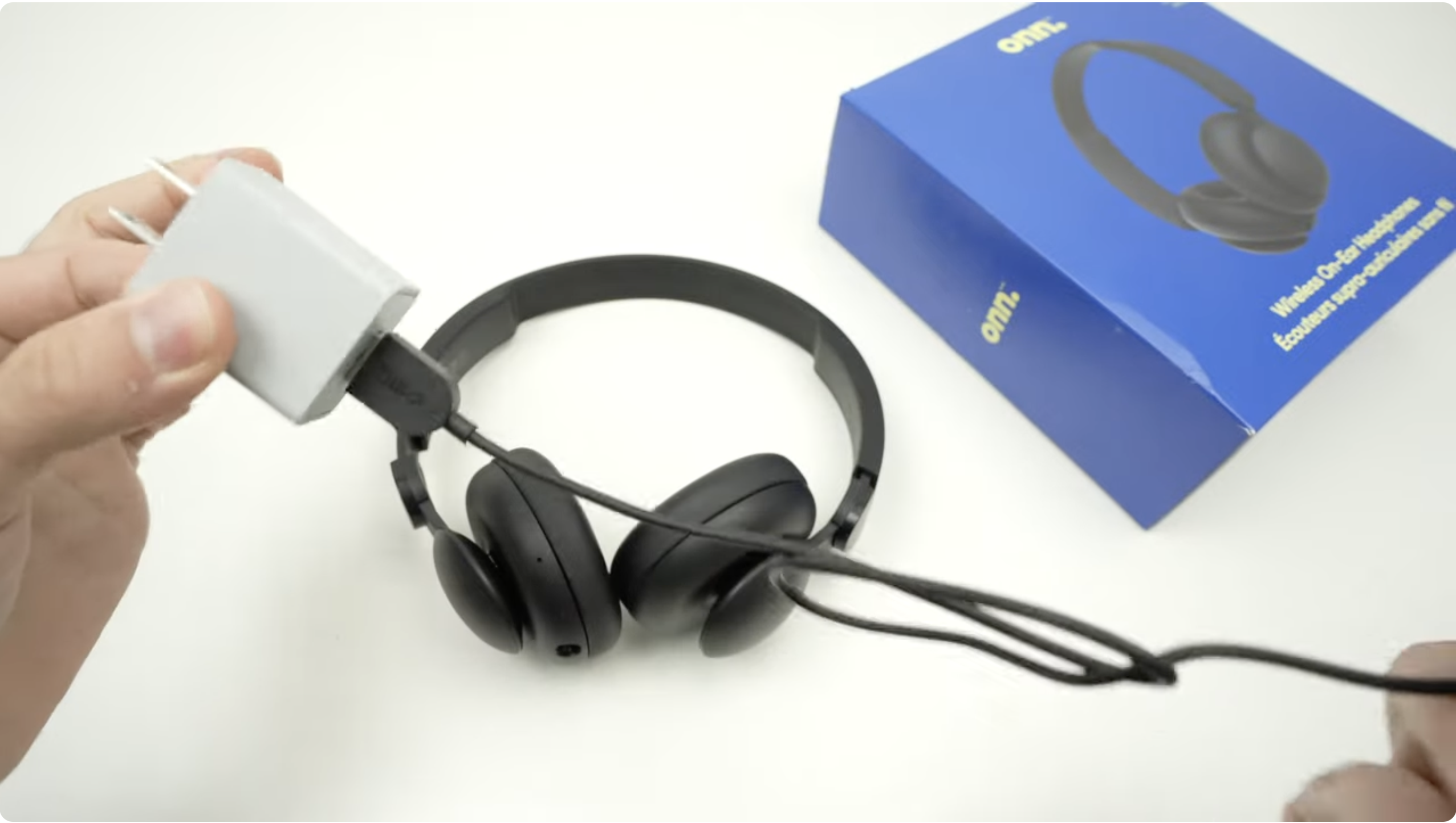
- Wait until the indicator light changes from red to blue, signaling that the headphones are fully charged.
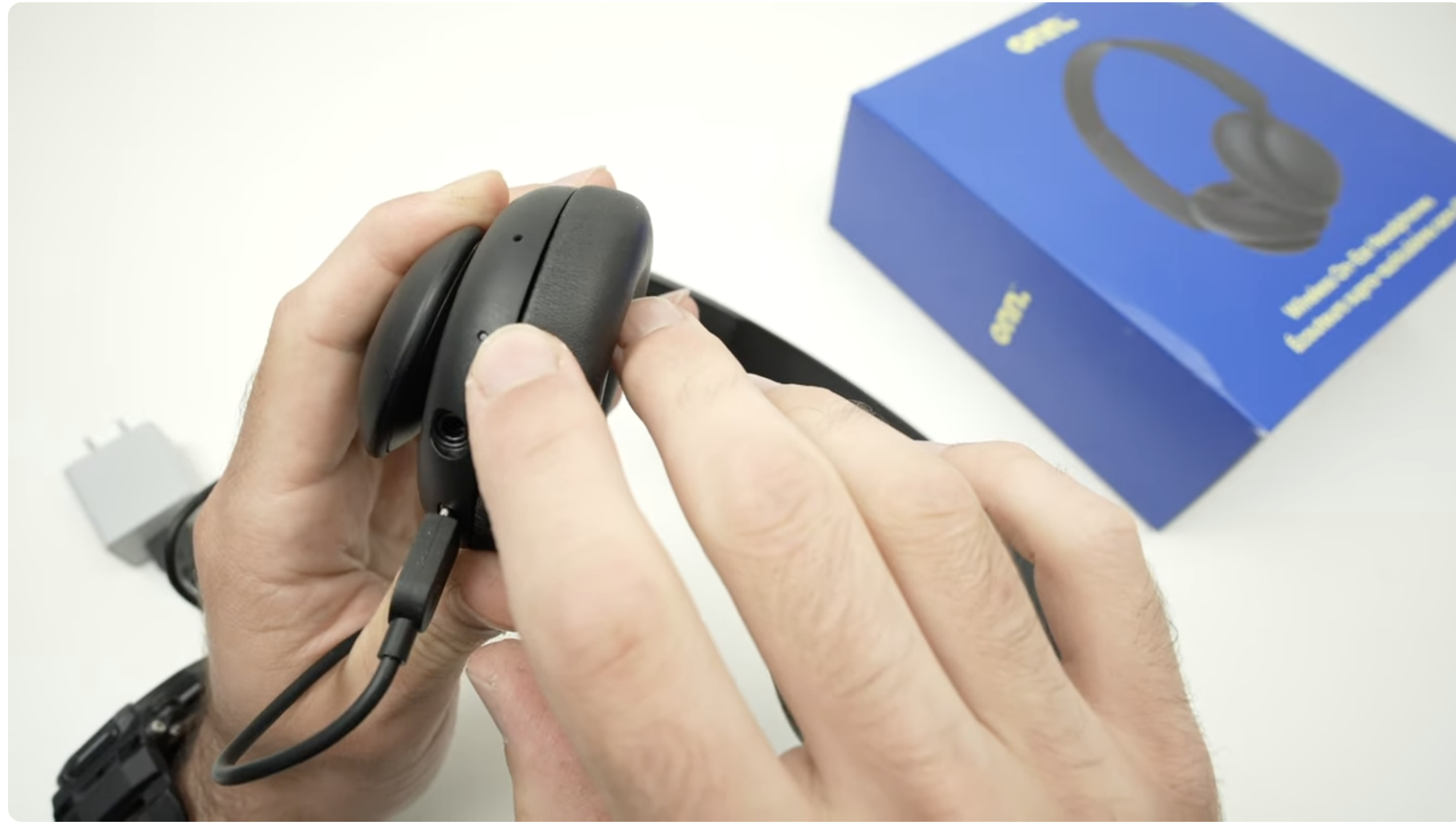
A fully charged pair of Onn over-ear headphones typically lasts for up to 10–12 hours of playtime. Regularly charging your headphones ensures they’re always ready for use when you need them.
Step 2: Pairing Your Onn Over-Ear Headphones with a Device
Pairing your Onn over-ear headphones with your smartphone, tablet, or computer is easy. Here’s how to do it:
- Power on your Onn headphones by pressing and holding the power button for a few seconds.
- If the headphones don’t automatically enter pairing mode, press and hold the power button for 5 seconds until the LED flashes red and blue alternately.
- Activate Bluetooth on your device (phone, tablet, or computer).
- From the list of available Bluetooth devices, select “onn. Over-Ear ANC” or “onn. Headphones.”
- Once connected, the LED on your headphones will either flash slowly or stay solid blue, indicating a successful pairing.
After pairing, your Onn headphones will seamlessly connect with your device, allowing you to enjoy wireless audio without the hassle of cords.
Step 3: Adjusting the Headband and Ear Cups for Comfort
Comfort is key when it comes to using over-ear headphones for extended periods. The Onn over-ear headphones come with an adjustable headband and cushioned ear cups to ensure a personalized fit:
- Adjust the headband to fit the size of your head comfortably, ensuring a snug yet non-pressured fit.
- Position the ear cups over your ears to create a comfortable seal, blocking out ambient noise while maintaining comfort.
By adjusting the headband and ear cups to your preference, you can enjoy hours of music, podcasts, or gaming without discomfort.
Step 4: Using the Controls on Your Onn Over-Ear Headphones
Mastering the controls on your Onn over-ear headphones is essential for enjoying a smooth and hands-free experience. Here’s how to use the controls:
- Use the volume controls to adjust the audio level.
- Press the play/pause button to start or stop audio playback.
- Skip tracks by pressing the designated skip button, or answer calls with the call management controls.
- Some models support voice assistant functionality, allowing you to activate voice commands directly from the headphones.
These intuitive controls are strategically placed for easy access, enabling you to manage your audio and calls without reaching for your connected device.
Step 5: Troubleshooting Your Onn Over-Ear Headphones
If you encounter any issues with your Onn over-ear headphones, here are some troubleshooting tips:
- Ensure the headphones are fully charged if you experience pairing issues.
- If pairing fails, reset your headphones by holding the power button for 10 seconds until the lights blink rapidly.
- If your headphones are not connecting, check that Bluetooth is enabled on your device and ensure the headphones are within range (3–5 feet).
If problems persist, consult the user manual or contact customer support for further assistance.
Conclusion
Now that you know how to use your Onn over-ear headphones, you can fully enjoy their impressive sound quality and wireless convenience. Whether you’re listening to music, engaging in a gaming session, or taking calls, your Onn over-ear headphones are ready to deliver an exceptional audio experience.
Remember to charge your headphones regularly, adjust them for comfort, familiarize yourself with the controls, and troubleshoot any issues promptly to maintain optimal performance.


Discussion (0)
Be the first to comment.