



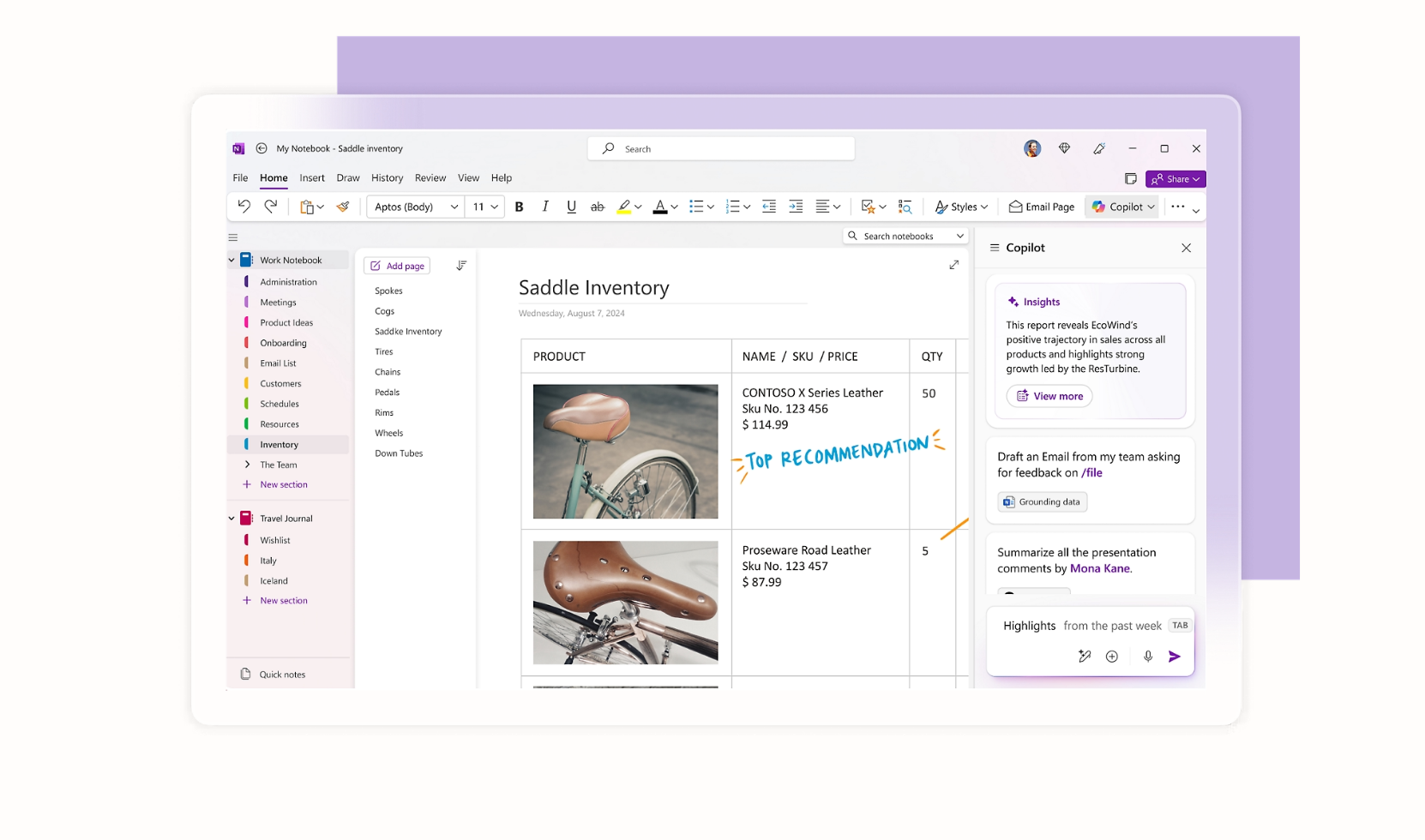
The “We couldn’t open that location” error in OneNote usually appears when the app fails to access a notebook stored on OneDrive, SharePoint, or a local location. This can prevent you from opening, syncing, or editing your notes on Windows.
This guide explains why the OneNote error occurs and how to fix it on Windows step by step.
Why OneNote Shows the “We Couldn’t Open That Location” Error
This error is commonly caused by connection, account, or permission problems.
Some common reasons include:
- OneDrive or SharePoint sync issues
- Signing in with the wrong Microsoft account
- Corrupted notebook cache
- Outdated OneNote app
- Network or firewall restrictions
Identifying the cause makes it easier to apply the right fix.
Check Your Internet Connection First
OneNote relies heavily on cloud access.
Make sure:
- Your internet connection is stable
- You can open OneDrive in a browser
- You are not connected to a restrictive VPN
If OneDrive is not loading, OneNote will not be able to open cloud notebooks.
Sign Out and Sign Back Into OneNote
Account sync problems often trigger this error.
Steps to try:
- Open OneNote
- Click File
- Select Account
- Sign out of your Microsoft account
- Close OneNote
- Reopen the app and sign in again
Use the same account that owns the notebook.
Check Notebook Permissions
If the notebook is shared, you may not have access rights.
Make sure:
- The notebook owner has not removed access
- You are signed in with the correct email
- You can open the notebook from OneDrive or SharePoint in a browser
If needed, ask the owner to reshare the notebook.
Open the Notebook from OneDrive
Sometimes opening the notebook directly helps bypass errors.
Steps:
- Open onedrive.live.com in a browser
- Sign in to your Microsoft account
- Locate the OneNote notebook
- Click Open in OneNote
This forces OneNote to reconnect to the notebook location.
Clear OneNote Cache on Windows
Corrupted cache files can block notebook access.
To clear cache:
- Close OneNote
- Press Windows + R
- Type
%localappdata%\Microsoft\OneNote - Delete the cache folders
- Restart OneNote
This does not delete your notes stored online.
Update OneNote to the Latest Version
Using an outdated version of OneNote can cause compatibility issues.
To update:
- Open Microsoft Store
- Search for OneNote
- Click Update if available
Restart OneNote after updating.
Repair OneNote Installation
If the error persists, repairing OneNote may help.
Steps:
- Open Settings
- Go to Apps
- Select Installed apps
- Find OneNote
- Click Advanced options
- Choose Repair
If repair does not work, try Reset as a last resort.
Final Thoughts
The “We couldn’t open that location” error in OneNote is usually caused by account mismatches, sync issues, or corrupted cache files. In most cases, signing back in, checking permissions, or reopening the notebook from OneDrive resolves the problem.
If the issue continues, updating or repairing OneNote should fix it.
FAQs
What does “We couldn’t open that location” mean in OneNote
It means OneNote cannot access the notebook’s storage location.
Can this error delete my notes
No, your notes are safe if they are stored on OneDrive or SharePoint.
Does this happen only with shared notebooks
No, it can also occur with personal notebooks.
Will reinstalling OneNote fix the issue
Yes, reinstalling can help if repair and reset do not work.
Does this error occur on Windows 11 and Windows 10
Yes, it can appear on both versions of Windows.
Discussion (0)
Be the first to comment.