




Measuring distance in Google Maps on iPhone helps with trip planning, hiking routes, real estate estimates, and quick location checks. You can calculate straight-line distance between two points or measure a custom path with multiple points directly inside the app.
This guide shows how to measure distance between two points in Google Maps on iPhone and iPad, explains how distance differs from displacement, and covers common issues users run into.
How To Measure Distance Between Two Points In Google Maps On iPhone
Google Maps includes a built-in distance measurement tool that works without starting navigation. It calculates real-world distance as the crow flies or along a path you define.
- Open the Google Maps app on your iPhone or iPad
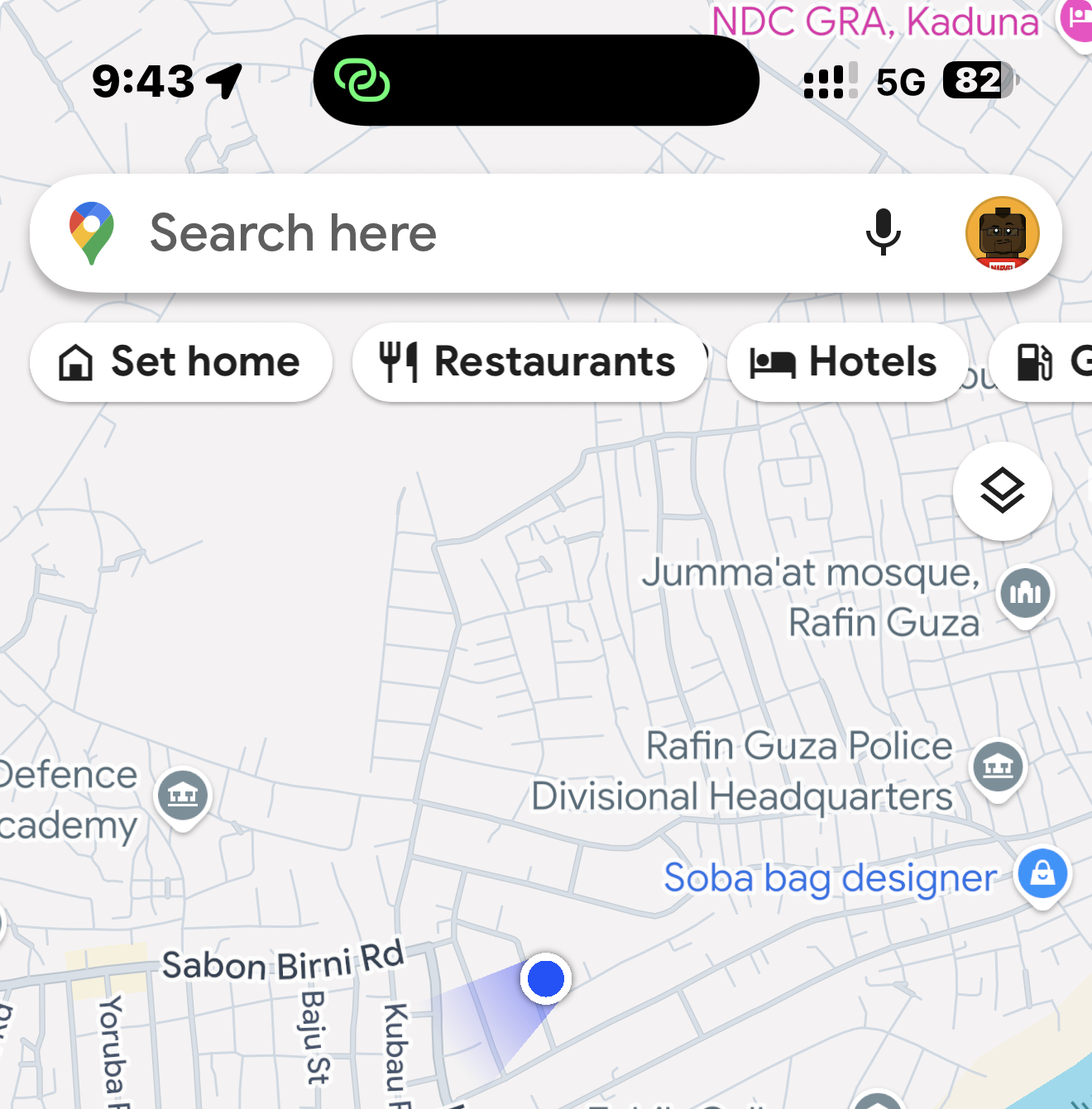
- Touch and hold on the map to drop a pin at your starting location
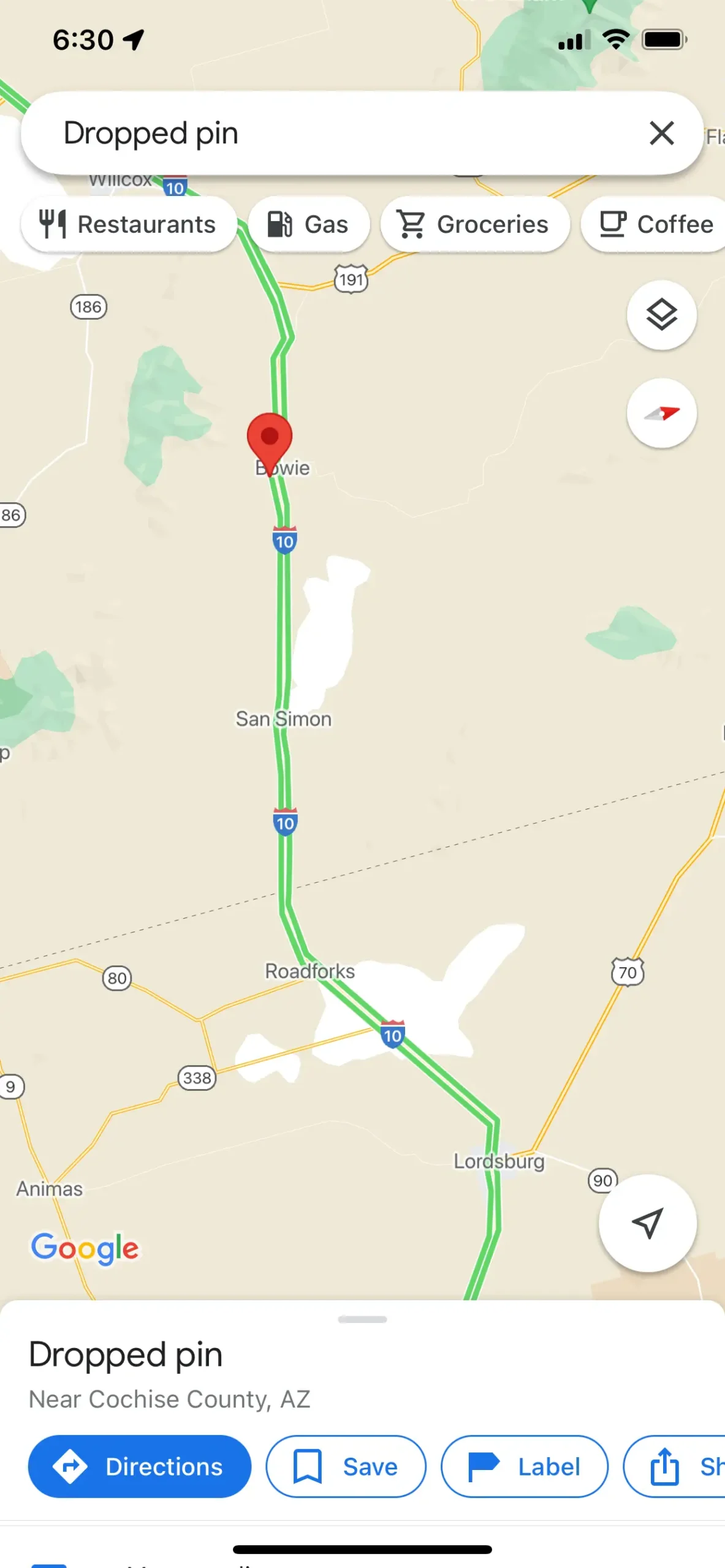
- Tap Measure Distance from the place card menu

- Move the map until the black crosshair reaches the second point
- View the distance displayed at the bottom of the screen
This method measures straight-line distance between two locations, not driving or walking distance.
How To Measure Distance With Multiple Points
Adding multiple points lets you measure a custom route, such as a hiking trail, cycling path, or perimeter around an area.
- After starting distance measurement, move the map to the next location
- Tap the Add Point button to lock the position
- Repeat the process to add more points
- Check the total distance shown at the bottom
The total updates instantly as you add points, reflecting the full path distance rather than straight-line displacement.
How To Edit Or Clear Distance Measurements
Google Maps lets you undo or reset measurements if you place a point incorrectly.
- Tap the Undo icon to remove the last added point
- Tap the three-dot menu and select Clear to remove all points
- Tap Back to exit distance measurement mode
You cannot drag existing points, so undo works best for quick corrections.
How To Change Distance Units In Google Maps On iPhone
Google Maps supports miles and kilometers, depending on your preference.
- Tap your profile picture in the Google Maps app
- Select Settings
- Tap Distance Units
- Choose Miles or Kilometers
The change applies immediately to all future distance measurements.
Troubleshooting Common Problems
If the Measure Distance option does not appear, zoom in closer before dropping a pin. The feature may not show at very low zoom levels.
If distance values seem incorrect, confirm that you did not add extra points accidentally. Clearing the measurement and starting again usually resolves the issue.
Outdated app versions may hide or misplace the tool. Updating Google Maps often restores missing options.
Tips
- Use straight-line measurement for quick estimates, not travel time
- Add multiple points for trails, property boundaries, or loops
- Zoom in for better accuracy when placing points
- Switch units to match local measurement standards
FAQ
Does Google Maps measure driving distance with this tool?
No. The Measure Distance feature calculates straight-line or custom path distance, not driving or walking routes.
Can I measure distance on Google Maps without internet?
Yes. The measurement tool works offline once the map area loads.
Is distance the same as displacement in Google Maps?
Distance equals displacement only when measuring two points. Adding multiple points measures total path length.
Can I save a measured distance in Google Maps?
No. Measurements reset when you exit the tool.
Summary
- Google Maps on iPhone includes a built-in distance measurement tool
- You can measure straight-line distance or multi-point paths
- Units switch between miles and kilometers in settings
- Undo and clear options help fix placement errors
Conclusion
Measuring distance between two points in Google Maps on iPhone takes only a few taps and works for far more than navigation. Whether you need a quick estimate or a detailed path measurement, the tool delivers fast and reliable results without extra apps.


Discussion (0)
Be the first to comment.