




Google Maps relies on your Home and Work addresses to calculate commute times, suggest routes, and trigger traffic alerts. When these locations are outdated or incorrect, navigation results become unreliable. Updating them takes less than a minute and works the same across Android, iPhone, and desktop when you follow the correct steps in this guide.
Table of contents
- What happens when you change home or work in Google Maps
- Change home and work address on Android
- Change home and work address on iPhone
- Change home and work address on desktop
- Why Google Maps won’t save or update home and work
- How to verify your home and work address changed correctly
- Tips for managing home and work locations
- FAQs about home and work addresses in Google Maps
- Summary
What happens when you change home or work in Google Maps
Google Maps updates commute routes, ETA predictions, and traffic notifications after you edit Home or Work. The change syncs to your Google account and usually appears on all devices within minutes.
Change home and work address on Android
- Open Google Maps.
- Tap the You icon at the bottom of the page.


- Now, tap the three dots next to Home or Work.
- Tap Edit home or Edit work.


- Finally, enter the new address.
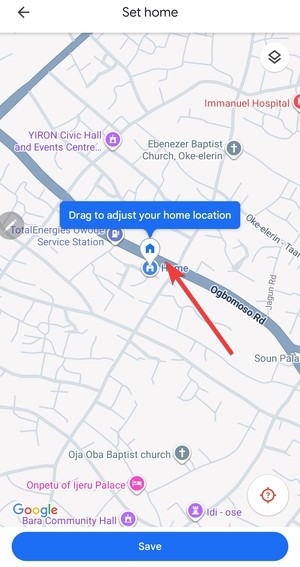

Google Maps saves the change instantly and updates commute cards shortly after.
Change home and work address on iPhone
The iOS app uses a similar layout, but menu placement differs slightly.
Edit home or work in Google Maps for iOS
- Open Google Maps.
- Tap your profile picture.
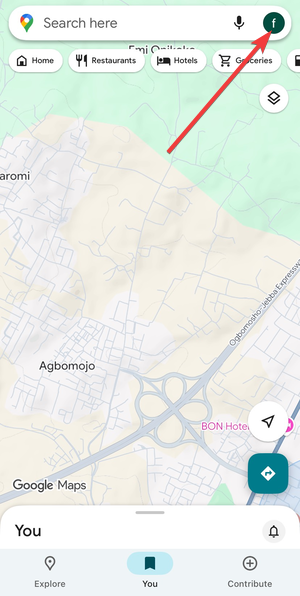

- Next, tap Your data in Maps.


- Now, select Home or Work under the Home & work addresses section.
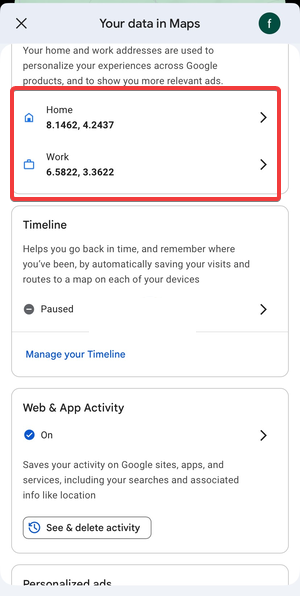
- Finally, enter the new address you want to use.
The update syncs to your Google account, not just your iPhone.
Change home and work address on desktop
Desktop editing works best if you manage routes or locations from a browser.
Update home or work using Google Maps on the web
- Open maps.google.com and sign in.
- Click the three horizontal lines in the top left corner.
- Now, select Your data in Maps.


- Next, click Home or Work under the Home & work addresses section.

- You can now edit the address accordingly.
The change syncs to mobile apps after refresh.
Why Google Maps won’t save or update home and work
Several common issues stop changes from appearing correctly.
Signed into the wrong Google account
Google Maps saves Home and Work per account. Check that you use the same Google account on all devices.
Sync delays across devices
Sync can take several minutes. Close and reopen Google Maps, or refresh the browser page.
Location permissions or app cache issues
Outdated app data can block edits. Update the app, then clear cache from system settings on Android.
How to verify your home and work address changed correctly
Always confirm the update to avoid navigation errors.
Check commute routes and shortcuts
Open Google Maps and view your commute card. The route should start or end at the new address.
Test with voice navigation or Assistant
Say “navigate home” or “navigate to work” and confirm the destination matches the updated location.
Tips for managing home and work locations
- Keep Home and Work precise to improve ETA accuracy.
- Remove outdated addresses instead of overwriting them repeatedly.
- Avoid switching Google accounts when editing saved places.
- Update both locations after moving to reset commute suggestions.
FAQs about home and work addresses in Google Maps
Can I delete Home or Work without replacing it?
Yes. Open the edit menu and choose remove instead of entering a new address.
Do Home and Work affect Google Assistant routines?
Yes. Assistant uses these locations for commute reminders and automation.
Can I set multiple work locations?
No. Google Maps supports one Home and one Work per account.
Summary
- Open Google Maps and go to Your places or Saved.
- Edit Home or Work from the Labeled section.
- Use the same Google account on all devices.
- Verify the update using commute routes or voice navigation.
Keeping your Home and Work addresses accurate in Google Maps ensures faster directions, reliable commute alerts, and correct Assistant suggestions every day. After updating these locations, confirm the change on all devices to avoid navigation errors.
Lastly, don't forget to take advantage of the latest Google Maps parking feature that helps the app remember where you park.


Discussion (0)
Be the first to comment.