




If you’re asking “how do i make duckduckgo my default browser,” you’re really switching your default search engine and, in some cases, your default browser app. Below are quick, no-nonsense steps to make DuckDuckGo the default search engine and to set the DuckDuckGo app as your default browser, where supported.
Chrome on Windows or macOS
Use these steps to set DuckDuckGo as default on Chrome.
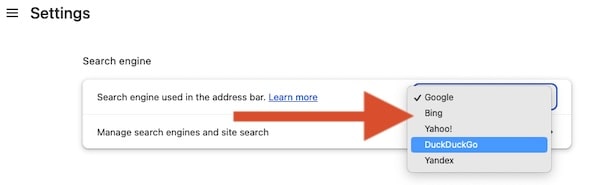
- Open Chrome > three dots > Settings.
- Select Search engine.
- Set DuckDuckGo as the search engine used in the address bar.
- If it is missing, go to Manage search engines, add DuckDuckGo, then set it as default.
Chrome on Android
These steps set DuckDuckGo default on Android for Chrome searches.
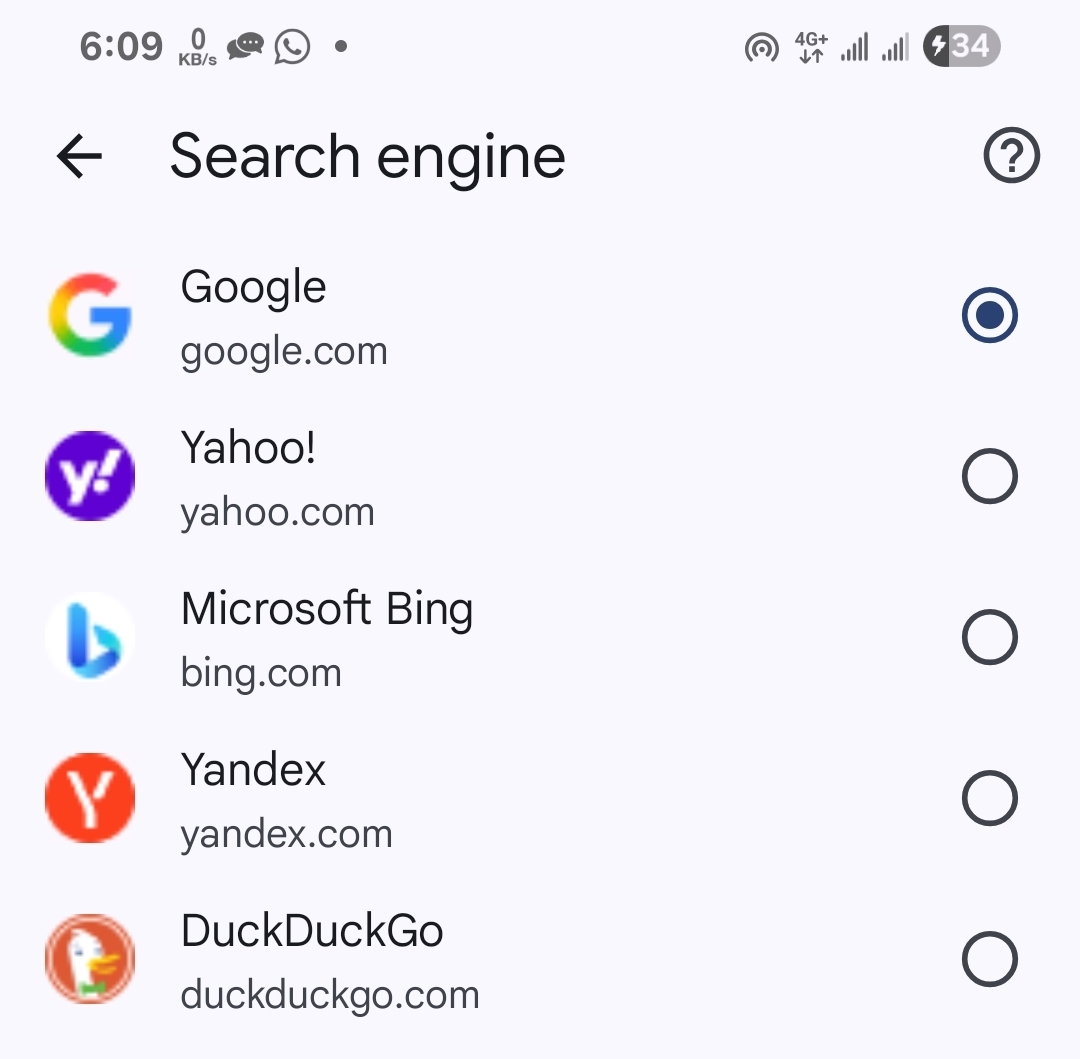
- Open Chrome > three dots > Settings.
- Tap Search engine and choose DuckDuckGo.
DuckDuckGo App as Your Browser on Android
- Install the DuckDuckGo app from Google Play.
- Open Android Settings > Apps > Default apps.
- Set Browser app to DuckDuckGo.
Safari on iPhone and iPad
Follow these steps to make DuckDuckGo default on iPhone in Safari.
- Open Settings > Safari.
- Tap Search Engine and select DuckDuckGo.
Set DuckDuckGo App as Default Browser on iPhone and iPad
- Install the DuckDuckGo app from the App Store.
- Go to Settings > DuckDuckGo > Default Browser App.
- Select DuckDuckGo.
Firefox on Windows, macOS, and Linux
Use these steps to set DuckDuckGo as default on Firefox.
- Open Firefox > menu > Settings.
- Go to Search.
- Under Default Search Engine, pick DuckDuckGo.
Firefox on Android
- Open Firefox > three dots > Settings.
- Tap Search > Default search engine and choose DuckDuckGo.
Microsoft Edge on Windows and macOS
These steps make set DuckDuckGo as default on Edge quick.
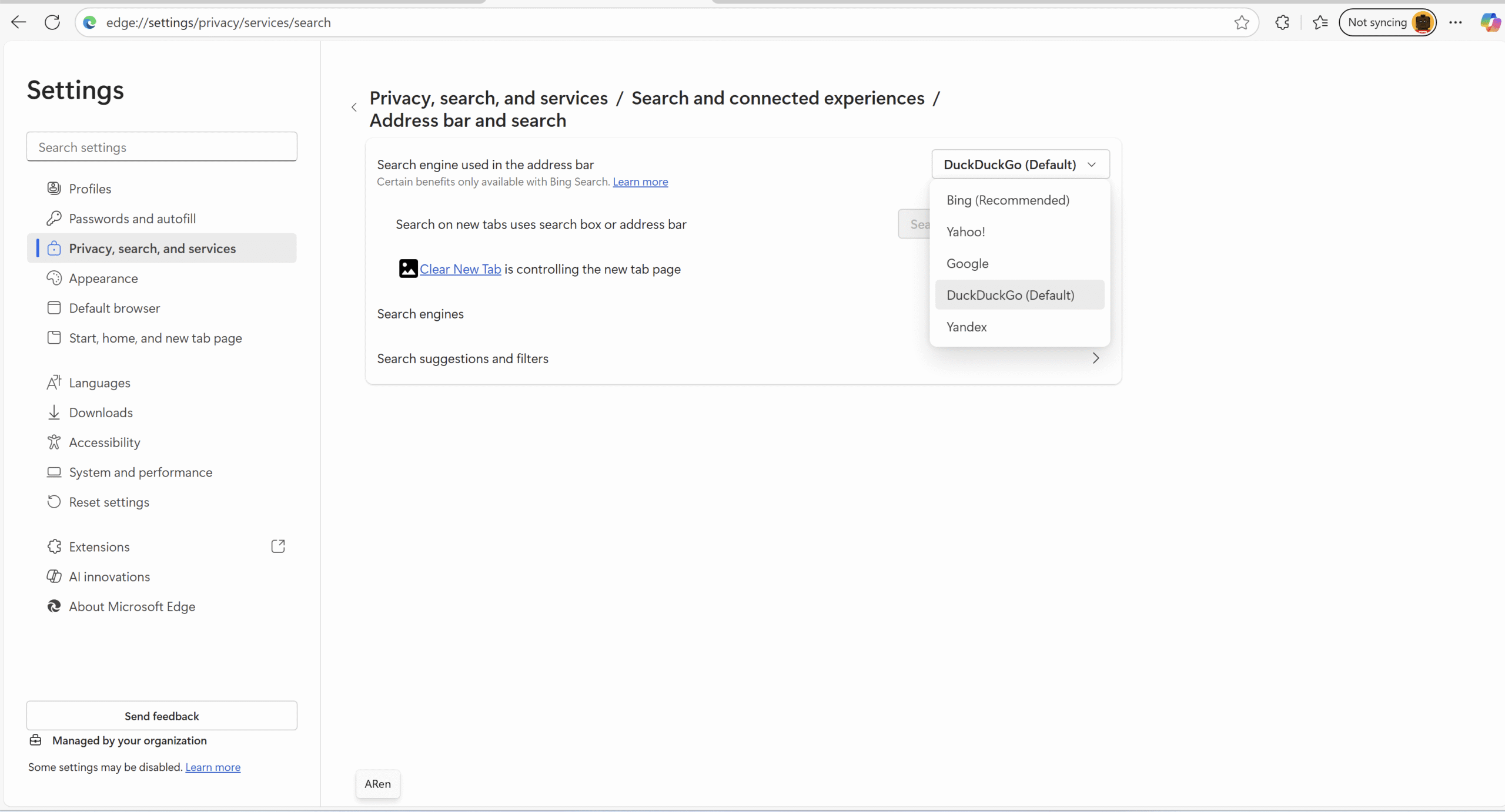
- Open Edge > three dots > Settings.
- Go to Privacy, search, and services > Address bar and search.
- Set Search engine used in the address bar to DuckDuckGo.
Confirm It Worked
- Type a test query in the address bar, like privacy news.
- Make sure the results page shows DuckDuckGo branding and URL.
If DuckDuckGo Is Not Listed
- Chrome: Use Manage search engines and add DuckDuckGo manually, then set it as default.
- Edge: Visit duckduckgo.com once, then check Address bar and search again.
- Firefox: Under Search, click Find more search engines if needed.
Quick Privacy Tips
- Turn off search suggestions if you prefer fewer network calls.
- Use the Fire Button in the DuckDuckGo app to clear tabs and data in one tap.
- Consider strict tracking protection in your browser’s privacy settings.
FAQ
Does this change my actual browser?
Switching to DuckDuckGo here changes your default search engine. On Android and iOS you can also set the DuckDuckGo app as your default browser.
Why choose DuckDuckGo
It blocks trackers and avoids personalized profiles. Results are fast, clean, and privacy-first.
What if my browser keeps switching back
Check extension conflicts, sign-in sync settings, or policies from work or school accounts that may override search engine defaults.
Summary
- Chrome, Firefox, Safari, and Edge all support DuckDuckGo as default.
- On Android and iPhone you can set the DuckDuckGo app as your default browser.
- Run a test query to confirm the change and adjust privacy settings as needed.


Discussion (1)
DuckDucKGo changes our search every signal time I try. Never again! This should be against the LAW!!!!!!!!!!!!!!!!!!!!!!!