




When the Mail app stops working on iPhone or iPad, the cause usually comes down to sync settings, network restrictions, account errors, or a recent iOS update. Some issues block incoming emails, others prevent sending, while some make the inbox appear blank or outdated.
Begin with quick checks in this guide, then proceed to targeted fixes based on how the Mail app fails.
Table of contents
- Check if the problem affects sending, receiving, or syncing
- Try these fast fixes first (takes under two minutes)
- Make sure Mail sync and background access work
- Fix Mail issues caused by network restrictions
- Fix Mail problems after an iOS update
- Account-specific fixes for common email providers
- Advanced fixes if Mail still doesn’t work
- iPad-specific Mail issues and fixes
- When to use webmail or third-party apps as a workaround
- Tips to prevent Mail app issues in the future
- FAQs
- Summary
Check if the problem affects sending, receiving, or syncing
Before changing settings, identify how the Mail app behaves. Each symptom points to a different root cause, and guessing often wastes time.
Mail won’t receive new emails
Incoming mail issues usually relate to Push, Fetch, or background refresh settings. They can also appear when the device stays locked for long periods.
Mail won’t send emails
Sending failures often involve SMTP settings, stuck outbox messages, or restricted network access.
Mail app opens but shows a blank or outdated inbox
This symptom points to sync corruption, account indexing problems, or paused background activity.
Try these fast fixes first (takes under two minutes)
These steps fix many Mail issues without touching your account data or settings.
Toggle Airplane mode and reconnect
Turn on Airplane Mode, wait 10 seconds, then turn it off. This action resets network connections and clears temporary routing errors.
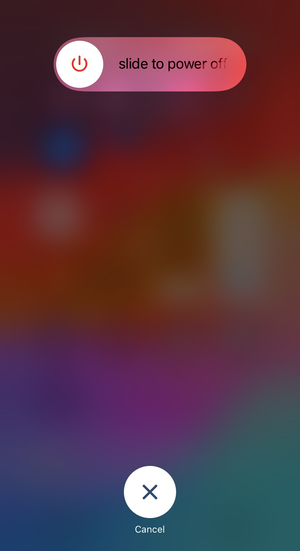
Restart your iPhone or iPad
Restarting stops stuck Mail processes and refreshes system services that handle syncing.
Check Apple System Status
Open Apple’s System Status page and confirm that Mail and iCloud services show as available. Server outages break Mail even when local settings look correct.
Make sure Mail sync and background access work
iOS must allow Mail to refresh content in the background for timely updates.
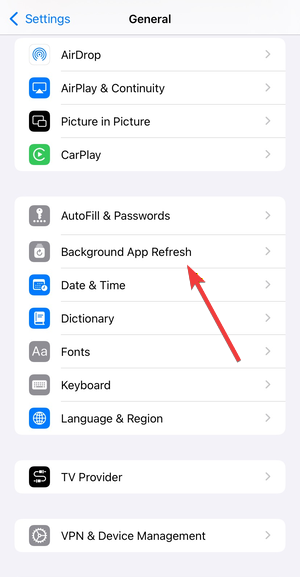
Enable Background App Refresh for Mail
Go to Settings → General → Background App Refresh and enable it for Mail. Without it, new emails only appear when you open the app.
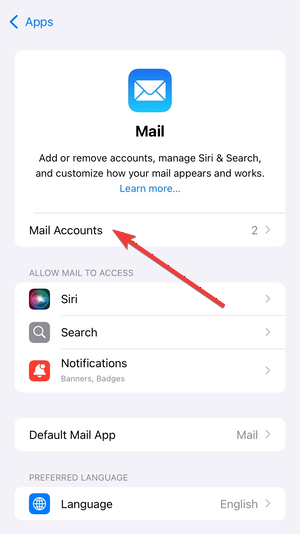
Verify Fetch and Push settings
Open Settings → Mail → Mail Accounts → Fetch New Data. Enable Push if available, or set Fetch to Automatically or a short interval for active accounts.

Fix Mail issues caused by network restrictions
Mail often fails on certain Wi-Fi networks while working on cellular data.
Disable VPN, DNS filters, or firewall apps
Turn off any VPN or DNS-based blocking app temporarily. These tools often block mail server connections or delay sync.
Turn off iCloud Private Relay temporarily
Go to Settings → Apple ID → iCloud → Private Relay and disable it briefly. Some mail providers struggle to sync through Private Relay.
Fix Mail problems after an iOS update
Updating your iPhone or iPad sometimes resets permissions or breaks background services.
Re-enable Mail accounts after updating iOS
Open Settings → Mail → Mail Accounts and tap each account. Toggle Mail off, wait a few seconds, then turn it back on.

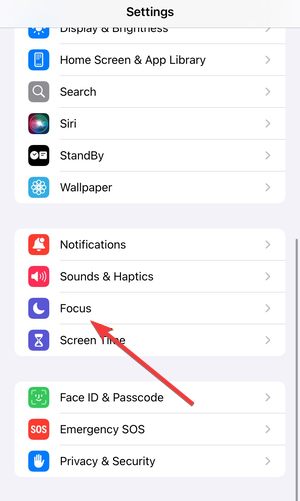
Check Focus modes and notification filters
Focus modes can hide mail notifications or pause background refresh. Review Settings → Focus and disable any filters linked to Mail.
Account-specific fixes for common email providers
Different providers behave differently inside Apple Mail.
Fix Gmail not syncing in Apple Mail
Gmail limits push support in Apple Mail. Set Fetch to Automatically or Every 15 Minutes for more reliable delivery.
Fix Outlook or Exchange email issues
Remove and re-add the account if emails stop syncing. Exchange profiles often fail silently after password or policy changes.
Fix iCloud Mail not updating
Sign out of iCloud, restart the device, then sign back in. This process refreshes iCloud Mail authentication and sync services.
Advanced fixes if Mail still doesn’t work
Use these steps when basic troubleshooting fails.
Remove and re-add the Mail account
Delete the affected account from Settings → Mail → Mail Accounts, restart the device, then add it again. This rebuilds the sync connection from scratch.
Reset network settings
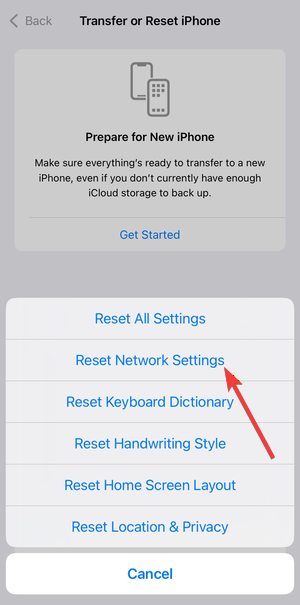
Go to Settings → General → Transfer or Reset iPhone → Reset → Reset Network Settings. This clears saved networks and fixes hidden connection errors.
iPad-specific Mail issues and fixes
Some Mail problems appear mainly on iPad due to multitasking features.
Fix Mail not updating in Split View or Stage Manager
Close Mail completely and reopen it in full-screen mode. Multitasking can pause background refresh unexpectedly.
Force Mail refresh when using external keyboards
Swipe down in the inbox to refresh manually. Keyboard focus sometimes prevents automatic updates.
When to use webmail or third-party apps as a workaround
Temporary alternatives help confirm whether the issue affects the account or just Apple Mail.
Access email through Safari
Sign in to your email provider’s website. If emails load there, the account works correctly.
Use Gmail or Outlook apps temporarily
These apps bypass Apple Mail’s sync system and keep you productive while troubleshooting.
Tips to prevent Mail app issues in the future
- Keep Fetch set to Automatic for important accounts
- Avoid running multiple VPN or DNS apps at once
- Restart your device after major iOS updates
- Review Focus mode filters regularly
FAQs
Why does Mail work on Wi-Fi but not on cellular data?
Cellular restrictions, VPN profiles, or APN issues often block mail traffic.
Why does Mail only update when I open the app?
Background App Refresh or Fetch settings likely disable automatic syncing.
Can iOS updates break the Mail app?
Yes, updates can reset account permissions or background services.
Summary
- Identify whether Mail fails to send, receive, or sync.
- Try fast fixes like restarting and checking system status.
- Verify background refresh and Fetch settings.
- Remove network blockers like VPNs or Private Relay.
- Re-add accounts or reset network settings if needed.
Mail app issues on iPhone and iPad usually come from sync settings, network interference, or post-update changes. Start with quick fixes, then apply targeted solutions based on your symptoms. Once Mail syncs reliably again, keep background access enabled and review network tools to prevent repeat failures.


Discussion (0)
Be the first to comment.