



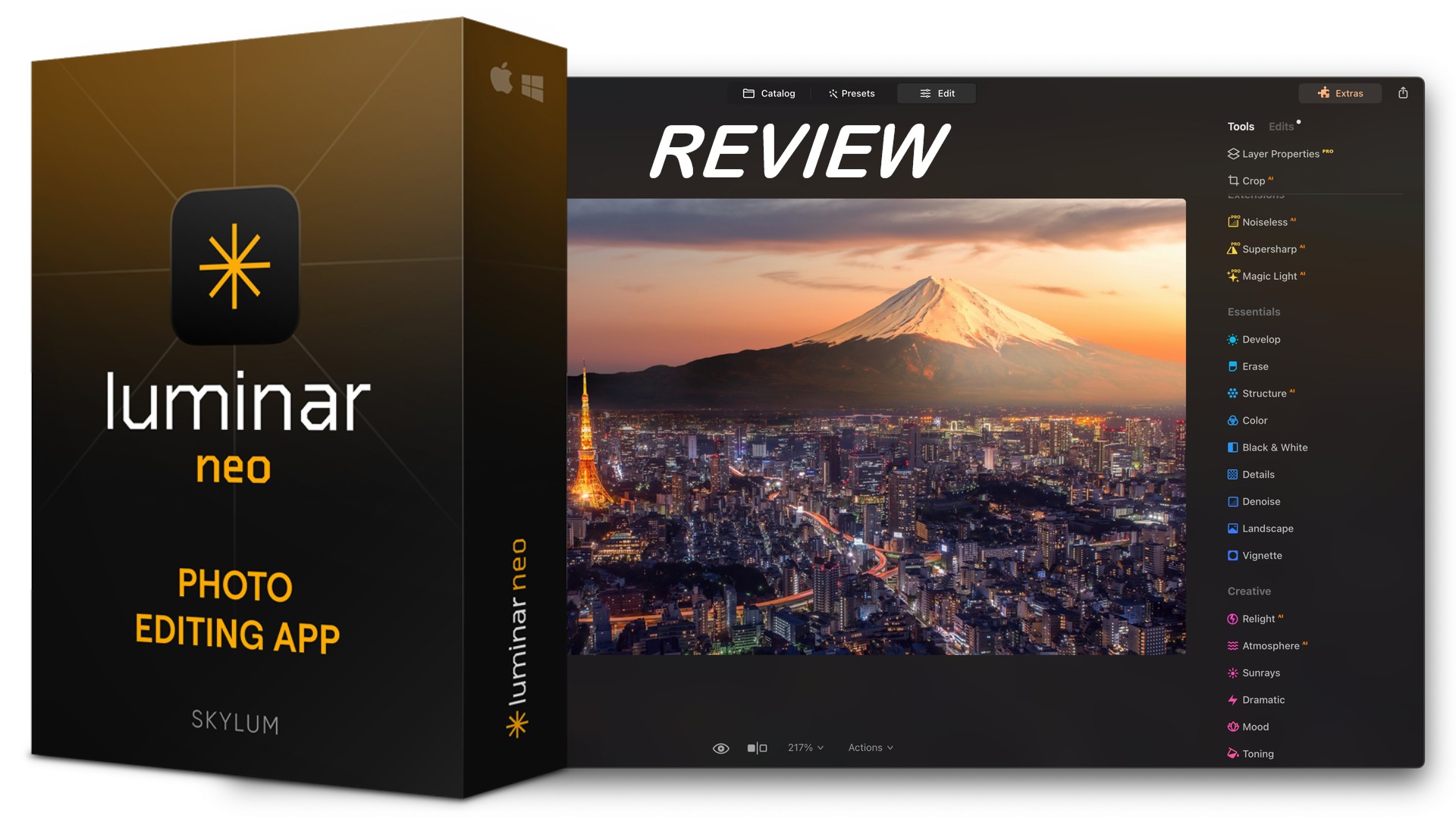
Luminar Neo has topped my list of favorite photo editors for some time, and as 2025 closes out, it boasts some exciting new updates that are worth exploring.
In this Luminar Neo review, I get hands-on with all its key features for those new to software, as well as the cross-device ecosystem introduced in the latest release.
What is Luminar Neo?
Edit, enhance, and retouch photos with AI
Luminar Neo is a powerful photo editing suite from Skylum Software that offers a comprehensive range of innovative AI-driven tools.
Users of all skill levels can efficiently and effectively enhance their photos and streamline the entire editing process. Start with presets, move onto one-click edits, fine-tune the results with sliders, and explore 100+ precise tools!
Its flexible pricing includes a pay once, lifetime plan, and the software is available across desktop and mobile, as well as a plugin for Lightroom and Photoshop.
What’s New?
Save progress across Windows, macOS, Android, iOS, and ChromeOS!
The latest release of Luminar Neo takes cross-platform support to the next level, allowing users to carry over projects from one device to another. Simply login with your subscription account and all your photos, layers, and edits can be synced.
- Spaces: Publish your photos online, directly from Luminar Neo to a professional personal web viewer, and share with friends and clients.
- Restoration: AI instantly restores and enhances old photos, correcting color, removing scratches, and improving clarity.
- Light Depth: Enhance light, shadow, and overall contrast to improve visual impact and depth in one-click.
Key Features
Let’s take a closer look at Luminar Neo’s most impressive features and how they save time and enhance creativity.
AI-Powered Masking and Layers
Masking, I.e., separating and applying adjustments and effects to specific areas of a photo used to take time and skill. However, thanks to Luminar Neo’s AI masking tools, it automatically picks out all the elements of the image for you.
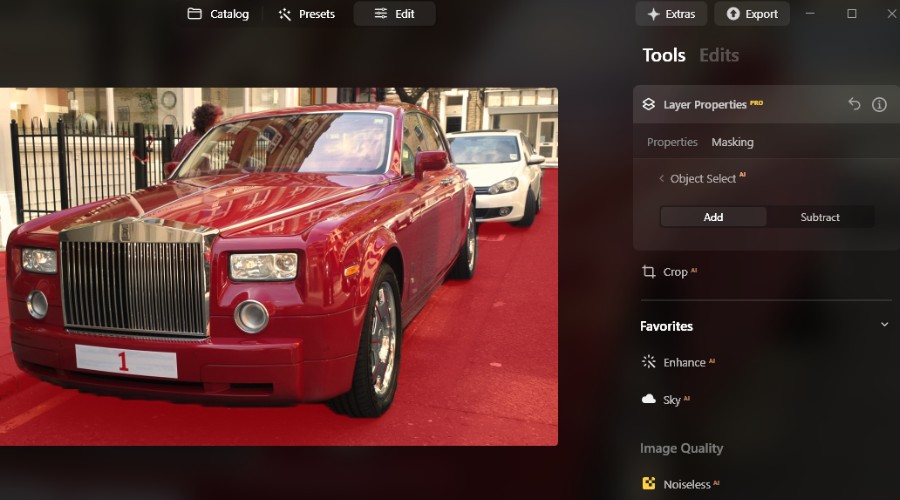
Simply select them to begin editing with any of the other one-click or slider enhancements.
On the off chance that it’s not quite right, you can manually adjust the masked area yourself.
In the above example, it automatically separated the road from the vehicles. I then tested the brush by crudely clicking the small amount of visible path on the left, and it recognized it immediately.
Luminar Neo works in layers, much like Photoshop and other common photo editors. This lets you manage different elements and adjustments separately, like a digital collage.
Sky Replacement
The Sky tool instantly isolates the sky in your landscapes and lets you replace it with a more vibrant (or just a different) sky. For example, if your photo is dull and overcast, it takes just a click to transform it into deep blue with interesting clouds.
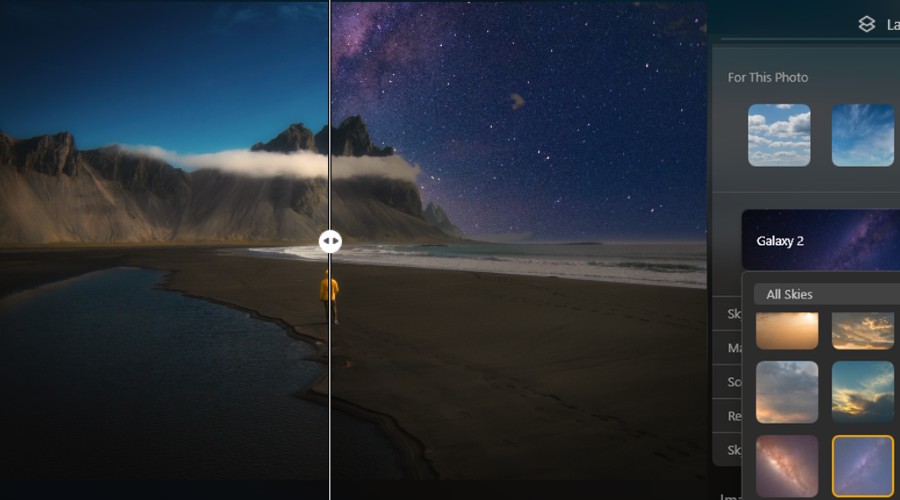
Personally, I went for something a little more otherworldly. Overall, there is a decent library of skies, with the option to get more. You can also change the orientation of the sky and fine-tune the lighting.
Generative Erase, Replace, and Expand
GenErase and GenSwap take masking to the next level, letting you brush over an object in the image and erase it or swap it for something else.
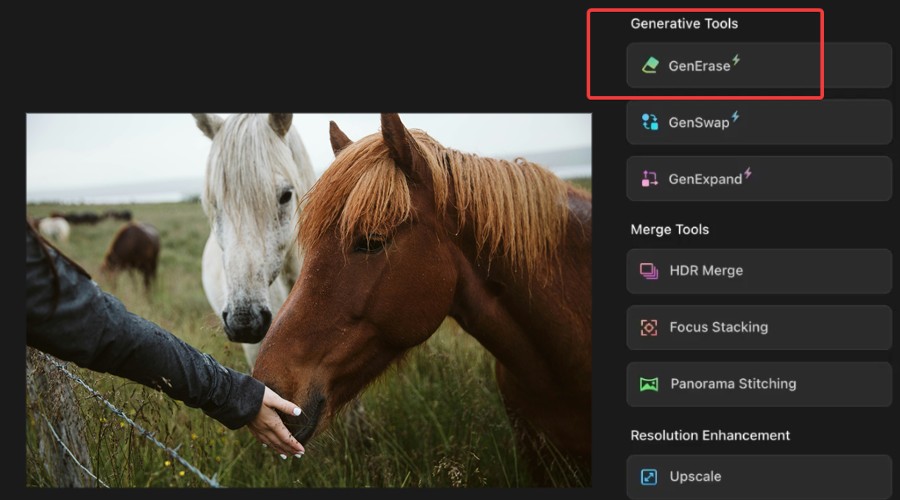
Before Erase
Erasing doesn’t just leave an empty gap or smudge, rather it intelligently fills in the space based on the rest of the photo.

After Erase
Likewise, replacing it with a new object inserts it naturally within the scene, as if it was there the whole time.
You don’t even have to browse a library of objects, just describe what you want to see, and AI does the rest.
The generative AI really shines with GenExpand, where you can increase the scope of the image and have AI intuitively fill in the gap. This effectively, reimagines what the shot would look like from further back or with a wider lens.
It can fix more obvious problems, such as the original shot cutting off part of an object, but can also get quite creative with entirely new objects and expanded landscapes.
AI Enhancement
Accent is a core AI enhancement tool and is a great place to start when editing photos.
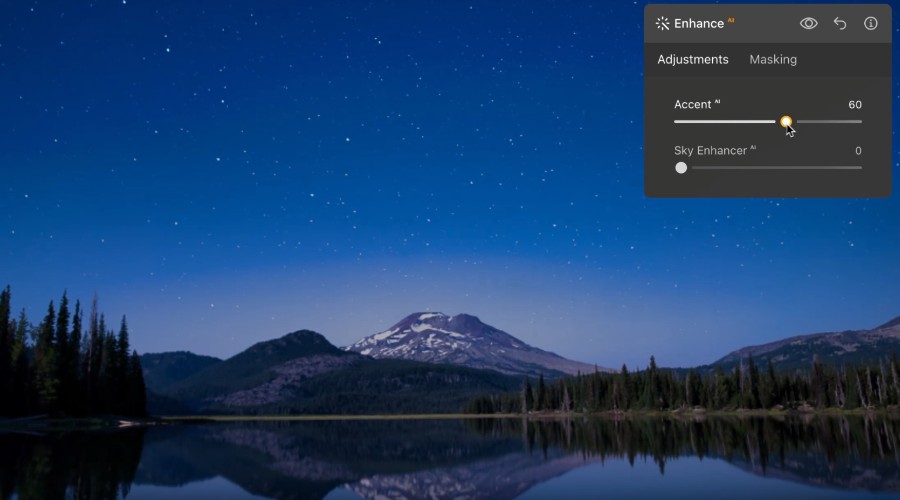
These simple sliders provide broad improvements to vibrancy, contrast, sharpness, and other elements, for an overall, better-quality image.
Use the Accent slider for an overall effect and Sky Enhancer for just the sky.
Sharpening
Sharpening an image is one of the most common image editing tasks, but traditional sharpening tools have applied a one-size fits all approach that can overdo it.
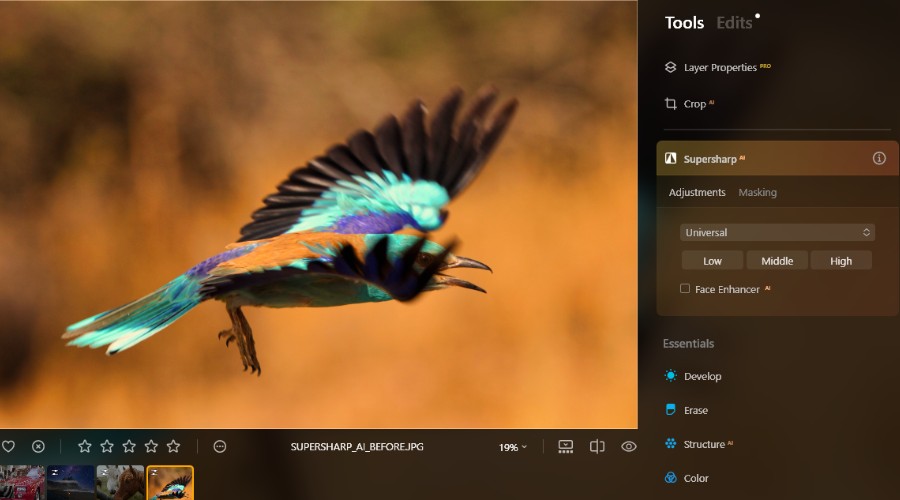
Before Supersharp
Now with the Supersharp AI, you can choose a low, medium, or high algorithm to either the entire image or a masked area. Even the blurriest photos come away looking clear, detailed, and natural.
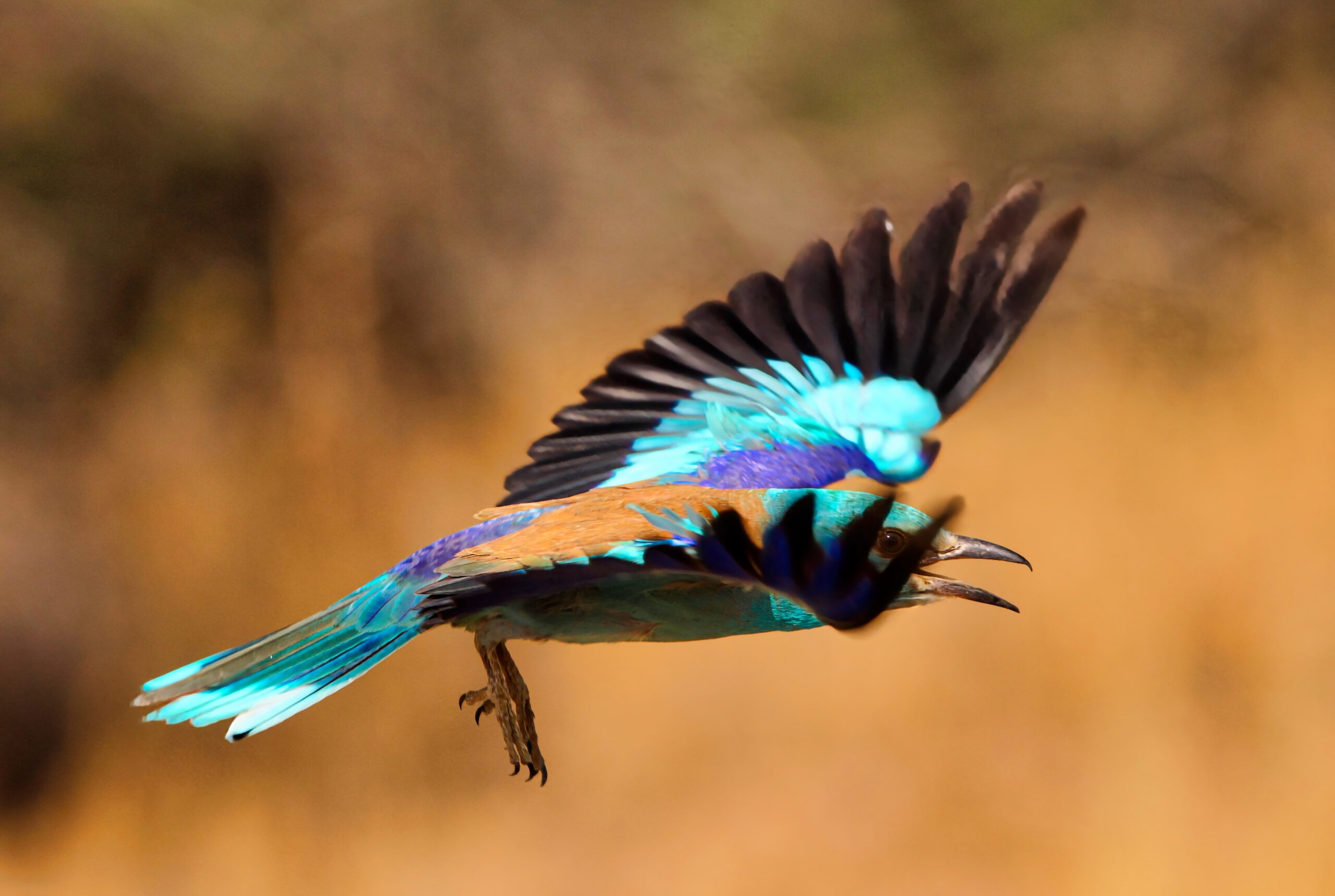
After Supersharp
Moreover, the Face Enhancer does an excellent job of identifying human faces and sharpening them in a realistic manner.
My bird photo came out with more detail around the eye and reduced blur around the wings. A subtle yet effective result.
Structure AI
Alongside sharpening is the Structure AI tool, which offers a more nuanced approach to image clarity. It can both introduce more detail or reduce it for a smoother look.
As opposed to general sharpening, Structure recognizes areas like edges, details, and patterns, then selectively increases the contrast and clarity where it's needed, avoiding any unwanted artifacts.
It's particularly useful for landscape, nature, and architectural photography, where you want to add a bit of punch and clarity without overdoing it.
Develop
Another essential tool is Develop, which is like a digital dark room for manually adjusting light and color. It’s the best place to start when importing RAW files. Here you can select a camera profile and fine-tune exposure, white balance, highlights, contrast, shadows, and more.
The tool also includes important correction features like noise reduction, lens distortion, and perspective correction.
Noise Removal
There are several options for removing noise in Luminar Neo, the most powerful being Noiseless AI.
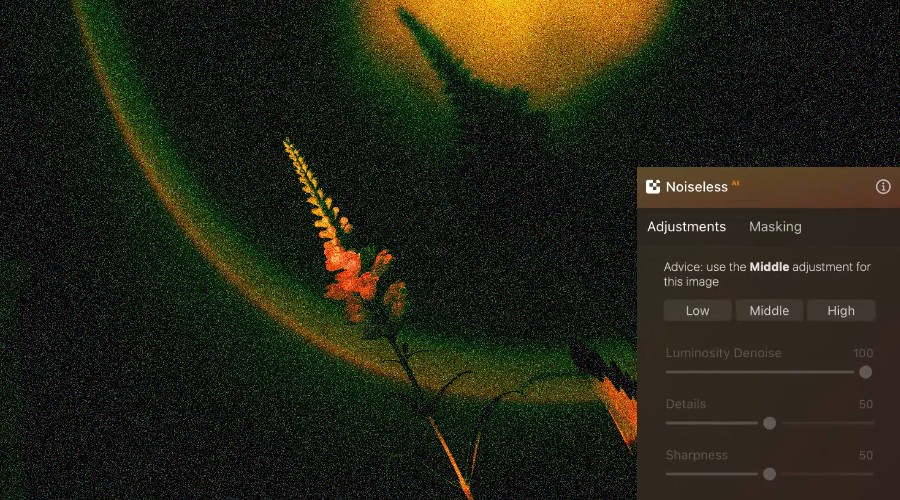
Before Noiseless
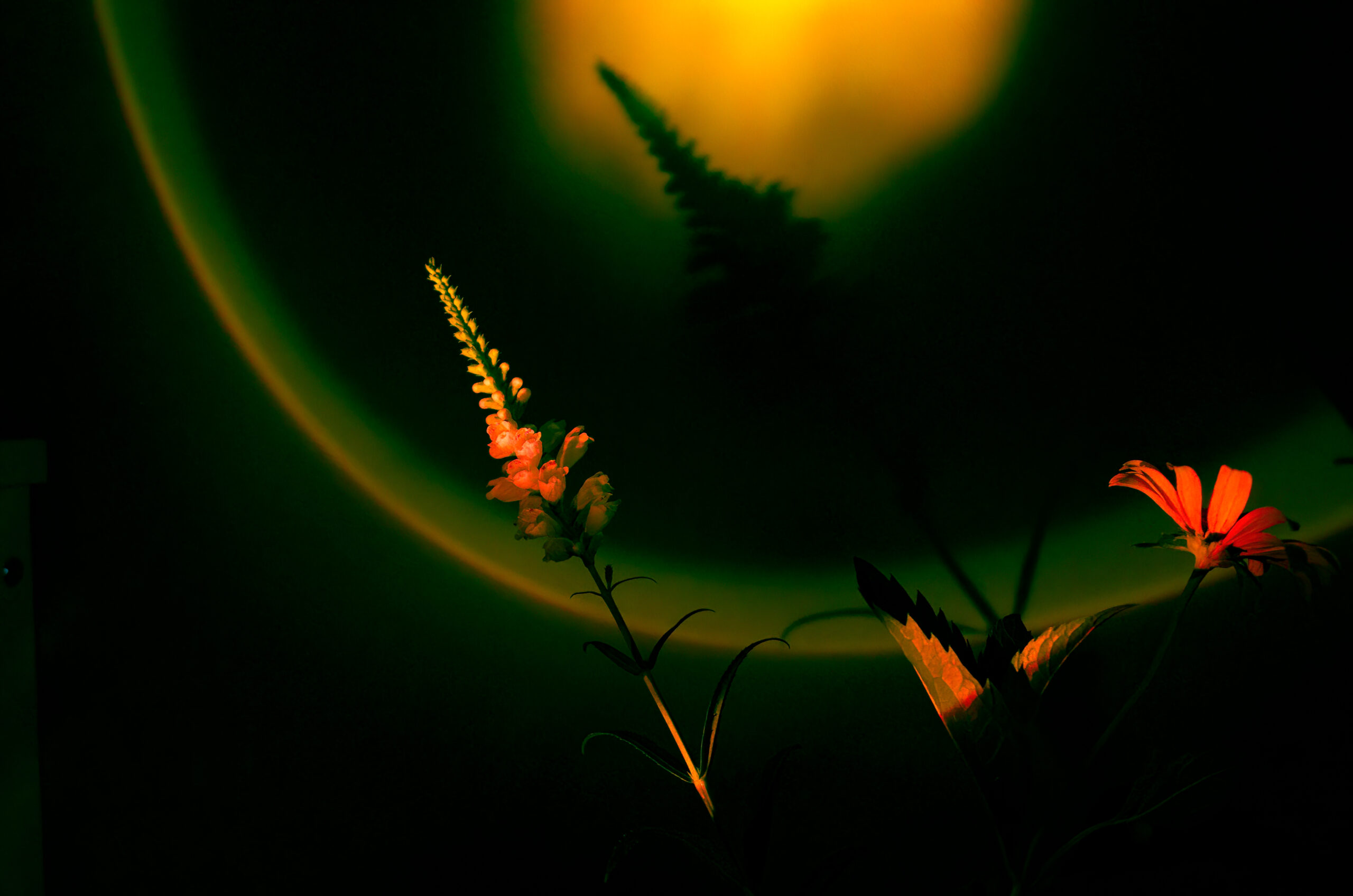
This automatically detects and removes noise from your photos without compromising detail.
After Noiseless
It does an excellent job of differentiating between actual details and unwanted noise, but you can also tweak the results manually. What’s more, if you only want to target certain areas of the image, you can select those too.
Even with the default setting, my test image came out incredibly smooth and still maintained finer details in the leaves and the shape of the shadows.
Light Depth (NEW)
One of the new features is Light Depth, which is used for adding dimensional light.
This alters the shadows and exposure between the sky and the foreground, and between individual objects. This creates a sense of distance and volume, improving flat-looking shots.
In short, simpler images get more “pop”, while detailed photographs get an increased sense of depth.

Because it creates a 3D map of your image, it reapplies the lighting authentically. It’s particularly useful for photos that were poorly backlit.
You can increase or decrease the near and far brightness, warmth, and drag the depth slider across a dimensional grid of your photo, which is surprisingly intuitive.
This is a fast and effective tool that provides a great alternative to Luminar Neo’s existing lighting settings. If you’re wondering where Relight went, this is a new and improved version.
Manual Lighting (Dodge & Burn)
The traditional darkroom techniques of dodge (lighten) and burn (darken) have been applied to Luminar Neo, allowing you to easily use brushes to paint the adjustments onto your photo with precision.
A simple slider is used to adjust the amount of doge or burn, softness of the effect at the edges of the brush, and brush size.
You can use these tools to enhance shadows and highlights, create depth and contrast, and achieve creative effects.
Restoration (NEW)
While a dedicated photo restoration toolset was overdue, the waiting has paid off.
This AI-powered feature restores and enhances black-and-white, faded, damaged, or poor-quality photos. It’s the perfect solution for digitizing old family shots and preserving those memories.
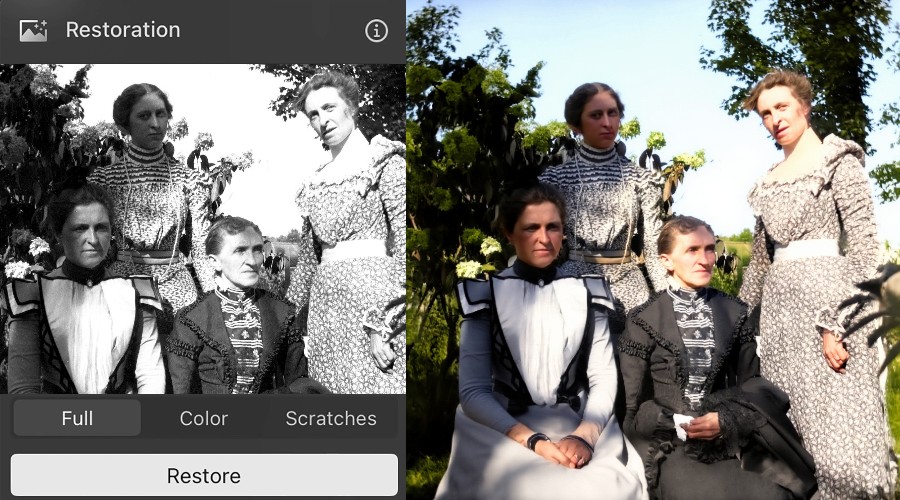
The color option will realistically improve the color of the source or completely colorize black-and-white photos.The above result speaks for itself.
The second option is scratches, but that understates its impressive capabilities. While it certainly removes obvious scratches, it also automatically corrects stained and damaged areas, and pretty much all other blemishes.
Unlike some AI restoration tools, Luminar Neo generates a sharp and natural image that doesn’t rely on over-blurring to fix scratches.
The end result is typically much clearer and more vibrant than the original pre-aged photo, and there’s nothing stopping you from applying other enhancements on top.
Portraits and Faces
The dedicated portrait toolset puts focus on people, enhances faces, and allows you to sculpt body parts. The AI pre-analyzes the subjects and is ready to apply the following:
- Bokeh AI: Blurs backgrounds like a DSLR camera, offering lots of sliders for manual tweaks.
- Skin AI: Naturally smooths skin, removes blemishes, and reduces shininess.
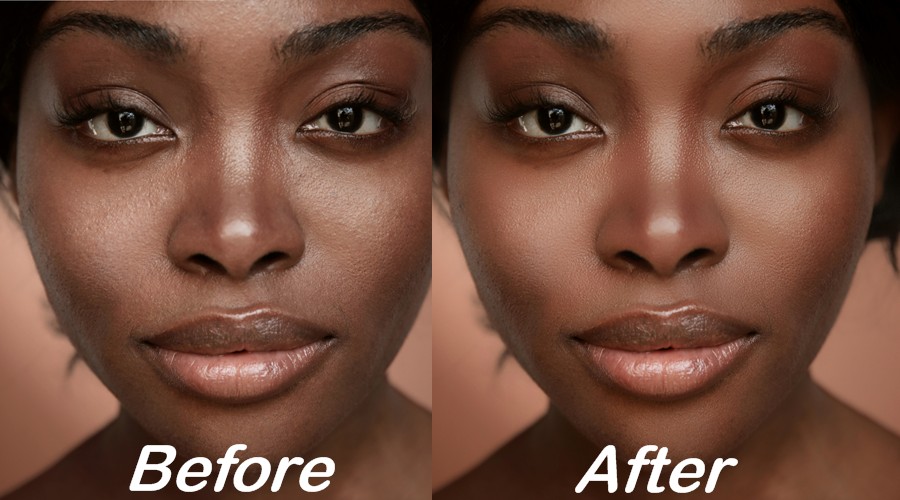
- Face AI: Modify a wide range of facial features from enlarging the eyes to slimming the face and removing dark circles.
- Body AI: Sliders for shape and abdomen result in subtle but authentic body sculpting.
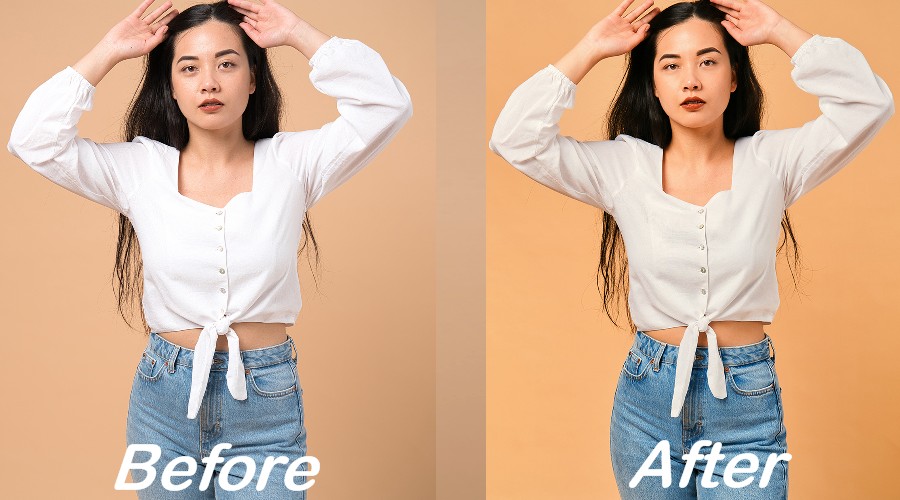
- Studio Light: Turn regular photos into professionally lit photoshoots.
Overall, you can accomplish some impressive enhancements in minutes, going far beyond the average beauty filter.
6X Upscaling
Lower resolution images can be upscaled by up to 6X the original, using the AI upscale tool.
This isn’t just a resolution changer on-paper, it quite literally introduces new information to the image, taking what already exists and replicating the pixels naturally. The result is enhanced detail that can be blown up far beyond the original, without blur.
There is a point of diminishing returns, but it can be a great way to quickly improve quality, especially for projects that require printing.
Other Notable Features
Other features that make Luminar Neo worthwhile include:
- Supports RAW editing.
- Crop AI for fast composition changes, such as horizon alignment, aspect ratio, smart cropping, rotate & flip, and more.
- Supercontrast to alter contrast and balance for highlights, midtones, and shadows.
- Library of one-click presets that apply numerous enhancements at once. Go to the marketplace for more. Supports batch processing.
- Magic Light AI for adding or increasing luminosity from light sources within the photo, which works well for nighttime scenes.
- Mood and color grading with countless presets.
- Neon and glow effects.
- Film Grain and other cinematic effects.
Merge Photos for stacked focus, wide panoramas, or shots with multiple brackets.
User Interface
I have explored Luminar Neo quite extensively on Windows and fired it up on Android too. Overall, it provides a user-friendly and consistent experience across devices.
You can get started just by dragging and dropping photos onto the window or adding entire folders.
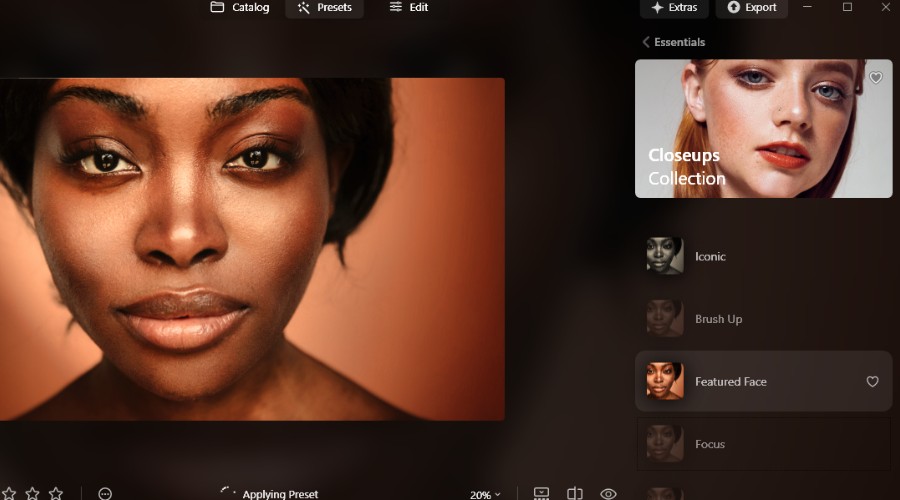
It will immediately suggest presets for an imported photo, or you can click edit at the top to explore all the tools yourself.
Almost every feature is initiated with a single click, then it’s a case of adjusting sliders or painting a brush.
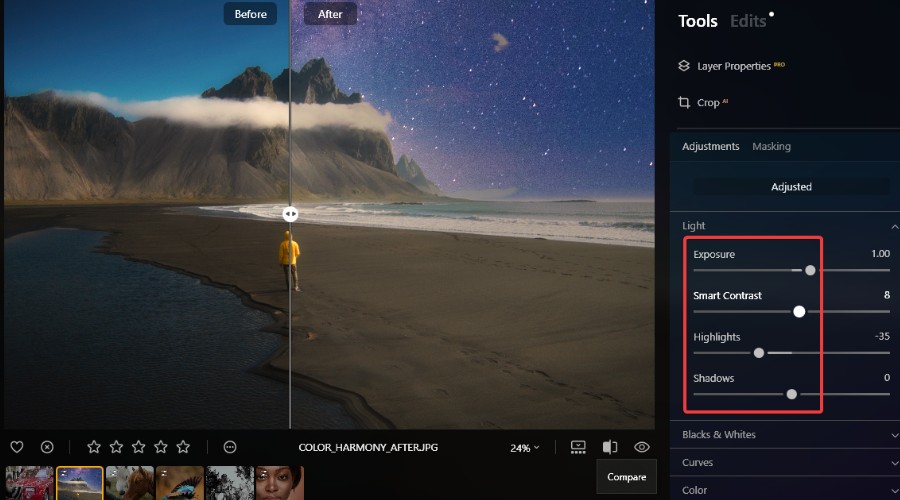
Even if you aren’t entirely sure about a tool, you can undo anything in an instant and keep everything in separate layers. It’s so quick and easy that trying different AI tools is part of the fun, not a laborious learning curve.
I’m especially fond of the preview display, which gives you a slider to instantly compare before and after.
On mobile and tablet, you get a streamlined experience with most of the core features and AI tools. Simply swipe through them at the bottom and flip to landscape to get a sidebar.
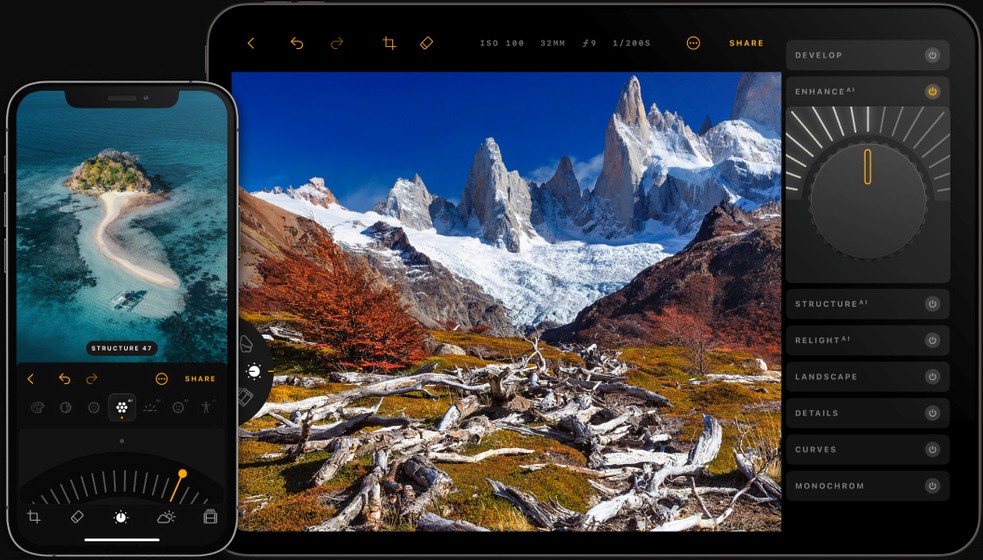
The obvious benefit is the ability to edit photos on the go and immediately after taking them.
AI Assistant (Soon)
The AI tools will soon be backed by an AI assistant at every step. In previous versions, AI would generally apply a default or best application of a tool, depending on the image, but it now analyzes everything as you go and suggests edits to make.
This is especially helpful when it comes to some of the more complicated features.
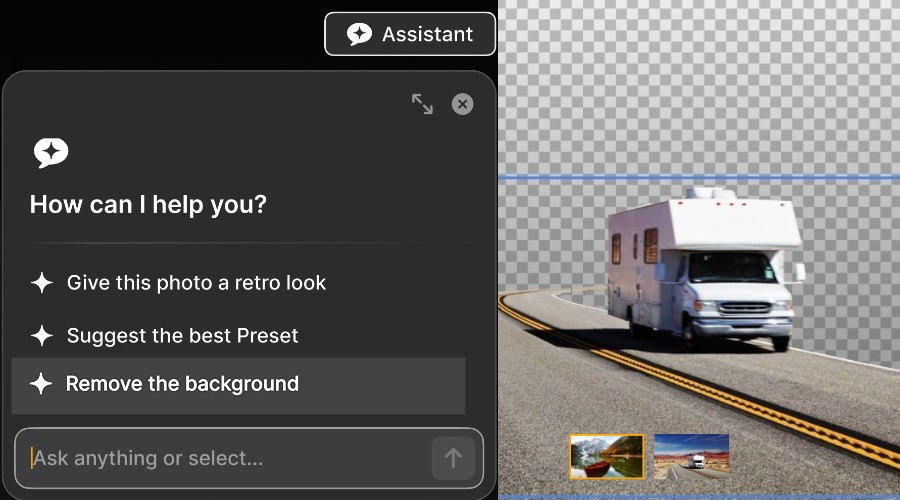
You will also be able to open a dedicated chat bot, which offers suggested queries, but also lets you freely ask questions about using the software and how to get certain results.
It’s a natural and helpful step forward that does not distract or derail what was already an intuitive suite of tools.
Cross Device Ecosystem
Luminar Neo is available on desktop for Windows and macOS, devices using ChromeOS, and mobile devices on Android and iOS.
You can purchase a desktop or mobile license, but the best experience is offered by the cross-device license, which allows you to use any device and switch between them seamlessly.
Imagine adjusting lighting on your phone during your commute, then sitting down at your desktop and picking up where you left off. Now it’s possible!
Every edit is synced in the cloud with no additional storage costs.
Skylum Spaces
The new Spaces feature encourages you to create and publish photo galleries online, which can be accomplished directly within Luminar Neo.
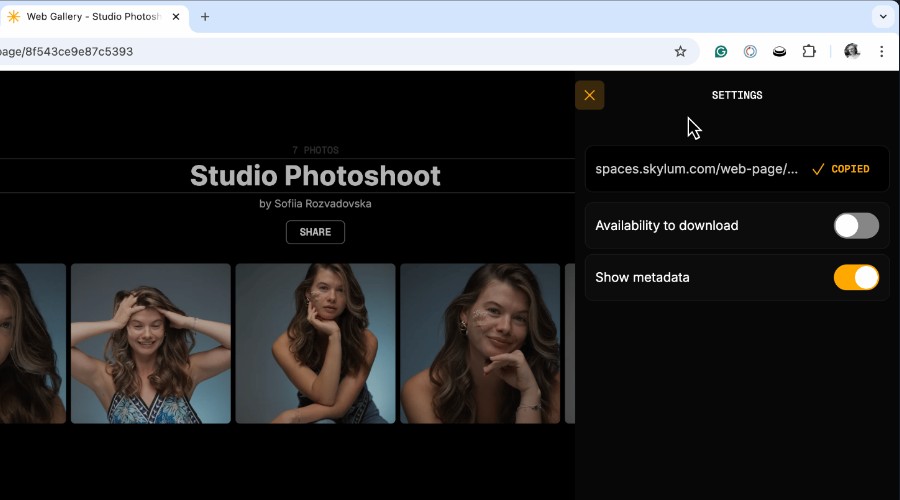
You get a share link, and it functions a bit like a stripped-down social platform. It’s particularly useful for amateurs and professional photographers that want a sleek way to share their work outside of a website or the usual social channels.
Skylum Spaces lets you manage the visibility of your photos and galleries, add metadata, and control download options.
This looks to be an area that will grow with the userbase, with more gallery and page personalization features in the future.
Pricing
Skylum offers several Luminar Neo pricing plans to suit different users, all of which come with a 30-day money back guarantee. You can also try the software for free for 7 days.
The following licenses show the regular price, but there are regular deals and discounts available.
- Perpetual Desktop License ($417 one-time) – Desktop version for Windows or macOS.
- Perpetual Cross-Device License ($477 one-time) – Access on all devices, including Windows, macOS, ChromeOS, Android, and iOS.
- Perpetual Max License ($546 one-time) – Same as cross-device, plus access to the full Luminar Creative Library.
All licenses come with at least one year of updates and 24/7 customer support via live web chat.
Luminar Neo Review – Verdict
To conclude this Luminar Neo review, the software continues to implement AI in an effective and user-friendly way. Both professionals and users with no editing experience will get a lot out of these tools.
With the addition of AI restoration, Light Depth, and the soon to be AI assistant, it’s arguably the most well rounded AI photo editor currently on the market.
That’s without mentioning the cross-device ecosystem, which makes the editing process even more convenient.
Get the latest version of Skylum Luminar Neo now!

Discussion (0)
Be the first to comment.