




iPiccy photo editor remains one of the best free browser-based photo editors available today. It combines simplicity with an impressive range of editing tools that work directly in your web browser - no downloads or subscriptions needed. In this guide, we will show you every tool you can use in iPiccy photo editor without spending a cent, and teach you to use them
1) What is iPiccy, and why is it still worth using?
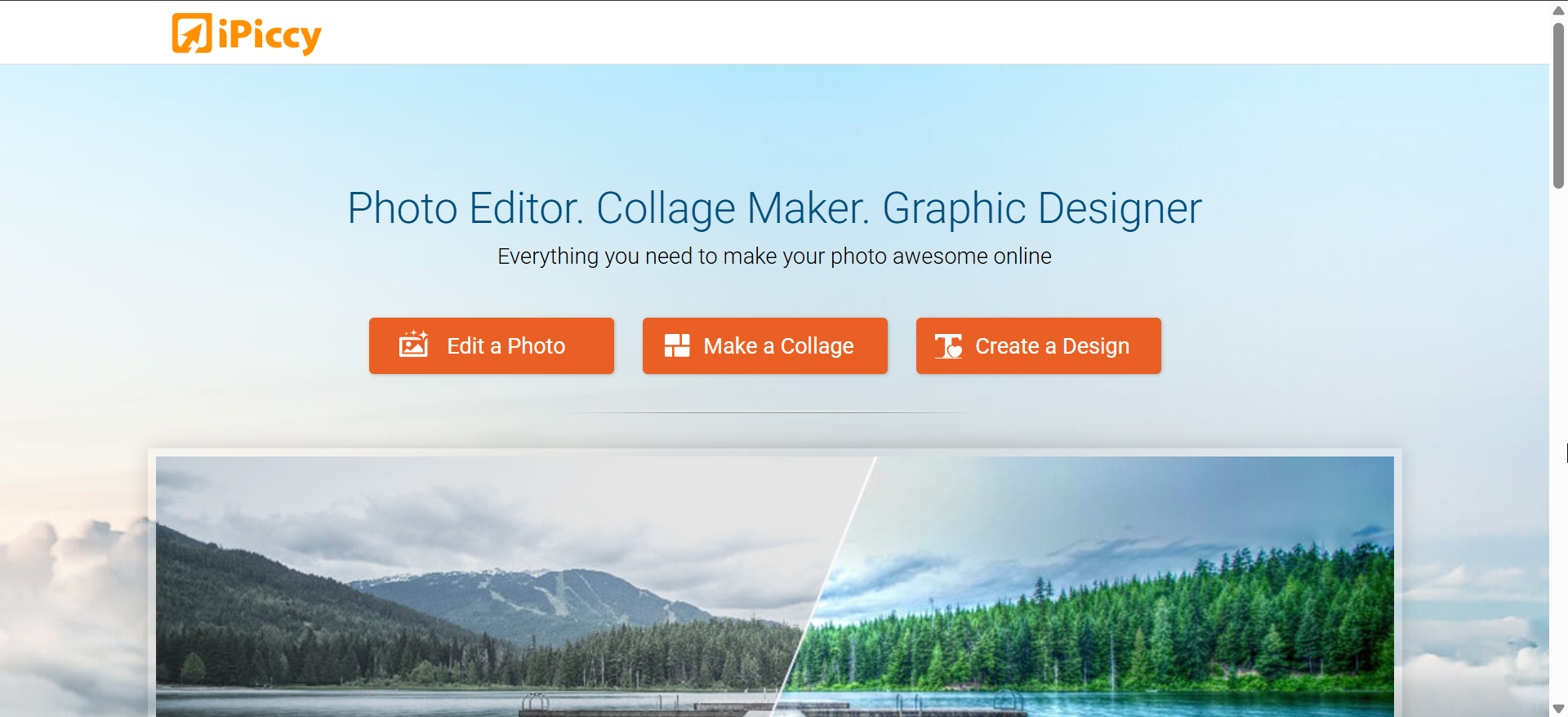
iPiccy is designed for quick and creative image editing on any computer. You can crop, retouch, add filters, or create collages entirely online. It’s a practical alternative for anyone who wants pro-style results without using bulky desktop software.
2) Free editing tools you can use in iPiccy
Here’s a closer look at the editing and creative features available in iPiccy at no cost. Each category below works fully without payment or watermark restrictions.
Basic adjustments

Start with core tools like Crop, Rotate, Resize, and Auto-Fix. These help you straighten horizons, adjust image proportions, and quickly fix exposure problems with one click.
Exposure and color controls
Fine-tune brightness, contrast, and color temperature to bring balance back to your photo. iPiccy’s simple sliders make it easy to correct harsh lighting or faded tones.
Filters and effects

Choose from more than 70 free effects that instantly transform your images. You can apply retro filters, cinematic looks, or HDR-style adjustments and adjust the strength for subtle or dramatic results.
Retouching tools
The Retouch tab lets you clean up portraits without paying for premium access. Tools like Blemish Fix, Red-Eye Removal, and Teeth Whitening are all included for free.
Text and typography

Add text layers with customizable fonts, colors, and outlines. You can move and resize text freely to design banners, posters, or watermarked photos.
Collage maker
Combine multiple photos into a single image using the Collage tab. Drag and drop pictures, adjust spacing, and choose from dozens of free templates to create layouts for social media or print.
Background and layer tools
Experiment with layers to add shapes, textures, or overlays. You can adjust transparency and positioning to create composite designs - all within the free plan.
Frames and borders
Add style with decorative borders and frames. Most frame types - including film edges and artistic outlines - are accessible without a subscription.
3) Creative Tools Available Without Paying
Artistic Effects
Tools like Pencil Sketch, Posterize, and Cross Process simulate digital art looks. These filters are great for giving your photos a hand-drawn or graphic feel without external software.
Advanced Photo Enhancers

Features such as Clarity Boost and Local Contrast enhance details and textures. You can sharpen landscapes or bring focus to portraits using simple sliders.
Shape and Sticker Elements
Use shapes, icons, and stickers from the Elements tab to decorate photos. Most categories are free, letting you personalize images for cards, memes, or digital scrapbooks.
4) Saving and exporting for free

iPiccy lets you export in JPG or PNG without any watermark. You can download the image directly to your device or store it in your account for later editing.
5) Troubleshooting common iPiccy issues
- iPiccy won’t load or freezes on startup: Clear your browser cache and cookies. Then, disable browser extensions - especially ad blockers or privacy tools. Reload the page after restarting the browser.
- Missing tools or blank interface panels: Switch to another supported browser, such as Chrome or Edge. Older Safari versions or unsupported mobile browsers may not render all interface elements properly.
- Image uploads fail or take too long: Resize your photo before importing it into iPiccy and ensure your connection isn’t using a VPN or proxy that throttles upload speeds. Refresh the page if the upload bar gets stuck.
- Edits aren’t saving or download fails: Verify your browser’s download permissions and pop-up settings. Choose Save to My Computer instead of Save to iPiccy Account to bypass account-related errors. Also, avoid special characters in filenames when exporting.
- Browser says Unsupported File Format: iPiccy supports standard formats like JPG and PNG. Convert HEIC or TIFF files before uploading, using built-in OS converters or other free image tools available online. Unsupported file types won’t display or edit correctly.
Tips to get the most out of free iPiccy
- Save your favorite filter combinations as presets
- Use keyboard shortcuts for faster editing.
- Reducing image size before upload also improves responsiveness, especially on older laptops.
- For best performance, use iPiccy in Google Chrome or Microsoft Edge
- If tools seem sluggish, clear your browser cache and enable hardware acceleration for smoother editing.
FAQs about iPiccy free tools
Is iPiccy really free? Yes. The majority of editing, collage, and retouch tools are free to use. Only certain design features require an account.
Does iPiccy work on mobile devices? While iPiccy isn’t fully optimized for smartphones, it works in desktop view mode on tablets. For best results, use a full browser on Windows or macOS.
Can I use iPiccy for commercial projects? Yes. You can export and use edited images commercially as long as you own the original photos. There are no watermarks or usage restrictions.
Summary: The best free iPiccy tools
- Basic adjustment and exposure tools remain permanently free.
- Filters, retouching, and collage maker work without upgrades.
- Exports are watermark-free and of high quality.
- Only a few templates and advanced layers require a login.
- Perfect for quick edits, social media posts, and creative projects.
Conclusion
iPiccy continues to prove that great photo editing doesn’t have to cost a cent. With dozens of free tools, intuitive controls, and no watermarking, it’s one of the most accessible online editors you can use right now. We have touched on every free tool you can use in iPiccy photo editor without spending a cent in this guide.
If you’re looking for an easy, browser-based way to enhance photos, retouch portraits, or design collages, iPiccy remains a reliable pick among today’s free creative tools.


Discussion (0)
Be the first to comment.