




Jabra headsets deliver strong audio performance for calls, meetings, and everyday listening. You can improve comfort, clarity, and reliability with a few practical adjustments. This guide shows the key tips and tricks that help you get the most from any Jabra model.
A correct setup improves connection stability and sound quality across your devices. You also gain faster control over calls with shortcuts and built-in smart features. The steps below cover essential tasks for new and experienced users.
Understanding your Jabra headset
Knowing how your headset works makes daily use easier and more efficient. Many Jabra models share features like active noise cancellation, multi-device pairing, and on-ear controls.
Key features across Jabra models
Most Jabra headsets support ANC, HearThrough, call controls, and quick mute actions. These tools give you better control in busy work environments and during travel. You learn how to switch modes with minimal steps.
Model-specific functions to know
Each Jabra series offers unique abilities such as busylights, dual mics, or smart sensors. These features help you manage calls with fewer interruptions. A quick review of your model’s capabilities speeds up your workflow.
Set up your headset correctly
Proper setup prevents audio drops and pairing issues. You also get more consistent performance across your laptop and phone.
Pairing with Windows, macOS, Android, and iOS
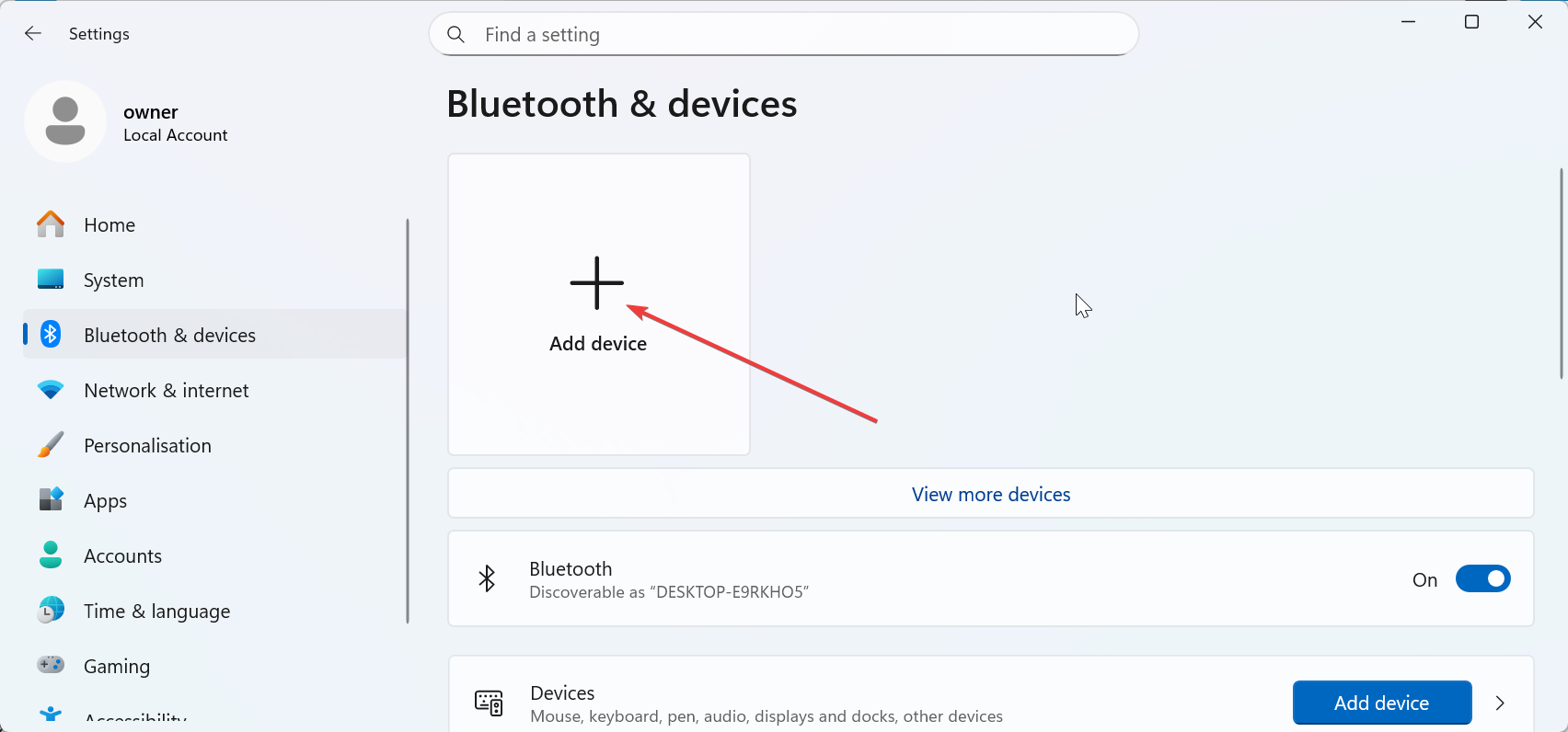
The steps of connecting Bluetooth on Android and other devices follow a simple pattern across platforms. Activate pairing mode on your headset, then select it from your device’s Bluetooth menu.
Updating firmware for the best performance
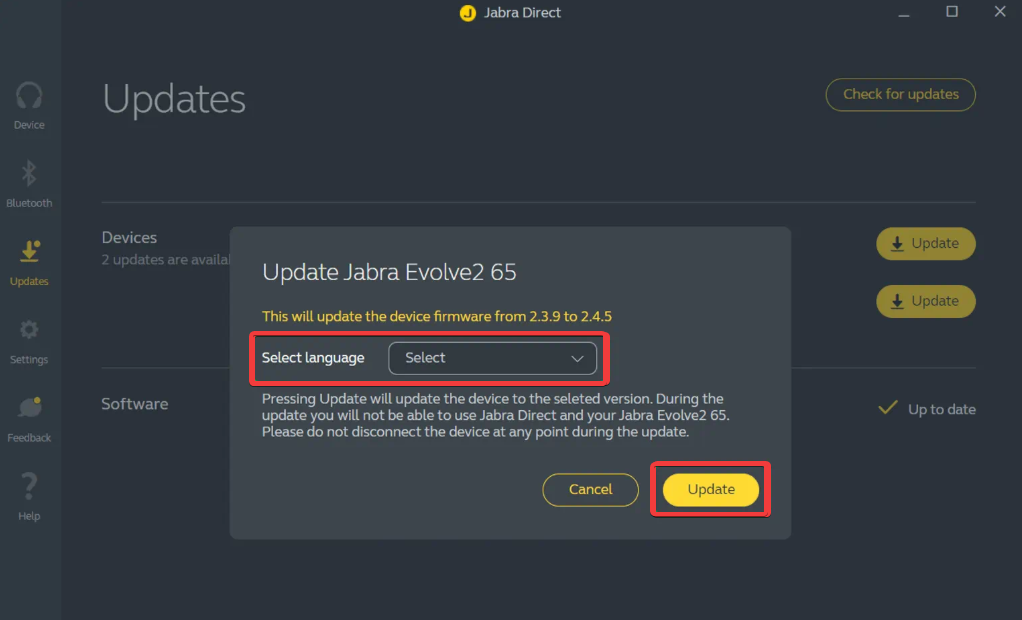
Jabra firmware updates improve stability, sound processing, and device compatibility. Update your headset through Jabra Direct or the mobile app to avoid bugs. Updated firmware also unlocks new features for supported models.
Optimize call and audio quality
Adjust microphone settings for clarity
Position your mic close to your mouth without touching your face. This improves voice pickup and reduces ambient noise. You can also adjust input levels through your computer’s sound settings.
Use ANC, HearThrough, and EQ effectively
ANC helps you focus in noisy offices or coffee shops. HearThrough gives you awareness of your surroundings when you need it. Custom EQ presets improve music and speech clarity during long meetings.
Master multi-device use
Jabra headsets support two or more active connections, allowing you to switch between your laptop and phone smoothly.
Smooth switching between laptop and phone
Enable multi-device pairing to receive calls from both devices. Set a primary device to reduce interruptions during work. This keeps audio from jumping between devices unexpectedly.
Avoiding Bluetooth conflicts
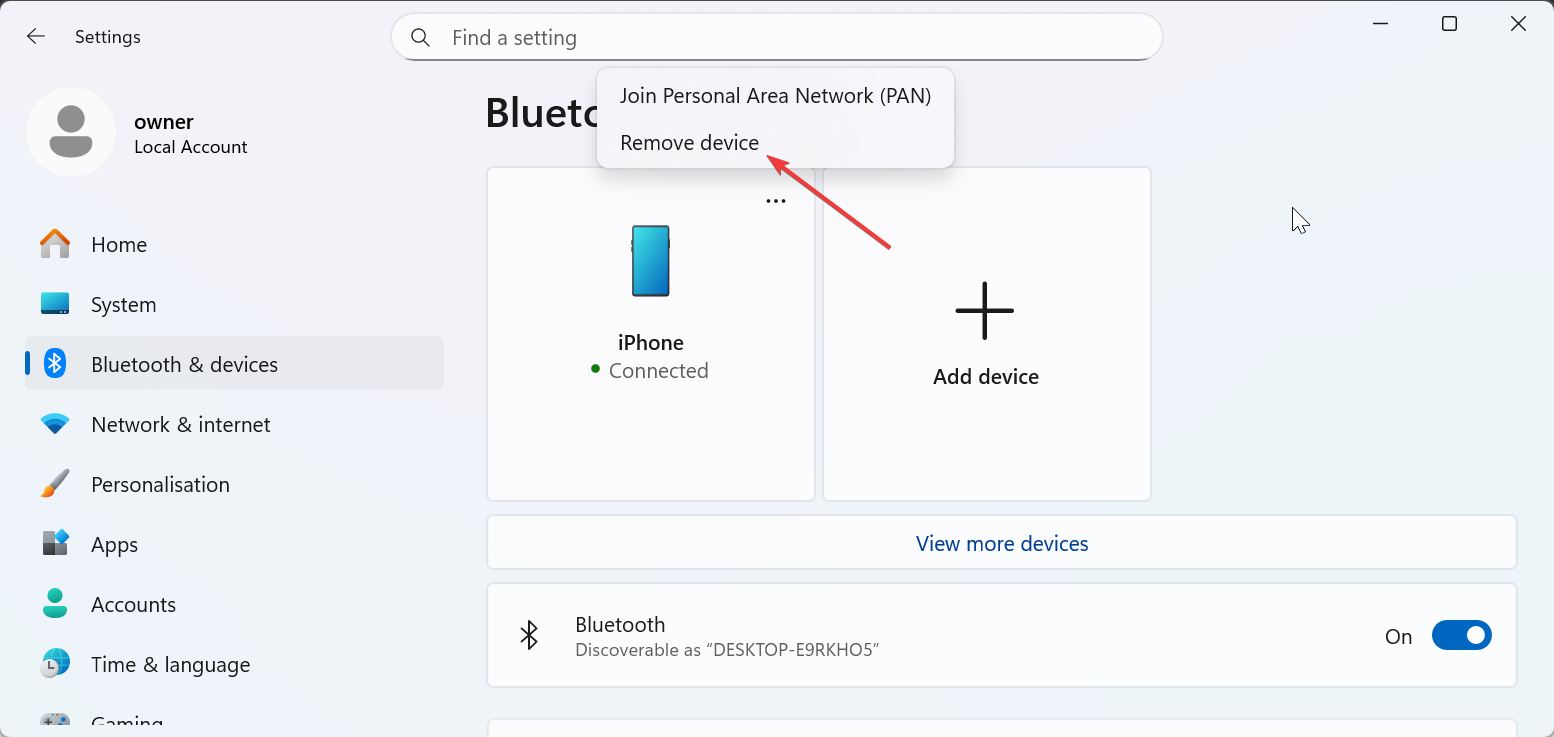
Conflicts happen when too many devices remain paired in the background. Remove unused Bluetooth entries and reset the headset when switching environments. This keeps your connection reliable during calls.
Care, maintenance, and battery longevity
Good maintenance keeps the sound consistent and prolongs battery life.
Cleaning and replacing cushions
Clean the ear cushions with a soft, dry cloth to remove sweat and dust. Replace cushions when they lose shape to restore comfort. Proper cleaning prevents audio degradation over time.
Charging habits for maximum battery life
Keep your battery between 20 percent and 80 percent during daily charging. Avoid leaving the headset plugged in overnight. Good charging habits extend battery performance over months of use.
Productivity tips and shortcuts
Built-in shortcuts make it easier to control calls and media without opening menus.
Button shortcuts for calls and meetings
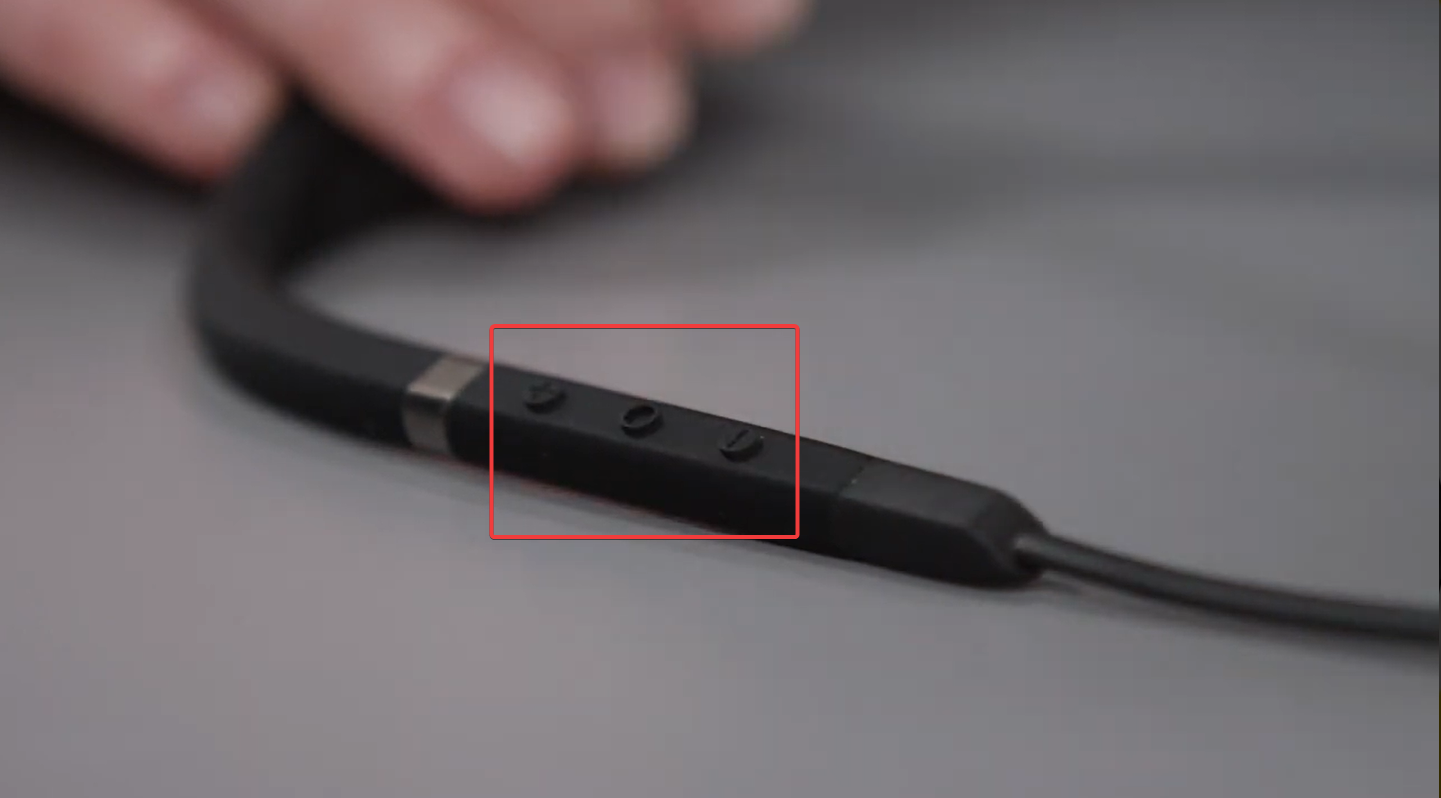
Most Jabra models support one-tap mute, call answer, and hold controls. These actions save time during busy meeting schedules. You also avoid searching for on-screen buttons.
Use busylight and smart sensors
The busylight signals that you are on a call, which reduces interruptions in shared spaces. Smart sensors pause playback when you remove the headset or mute when you lift the boom arm. These features support hands-free use during long workdays.
Troubleshooting common issues
- Fix pairing failures or audio drops: Reset Bluetooth on both the headset and your device. Remove old pairings that cause conflicts.
- Improve call quality on Teams, Zoom, and VoIP apps: Match your app’s audio settings to your Jabra device. Select the correct input and output channels in the meeting app. This reduces echo, distortion, and mic switching.
FAQs about Jabra headset use
Why does my Jabra headset keep disconnecting? Frequent disconnects usually come from Bluetooth conflicts or outdated firmware. Remove unused paired devices and update your headset software to stabilize the connection.
How do I switch between ANC and HearThrough? Most Jabra models use a dedicated button or tap gesture to toggle sound modes. Switching between ANC and HearThrough lets you control how much outside noise you hear.
Can I connect my Jabra headset to two devices at once? Yes, many Jabra models support multi-device pairing. You can stay connected to your laptop and phone at the same time and switch audio sources quickly.
What should I do if my microphone sounds muffled? Check the position of the boom mic and ensure it sits close to your mouth. You can also adjust input levels or reset Bluetooth settings to improve clarity.
Summary
- Learn your headset’s key features for daily productivity.
- Pair correctly and keep your firmware updated.
- Tune ANC, mic settings, and EQ for better call quality.
- Use multi-device pairing and shortcuts for efficient work.
- Maintain cushions and battery health to extend device life.
You gain better performance once you optimize your Jabra headset for your workflow. The steps above improve sound quality, reduce connection issues, and streamline your meetings.


Discussion (0)
Be the first to comment.