




Roblox supports VR on Meta Quest, PC-VR headsets, and some mobile-VR setups. You only need a compatible headset, the right software, and a quick settings tweak inside Roblox to start exploring worlds in full 3D.
This guide walks you through hardware checks, VR setup steps, troubleshooting, and performance tips so you can play Roblox on a VR headset with minimal friction.
1) Check your VR headset compatibility
Quest lets you play Roblox VR natively or through PC-VR using a Link cable or Air Link. You get the simplest setup on Quest 3 because it supports direct Roblox installation.

You can also play via supported PC-VR headsets (Valve Index, HTC Vive, Windows MR). These work through SteamVR. Make sure your PC meets VR performance requirements so the experience stays smooth.
2) Prepare your system for Roblox VR
Use a gaming-grade GPU, at least 8–16 GB RAM, and a modern Intel or AMD CPU. VR requires consistency, so extra GPU power improves frame stability.
Also, Roblox detects VR mode automatically when SteamVR or the Oculus PC app runs in the background. Install everything before you connect your headset. Finally, updated drivers remove tracking bugs and reduce VR stutters. Ensure you check for updates before you attempt your first VR session.

3) Connect your VR headset to your PC
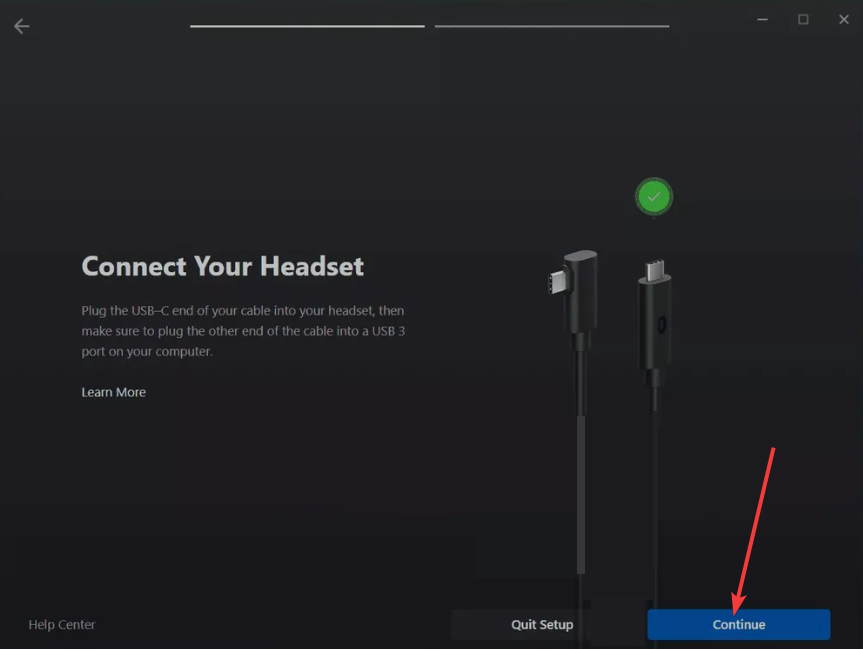
Wired setup using USB-C Link cable
Plug the cable into your PC and connect the other end to your headset. Next, approve the Enable Link prompt, start the Oculus PC app or Steam VR, and click Connect.
Wireless setup using Air Link or SteamVR Wireless
Connect your PC and headset to the same high-speed, strong Wi-Fi 6 or Wi-Fi 6E router network. Next, enable Air Link or SteamVR Wireless in the headset menu. Lastly, pair the devices inside the VR interface.
Tip: You reduce injuries when you create a clear room-scale boundary. Set up Guardian or Chaperone before launching Roblox.
4) Enable VR mode inside Roblox
Quest users can launch Roblox directly from the headset. PC-VR users start SteamVR or Oculus first, then open Roblox from Windows.
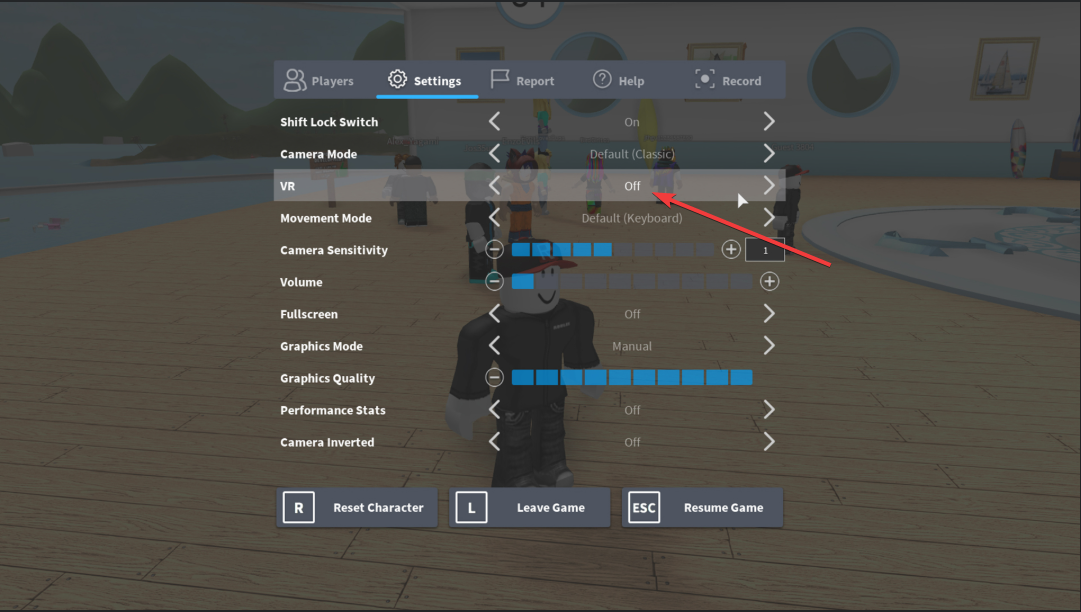
You can also toggle the VR mode setting by opening Settings in Roblox and scrolling to VR Mode. Now, select On, and Roblox switches to full VR view once it detects the headset. Finally, note that not every Roblox world supports VR. Pick VR-ready games to avoid stretched or broken camera movement.
Troubleshoot common Roblox VR problems
- VR mode not showing up: Start SteamVR or Oculus first. Check the Link or Air Link connection. Close and reopen Roblox if VR mode stays hidden.
- Headset shows a black screen or won’t load Roblox: Set Roblox to run on your dedicated GPU. Lower background app usage so VR has enough resources.
- Tracking loses alignment or drifts: Recenter tracking in your VR menu. Clean your tracking cameras and increase room lighting.
- Lag, stutters, or poor performance: Lower Roblox graphics level. Reduce SteamVR resolution scaling. Improve Wi-Fi quality if you use wireless VR.
Tips to optimize Roblox VR performance
- Adjust graphics settings in Roblox: Set Graphics Mode to Manual, then lower the slider. This helps VR maintain a stable frame rate.
- Improve Wi-Fi and network latency: Move closer to your router. Switch to a 5 GHz or Wi-Fi 6 connection. Reduce network congestion by pausing large downloads.
- SteamVR/Oculus performance tuning: Reduce supersampling or refresh rate if the headset struggles. Enable motion prediction features to limit micro-stutters.
FAQs
Can you play Roblox on Quest without a PC? Yes. Quest users can install Roblox directly from the Quest store when available.
Is Roblox VR free? Yes. VR mode comes free with the standard Roblox platform.
Why is VR mode missing? SteamVR or Oculus might not be running, or your PC might not detect the headset.
Which headset works best? Quest 3 offers the easiest setup, but any modern PC-VR headset runs Roblox smoothly with proper optimization.
Summary
- Check if your VR headset supports Roblox VR and meets basic specs.
- Install Roblox, Oculus, or SteamVR apps, and update your GPU and headset drivers.
- Connect your headset to the PC with a USB-C cable or wireless link.
- Enable VR Mode in Roblox settings and pick a VR-ready experience.
Conclusion
You can play Roblox on a VR headset with only a few steps: confirm compatibility, install the required software, connect your headset, and enable VR mode in Roblox. A quick performance tune keeps gameplay smooth, and the right VR-ready games improve comfort.
Once you complete the setup, you can explore Roblox worlds in full VR with stable tracking and improved immersion.


Discussion (0)
Be the first to comment.