




If you need seamless integration connecting your Jabra headset to a computer, this guide gives you the fastest, most reliable steps. We cover Bluetooth pairing, the Jabra Link USB dongle, and Jabra Direct so your audio just works on Windows 10 and Windows 11.
Before You Start: What You’ll Need
Charge the headset, note its model, and keep a USB cable or the Jabra Link dongle nearby. At the time of writing, Jabra recommends using its desktop app, Jabra Direct, for updates and button controls.
Step 1: Install Jabra Direct
Jabra Direct helps Windows recognize your device, enables firmware updates, and lets you customize buttons, sidetone, and busy light.
- Download and install Jabra Direct on your PC.
- Open it and keep it running during setup.
- If prompted, update your headset’s firmware before pairing.
Installing the app first prevents many pairing errors and ensures the microphone and speaker profiles register correctly.
Step 2: Connect With the Jabra Link USB Dongle (Most Reliable)
Using the Jabra Link dongle is the most stable way to connect a Jabra headset to PC, especially for softphones and Microsoft Teams.
- Plug the Jabra Link dongle into a USB-A or USB-C port.
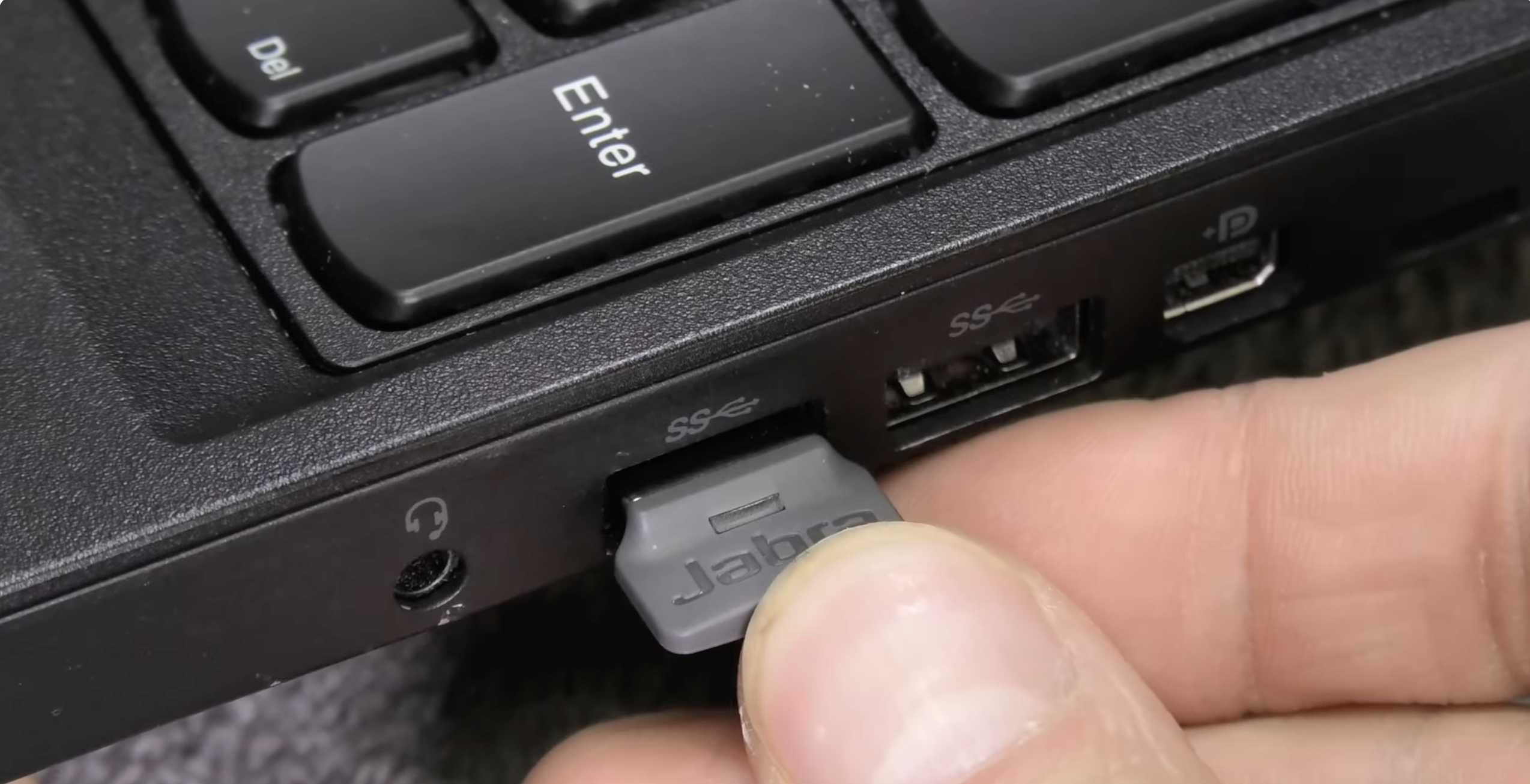
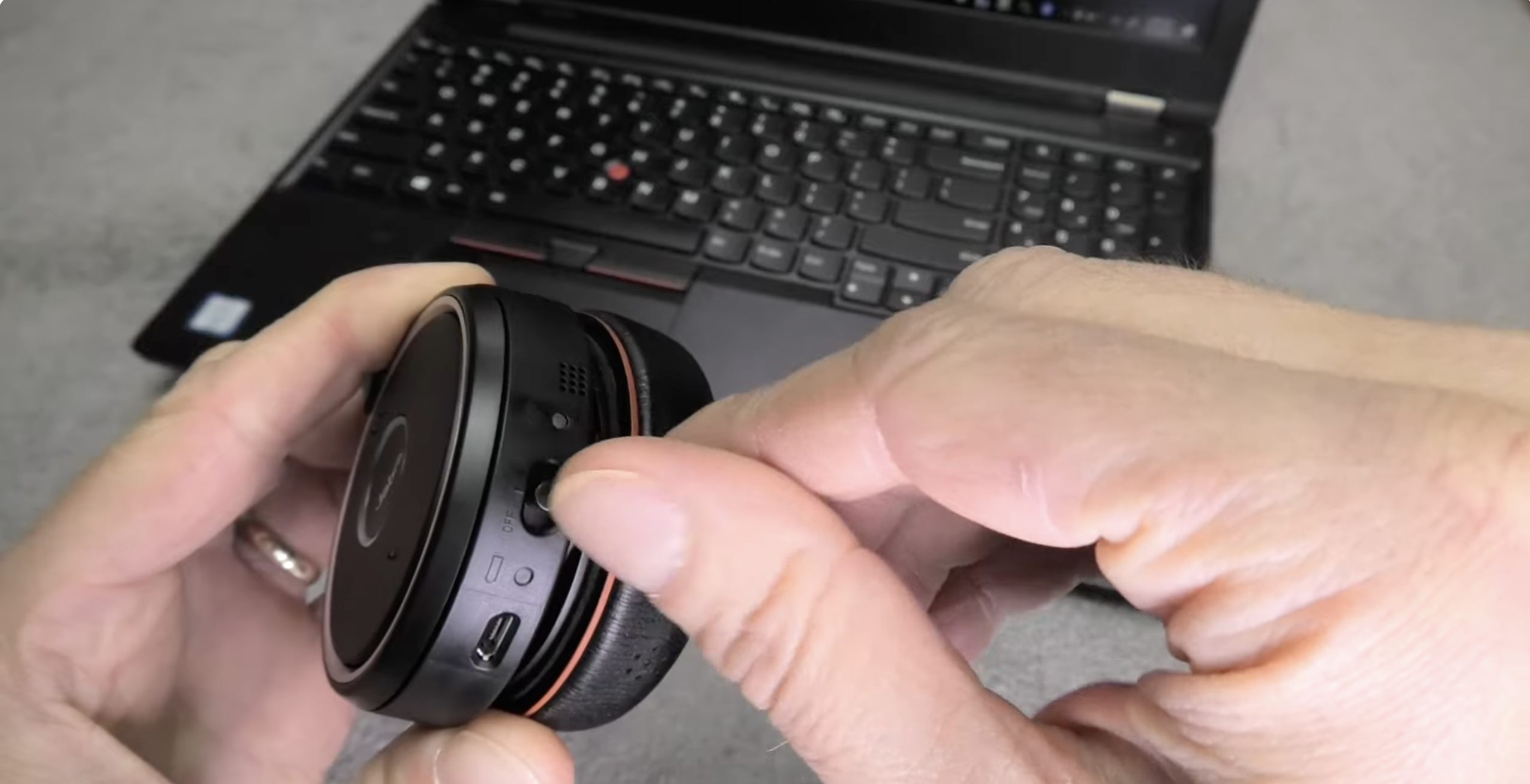
- Power on the headset. Most models auto-pair to the dongle.
- Open Jabra Direct > Devices to confirm the headset and dongle are connected.
- In Windows, go to Settings > System > Sound and set “Jabra Link” (or your model) as Output and Input.
If you use Teams or Zoom, select the Jabra device inside the app’s audio settings as well.
Step 3: Connect Over Bluetooth (Alternative)
Bluetooth is quick and works well when you don’t have the dongle. It’s perfect for laptops with built-in Bluetooth.
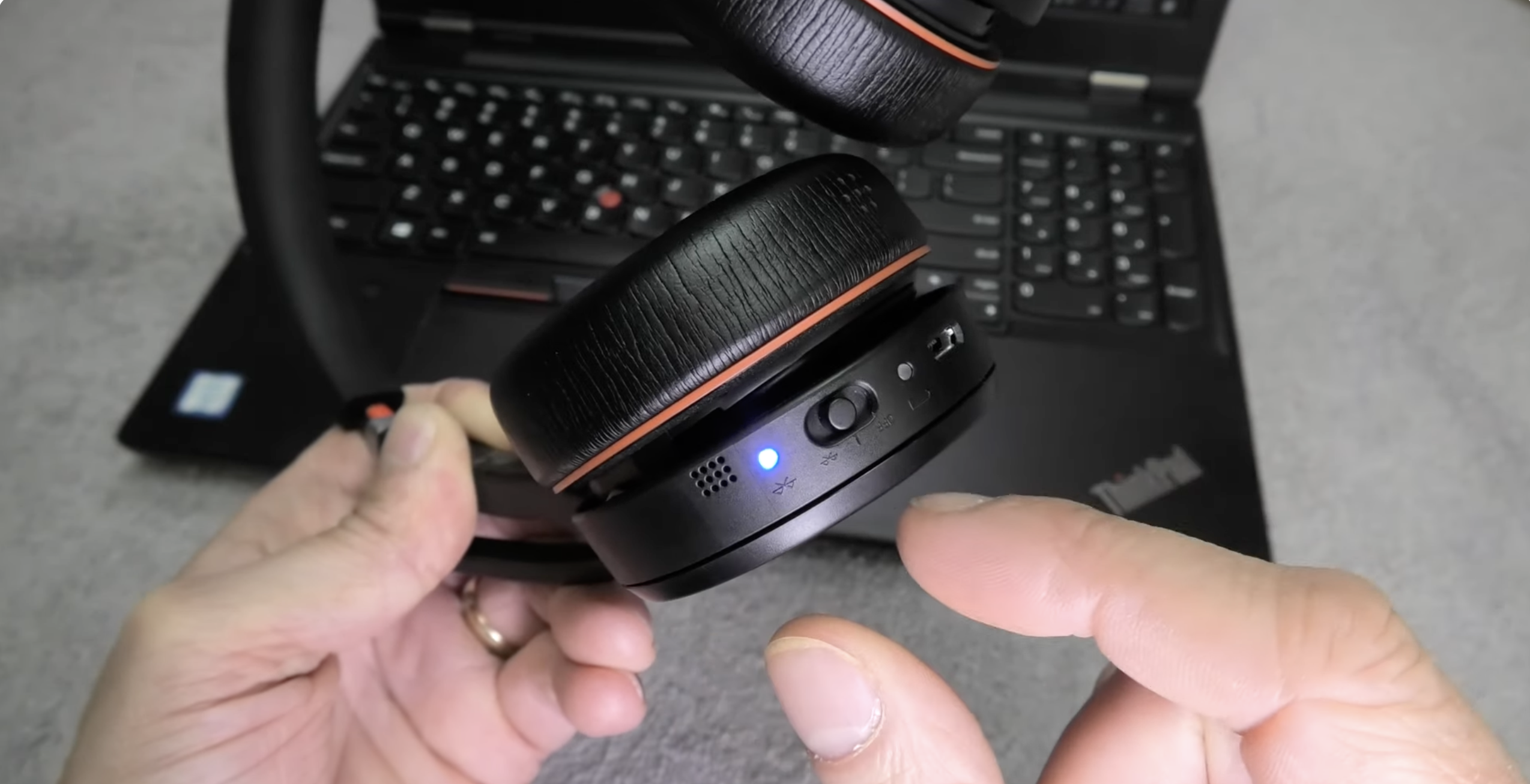
- Put the headset in pairing mode. Most models use a dedicated Bluetooth or On/Off slider held for a few seconds until the LED flashes.
- On Windows: Settings > Bluetooth & devices > Add device > Bluetooth, then pick your Jabra model.
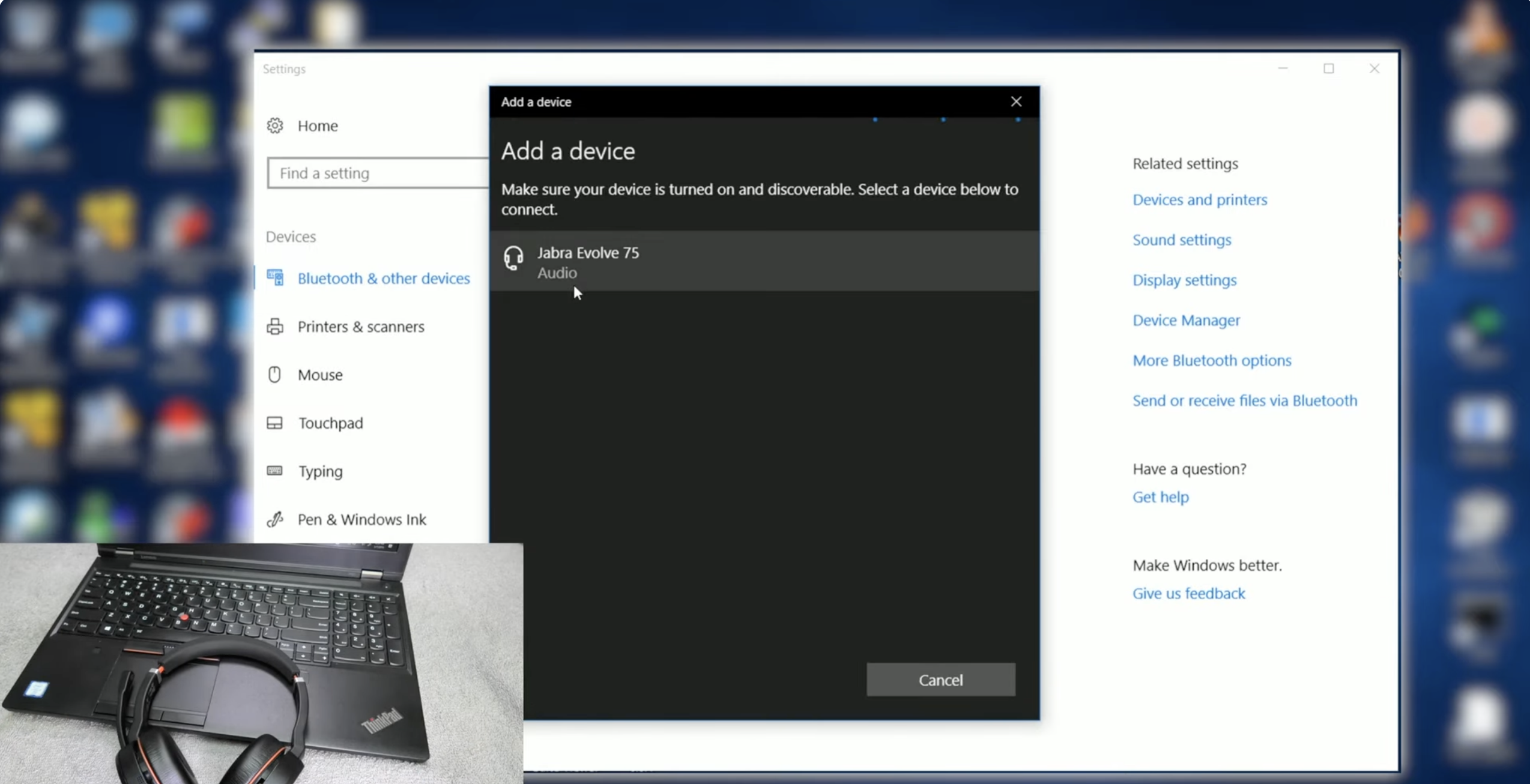
- Wait for “Connected voice, music” or similar. If asked for a PIN, try 0000.
- In Sound settings, select your Jabra as default speaker and microphone.
For the most reliable calls and fewer dropouts, the dongle still wins, but Bluetooth is fine for everyday use.
Step 4: Optimize Audio in Jabra Direct
Open Jabra Direct and tailor the experience.
- Equalizer & sidetone: Adjust for clearer voice monitoring.
- Button controls: Map mute, answer/end, and voice assistant.
- Busy light: Enable to signal you’re on a call.
- Firmware updates: Keep performance and compatibility current.
Step 5: Set Windows and App Audio Correctly
Align Windows and app settings so the headset always takes priority.
- Windows Sound: Choose the Jabra device for Output and Input. Click Device properties to rename if useful.
- Communications apps: In Teams, Zoom, or Google Meet, pick the Jabra device for speaker and mic.
- Exclusive mode: In Windows Sound > More sound settings, disable exclusive mode if another app steals the mic.
Troubleshooting: Jabra Not Connecting on PC
If your PC isn’t detecting the headset or audio cuts out, try these quick fixes.
- Reboot & replug: Unplug the dongle, restart Windows, plug it back in.
- Reset pairing: Remove the Jabra device from Bluetooth & devices, then pair again.
- Update drivers: Use Windows Update or your PC maker’s tool to refresh Bluetooth and USB drivers.
- Turn off other pairings: Disconnect phones or tablets to avoid auto-switching.
- Use the dongle: If Bluetooth drops, switch to the Jabra Link for a stronger connection.
- Mic permissions: In Privacy & security > Microphone, allow desktop apps to access the mic.
- Factory reset (model-specific): Many Jabra headsets support a reset combo—check your manual.
Tips for the Best Call Quality
- Keep the dongle within line of sight for fewer dropouts.
- Close heavy apps and browsers when you’re on important calls.
- Use the Jabra Link profile in softphones for call control buttons.
- Enable busy light to reduce interruptions while working.
- Store the headset in its case to protect the boom mic and ear cushions.
FAQs
Is Jabra Direct required? No, but it improves compatibility, adds call controls, and keeps firmware updated, which prevents many issues.
Can I connect to phone and computer at the same time? Some models allow two active Bluetooth connections. For the most reliable PC calls, use the dongle and disconnect unused devices.
Why can’t my PC find the headset? Turn Bluetooth off and on, remove old pairings, and put the headset in pairing mode again. Update Bluetooth drivers and try the Jabra Link dongle if problems persist.
Summary
- Install Jabra Direct and update firmware.
- Connect with the Jabra Link USB dongle for the most stable audio.
- Or pair via Bluetooth in Windows settings.
- Set Jabra as default speaker and mic in Windows and your call apps.
- Use the troubleshooting tips if detection or audio quality fails.
Conclusion
You now have a reliable process for seamless integration connecting your Jabra headset to a computer. Use the Jabra Link dongle for stability, Bluetooth for flexibility, and Jabra Direct for control. At the time of writing, these steps deliver clear calls and dependable performance on Windows 10 and 11.
Discussion (0)
Be the first to comment.