




When an iPhone gets stuck on the “Preparing Update” screen, it usually means the update downloaded but cannot move forward. At the time of writing, this issue most often relates to storage limits, network problems, or a corrupted update file.
The good news is that this is rarely a hardware issue. The steps below focus on safe fixes that help your iPhone complete the iOS update without data loss.
Clear Storage Before Updating iOS
Insufficient storage is one of the most common reasons an iPhone stays stuck on Preparing Update. iOS needs extra space to unpack and verify the update before installation.
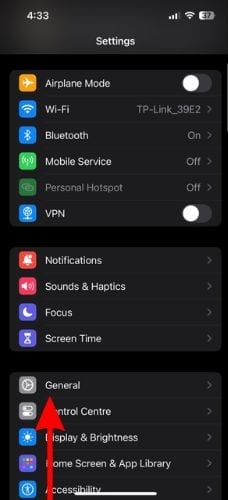
- Open Settings
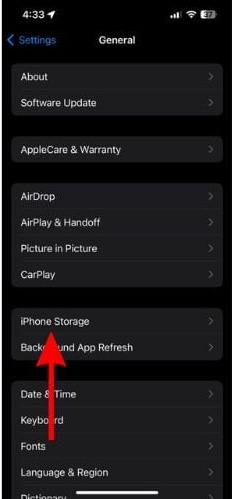
- Tap General
- Select iPhone Storage
- Delete unused apps, large videos, or downloaded media
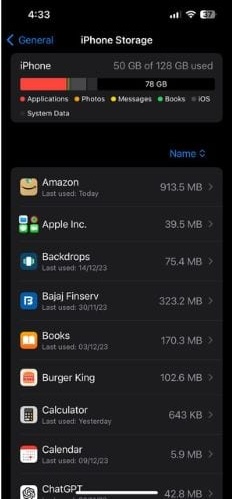
After freeing space, wait a few minutes and check if the update resumes automatically.
Check Wi-Fi And Power Connection
A weak or unstable connection can prevent iOS from verifying update files, even after the download completes.
- Open Settings and tap Wi-Fi
- Connect to a stable, known network
- Confirm internet access using Safari
- Keep the iPhone connected to a charger or above 20% battery
Cellular data is not reliable for the preparation phase and may cause the update to stall.
Reset Network Settings
If the iOS update is still stuck, resetting network settings can remove hidden connectivity issues that block Apple server verification.
- Open Settings
- Tap General
- Select Transfer Or Reset iPhone
- Tap Reset
- Choose Reset Network Settings
This removes saved Wi-Fi networks and VPNs but does not delete personal data.
Delete And Re-Download The iOS Update
A partially corrupted update file can cause the iPhone Preparing Update screen to freeze indefinitely.
- Open Settings
- Tap General
- Select iPhone Storage
- Tap iOS Update
- Select Delete Update
Restart the iPhone, then go to Settings → General → Software Update and download the update again.
Force Restart The iPhone
A force restart can clear temporary system glitches that block the update process.
- Quickly press and release Volume Up
- Quickly press and release Volume Down
- Press and hold the Side Button until the Apple logo appears
Once restarted, check the Software Update screen again.
Update iOS Using A Mac Or PC
If the update remains stuck, using a computer bypasses many OTA issues.


Discussion (0)
Be the first to comment.