




When iPhone Reminders stop working, missed alerts can quickly turn into missed tasks. Whether reminders are not notifying, failing to sync through iCloud, or not appearing at all, the issue often comes down to notification settings, Focus modes, or temporary system glitches. The steps below walk through the most reliable ways to fix the Reminders app on iPhone and get alerts working again.
These solutions apply if iPhone Reminders notifications are not working, reminders are missing alerts, or tasks fail to sync across Apple devices at the time of writing.
Check Reminders Notification Settings
If notifications are disabled, Apple Reminders cannot alert you, even if tasks are correctly scheduled.
- Open Settings.
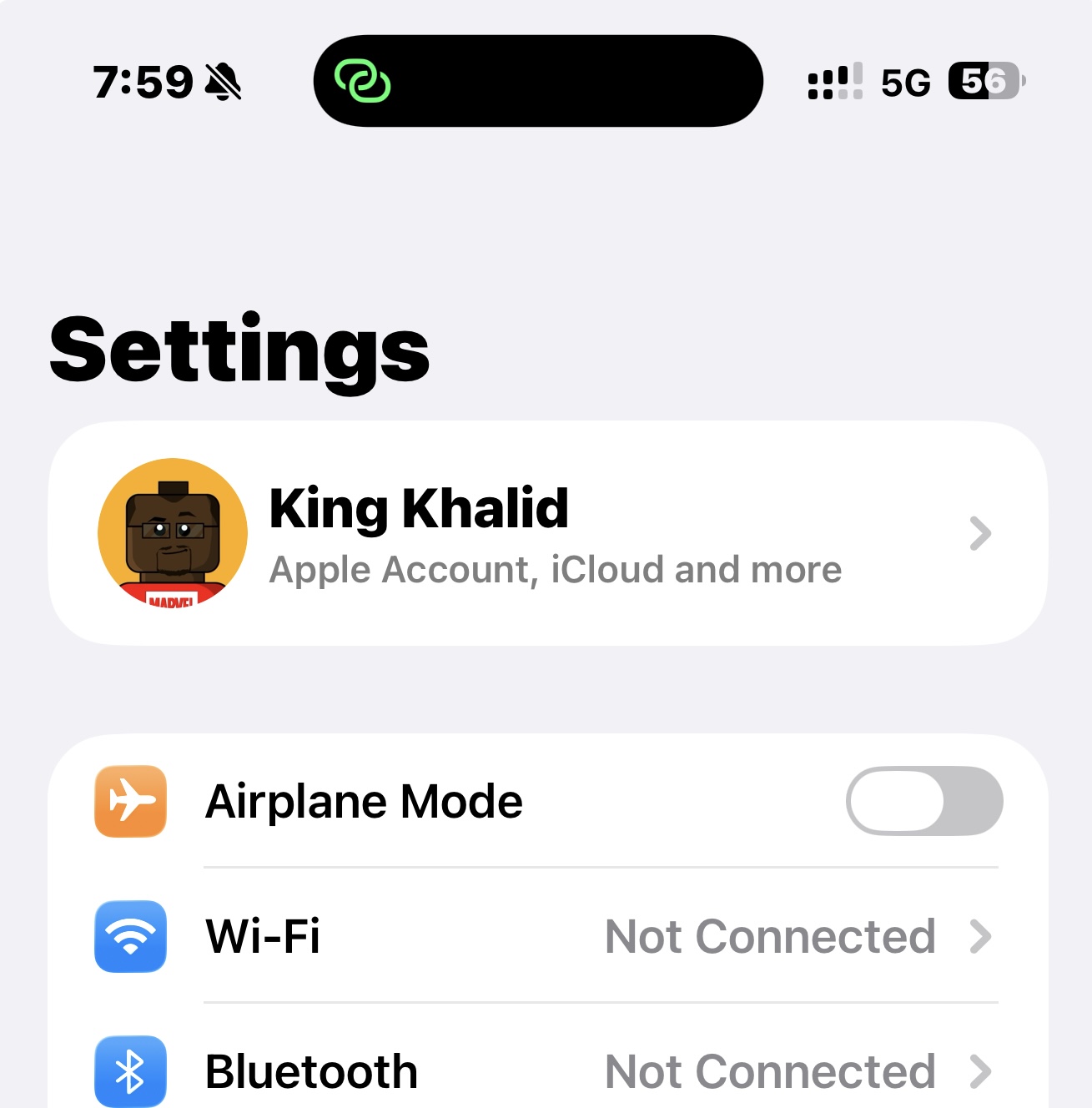
- Tap Notifications.
- Select Reminders.

- Turn on Allow Notifications.

- Enable Lock Screen, Notification Center, and Banners.
- Turn on Time Sensitive Alerts, Badges, and Sounds.
Enable Today Notifications For All-Day Reminders
All-day reminders rely on a separate notification setting and may never alert if it is disabled.
- Open Settings and tap Reminders.
- Turn on Today Notification.
- Make sure Mute Notifications is turned off.
Restart Your iPhone
Temporary system issues can block notifications, especially after updates or extended uptime.
- Press and hold the Side button and a Volume button.
- Slide to power off.
- Wait 30 seconds, then turn the iPhone back on.
Check iCloud Reminders Sync
If iCloud Reminders are not syncing, tasks created on other devices may never reach your iPhone.
- Open Settings.
- Tap your Apple ID at the top.
- Select iCloud.
- Ensure Reminders is turned on.
- If already enabled, toggle it off and back on.
Disable Scheduled Summary
Notification Summary can delay or silence Reminders alerts.
- Open Settings.
- Tap Notifications.
- Select Scheduled Summary.
- Turn it off.
Allow Reminders Through Focus Mode
Focus modes often block reminders without obvious warnings.
- Open Settings and tap Focus.
- Select an active Focus mode.
- Tap Apps.
- Add Reminders to allowed apps.
Reinstall The Reminders App
If the Reminders app itself is corrupted, reinstalling can restore normal behavior.
- Press and hold the Reminders app icon.
- Tap Remove App and delete it.
- Open the App Store.
- Search for Reminders and reinstall it.
Update iOS
Outdated system files can cause Apple Reminders to malfunction.
- Open Settings.
- Tap General.
- Select Software Update.
- Install any available update.
Troubleshooting Common Problems
If reminders still do not work, confirm the reminder has a valid date, correct list, and notification sound assigned. Also verify that Low Power Mode is not limiting background activity.
Tips
- Use loud alert tones for important reminders.
- Avoid setting reminders without dates or times.
- Keep Focus modes customized instead of relying on defaults.
- Restart your iPhone after major updates.
FAQ
Why are my reminders not alerting on iPhone?
Notification settings, Focus mode restrictions, or Scheduled Summary usually cause this issue.
Can iCloud Reminders stop working temporarily?
Yes. Sync issues can occur if iCloud services are experiencing problems.
Will resetting settings delete my reminders?
Resetting settings does not remove reminders or personal data.
Summary
- Notification settings control whether reminders alert.
- Focus modes and Scheduled Summary can silence reminders.
- iCloud sync issues may prevent reminders from appearing.
- Reinstalling the app fixes persistent glitches.
Conclusion
When iPhone Reminders are not working, the issue usually comes down to notifications, Focus mode restrictions, or iCloud sync problems. Adjusting these settings restores alerts in most cases and keeps important tasks from slipping through the cracks.


Discussion (0)
Be the first to comment.