




When iPhone or iPad display colors look wrong, the settings usually cause the problem. Accessibility features, display adjustments, or recent iOS updates often change colors without warning. Hardware issues appear less often but still matter in some cases.
Most color distortion problems resolve in minutes once you follow the steps in this guide carefully.
Table of contents
- Common reasons iPhone or iPad screen colors are distorted
- Fix distorted colors caused by display and accessibility settings
- Fix iPhone and iPad color distortion after an iOS update
- How to tell if distorted colors indicate a hardware problem
- What to do if iPhone or iPad screen colors are still distorted
- Prevent display color issues on iPhone and iPad
- Tips for fixing distorted screen colors faster
- Summary
Common reasons iPhone or iPad screen colors are distorted
Understanding the cause helps you fix the issue faster and avoid unnecessary resets or repairs.
Accessibility color filters and inversion
Color Filters, Smart Invert, and Classic Invert dramatically change how colors appear. Accidental activation often happens through the Accessibility Shortcut or triple-clicking the Side or Home button.
True Tone and Night Shift color shifts
True Tone adjusts color temperature based on ambient light. Night Shift warms colors to reduce eye strain. Both features can make the screen look yellow, faded, or inaccurate.
Color-sensitive tasks like photo editing exaggerate these changes.
Display zoom and contrast adjustments
Display Zoom, increased contrast, or Reduce White Point affect brightness and color balance. These settings can flatten colors or make them appear washed out.
Users often enable them while trying to improve readability.
Fix distorted colors caused by display and accessibility settings
Start here. These fixes solve most color distortion problems.
Turn off color filters and inverted colors
- Open Settings.
- Tap Accessibility.
- Select Display & Text Size.
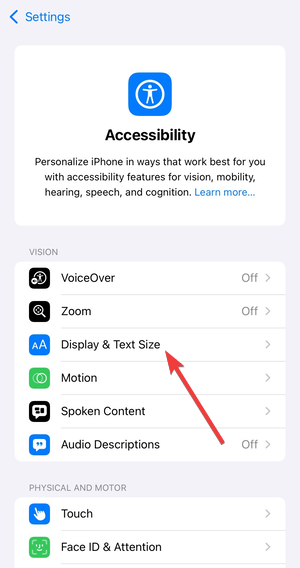

- Turn off Color Filters, Smart Invert, and Classic Invert.


The screen should immediately return to normal colors.
Disable True Tone and Night Shift
- Open Settings.
- Tap Display & Brightness.


- Turn off True Tone.
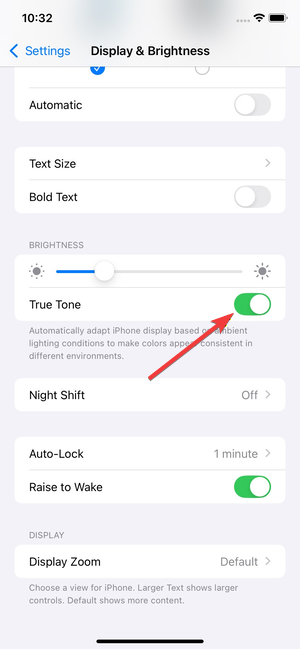

- Tap Night Shift and disable it.

This restores a neutral color profile.
Reset display zoom and contrast settings
- Go to Settings > Display & Brightness.
- Tap Display Zoom and select Default.


- Return to Accessibility > Display & Text Size.
- Turn off Increase Contrast and Reduce White Point.

These steps restore default brightness and saturation.
Fix iPhone and iPad color distortion after an iOS update
If colors changed right after updating, focus on system-level fixes.
Restart or force restart your device
A restart reloads the display profile and clears temporary glitches. Use a force restart if the screen looks frozen or severely distorted.

This step fixes many post-update issues.
Check for follow-up iOS updates
Apple often releases minor updates to correct display bugs. Install any available update as soon as possible.
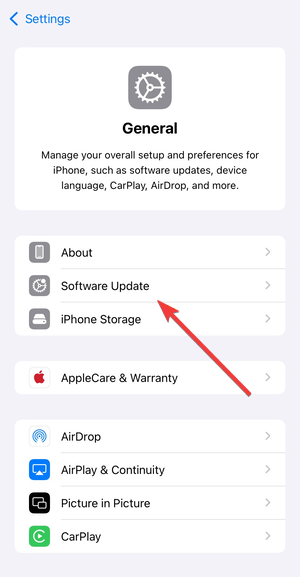
These patches frequently resolve color problems without further action.
Reset all settings
- Open Settings.
- Tap General > Transfer or Reset iPhone.
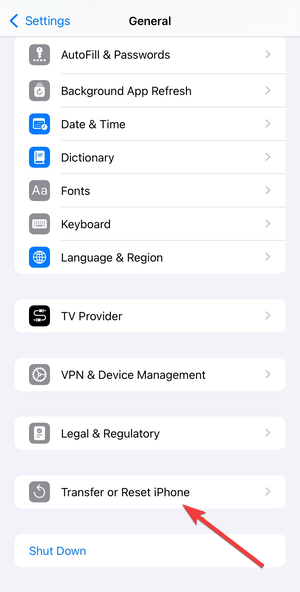

- Select Reset > Reset All Settings.
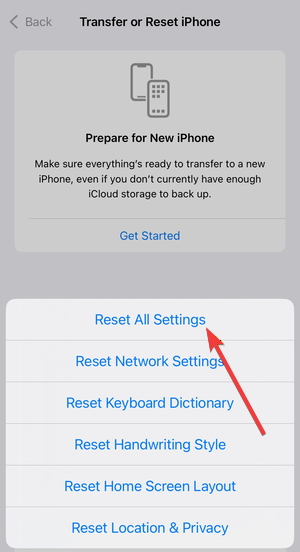

Resetting all settings on your iPhone or iPad restores any settings that might be causing the issue.
How to tell if distorted colors indicate a hardware problem
Some signs point clearly to physical damage rather than software.
Signs of display panel or GPU damage
Look for vertical lines, uneven color patches, or persistent discoloration. Hardware damage often affects only part of the screen and never changes after restarts.
Colors may flicker or appear permanently tinted.
Issues caused by non-Apple screen replacements
Third-party screens may show inaccurate colors or miss True Tone support. The display often looks colder, warmer, or less vibrant than expected.
These issues persist even after resets.
What to do if iPhone or iPad screen colors are still distorted
When software fixes fail, move carefully to avoid data loss.
Back up your device before repair
Create a full backup using iCloud or a computer. Repairs sometimes require device replacement or system restores.
A backup protects your data.
When to contact Apple Support
Contact support if colors remain distorted after resets or if physical damage appears likely. Apple diagnostics can confirm display or logic board issues.
Authorized service ensures proper color calibration.
Prevent display color issues on iPhone and iPad
Simple habits reduce future problems.
Avoid accidental Accessibility shortcuts
Disable the Accessibility Shortcut if you trigger color changes often. This prevents sudden filter activation.
Protect the display from pressure and heat
Avoid sitting on the device or leaving it in hot environments. Excess heat and pressure degrade display panels over time.
Tips for fixing distorted screen colors faster
- Check Accessibility settings before resetting anything.
- Disable True Tone and Night Shift when color accuracy matters.
- Restart after every major iOS update.
- Avoid third-party screen replacements when possible.
- Back up your device before advanced troubleshooting.
FAQs
Why does my iPhone screen look yellow or warm?
True Tone and Night Shift commonly cause a yellow or warm tint. Disable both features to restore a neutral white balance.
Can an iOS update cause display color distortion?
Yes. Some updates introduce temporary display profile issues. A restart, follow-up update, or resetting all settings usually fixes the problem.
Do distorted colors mean my screen is broken?
Not always. Settings issues cause most cases. Persistent discoloration, lines, or uneven patches often point to hardware damage.
Summary
- Check Accessibility settings for color filters and inversion.
- Disable True Tone, Night Shift, and contrast adjustments.
- Restart the device and install any pending iOS updates.
- Reset all settings if the issue persists.
- Seek professional repair for confirmed hardware problems.
Distorted colors on iPhone and iPad usually come from settings or temporary software issues. Quick checks in Accessibility and Display settings fix most cases. When colors remain wrong after resets, hardware damage or screen replacements often explain the problem. Use systematic troubleshooting to restore accurate colors without unnecessary repairs.


Discussion (0)
Be the first to comment.