Do you need to know how to delete or uninstall apps from your Android smartphone or tablet? If you hate clutter as much as we do, or you want to improve your device's performance by freeing up space, knowing how to remove an app from Android can be a game-changer. Whether it's a sideloaded app, an app that came with your smartphone, or you got it from the Google Play Store, this tutorial is for you. Here is how to get rid of any app (or at least keep it out of sight) on your Android device:
NOTE: For this tutorial, we used an ASUS ZenFone Max Pro device running Android 9 Pie. The procedures are similar on all Android-powered devices, so you should be good to go even if you have a smartphone from Samsung, Huawei, Xiaomi, or some other manufacturer.
1. How to uninstall Android apps from the All Apps screen
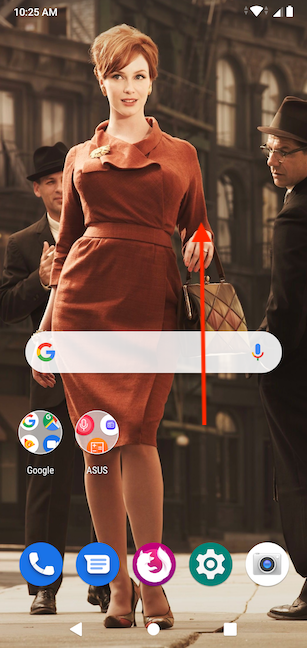
First, access the All Apps screen by either swiping up on the Home screen or tapping on the All apps button, which is available on most Android smartphones.
Swipe up from the Home screen to open All Apps
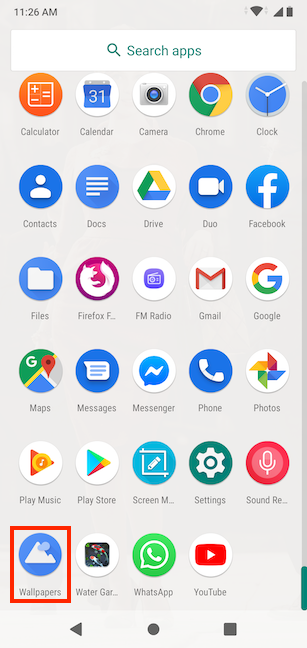
Then, find the app you want to uninstall. To illustrate this tutorial, I decided to use Google's Wallpapers app, which I recently used in a piece about getting daily wallpapers on your Android.
Find the app you want to remove
If you can't find the app you want to remove, you can also type its name in the search field at the top of the All Apps screen. The next step is slightly different depending on your device:
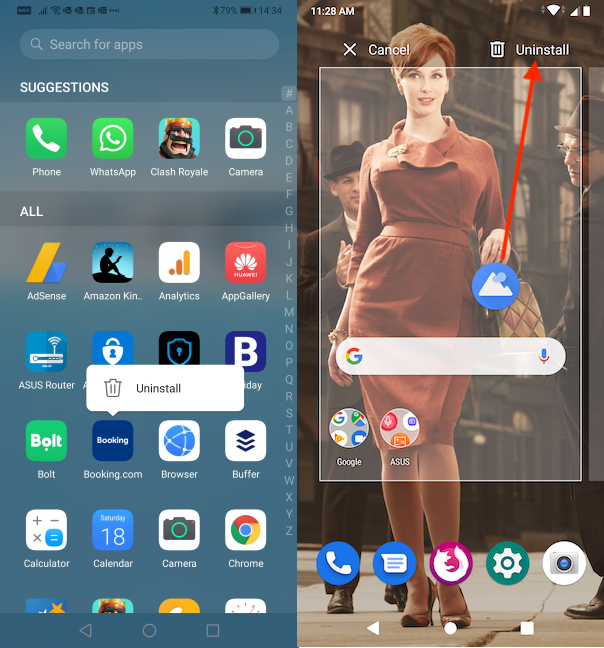
Press-and-hold on the app's icon to reveal the Uninstall option. Tap on it.
Press-and-hold on the app's icon, and then move your finger. When you do this, the Uninstall option appears on the top side of your screen. To start removing the app, drag the app's icon over it and release it there.
Uninstalling the app from the All Apps screen
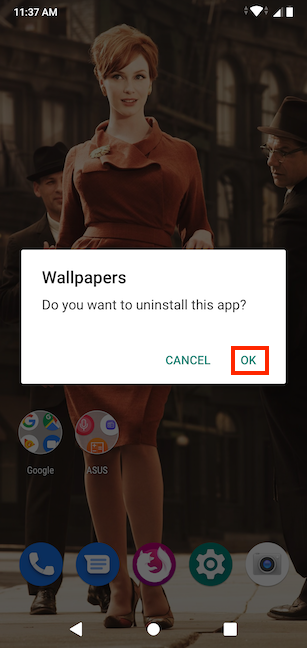
You are asked to confirm that you want to uninstall the app. Tap on OK.
Confirm uninstalling the app
Android briefly displays a message letting you know that the app was uninstalled successfully.
2. How to remove Android apps from the Google Play Store
You can also use the Google Play Store to delete apps on Android.
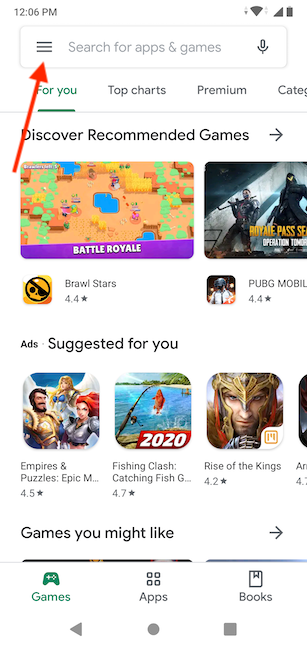
Open the Play Store and press on the hamburger button in the top-left corner.
Access the Play Store and tap on the hamburger button
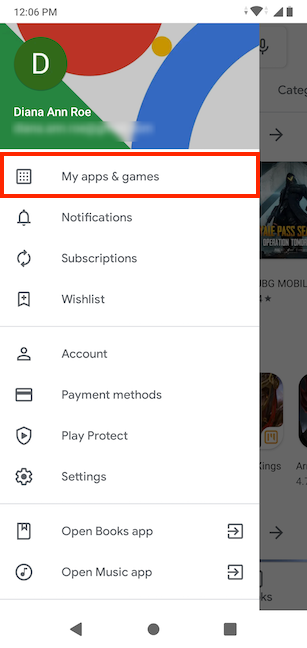
In the menu that opens, tap on "My apps & games."
Access My apps & games
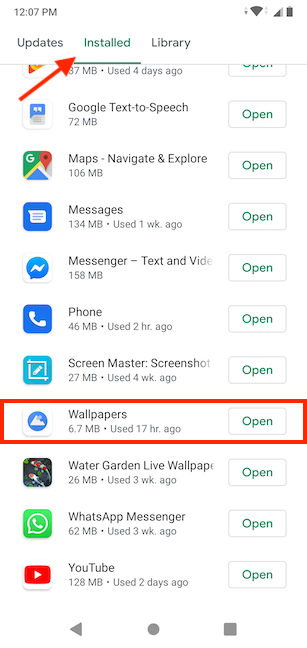
Tap the Installed tab, and you can see a list of all the apps currently installed on your Android smartphone or tablet. Find the app that you want to remove and tap on its name. Do not tap on the Open button, as that launches the app.
Tap on the app to access its Play Store page
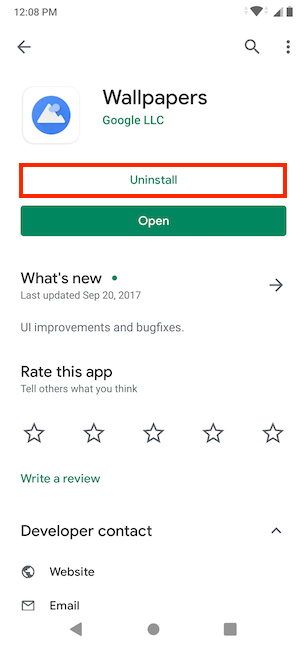
This action opens the app's Play Store page. There, tap the Uninstall button.
Press on Uninstall in the app's Play Store page
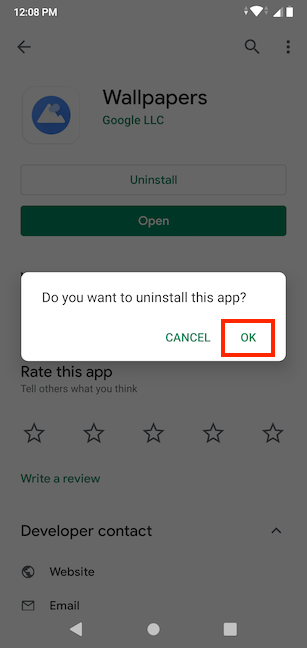
Choose OK to confirm that you want to uninstall the app.
Confirm uninstalling the app
The app is removed from your Android device. You now have the option to install it again from the Play Store.
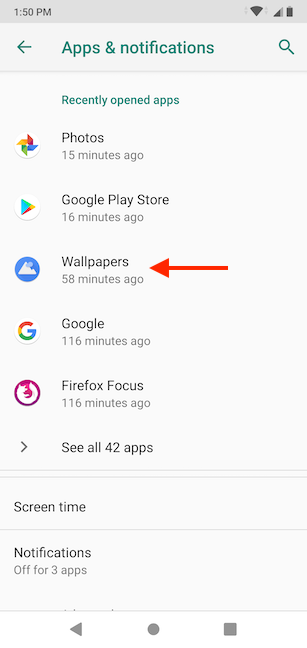
You can now see a list of all the apps found on your Android smartphone or tablet. Find the app that you want to remove and tap on its name. If you can't see your app when you access the Apps & notifications settings, tap on "See all apps" to open a bigger list.
Tap on the app's name
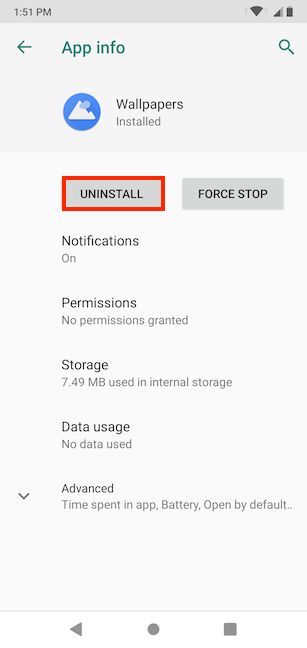
This takes you to the App info screen, where you can see information about the app and the option to Uninstall. Tap the Uninstall button.
Press on Uninstall
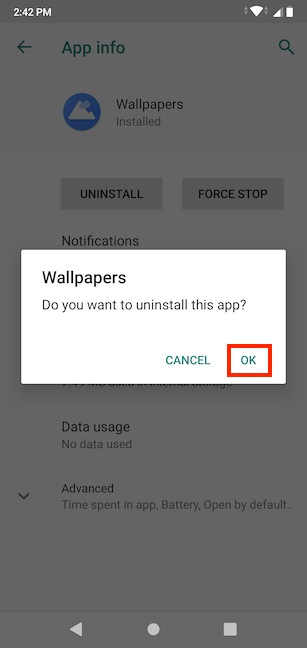
Press OK to confirm that you want to uninstall it, and Android removes the app.
Confirm the app's removal
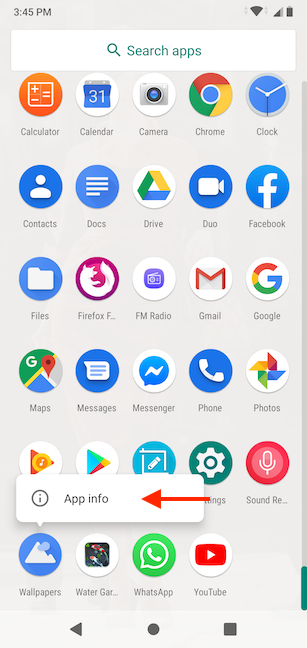
As an alternative, on some devices, you can also press-and-hold on an app's icon in the All Apps screen, and then tap on App info. This option is available only on smartphones with a stock version of Android, not on those with heavily customized user interfaces, like those from Huawei.
Press on App info to get to the App info screen
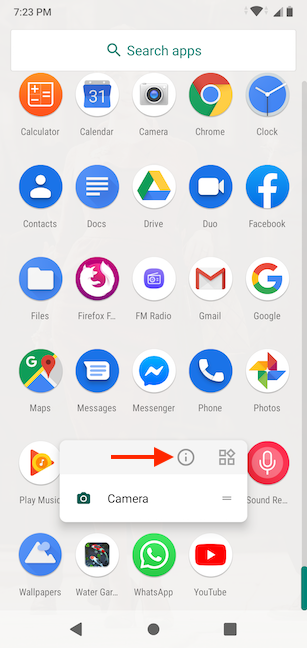
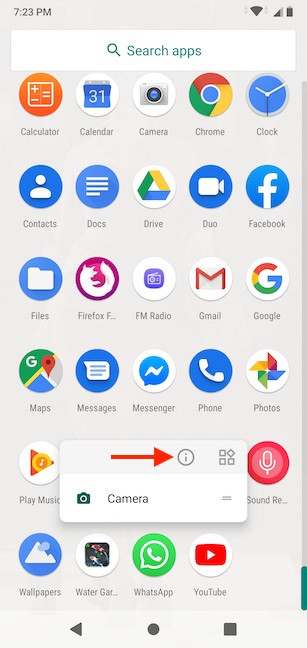
In some cases, the App info option is more subtle, so you have to tap on its symbol, which looks like the letter i inside a circle.
Look for the App info symbol in the app's menu
This gets you to the App info screen, where you can tap first on Uninstall, and then on OK to uninstall the app, as illustrated above.
4. How to uninstall an Android app using its Home screen or Favorites bar shortcut
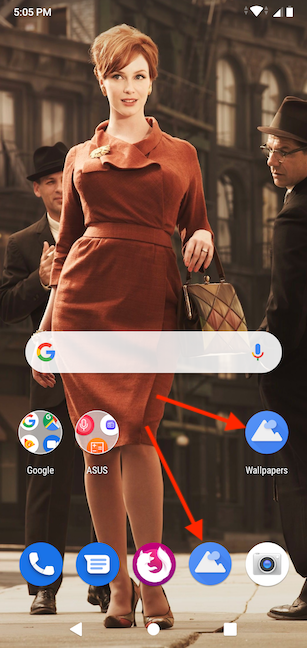
If the app you want to remove has a shortcut on either the Favorites bar or Home screen, you might also be able to use it to uninstall the app. This is only true when using a smartphone with a stock version of Android, so this step is not available on smartphones with heavily customized user interfaces, like those from Huawei.
Favorites bar and Home screen shortcuts for the app we chose to uninstall
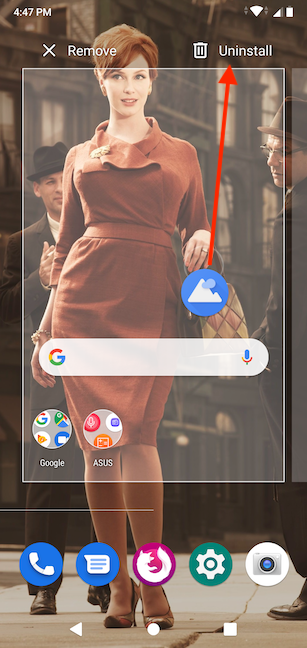
To begin, press-and-hold on the shortcut, and then move your finger. Notice the options to Remove and Uninstall appearing at the top of your screen. Drag the app's shortcut over Uninstall and release it there. Releasing the shortcut on Remove gets rid of the shortcut, while the app remains installed on your Android device.
Drag and drop the shortcut onto Uninstall
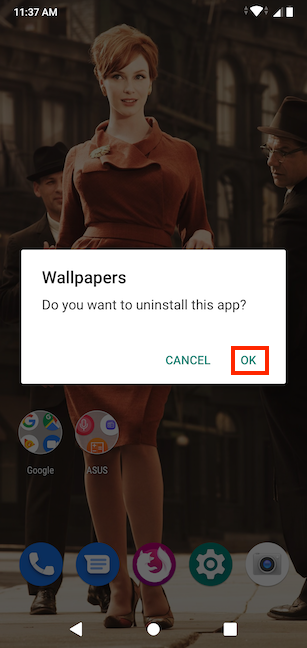
Press OK to confirm your choice. Android displays a message to let you know that the app was uninstalled.
Tapping OK confirms your choice
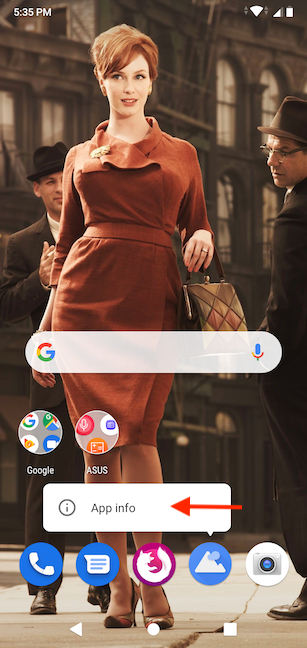
Alternatively, you can first press-and-hold the app's shortcut from your Home screen or Favorites bar, and then tap the App info option.
Open the App info screen
The App info symbol could be displayed instead, so tap on it. It looks like the letter i inside a circle.
Tap on the App info symbol
From the App info screen, tap on Uninstall, and then confirm your choice by tapping on OK. The process is illustrated in the previous section of this tutorial.
Bonus: Is the Uninstall button missing? Disable the app instead!
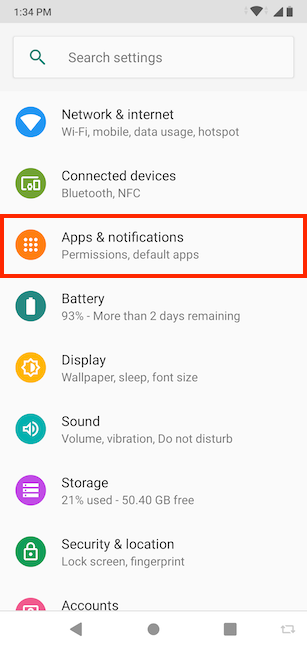
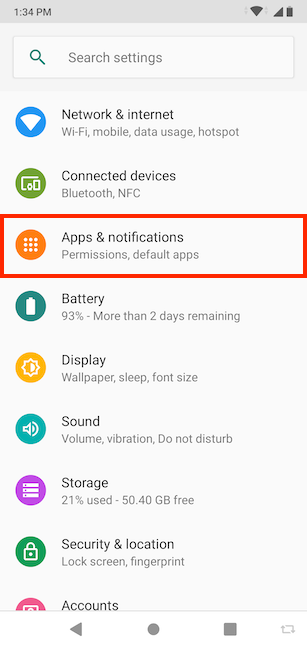
For some apps, you do not see an Uninstall button where our instructions clearly show one. This means that the app is part of the Android operating system, and it came pre-installed on your smartphone, so you cannot uninstall it. However, you can disable it instead by following the steps in this section. First, access the Settings app and tap on Apps & notifications.
Tap on Apps & notifications from the Settings app
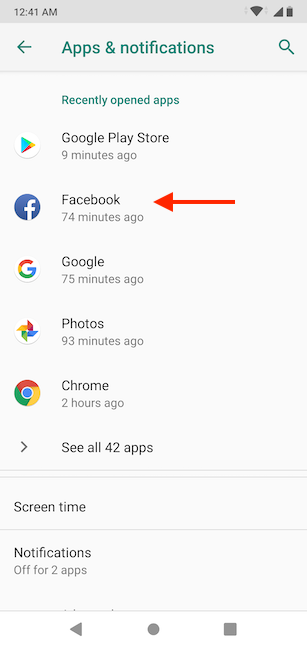
You should see a list of the apps found on your Android smartphone or tablet. Find the system app you want to remove and tap on its name. If you don't see the app when opening the Apps & notifications settings, tap on "See all apps" to access a bigger list.
NOTE:Facebook is among our pre-installed apps. Since it's not an app essential for our Android smartphone to run properly (and considering we're not big fans of it anyway), we decided to use it in order to illustrate how disabling an app works. However, keep in mind that some of these system apps that are shipped with your smartphone should not be disabled, as that could stop your Android device from working as it should.
Tap on the app's name
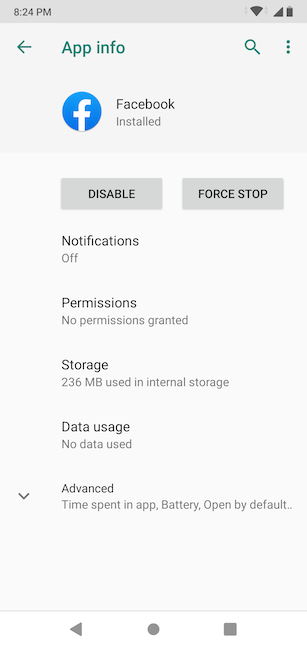
The App info screen opens, displaying a lot of info about the app.
App info shows app data
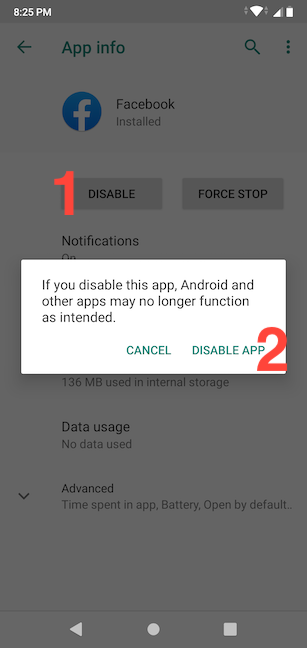
Tap Disable, and then confirm by pressing on Disable app.
Tap on Disable app to hide the app
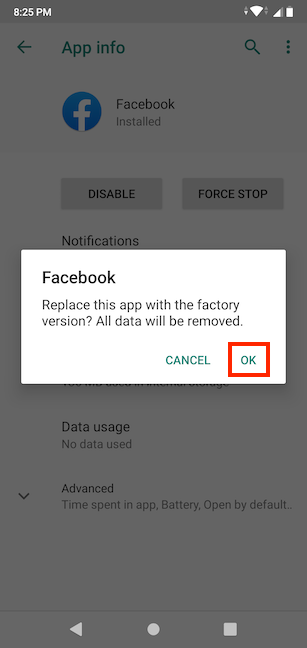
On the next screen, tap on OK.
Press OK
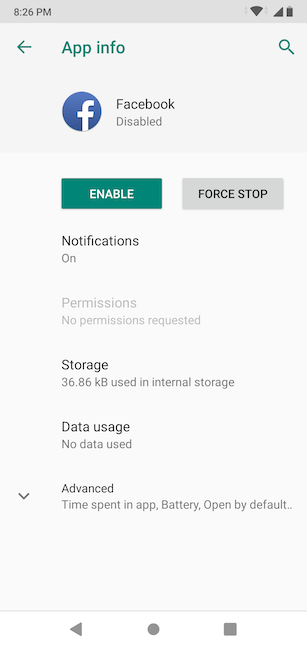
As you can see in the screenshot below, the storage space used up by the app is significantly reduced, but the app cannot be removed entirely.
The app takes up less space
However, the app's shortcuts disappear from your device and don't clutter your All Apps screen anymore. Also, when you disable an app, it no longer runs in the background, and it does not receive any more updates, so you also get rid of a drain on your device's resources.
What apps do you want to get rid of and why?
Now that you know how to uninstall an app on Android, you can go ahead and try out as many apps as you want. You can also read our tutorial on How to install apps from the Play Store on an Android smartphone or tablet if you need help finding, researching, and installing the right apps for you. When you remove the apps you no longer need from your smartphone or tablet, it increases the storage space available because their files are deleted, while also improving the device's performance and security. If you use fewer apps, your smartphone works faster and less data leaks from it. Before closing this tutorial, please let us know which apps you are removing. Why are you getting rid of them? Leave us a comment with your answer below.
Is there any specific way to remove bloatware from a samsung galaxy j5. There are loads of pre-installed Samsung apps which I don’t require. Any solution other than rooting the phone
Kimberley ·
I really just want to clean an free up my phone. I noticed that there are game app reviews in the my apps .. Which a lot of them I’ve uninstalled but there are some that I still have on the phone. Also, I installed an uninstaller app but when I hit cache ,or delete. Or clean files, I have not a clue which one to delete because I don’t want to lose everything
astrolote ·
On my S7 with Oreo, there was also an app called Samsung Push Service. Once deleted, I think the ads are now gone. I hope it is permanently so. Thanks for the info.
Anonymous ·
Glad to help. Do not hesitate to subscribe to our newsletter, for more useful content.
Jim ·
I don’t have uninstall or remove I need them where are they?
Norm ·
There is no “Uninstall” option on the app I want to uninstall, just “Enable” or “Disable” options. I’m confused. I’m old and not hip. Please help. Thanks.
Ken Heffner ·
In Windows when you “uninstall” a program, the uninstall program leaves bits and pieces of it in the registry. That information is there in case you re-install so it can remember your configuration. I’m trying to uninstall Google Remote Desktop so I can reinstall and configure it differently. As it is, when I reinstall the program bypasses the configuration options and launches. Does Android have anything like a registry, or another place or places where this configuration can be deleted?
Ciprian Adrian Rusen ·
When you uninstall an app in Android, it loses all its configuration, not only its files. Therefore, when you install it again, you need to configure it from scratch, just like when installing it for the first time.
Anton ·
I wish to thank you Vlad. I read your article of how to delete an App on Android 5.1. I have just received my 10″ Tablet/Phone from China. In shows MediaTech when booting. It may be its make.
Anyway, I asked the supplier that I want to send it back because every now and then (40% of the time) during boot up, it stops with the screen showing “Loading”, “MediaTech” below it and a large Android icon at the bottom. It stalls showing this screen. I tried Resetting, but no response. It is like jammed showing the “Loading” screen. Hours later – when the battery runs out, it switches off. I charge it again and it may work properly or jams again. It never jams while working – only when loading.
Any faint idea of what it could be? I am a Windows man. I have a Smart phone but only use basic stuff as I am new to Android. I would very much appreciate your help if my problem is up your street.
By the way, I live in sunny Malta.






Discussion (9)
Is there any specific way to remove bloatware from a samsung galaxy j5. There are loads of pre-installed Samsung apps which I don’t require. Any solution other than rooting the phone
I really just want to clean an free up my phone. I noticed that there are game app reviews in the my apps .. Which a lot of them I’ve uninstalled but there are some that I still have on the phone. Also, I installed an uninstaller app but when I hit cache ,or delete. Or clean files, I have not a clue which one to delete because I don’t want to lose everything
On my S7 with Oreo, there was also an app called Samsung Push Service. Once deleted, I think the ads are now gone. I hope it is permanently so. Thanks for the info.
Glad to help. Do not hesitate to subscribe to our newsletter, for more useful content.
I don’t have uninstall or remove I need them where are they?
There is no “Uninstall” option on the app I want to uninstall, just “Enable” or “Disable” options. I’m confused. I’m old and not hip. Please help. Thanks.
In Windows when you “uninstall” a program, the uninstall program leaves bits and pieces of it in the registry. That information is there in case you re-install so it can remember your configuration. I’m trying to uninstall Google Remote Desktop so I can reinstall and configure it differently. As it is, when I reinstall the program bypasses the configuration options and launches. Does Android have anything like a registry, or another place or places where this configuration can be deleted?
When you uninstall an app in Android, it loses all its configuration, not only its files. Therefore, when you install it again, you need to configure it from scratch, just like when installing it for the first time.
I wish to thank you Vlad. I read your article of how to delete an App on Android 5.1. I have just received my 10″ Tablet/Phone from China. In shows MediaTech when booting. It may be its make.
Anyway, I asked the supplier that I want to send it back because every now and then (40% of the time) during boot up, it stops with the screen showing “Loading”, “MediaTech” below it and a large Android icon at the bottom. It stalls showing this screen. I tried Resetting, but no response. It is like jammed showing the “Loading” screen. Hours later – when the battery runs out, it switches off. I charge it again and it may work properly or jams again. It never jams while working – only when loading.
Any faint idea of what it could be? I am a Windows man. I have a Smart phone but only use basic stuff as I am new to Android. I would very much appreciate your help if my problem is up your street.
By the way, I live in sunny Malta.