




When you need the √ symbol for assignments, digital documents, or math equations, you can use several built-in methods on Windows and macOS. Learning how to write square root on keyboard helps when you type math symbols often and want a faster workflow. These shortcuts and tools remain accurate at the time of writing.
You can insert the square root symbol with Windows Alt codes, the Character Map, Mac shortcuts, or simple copy and paste. These options work on most keyboards, even when you use a laptop layout without a dedicated number pad.
Use Alt Codes On Windows
Alt codes provide a quick way to type the √ symbol, especially when your keyboard includes a numeric keypad. This remains one of the fastest methods for typing square root on Windows.
- Turn on Num Lock.
- Place your cursor where the symbol should appear.
- Press and hold Alt.
- Type 251 using the numeric keypad.

- Release Alt to insert √.
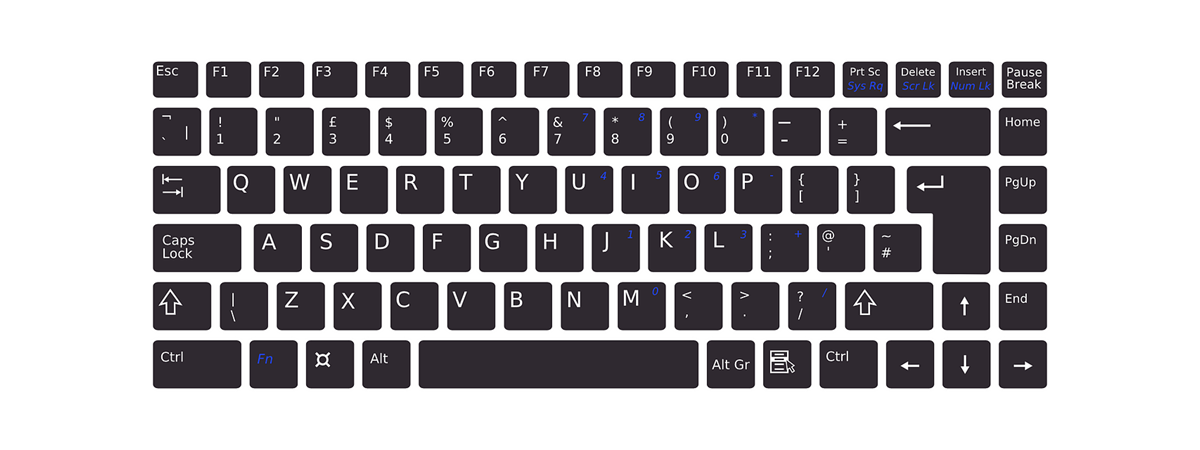
If your laptop uses an embedded number pad, enable it first through the Fn key.
Use Unicode Alt Code 8730
Some devices respond better to the extended Unicode value. This method remains reliable on most Windows layouts.
- Enable Num Lock.
- Hold Alt.
- Type 8730 on the numeric keypad.
- Release Alt to insert √.
Use Windows Character Map
Windows Character Map gives you a visual way to locate math symbols when you do not want to use keyboard shortcuts.
- Open the Start menu and search for Character Map.

- Scroll to find the √ symbol.
- Select the symbol and click Select.
- Choose Copy.
- Paste it with Ctrl + V.
This method works across all modern Windows versions.
Use Mac Keyboard Shortcuts
macOS includes a built-in shortcut that types the square root symbol instantly in most apps.
- Press Option + V to insert √.

This shortcut works consistently in browsers, text editors, and note-taking apps.
Copy And Paste The Symbol
Copy and paste works on any device, even touchscreens. Use this when your keyboard layout does not support math shortcuts.
- Find a source that displays the √ symbol.
- Highlight the symbol.
- Copy it with Ctrl + C.
- Paste with Ctrl + V into your document.
Troubleshooting Common Problems
If you cannot type the square root symbol, the issue usually relates to the keyboard layout or Num Lock.
- Turn on Num Lock before using Alt codes.
- Try both code versions: 251 and 8730.
- Switch to the US keyboard layout for better compatibility.
- Restart the app you are typing in.
- Use Character Map or copy-paste when keyboard shortcuts fail.
Tips
- Store the √ symbol in a notes app for quick reuse.
- Use Mac’s Option + V if you switch between devices.
- Learn related math symbols to speed up typing.
- Use Character Map to discover keyboard math symbols you might need later.
FAQ
Why does Alt 251 not work on my laptop?
Your laptop may not have an active numeric keypad. Enable the embedded numpad or use Character Map instead.
Is there a Mac shortcut for square root?
Yes. Press Option + V to type √ instantly.
Does the square root symbol work everywhere?
Most modern apps support it, though older programs may block some Unicode symbols.
Where do I find more math symbols?
Windows Character Map and Mac’s Emoji & Symbols viewer both include an extensive math category.
Summary
- Use Windows Alt codes 251 or 8730 to insert √.
- Use Character Map for a visual selection method.
- Use Option + V on macOS for instant input.
- Copy and paste the √ symbol as a universal fallback.
Conclusion
You can use shortcuts, built-in tools, or simple copy-and-paste to type the square root symbol on any device. These methods work across Windows and macOS and help you type math symbols faster and with fewer steps. Choose the method that fits your keyboard layout and keep the symbol handy for future use.
Discussion (0)
Be the first to comment.