




If you want to watch Peacock TV on an LG Smart TV, you can install the official app from the LG Content Store and start streaming right away. Most modern LG TVs support the Peacock app, but older models may require a firmware update to appear in the store. This guide helps you install Peacock, sign in, activate your TV, and start streaming safely.
Install And Set Up Peacock TV On LG Smart TV
Peacock TV supports most LG Smart TVs running webOS 3.5 or later. If the app does not appear, your TV likely needs a software update. After checking compatibility, follow the steps below to download Peacock, sign in, and activate your device.
Check TV Compatibility
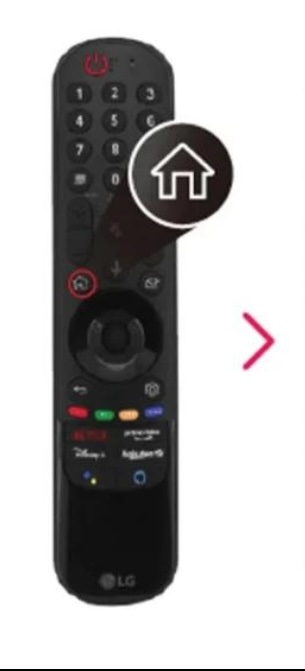
- Press the Home button on the LG TV remote to bring up the main menu.
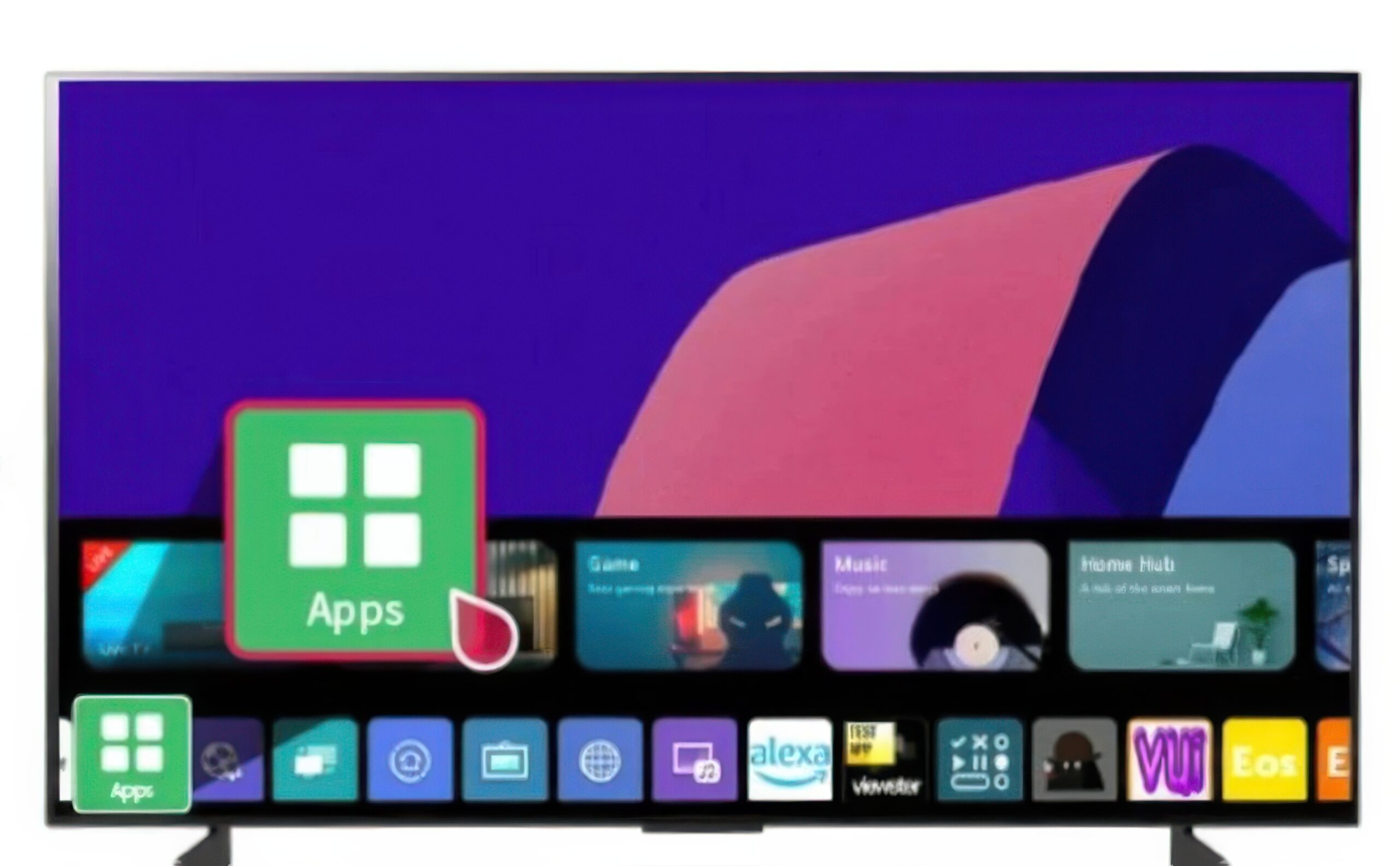
- Open the LG Content Store.
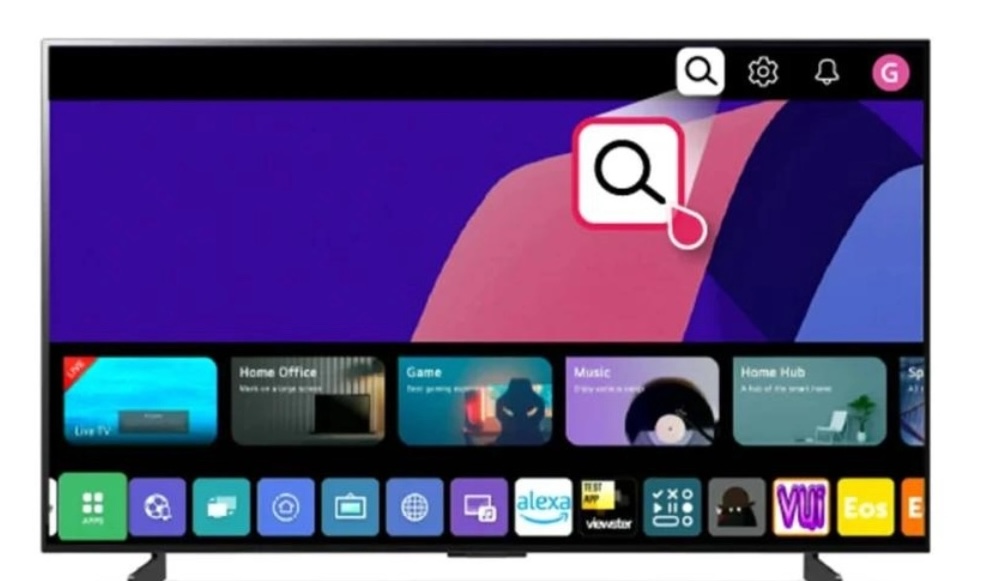
- Search for Peacock TV using the store’s search bar.
- Verify that the app appears in the results to confirm compatibility.
- Open Settings if the app does not appear, then go to All Settings → General → About This TV → Software Update.
- Install any available updates and recheck the store.
Download The Peacock TV App
- Connect your LG Smart TV to Wi-Fi or Ethernet.
- Open the LG Content Store again.
- Search for Peacock TV and open its app page.
- Select Install to download the app to your TV.
- Return to the home screen and locate Peacock under your apps list.
Sign In Or Create A Peacock Account
- Open the Peacock TV app from your LG home screen.
- Select Sign In if you already have an account.
- Enter your email and password to access your subscription.
- Select Sign Up to create a new account if needed.
- Choose between the free tier or a paid Premium plan.
Activate Peacock TV On LG Smart TV
- Launch Peacock and note the activation code displayed on your TV.
- Visit the Peacock activation page on your phone or computer.
- Enter the on-screen code to link your LG Smart TV to your account.
- Wait a moment for confirmation to appear on your TV.
Start Browsing Peacock TV
- Explore categories such as TV Shows, Movies, Channels, and Sports.
- Use the search bar to find series, films, actors, or genres.
- Add titles to your watchlist for easy access later.
- Browse Peacock’s exclusive originals and live events.
Troubleshooting Common Problems
- If the app does not appear, update your LG TV to the latest software.
- Restart your TV if Peacock freezes or fails to load.
- Sign out and sign back in if content will not play.
- Check your Wi-Fi speed if streaming buffers or drops quality.
- Reinstall the app if it continues to crash or load slowly.
Tips
- Use a wired Ethernet connection for steadier 4K playback.
- Add Peacock to your LG home bar for quick access.
- Clear the app cache from LG system settings if performance slows down.
- Enable automatic firmware updates to keep compatibility current.
FAQ
Can I Watch Peacock TV On Older LG TVs?
Yes, but only if the TV runs a supported version of webOS. Older webOS models cannot install Peacock directly.
Do I Need A Paid Plan To Watch Peacock?
No. Peacock offers a free tier with limited content alongside its Premium plans.
Why Doesn’t Peacock Appear In My LG Content Store?
Your TV may need a software update or may not support the app based on model year.
Does Peacock Support 4K On LG Smart TVs?
Peacock offers select movies and shows in 4K on supported hardware and connections.
Summary
- Check if your LG Smart TV supports the Peacock TV app.
- Download Peacock from the LG Content Store.
- Sign in or create a new Peacock account.
- Activate your TV using the on-screen code.
- Browse and stream shows, movies, and sports.
Conclusion
You can watch Peacock TV on your LG Smart TV by installing the official app, signing in, and activating your device. Firmware updates help ensure compatibility, and the LG Content Store gives you quick access to the app. Once set up, you can enjoy Peacock’s full library of shows, movies, sports, and originals with smooth playback on supported LG models.


Discussion (0)
Be the first to comment.