




Peacock is NBCUniversal’s streaming service that brings together hit shows, blockbuster movies, and live sports in one place. If you own a Vizio Smart TV, you can easily install and start streaming Peacock in just a few minutes.
However, not every Vizio model supports the Peacock app natively. Older TVs that still use the VIA or VIA+ system might require an alternate method, such as casting or using a streaming device.
1) Check if your Vizio TV supports Peacock
Before installing Peacock, confirm that your Vizio TV model supports the SmartCast platform introduced in 2016. SmartCast TVs come with built-in Chromecast and access to popular streaming apps, including Peacock.
To check if your TV's firmware, grab your Vizio remote and press the Menu button. Select System > System Information to view your model number and firmware version.
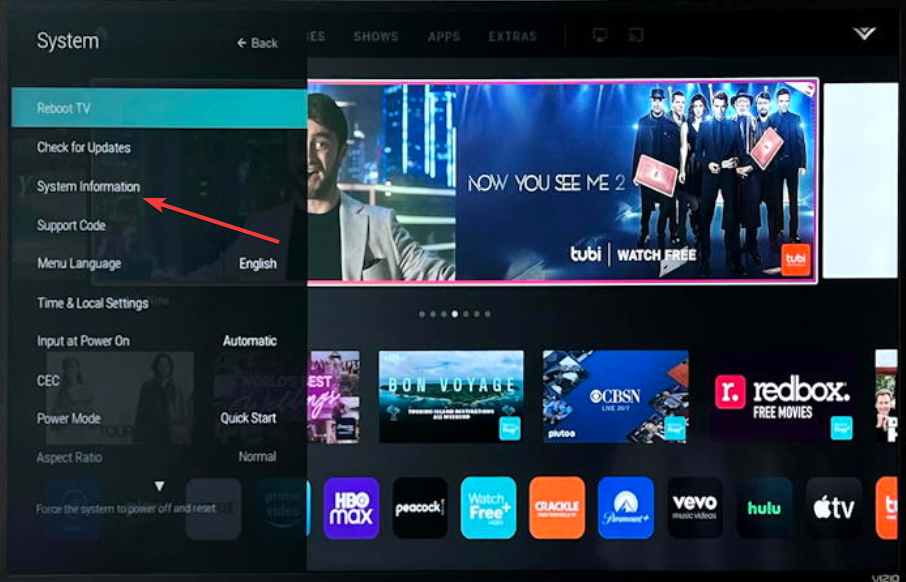
If your TV’s firmware is outdated, select Check for Updates under the System menu. Keeping software up to date ensures compatibility with Peacock and other streaming apps.
2) Install Peacock from the SmartCast App Store
Press the V or Input button on your Vizio remote and choose Apps or open SmartCast Home. Next, use the search option to find Peacock TV. Now, select Install or Add to Home.
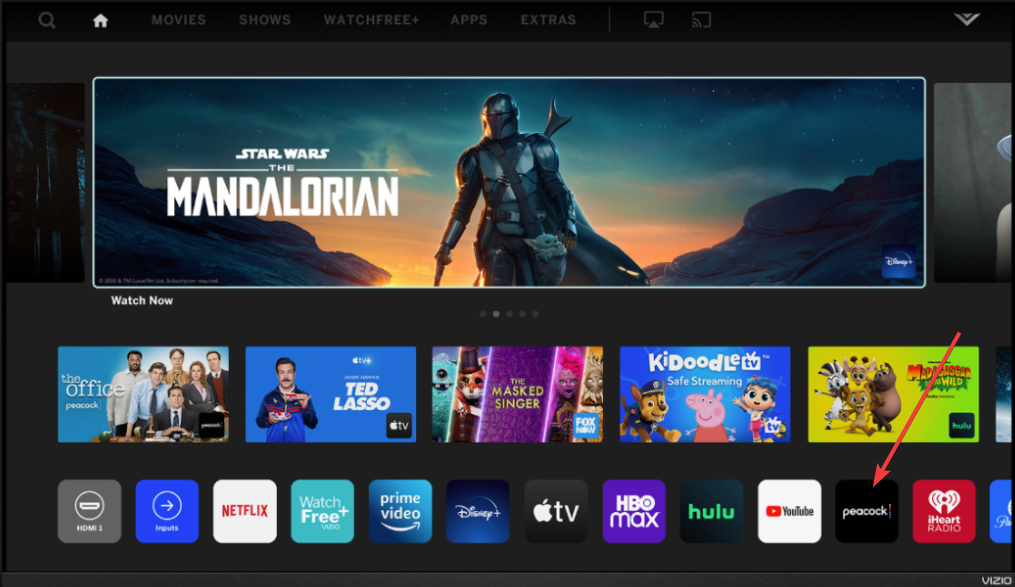
Finally, open the Peacock app and sign in with your existing account.
3) Alternative ways to watch Peacock on Vizio TVs
If your Vizio TV doesn’t show the Peacock app in the SmartCast library, there are reliable alternatives. You can cast Peacock from a phone or connect an external streaming device.
Cast Peacock from your phone or PC
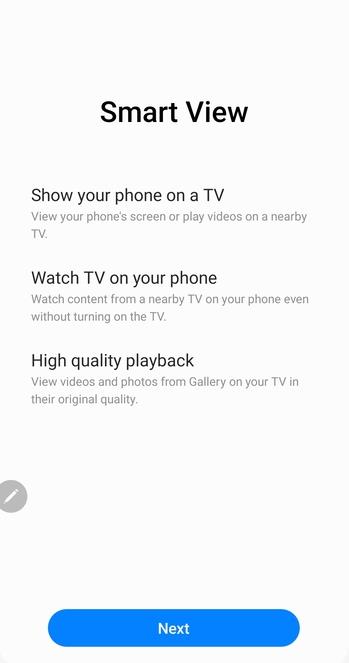
Open the Peacock app on your smartphone or visit the website on your PC. Tap the Cast or Smart view icon, then select your Vizio TV from the available devices. The show will begin playing instantly on your TV screen through SmartCast or Chromecast.
Use a streaming device (Roku, Firestick, Apple TV)
Plug your preferred streaming stick into an HDMI port and switch your TV’s input. Install Peacock on that device for an updated and full-feature experience, including 4K playback and the latest app updates.
Troubleshooting Peacock Installation Issues
- Peacock app not showing on Vizio TV: First, confirm your TV is connected to the internet. Then navigate to Settings > System > Check for Updates and install any available firmware updates. If the app is still missing, your model may not support Peacock—use casting or an external streaming device instead.
- Peacock app not working or crashing: Restart both your TV and router to clear temporary issues. You can also perform a soft reset by unplugging your TV for one minute. If the app keeps failing, consider factory resetting your TV to refresh SmartCast.
Optimize Peacock streaming on Vizio TVs
- Use at least 3 Mbps for SD
- Use 8 Mbps for HD and 25 Mbps for 4K streaming
- You can run a speed test on your TV’s browser or phone to check your connection
- Reduce other devices that use bandwidth.
FAQs
Is Peacock free on Vizio TVs? Yes, the free tier is available on all compatible SmartCast models, but it includes ads. Premium tiers unlock more titles and fewer interruptions.
Why can’t I find Peacock on my Vizio TV? Older VIA or VIA+ TVs don’t support new apps. You can still stream Peacock by casting or connecting a Roku, Fire Stick, or Apple TV device.
Does Peacock stream in 4K on SmartCast? Yes, Peacock supports up to 4K resolution on SmartCast if your internet speed and subscription tier meet the requirements.
Can I use voice control to open Peacock? If your remote supports voice input, hold the microphone button and say “Open Peacock.” SmartCast will launch the app automatically.
Summary
- Check if your Vizio TV supports SmartCast and update the firmware.
- Install Peacock from the SmartCast app library.
- Create or sign in to your Peacock account.
- Cast from your phone or use a streaming stick if unsupported.
- Troubleshoot app errors and optimize streaming settings.
Conclusion
Installing Peacock on a Vizio Smart TV is simple once you confirm compatibility. Whether through SmartCast, casting, or an external device, you’ll be able to stream your favorite NBC shows and movies in minutes.


Discussion (0)
Be the first to comment.