




A Belkin wireless router provides a simple way to set up a secure Wi-Fi network at home. If you're installing a new device or configuring an existing one, this guide explains how to use a Belkin wireless router, access the Belkin admin page, and set up your Belkin Wi-Fi network. Once everything is connected, you can manage passwords, enable security options, and connect your devices with ease.
Most Belkin routers follow the same setup structure, even across different models. After you connect the router to your modem, you can log in to the admin dashboard, configure Wi-Fi settings, and secure the network. Below are the steps you need to follow.
Unpack And Connect The Router
Setting up the hardware correctly ensures your Belkin router can broadcast a stable wireless signal.
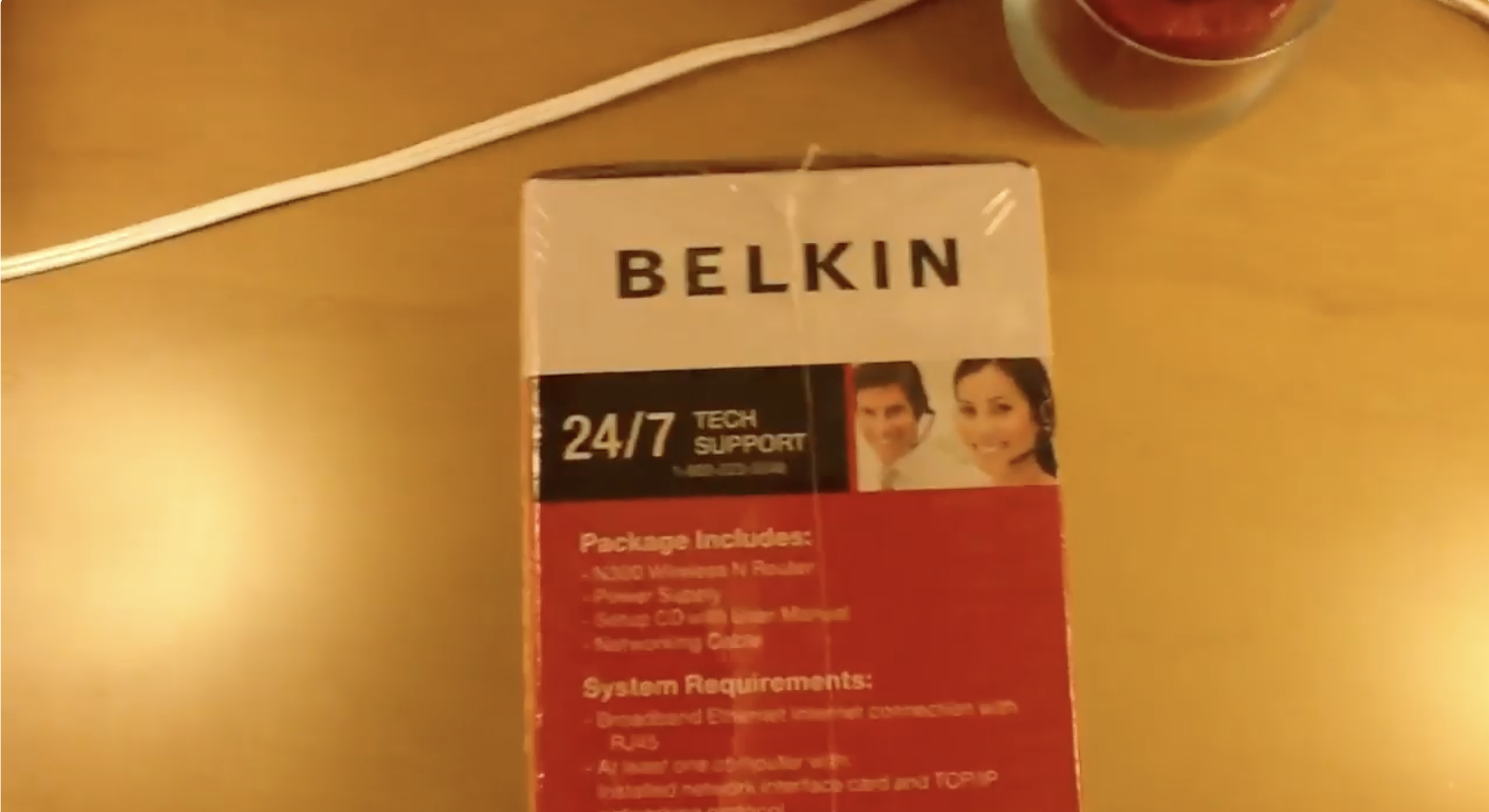
- Unbox the Belkin router, power adapter, and Ethernet cable.
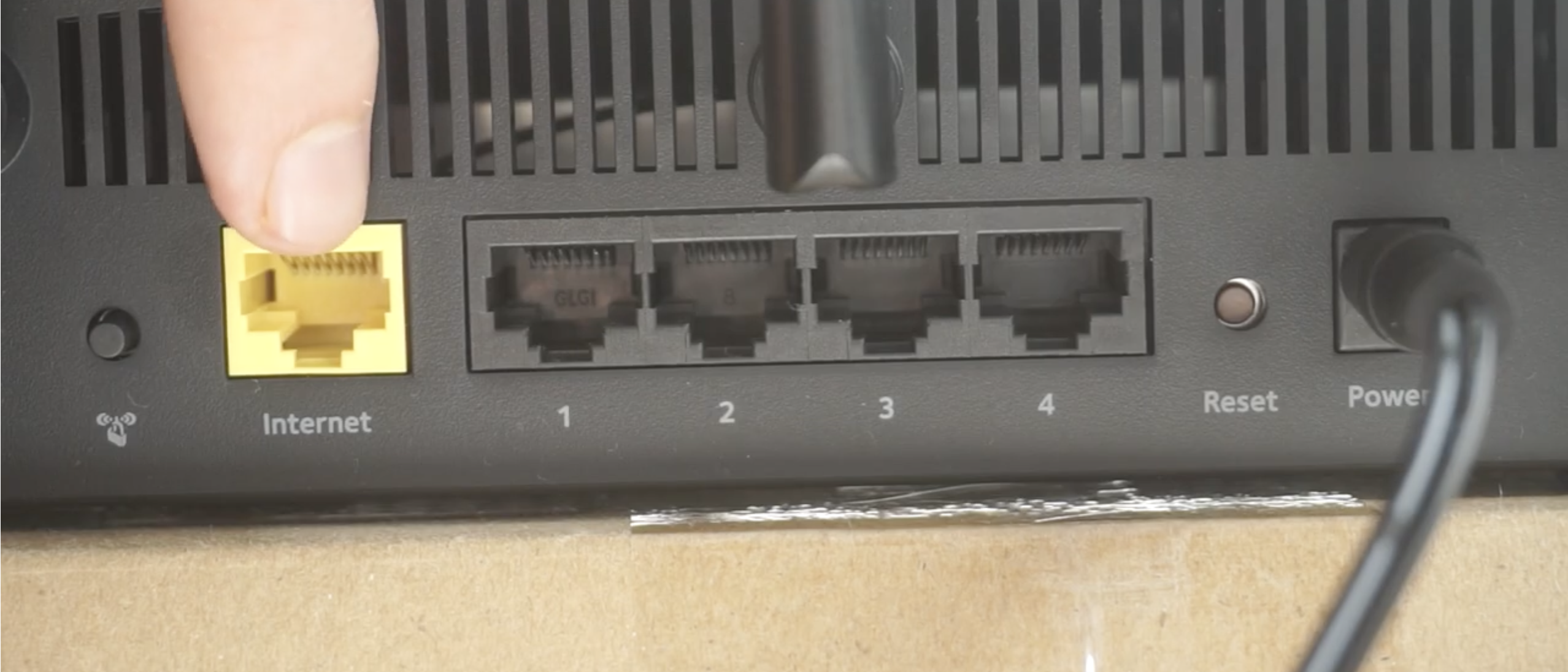
- Connect the Ethernet cable from your modem to the router’s WAN port.
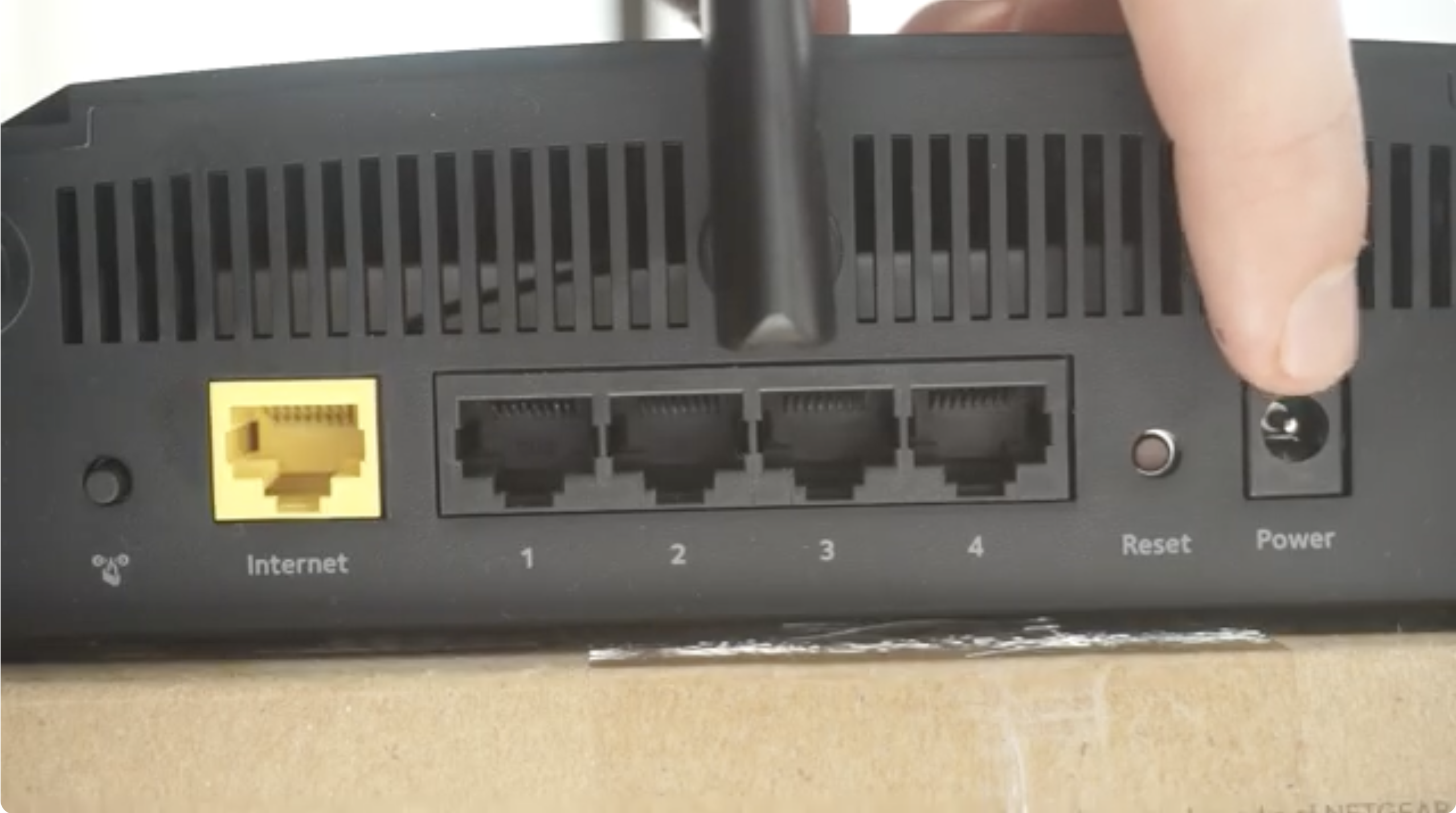
- Plug in the router and wait for the lights to stabilize.
- Keep the router in an open, central location for the best wireless coverage.
Access The Belkin Admin Page
You must open the Belkin router login page before you can configure network settings.
- Connect a laptop or desktop to the router using Wi-Fi or Ethernet.
- Open a browser and enter 192.168.2.1 or 192.168.1.1.
- Enter the default login password if prompted (Belkin often leaves it blank).
- Once inside the dashboard, review the available wireless and security settings.
Configure Your Wireless Network
Setting up Wi-Fi correctly ensures strong connectivity and prevents unauthorized access.
- Open the Wireless Settings or Wi-Fi section in the dashboard.
- Enter a recognizable network name (SSID).
- Select WPA2 or WPA3 security when available.
- Create a strong Wi-Fi password using letters, numbers, and symbols.
- Save your changes to broadcast the updated network.
Set Password And Security Options
Securing the wireless router keeps your home network protected and helps prevent unauthorized devices from connecting.
- Change the default router admin password to something strong.
- Enable the firewall if the model supports it.
- Turn on the guest network if you want visitors to stay off your main devices.
- Use MAC address filtering only if you need tighter control over device access.
- Apply and save all security changes.
Connect Devices To Your Belkin Wi-Fi
Once your Belkin router setup is complete, your devices can join the wireless network.
- Turn on Wi-Fi on your phone, laptop, or tablet.
- Select the SSID you created earlier.
- Enter your Wi-Fi password exactly as configured.
- Repeat for each device you want to add to the network.
Troubleshooting Common Problems
- No internet access: Restart your modem and router and try again.
- Device can't connect: Recheck the Wi-Fi password or forget and reconnect.
- Weak signal: Move the router to a central location or raise it higher.
- Frequent disconnects: Update the router firmware in the admin dashboard.
- Admin page won’t load: Reset the router using the rear reset button.
Tips
- Keep your Belkin router firmware updated for best performance.
- Use WPA2 or WPA3 security to protect your Wi-Fi network.
- Change the router admin password immediately after setup.
- Place the router away from microwaves, TVs, or cordless phones.
- Restart the router weekly to maintain stable performance.
FAQ
Does a Belkin router need a modem?
Yes, you still need a modem from your ISP to access the internet.
What is the Belkin router login address?
Most models use 192.168.2.1 or 192.168.1.1.
How do I reset a Belkin wireless router?
Press and hold the reset button for about 10 seconds until the lights blink.
Why is the Wi-Fi slow?
The router may be too far away, outdated, or experiencing interference.
Summary
- Connect the Belkin router to your modem and power it on.
- Open the Belkin admin page using the default IP address.
- Set up your Wi-Fi name, password, and security mode.
- Update the admin password and enable firewall features.
- Connect your devices and adjust placement for best coverage.
Setting up a Belkin wireless router is straightforward once you understand the admin dashboard and Wi-Fi settings. With strong passwords, updated firmware, and proper placement, your Belkin router can deliver fast and reliable wireless coverage for all your devices.


Discussion (0)
Be the first to comment.