



You can use WhatsApp on a Chromebook even without a native desktop app. ChromeOS supports WhatsApp through WhatsApp Web and, on some devices, the Android app from the Play Store. The best option depends on your Chromebook model, ChromeOS version, and device restrictions.
Table of contents
- Check what your Chromebook supports
- Use WhatsApp Web on a Chromebook (recommended for most users)
- Install the WhatsApp Android app on Chromebook
- WhatsApp Web vs Android app on Chromebook
- Using WhatsApp on school or work Chromebooks
- Fix common WhatsApp issues on Chromebook
- Tips for better WhatsApp use on Chromebook
- Summary
Check what your Chromebook supports
ChromeOS features vary by device. A quick check helps you choose the fastest and most reliable WhatsApp setup.
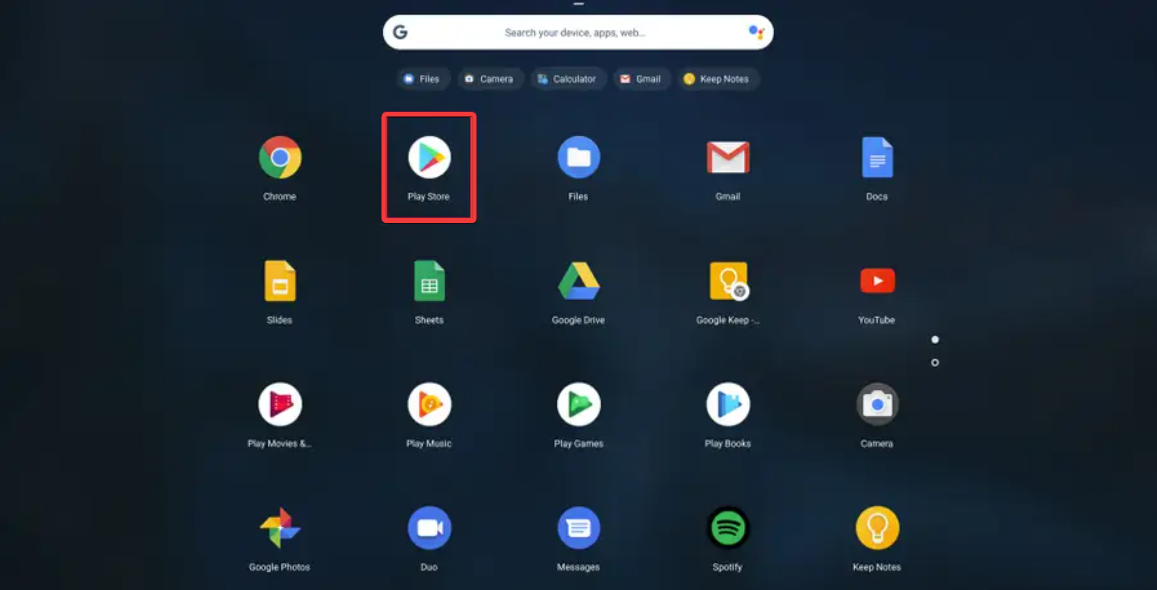
Check if Google Play Store is available
Open Settings and look for Apps > Google Play Store. If the Play Store appears and lets you enable it, your Chromebook supports Android apps, including WhatsApp.
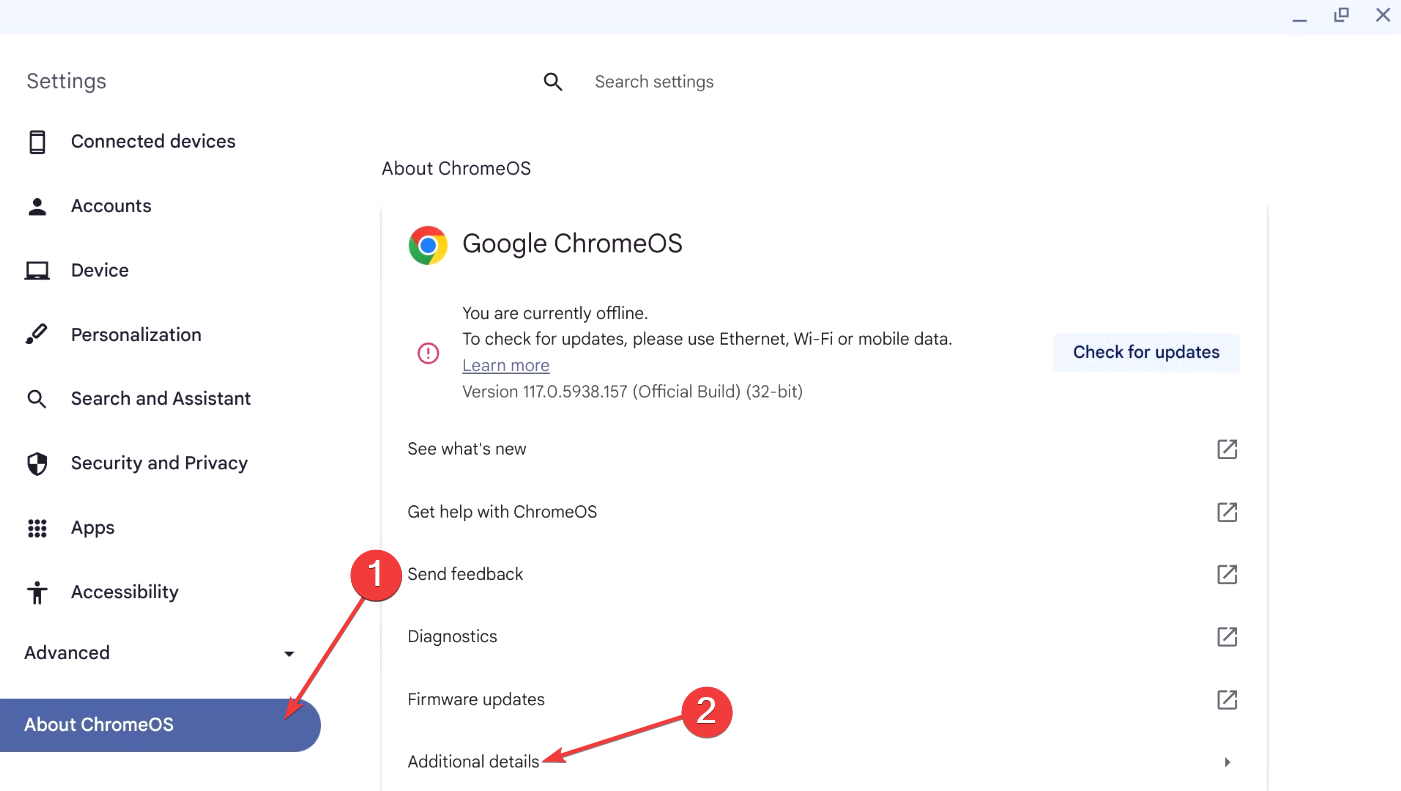
Check if the device is managed (school or work)
Open Settings > About ChromeOS > Additional details. If you see management notices, the device uses policies that may block app installs or permissions.
Use WhatsApp Web on a Chromebook (recommended for most users)
WhatsApp Web works on every Chromebook. It runs inside the Chrome browser and mirrors chats from your phone.
Step 1: Open WhatsApp Web in Chrome
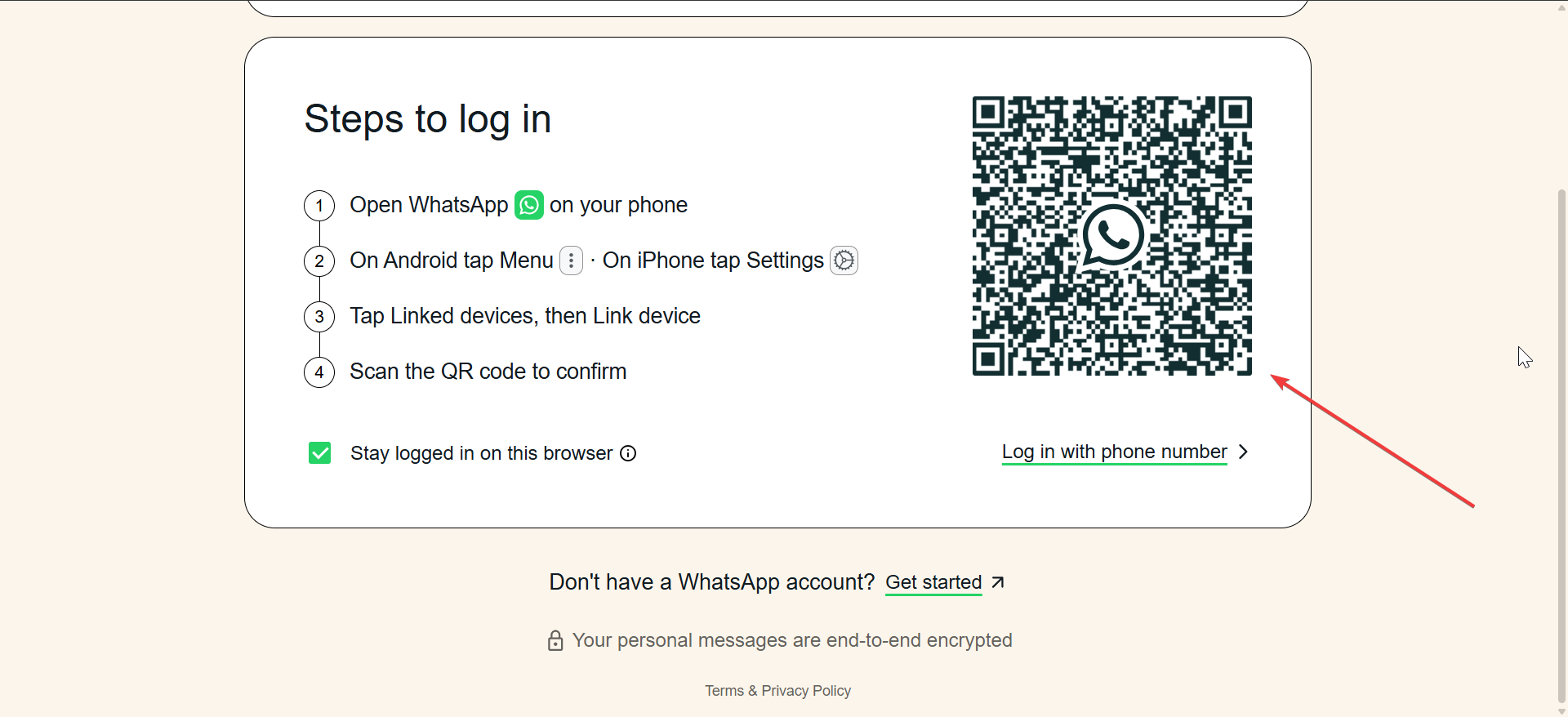
Open Chrome or use any browser on your Chromebook to visit web.whatsapp.com. The page loads a QR code for device linking.
Step 2: Link your phone using the QR code
Open WhatsApp on your phone. Go to Settings > Linked devices > Link a device, then scan the QR code on your Chromebook. Your chats appear instantly.
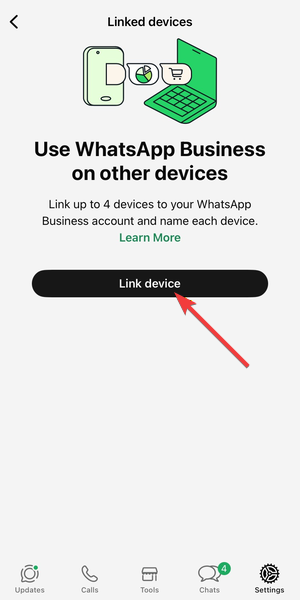
Step 3: Enable desktop notifications
When Chrome asks for permission, click Allow. Open Chrome settings > Privacy and security > Site settings > Notifications to confirm WhatsApp Web stays allowed.
What WhatsApp Web can and can’t do
WhatsApp Web supports messaging, file sharing, and voice messages. Calling support varies, and offline use remains limited compared to mobile apps.
Install the WhatsApp Android app on Chromebook
The Android app offers a more app-like experience on supported Chromebooks.
Step 1: Download WhatsApp from the Play Store
Open the Play Store, search for WhatsApp Messenger, and install the official app. Avoid third-party builds.
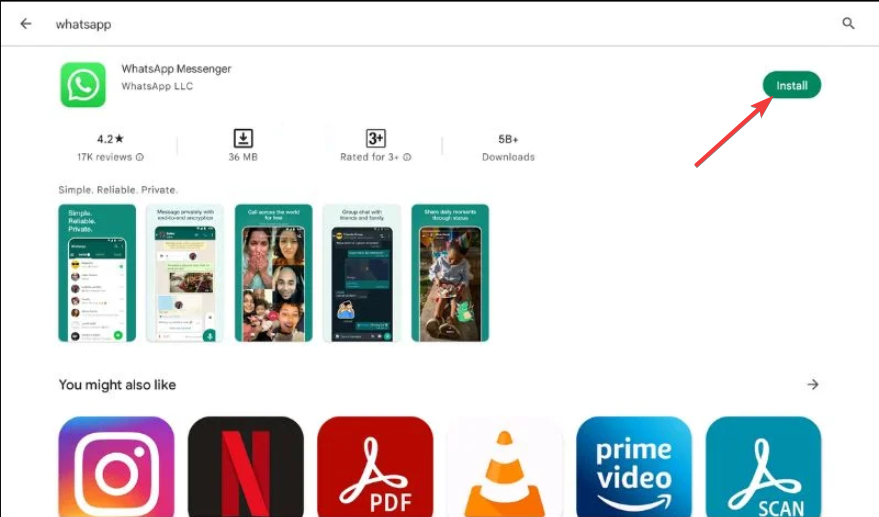
Step 2: Set up WhatsApp on ChromeOS
Open the app and sign in using your phone number or link it as a companion device. Grant camera, microphone, and file permissions when prompted.
Android app limitations on ChromeOS
Some Chromebooks show performance limits or camera quirks. Background syncing may pause when ChromeOS manages resources aggressively.
WhatsApp Web vs Android app on Chromebook
Both options work well, but each suits different needs.
Feature comparison overview
WhatsApp Web offers universal access and quick setup. The Android app feels closer to mobile WhatsApp and may handle calls better on supported hardware.
Which option should you use?
Choose WhatsApp Web for simplicity or managed devices. Choose the Android app if your Chromebook supports Play Store apps and you want a standalone feel.
Using WhatsApp on school or work Chromebooks
Managed devices often restrict apps, but WhatsApp Web usually remains available.
What usually gets blocked
Administrators may disable the Play Store, camera access, or microphone permissions. These limits affect the Android app more than WhatsApp Web.
What still works safely
WhatsApp Web typically works in Chrome. Messaging and file sharing remain available as long as the browser allows notifications and camera access.
Fix common WhatsApp issues on Chromebook
- QR code not scanning or syncing: Increase screen brightness and clean your phone camera lens. Refresh WhatsApp Web and keep your phone unlocked during pairing.
- Notifications not working: Open ChromeOS Settings > Notifications and confirm Chrome notifications stay enabled. Check site permissions for web.whatsapp.com.
- Camera or microphone not detected: Open Chrome site settings for WhatsApp Web and set Camera and Microphone to Allow. Restart Chrome after changes.
Tips for better WhatsApp use on Chromebook
- Pin WhatsApp Web as a Chrome app for quick access
- Keep your phone connected to Wi-Fi for stable syncing
- Use keyboard shortcuts for faster replies
- Adjust notification priority in ChromeOS
Summary
- WhatsApp Web works on all Chromebooks and fits most users.
- The Android app offers a richer experience on supported devices.
- Managed Chromebooks usually block apps but allow WhatsApp Web.
- Most issues relate to permissions, notifications, or syncing.
Using WhatsApp on a Chromebook works smoothly once you match the method to your device. Start with WhatsApp Web for speed and compatibility, then switch to the Android app if your Chromebook supports it and you want deeper integration.


Discussion (0)
Be the first to comment.