




Emojis have become a standard part of everyday communication, whether you’re chatting, emailing, or working in shared documents. If you’re new to ChromeOS, figuring out how to use emojis on a Chromebook may not feel obvious at first.
The good news is that ChromeOS includes several built-in ways to insert emojis without installing extensions or third-party tools. At the time of writing, these methods work across most apps and websites that support text input.
Use The Chromebook Emoji Keyboard Shortcut
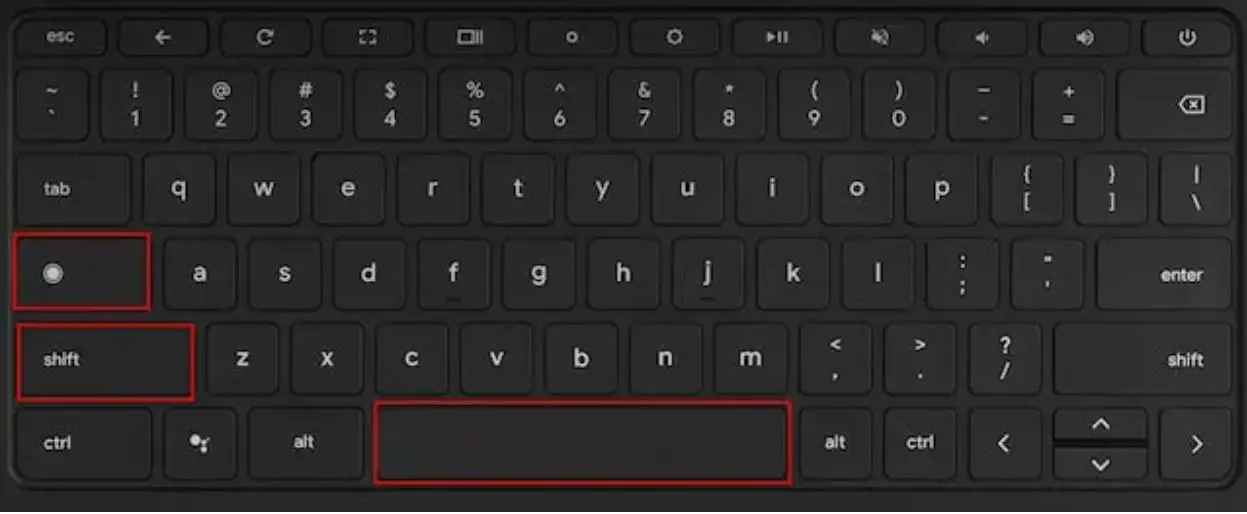
The fastest way to access emojis on a Chromebook is through the built-in emoji picker using your keyboard. This method works in most text fields, including Gmail, messaging apps, and Google Docs.
- Click inside any text input field.
- Press Search (or Launcher) + Shift + Space on your keyboard.
- Browse or search for an emoji using the picker.
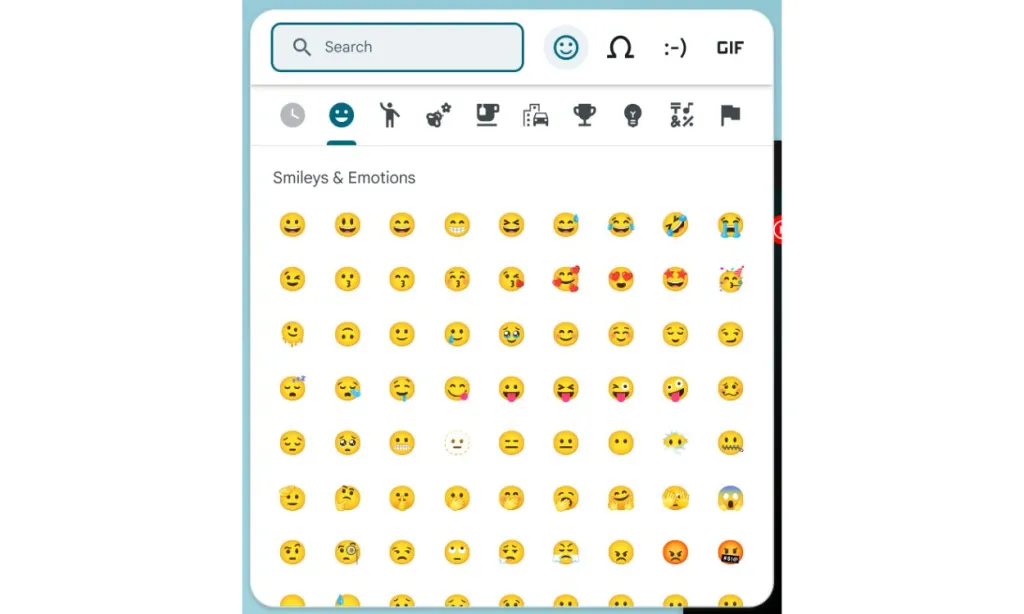
- Click an emoji to insert it into the text.
This Chromebook emoji shortcut is the most reliable option once you get used to it.
Insert Emojis From The Context Menu
ChromeOS also lets you open the emoji picker using the context menu, which can feel more natural if you prefer trackpad gestures.
- Place the cursor in a text field.
- Right-click or use a two-finger tap on the trackpad.
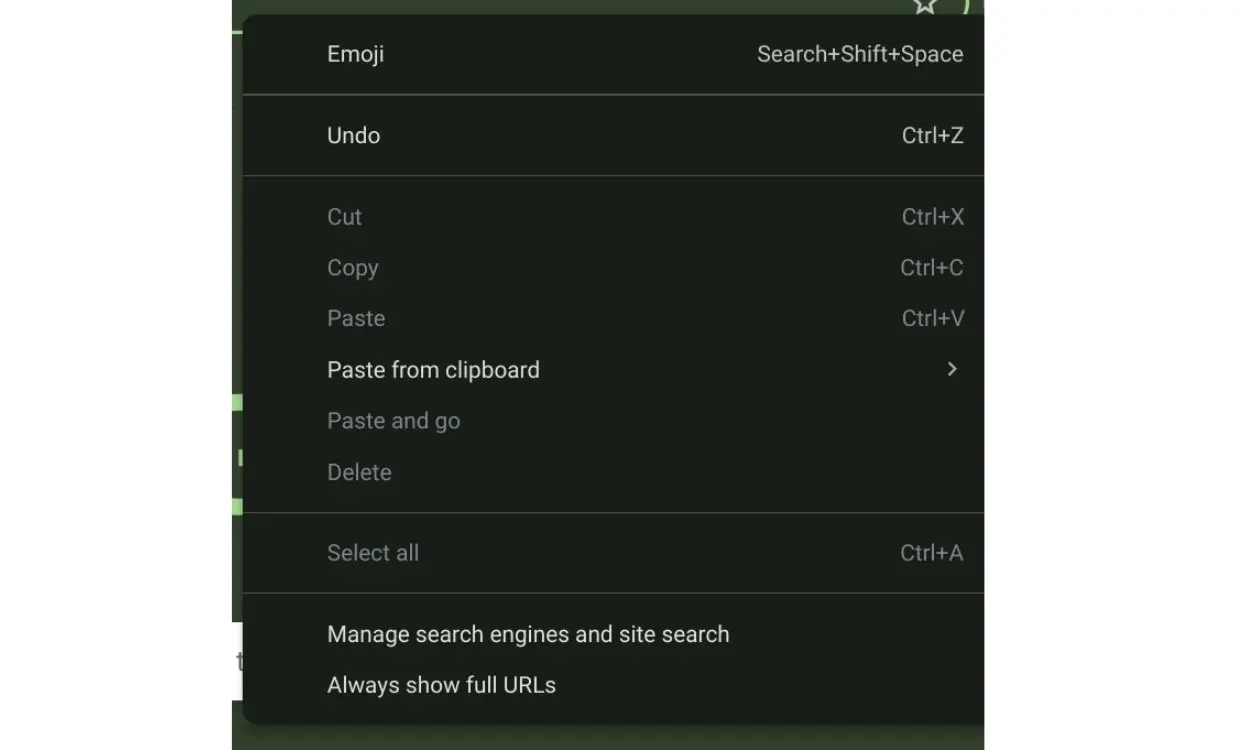
- Select Emoji from the menu.
- Choose an emoji to insert it.
If the context menu option does not appear, check that tap-to-click is enabled in your touchpad settings.
Access Emojis Using The Input Shelf
The input shelf provides a persistent way to access emojis, especially useful if you insert them frequently.
- Open Settings on your Chromebook.
- Go to Advanced and select Languages And Inputs.
- Open Inputs And Keyboards.
- Enable Show Input Options In The Shelf.
- Click the input icon on the shelf and select the emoji symbol.
This method keeps emoji access visible whenever you are typing.
Use Emojis With The On-Screen Keyboard
If you use a touchscreen Chromebook, the on-screen keyboard provides a mobile-style emoji experience.
- Open Settings.
- Go to Accessibility and select Keyboard And Text Input.
- Enable the On-Screen Keyboard.
- Tap the keyboard icon on the shelf.
- Select the emoji icon and choose an emoji.
This option also works on non-touch Chromebooks if you prefer clicking over shortcuts.
Troubleshooting Common Problems
If the emoji picker does not appear, make sure the cursor is inside a text field. The emoji keyboard will not open on desktop or non-editable areas.
Restarting ChromeOS or checking keyboard layout settings can also resolve missing emoji options.
Tips
- Memorize the keyboard shortcut for fastest access.
- Use the input shelf if you insert emojis often.
- Avoid browser extensions that require copy-paste.
- Keep ChromeOS updated for the latest emoji support.
FAQ
Do emojis work in all apps on Chromebook?
Emojis work in most apps and websites that support text input.
Can I use emojis in Google Docs and Gmail?
Yes, the ChromeOS emoji picker works in Google apps.
Why does the emoji shortcut not work sometimes?
The shortcut only works when a text field is active.
Can I add custom emojis to Chromebook?
ChromeOS currently supports standard Unicode emojis only.
Summary
- ChromeOS includes multiple built-in emoji input methods.
- The keyboard shortcut is the fastest option.
- Context menus and input tools offer alternatives.
- No extensions are required to use emojis.
Conclusion
Once you know where to look, using emojis on a Chromebook is simple and efficient. With keyboard shortcuts, context menus, and system input tools, ChromeOS makes it easy to express yourself across apps without extra software.


Discussion (0)
Be the first to comment.