




Siri turns the Apple Watch into a hands-free control center. You can send messages, start workouts, set reminders, and get quick answers without touching the screen. Once you know the right gestures and settings, Siri feels faster than tapping through apps.
Table of contents
What Siri can do on Apple Watch
Siri handles short, frequent actions that fit a small screen. It works best for communication, quick system tasks, and glanceable information like weather or timers. For longer interactions, Siri often hands results off to your iPhone.
How to activate Siri on Apple Watch
Apple Watch supports three different ways to trigger Siri. To activate these methods, follow the steps below:
- Tap the Settings app on the Apple Watch.
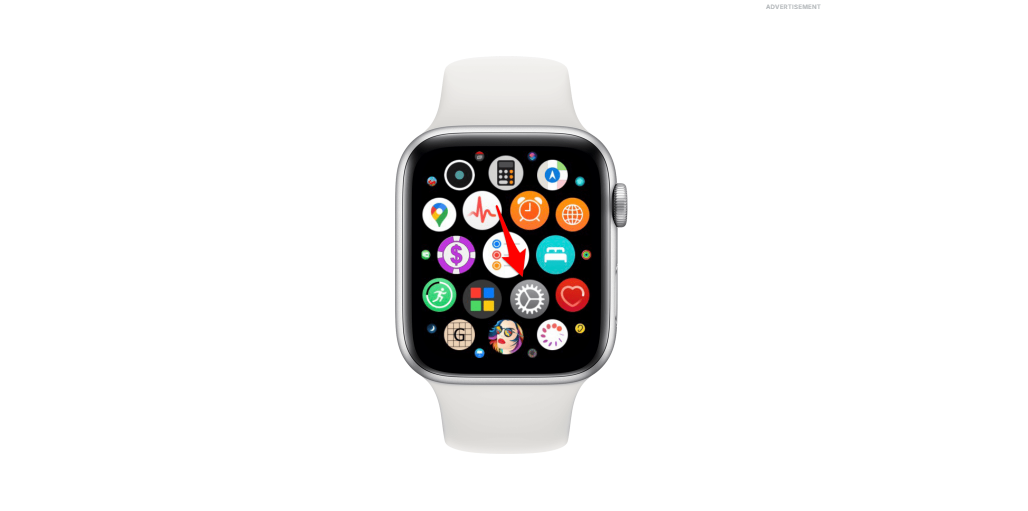

- Next, select the Siri option.


- Now, toggle the switches for Listen for "Hey Siri", Raise to Speak, and Press Digital Crown to activate the three options.


Once these options are enabled, you can check below on how to use any of the options.
Use “Hey Siri” or “Siri”
Say “Hey Siri” or just “Siri” while wearing your watch. This works best in quiet environments and when your wrist stays close to your mouth. You can enable or disable this option from the Watch app on your iPhone.
Raise to Speak
Lift your wrist toward your face and start talking. This method feels fast but depends on correct wrist motion and screen wake timing. If it fails often, recalibrate by raising your wrist more deliberately.
Press and hold the Digital Crown
Press and hold the Digital Crown until Siri appears. This method works every time and helps when voice detection struggles. Use it as a fallback in noisy places.
How to use Siri for everyday tasks
Siri shines when you use natural, short commands. Keeping requests simple improves accuracy and speed.
Messages, calls, and FaceTime
You can say “Send a message to John” or “Call Mom.” Siri lets you dictate replies, confirm recipients, and start calls without opening apps. FaceTime audio works especially well from the watch.
Apps, reminders, and timers
Ask Siri to set alarm on your Apple Watch, open apps, or start timers instantly. Commands like “Set a 10-minute timer” or “Remind me to take pills at 9” reduce daily friction.
Navigation, weather, and quick info
Siri provides fast answers for weather, directions, and simple questions. Requests like “What’s the weather tomorrow?” or “How long to get home?” work well on the wrist.
Siri settings you should customize
A few settings dramatically change how Siri behaves on Apple Watch.
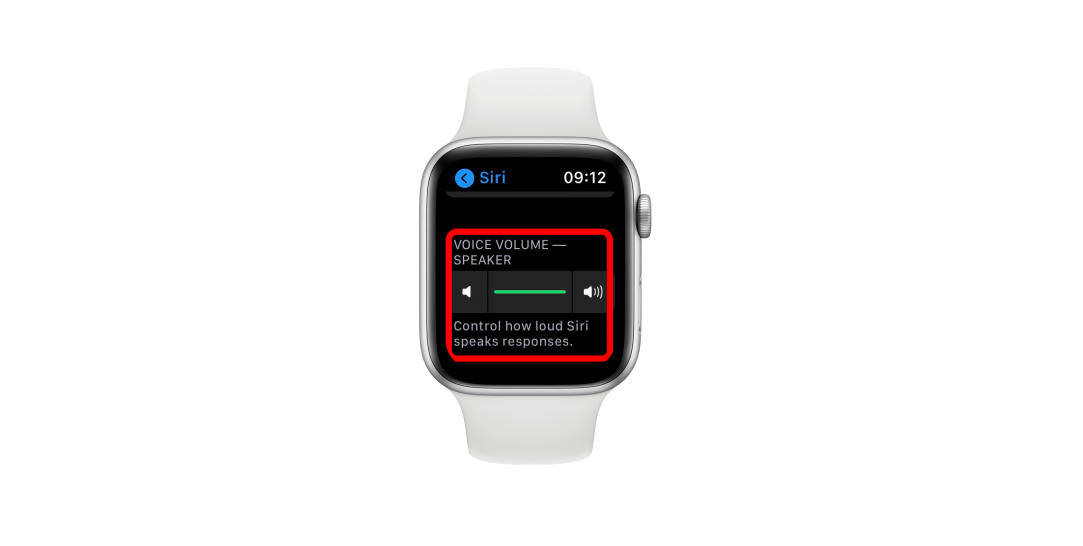
Voice feedback and silent mode behavior
You can choose spoken responses, silent responses, or automatic behavior. Silent responses suit public places, while spoken feedback helps during workouts or driving.
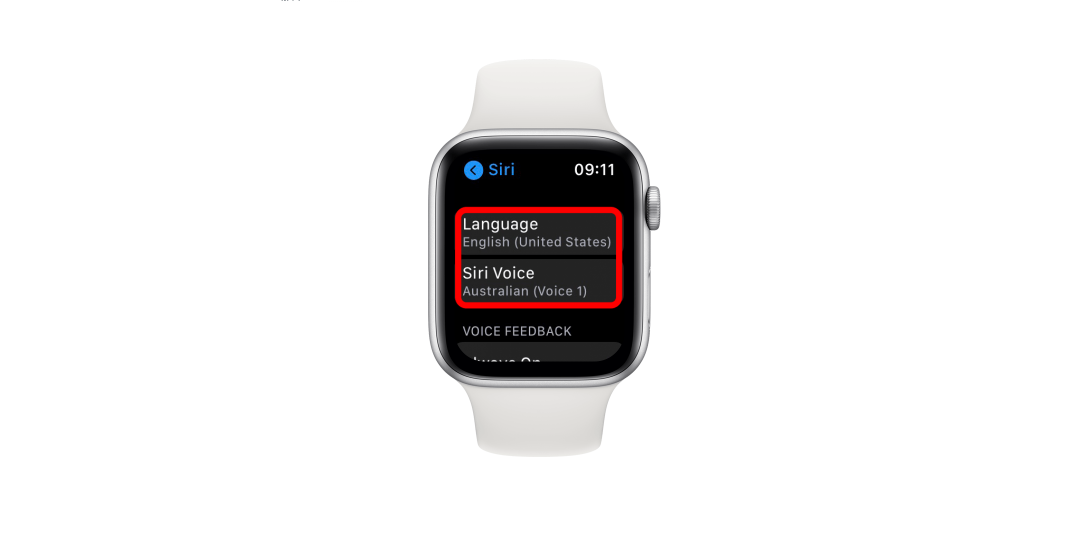
Language, accent, and voice options
Selecting the correct language and accent improves recognition accuracy. If Siri misunderstands you often, check these settings first.
Siri responses on wrist vs iPhone
When multiple Apple devices sit nearby, Siri decides where to show results. Adjust settings so responses stay on the watch instead of jumping to your iPhone.
Using Siri offline and on-device
Newer Apple Watch models process some requests locally. This improves speed and reliability when connectivity drops.
On-device Siri commands
Tasks like starting timers, opening apps, or controlling workouts work without internet. These commands respond faster and feel more consistent.
What still requires an internet connection
Requests involving web search, messaging, or maps still need connectivity. Knowing these limits prevents confusion when Siri stays silent.
Accessibility features powered by Siri
Siri plays a major role in Apple Watch accessibility features.
Voice control and hands-free navigation
Users with limited mobility can rely on Siri instead of touch gestures. Voice commands handle many daily actions.
Dictation and spoken feedback
Siri reads information aloud and supports dictation across apps. This helps users with vision limitations or reading difficulties.
Troubleshooting Siri on Apple Watch
- Siri not responding or activating: Check microphone access, Siri settings, and screen wake behavior. Restarting the watch often resolves temporary glitches.
- Siri misunderstands commands: Background noise, wrist angle, and incorrect language settings affect accuracy. Speak clearly and keep commands short.
- Siri works on iPhone but not Apple Watch: Bluetooth, Wi-Fi, or iCloud sync issues usually cause this problem. Confirm the watch stays connected to your iPhone and Apple ID.
Tips for faster and more accurate Siri use
- Use short, direct commands
- Raise your wrist fully before speaking
- Customize language and voice settings
- Prefer the Digital Crown in noisy areas
- Keep watchOS updated
FAQs
Can Siri work on Apple Watch without an iPhone nearby?
Yes, if the watch has cellular or Wi-Fi and supports on-device Siri tasks.
Does Siri listen all the time on Apple Watch?
Siri listens only after wake words, Raise to Speak, or the Digital Crown trigger.
Why does Siri respond on my iPhone instead of my watch?
Apple prioritizes the device it thinks you are using. You can change this in Siri settings.
Summary
- Activate Siri using voice, Raise to Speak, or the Digital Crown.
- Use short commands for messages, reminders, and quick info.
- Customize Siri settings to improve accuracy and privacy.
- Rely on on-device Siri for faster offline responses.
Siri works best on Apple Watch when you treat it as a quick-action tool. Once you adjust the right settings and learn reliable triggers, Siri becomes the fastest way to control your watch throughout the day.



Discussion (0)
Be the first to comment.