



Updating your Nextbook tablet ensures you get current security fixes, smoother performance, and new features that come through regular software updates. A Nextbook system update can also resolve freezing, battery drain, and app-related issues, especially on older models. Most Nextbook tablets run on Android, so the update process feels familiar if you’ve used other Android devices. Before starting, make sure your tablet has enough battery and consider backing up important files.
You can update your Nextbook manually or automatically, depending on what your device supports. The steps below show how to check for updates, download new firmware, and complete installation safely.
Check For Updates On Your Nextbook Tablet
The update tool is built into Android’s settings, and checking for a Nextbook software update only takes a minute. This step confirms whether your model has a new system release available.
- Open Settings from your home screen or app drawer.

- Scroll down and tap About Tablet or About Device.
- Select System Update or Software Update.
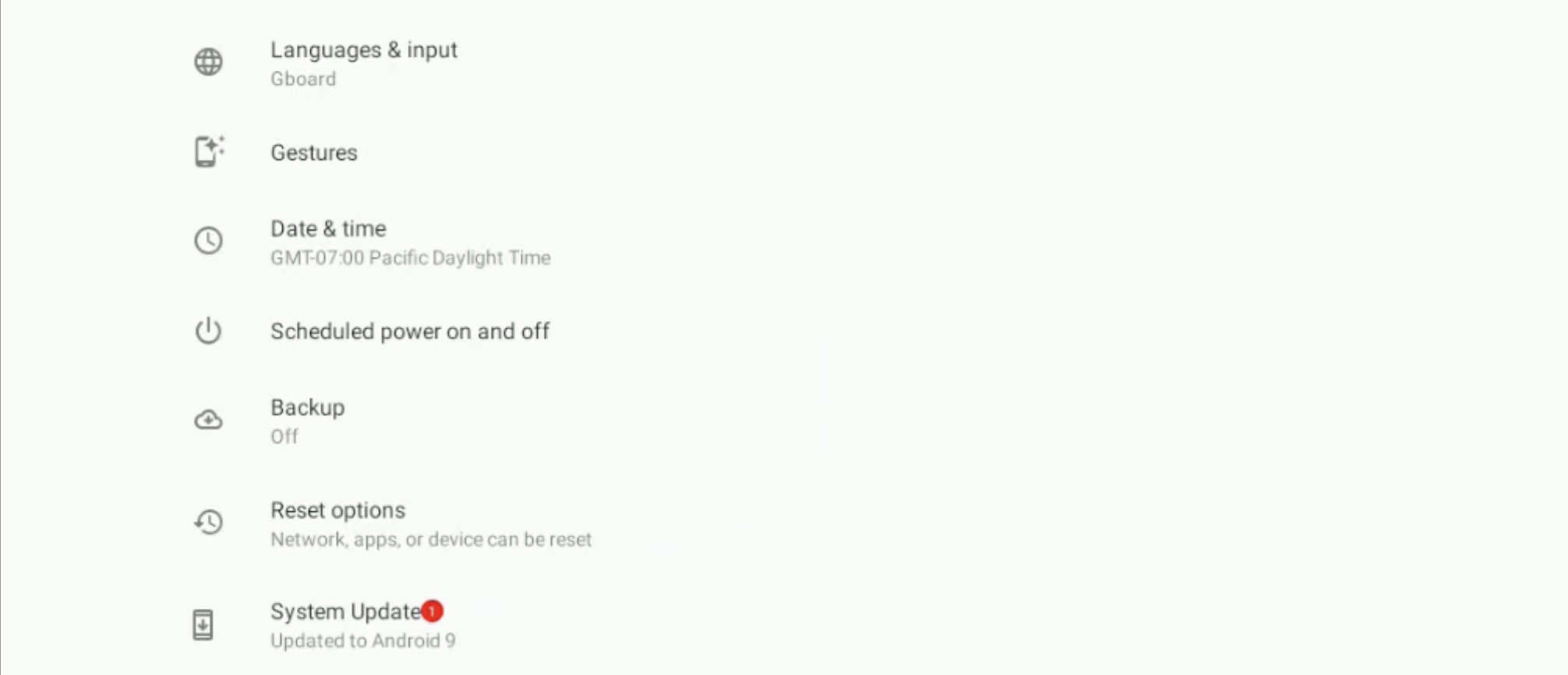
- Tap Check For Updates and wait for the tablet to scan the server.
If an update is available, you’ll see a brief description of what’s included. If not, your tablet is already on the most current version at the time of writing.
Connect To Wi-Fi Before Downloading

A stable Wi-Fi connection prevents interruptions during download and installation. Using mobile hotspots for a Nextbook firmware update may cause slowdowns or incomplete files, so Wi-Fi is recommended.
- Swipe down from the top of the screen to open Quick Settings.
- Tap the Wi-Fi icon to enable it.
- Choose your network and enter the password if needed.
- Confirm that the Wi-Fi icon appears in the status bar.
Once connected, the tablet can safely download larger update packages without timing out.
Download A Nextbook System Update Manually
If automatic updates don’t appear or you want to trigger the upgrade yourself, you can run a manual Nextbook update. Most models follow this same process.
- Go back to Settings.
- Open About Tablet.
- Tap System Update again.
- Select Download Updates Manually or Check For Updates.
- Tap Download when the update package appears.
Keep the tablet plugged into power while downloading to avoid interruptions.
Install The Nextbook Update
After downloading finishes, Android prompts you to install the update. This step may restart your Nextbook tablet several times.
- Tap the update notification when it appears.
- Review the update details, then choose Install.
- Wait while the system applies the update.
- A reboot will occur automatically during installation.
- Enter your Wi-Fi password or account info again if prompted.
Do not turn off the device while the update is installing. Interrupting this step can corrupt the system files.
Restart Your Tablet After Updating
Most Nextbook updates reboot automatically, but manually restarting ensures everything loads correctly and clears temporary data.
- Hold the Power button until the menu appears.
- Tap Restart.
- Wait for Android to finish loading your updated system.
Once restarted, your tablet runs the latest available features, security patches, and performance improvements.
Troubleshooting Common Problems
If your Nextbook tablet won’t update or the process fails, one of these issues may be the cause.
- Not enough storage: Remove unused apps or clear cached data to free space.
- Weak Wi-Fi connection: Move closer to your router or restart the network.
- Battery too low: Plug in your charger before retrying the update.
- Update stuck: Hold the power button for 10 seconds to restart, then try again.
- Older models: Some legacy tablets may no longer receive new firmware.
Tips
- Back up photos, documents, and app data before updating.
- Keep your tablet above 50% battery during updates.
- Restart the device weekly to improve performance.
- Clear cached app data if your tablet feels slow.
- Check for updates monthly to ensure ongoing security fixes.
FAQ
Why won’t my Nextbook tablet install updates? Insufficient storage, low battery, or unstable Wi-Fi often prevent successful installation.
Can I update a very old Nextbook model? Some older devices no longer receive official updates, but many still support basic Android patches.
Do updates erase my files? Nextbook updates normally keep your data, but you should still back up important items before installing.
How long does a Nextbook update take? Most updates take 5–20 minutes depending on file size and Wi-Fi speed.
Summary
- Open Settings and check for a Nextbook system update.
- Connect to a stable Wi-Fi network before downloading files.
- Download and install the update manually if needed.
- Restart your Nextbook tablet to complete installation.
- Use troubleshooting steps if the update fails or freezes.
Conclusion
Keeping your Nextbook tablet updated ensures better performance, stronger security, and longer device life. Running updates regularly helps Android run smoothly and reduces app-related issues across all models.


Discussion (0)
Be the first to comment.