




If your keyboard is not typing on Windows, it may be locked, disabled, or affected by a system setting. This problem is common on Windows laptops and desktops and usually happens due to accidental shortcuts, accessibility features, or driver issues.
This guide explains how to unlock your keyboard on Windows step by step. It covers laptop keyboards, external keyboards, Windows settings, and driver-related fixes that actually work.
Why Is My Keyboard Locked on Windows?
A keyboard can stop working for several reasons, and most of them are software-related.
Common causes include:
- Filter Keys turned on by mistake
- A keyboard lock shortcut pressed accidentally
- Keyboard driver problems after a Windows update
- Issues with external keyboard connections
- Laptop-specific keyboard lock keys
In most cases, the keyboard is not broken.
Quick Checks Before You Start Fixing
Before changing any settings, do these quick checks first.
- Restart your computer
- Try typing in a different app or browser
- Plug in an external keyboard to test
- Check if the mouse or touchpad still works
If an external keyboard works, the issue is likely with settings or drivers.
Unlock Keyboard Using Keyboard Shortcuts
Some keyboards can be unlocked using simple key combinations.
Try these shortcuts one by one:
- Hold the Shift key for 8 seconds
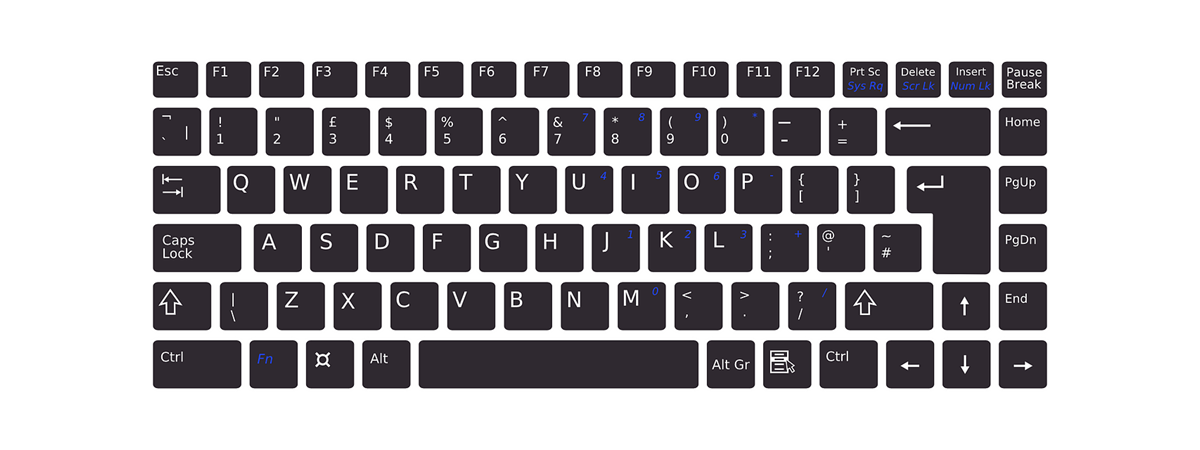
- Press Fn + Esc
- Press Fn + F6, F8, or F11 depending on your laptop
Look for a lock or keyboard icon on the function keys.
Turn Off Filter Keys in Windows
Filter Keys is one of the most common reasons a keyboard feels locked.
Steps to Disable Filter Keys
- Open Settings
- Go to Accessibility
- Select Keyboard
- Turn off Filter Keys
- Test your keyboard
Also turn off the shortcut that enables Filter Keys to prevent it from turning on again.
Update or Reinstall Keyboard Drivers
Driver problems are common after Windows updates.
Update Keyboard Driver
- Open Device Manager
- Right-click the keyboard
- Select Update driver
- Choose Search automatically
Reinstall Keyboard Driver
- Right-click the keyboard
- Select Uninstall device
- Restart your PC
Windows will reinstall the driver automatically.
Fix External Keyboard Not Working
If you are using a USB or Bluetooth keyboard, try these fixes.
- Unplug and reconnect the keyboard
- Try a different USB port
- Replace batteries in wireless keyboards
- Re-pair Bluetooth keyboards
- Avoid USB hubs during testing
Test the keyboard on another PC if possible.
When the Keyboard Still Does Not Unlock
If none of the fixes work:
- Run a malware scan
- Check for liquid or physical damage
- Test with a bootable USB or Safe Mode
At this stage, the issue may be hardware-related.
Final Thoughts
If your keyboard is locked on Windows, it is usually caused by settings, shortcuts, or drivers rather than hardware failure. Filter Keys and driver issues are the most common reasons. By following these steps in order, most users can unlock their keyboard quickly without professional repair.

Discussion (0)
Be the first to comment.