




Bluetooth lets your Windows 11 PC connect to wireless keyboards, mice, headphones, speakers, phones, and many other devices. Knowing how to turn it on helps you use these devices without cords.
Windows 11 makes it easy to switch Bluetooth on and pair devices using either the Quick Settings panel or the system Settings app. You can also fix common problems if Bluetooth does not show up or will not turn on.
Does Your PC Support Bluetooth?
Before you begin, check that your PC actually has Bluetooth hardware. Most laptops and many desktops include it. If Bluetooth options are missing in settings, your device might not have Bluetooth built in, or your drivers might not be installed correctly. This is the first thing to check before trying to turn it on.
Method 1: Turn On Bluetooth from Quick Settings
The easiest way to turn on Bluetooth is from the Quick Settings area at the bottom right of your screen.
- Look at the bottom right corner of the screen near the date and time.
- Click the network, sound, or battery icon to open Quick Settings.
- Find the Bluetooth tile.
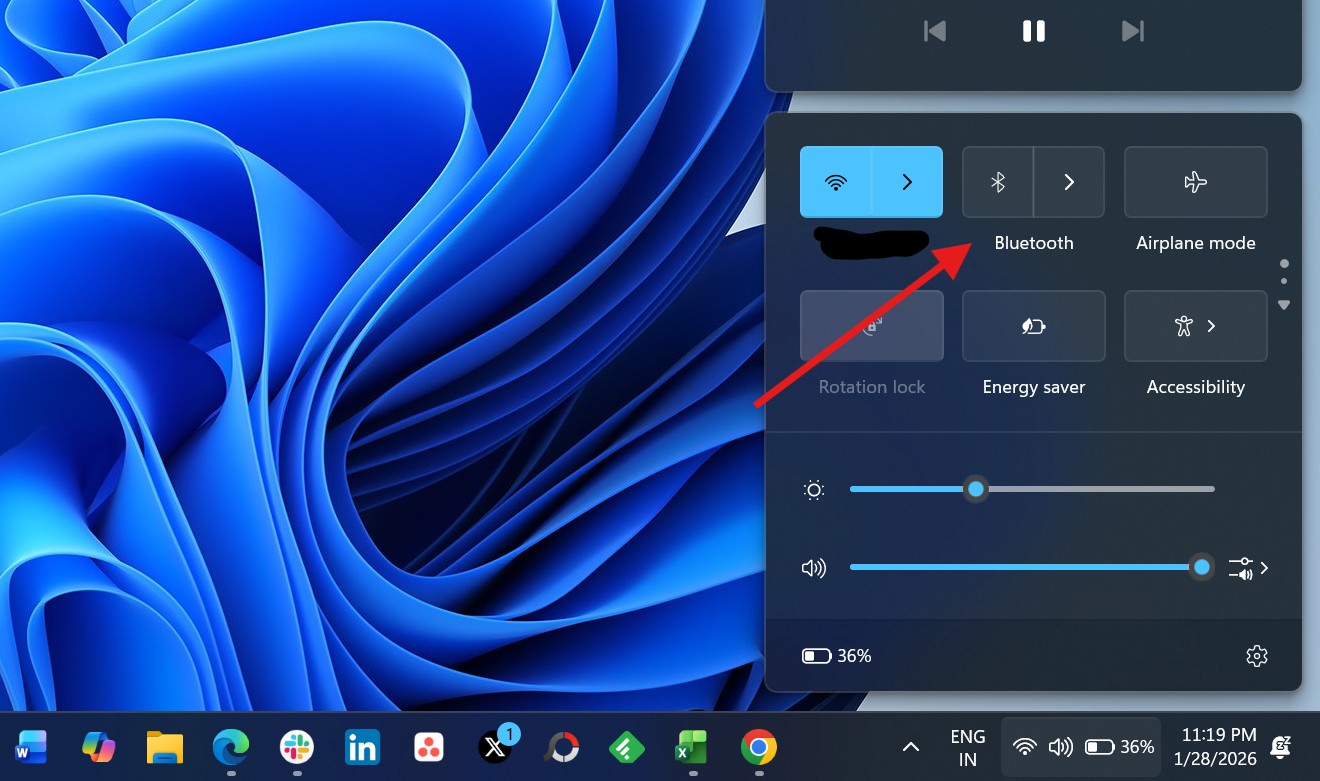

- If the Bluetooth tile is gray or says “Off”, click it once to turn Bluetooth on.
- When Bluetooth is on, the tile will change color, showing that it is active.
If you don’t see the Bluetooth tile, you can add it to the Quick Settings panel. This makes it easier to turn Bluetooth on or off in the future.
Method 2: Turn On Bluetooth Using Settings
If you want more control and options, use the Settings app:
- Press Windows + I on the keyboard to open Settings.
- In Settings, select Bluetooth & devices.
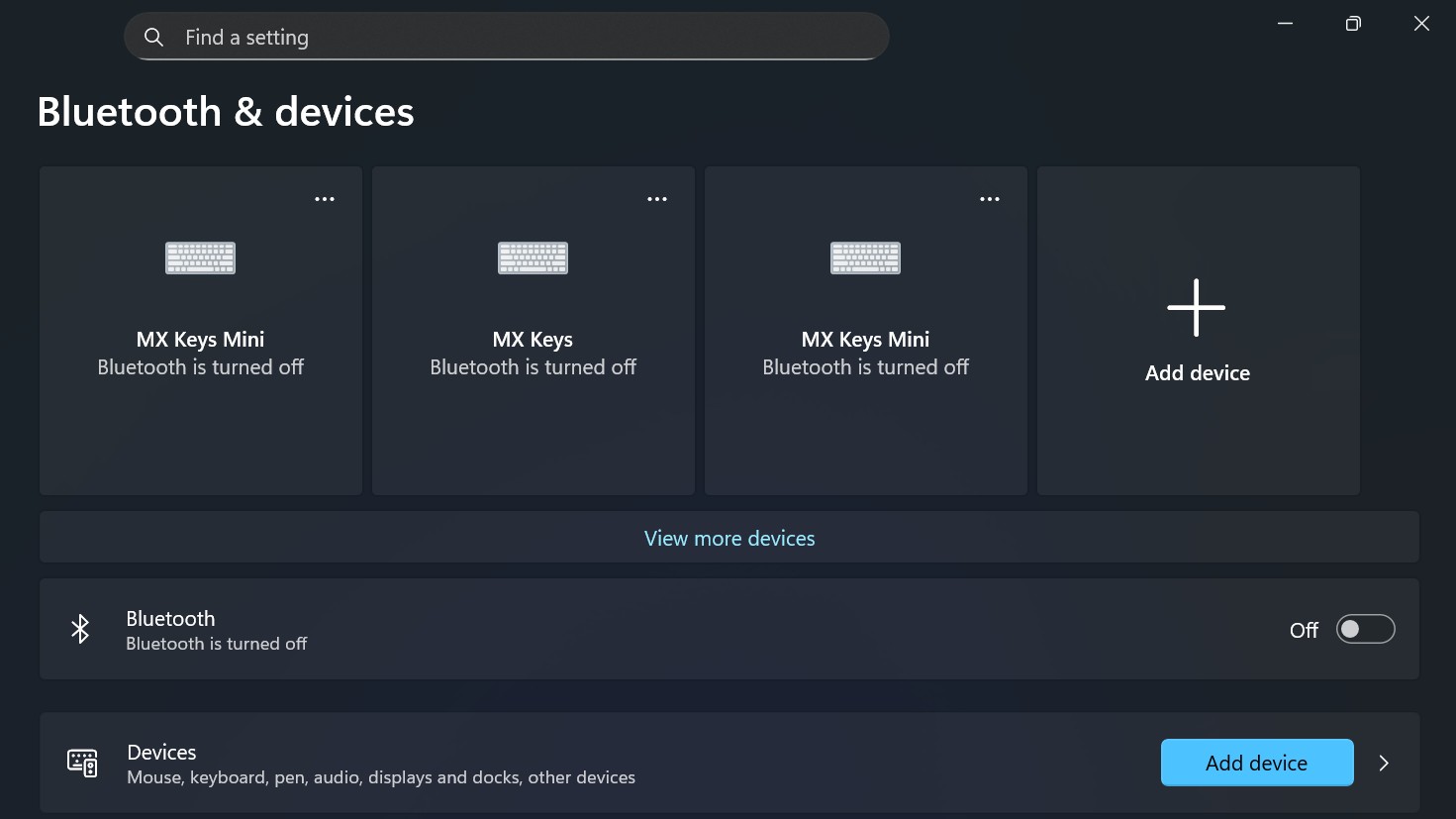

- At the top of the screen, find the Bluetooth toggle switch.
- Slide the toggle switch to On.
This method also shows Bluetooth devices that your PC has connected to before, and lets you manage them.
Pair a Bluetooth Device After Turning Bluetooth On
Once Bluetooth is on, you can pair other devices like headphones or keyboards:
- Make sure the device you want to connect is in pairing mode (check its manual for instructions).
- In the Bluetooth & devices section of Settings, click Add device.
- Choose Bluetooth as the device type.
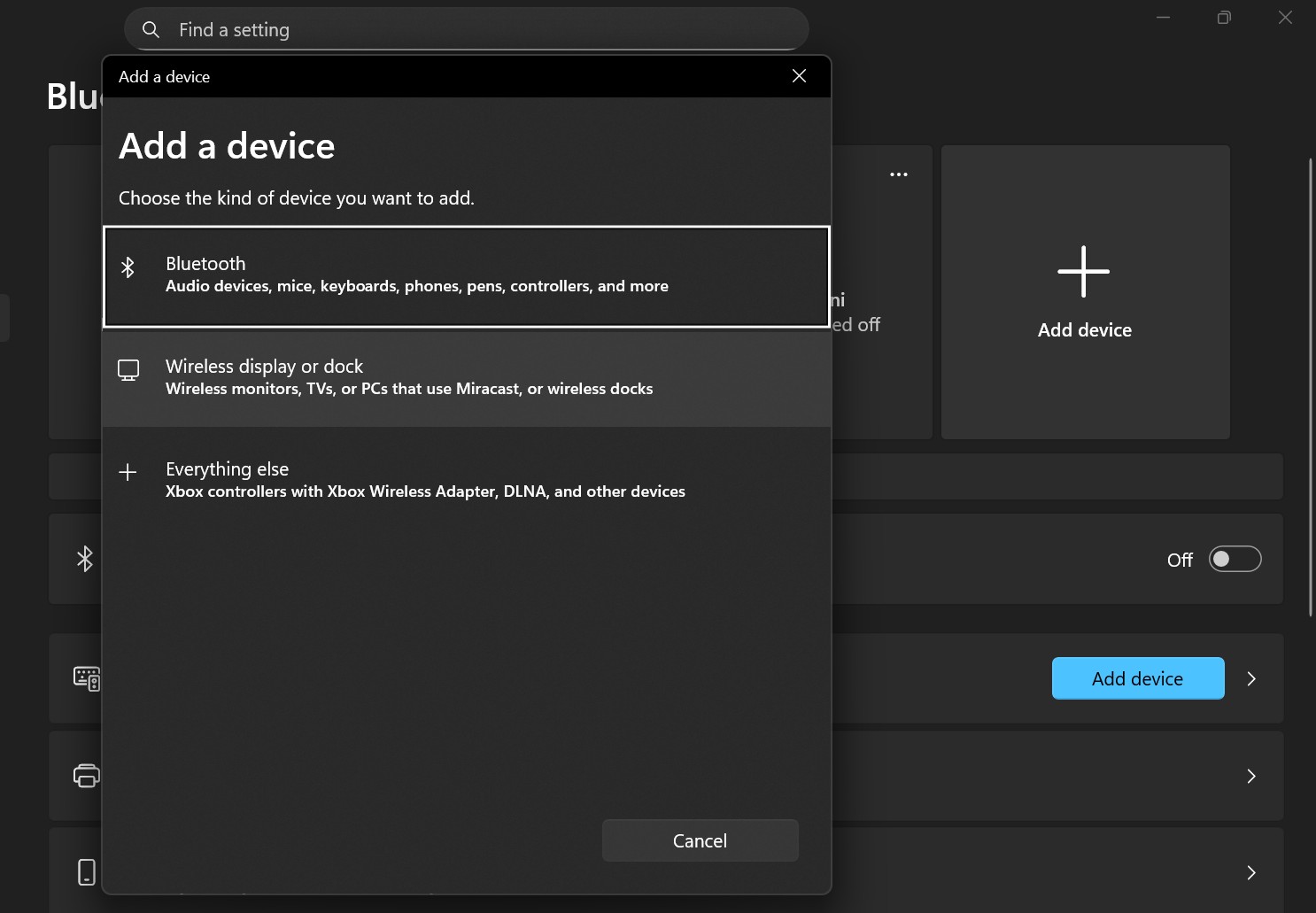

- Wait while your PC searches for nearby devices.
- When the device appears in the list, click it to connect.
- Some devices may ask for a code to complete the pairing.
- After pairing, the device will connect automatically when Bluetooth is on and the device is nearby.
What to Do If Bluetooth Does Not Turn On
Sometimes Bluetooth won’t show up or turn on in Windows 11. Here are steps to fix that:
- Check that Bluetooth hardware is present. If Bluetooth does not appear in Settings, your PC might not support it.
- Make sure Bluetooth drivers are installed. You can check this in Device Manager and update drivers if needed.
- Restart your computer. This can often fix temporary Bluetooth problems.
- Run the Bluetooth troubleshooter in the Windows Settings Troubleshoot section.
- Ensure Bluetooth services are running in the background for the system to control Bluetooth.
These steps can solve many common Bluetooth issues on Windows PCs.
Table: Quick Ways to Turn On Bluetooth
| Method | What You Use | Best For |
|---|---|---|
| Quick Settings | Bottom-right panel | Fastest way |
| Settings App | Windows + I | When you want to manage devices |
| Search | Type “Bluetooth” in Start | Direct access if the tile is missing |
| Device Manager | Enable Bluetooth adapter | When Bluetooth is disabled at hardware level |
Bluetooth Tips for Windows 11
- Keep your Bluetooth devices close to your PC when pairing.
- Avoid obstructions like walls or metal objects that can weaken the signal.
- Keep device batteries charged so they stay in pairing mode.
- Update drivers regularly to ensure Bluetooth works properly.
Windows 11 also continues to improve Bluetooth audio quality and features with updates, making wireless use better over time.
Frequently Asked Questions (FAQs)
Why don’t I see Bluetooth in Quick Settings?
If the Bluetooth tile is missing, you can add it by customizing the Quick Settings panel, or open Bluetooth from Settings instead.
How do I know my PC has Bluetooth?
Go to Device Manager and look for a Bluetooth category. If it’s not there, your PC might not have Bluetooth hardware.
Can I connect more than one Bluetooth device?
Yes. You can usually connect multiple Bluetooth devices at the same time, such as a mouse and headphones.
Why won’t Bluetooth turn on even though it’s visible?
This can happen if drivers are missing, outdated, or the Bluetooth Support Service is not running. Updating drivers or running the Bluetooth troubleshooter can help.
Turning on Bluetooth in Windows 11 is simple, whether you use the Quick Settings panel or the main Settings app. Once Bluetooth is on, you can connect and manage many wireless devices like headphones, keyboards, and speakers.
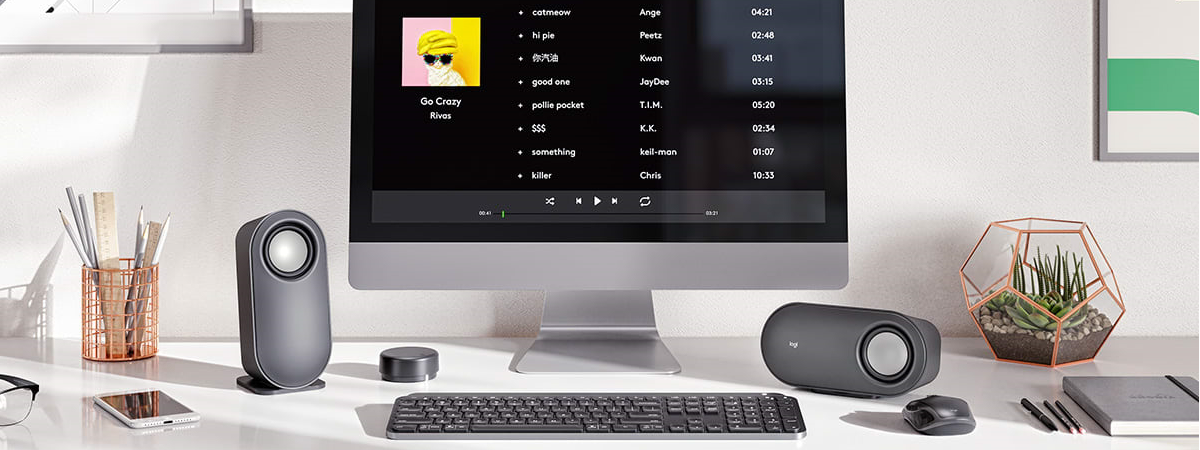
If Bluetooth options are missing or will not turn on, checking hardware support and drivers often solves the problem. With Bluetooth working, you can enjoy wireless freedom and a cleaner desk setup.
Discussion (0)
Be the first to comment.