




If your iPhone keeps dimming the screen, silencing notifications, or limiting alerts, Sleep mode likely causes the issue. Apple uses several features under the “sleep” label, so turning it off requires disabling the correct setting based on your situation.
Table of contents
- What “sleep mode” means on iPhone
- Turn off Sleep Focus on iPhone
- Turn off Sleep Schedule in the Health app
- Stop iPhone from going to sleep automatically (Auto-Lock)
- If sleep mode keeps turning back on
- Sleep mode on iPhone vs Do Not Disturb
- Tips for managing sleep settings without missing notifications
- Summary
What “sleep mode” means on iPhone
Sleep mode is not a single toggle. Apple spreads sleep-related behavior across Focus settings, Health schedules, and display timeout controls.
Sleep Focus vs Sleep Schedule vs Auto-Lock
Sleep Focus limits notifications and changes the Lock Screen during rest hours. Sleep Schedule lives in the Health app and automatically turns on Sleep Focus. Auto-Lock controls how fast the screen turns off when you stop touching it.
Turn off Sleep Focus on iPhone
Sleep Focus is the most common reason users think their iPhone is stuck in sleep mode.
Disable Sleep Focus from Control Center
This method stops Sleep Focus immediately.
- Swipe down from the top-right corner to open Control Center.
- Tap Focus.
- Tap Sleep to turn it off.
If the Sleep icon is no longer highlighted, Sleep Focus is disabled.
Disable Sleep Focus from Settings
This method prevents Sleep Focus from activating again.
- Open Settings.
- Tap Focus.
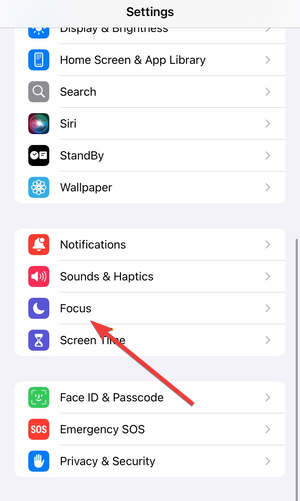

- Select Sleep.
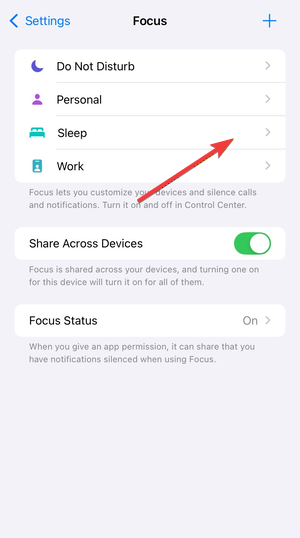

- Now, tap the Delete Focus option to remove the Sleep Focus.
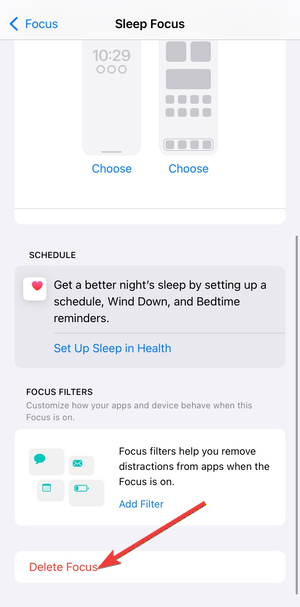

Disabling it here ensures it stays off unless you manually re-enable it. You can also change the settings to bypass iPhone silent Focus mode for some people if you don't want to completely turn off Focus mode
Turn off Sleep Schedule in the Health app
Sleep Schedule can re-enable Sleep Focus even after you turn it off.
Remove or edit your sleep schedule
Disabling the schedule stops automatic sleep activation.
- Open the Health app.
- Tap Browse → Sleep.
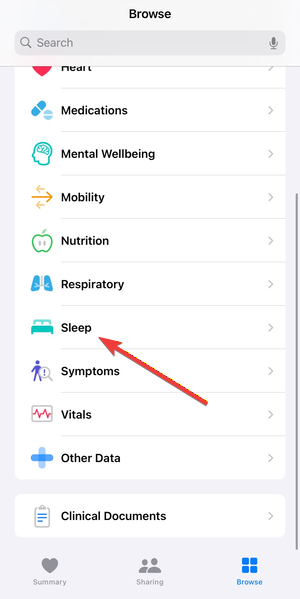

- Tap Full Schedule & Options.
- Turn off Sleep Schedule.
Once disabled, your iPhone will no longer enter Sleep Focus on a timer.
Stop iPhone from going to sleep automatically (Auto-Lock)
Some users want the screen to stay on longer, not change Focus modes.
Change Auto-Lock duration
Adjusting Auto-Lock prevents the display from turning off too fast.
- Open Settings.
- Tap Display & Brightness.
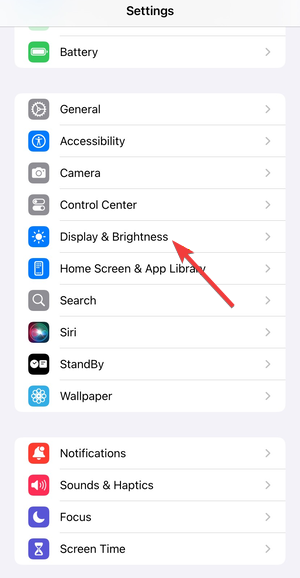

- Tap Auto-Lock.


- Choose a longer time or select Never.
This fix helps during reading, navigation, or hands-free use.
If sleep mode keeps turning back on
If Sleep mode reactivates, another setting usually overrides your changes.
Check device-wide Focus syncing
Apple syncs Focus modes across devices using the same Apple ID.
- Open Settings.
- Tap Focus.
- Turn off Share Across Devices.
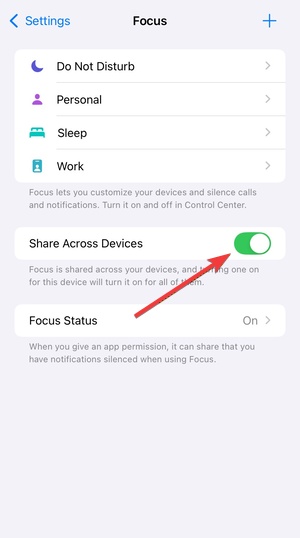
This prevents another device from re-enabling Sleep Focus on your iPhone.
Sleep mode on iPhone vs Do Not Disturb
Sleep Focus is stricter than Do Not Disturb. It limits notifications, changes Lock Screen behavior, and ties into Health data, while Do Not Disturb only silences alerts.
Tips for managing sleep settings without missing notifications
- Allow important contacts in Focus Filters.
- Disable Sleep Schedule if you do not follow fixed sleep hours.
- Avoid using Auto-Lock as a workaround for Focus issues.
- Review Focus settings after major iOS updates.
FAQs
Why does my iPhone keep going into sleep mode even after I turn it off?
This usually happens because Sleep Schedule in the Health app or a Focus automation re-enables Sleep Focus automatically. Disabling both Sleep Schedule and Smart Activation fixes the issue.
Is sleep mode the same as Auto-Lock on iPhone?
No. Sleep mode refers to Sleep Focus and related schedules, while Auto-Lock only controls how quickly the screen turns off when inactive.
Will turning off Sleep Focus affect my alarms?
No. Alarms still ring even if you turn off Sleep Focus or Sleep Schedule, unless you manually disable the alarm itself.
Can I keep Sleep Focus off permanently?
Yes. Turn off Sleep Focus in Settings, disable Sleep Schedule in the Health app, and turn off Share Across Devices to prevent it from returning.
Summary
- Turn off Sleep Focus from Control Center or Settings.
- Disable Sleep Schedule in the Health app.
- Adjust Auto-Lock if the screen turns off too quickly.
- Remove automations and device syncing if Sleep mode returns.
Turning off Sleep mode on iPhone works best when you identify which feature triggers it. Once you disable the correct setting, your iPhone should behave normally without dimming screens or silencing alerts unexpectedly.


Discussion (0)
Be the first to comment.