




Private Browsing on iPhone and iPad lets you browse the web without saving history, cookies, or search data after you close your tabs. While useful for short-term privacy, there are times when you may want to exit Private Browsing or disable it entirely, especially for parental controls or shared devices.
At the time of writing, Apple allows you to turn off Private Browsing temporarily by switching tab groups or permanently by using Screen Time restrictions. The steps below explain how to manage Private Browsing in Safari and Incognito Mode in Chrome.
How To Exit Private Browsing In Safari On iPhone Or iPad
Exiting Private Browsing in Safari switches you back to regular tabs, where history and website data are saved normally.
- Open Safari on your iPhone or iPad.
- Tap the Tabs icon.
- Swipe away from the Private tab group or select a regular tab group.
- Open any standard tab to return to normal browsing.
Closing all private tabs ends the session, but Safari remains in Private mode until you switch tab groups.
What To Do If Private Tabs Are Locked With Face ID Or Touch ID
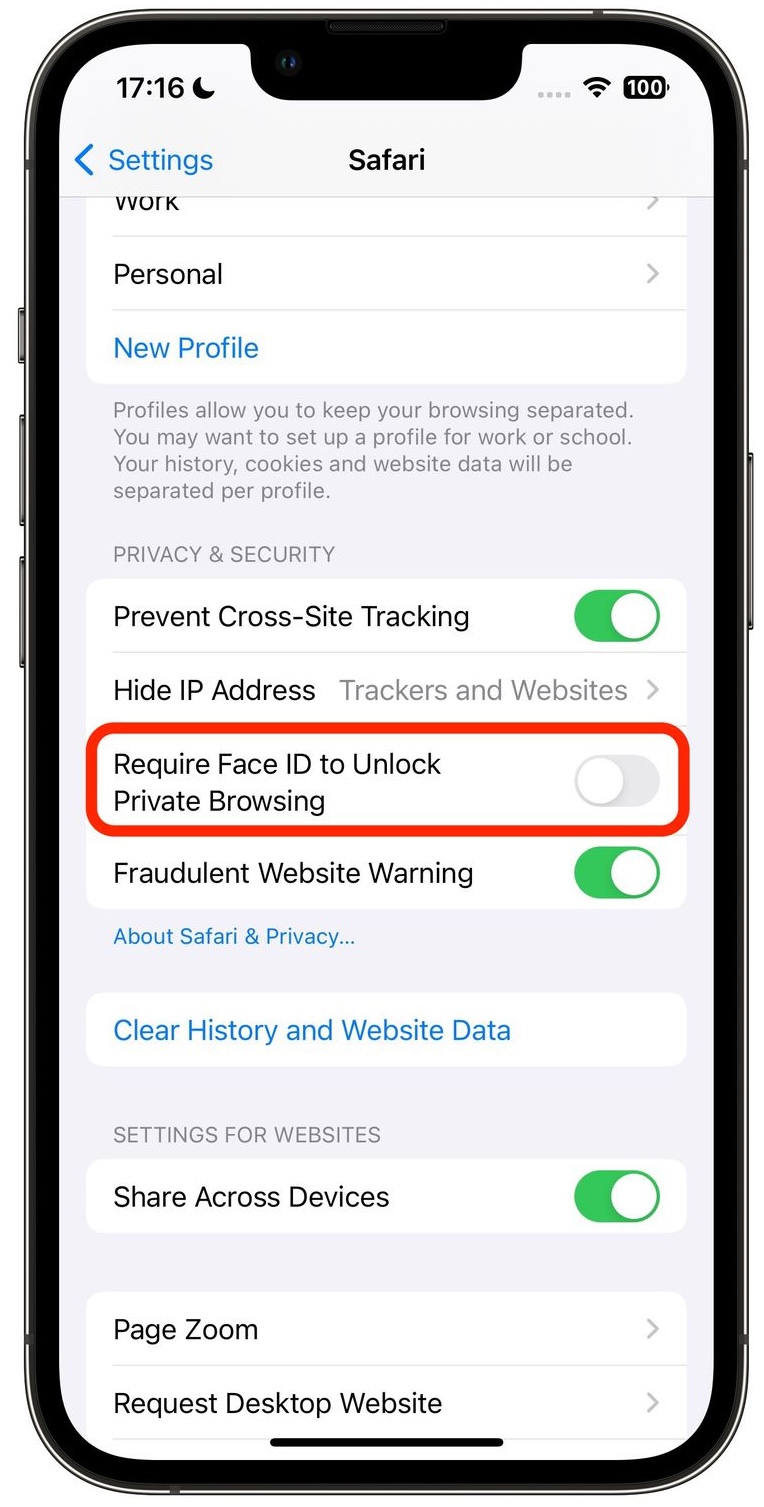
Safari can lock Private Browsing tabs using Face ID or Touch ID for extra privacy. You must unlock them before switching out of Private mode.
If you prefer not to authenticate every time, you can disable this requirement in Safari’s privacy settings.
- Open Settings.
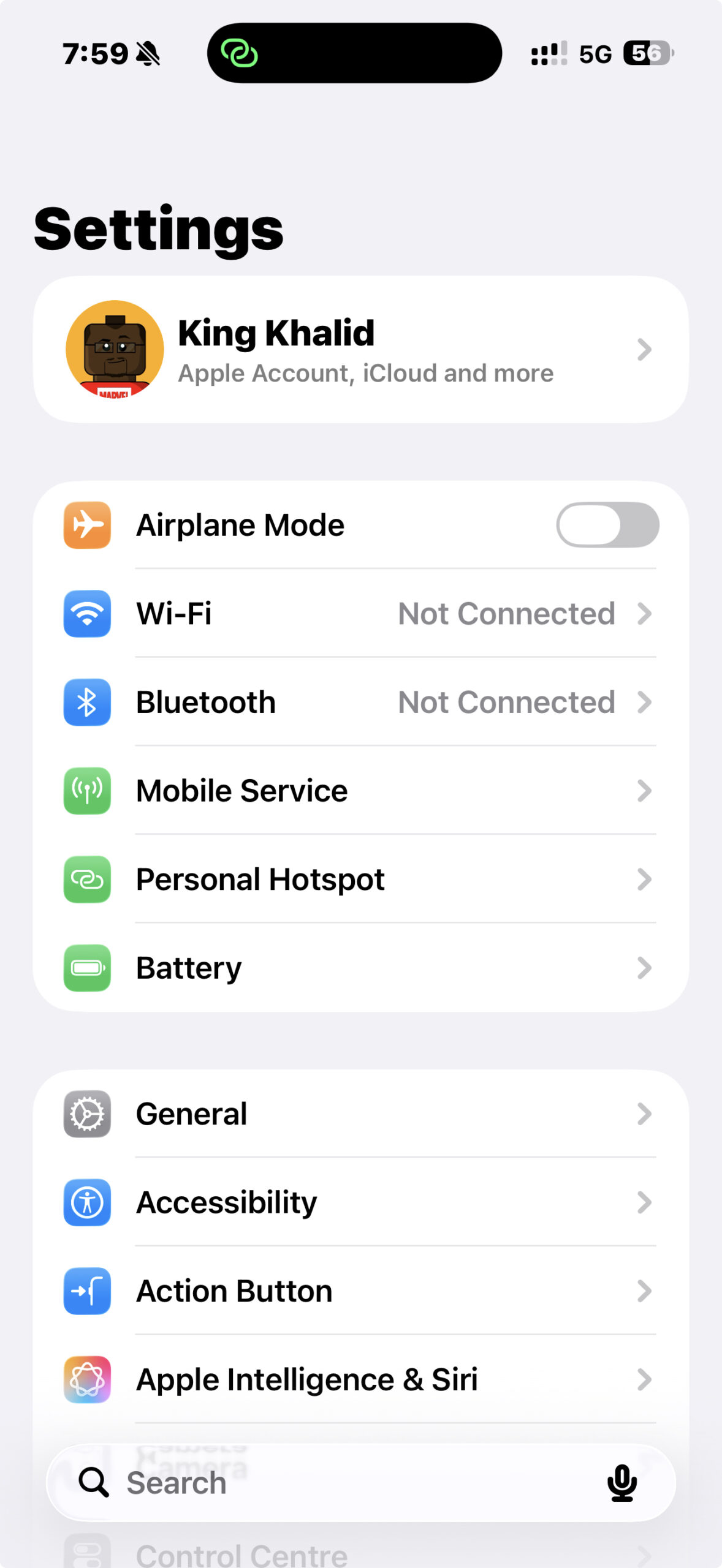
- Tap Apps and select Safari.

- Scroll to Privacy & Security.
- Turn off Require Face ID or Require Touch ID.
How To Permanently Disable Private Browsing Using Screen Time
If you want to block Private Browsing completely, Screen Time allows you to remove the option from Safari. This is commonly used for parental controls.
- Open Settings and tap Screen Time.
- Tap Content & Privacy Restrictions and enable it.
- Select App Store, Media, Web & Games.
- Tap Web Content.
- Choose Limit Adult Websites.
Once enabled, the Private Browsing option disappears from Safari.
How To Turn Off Incognito Mode In Chrome On iPhone Or iPad
Chrome does not use Private Browsing, but it offers Incognito Mode, which works similarly. You must close Incognito tabs to exit this mode.
- Open Chrome on your device.
- Tap the Tabs icon.
- Select the Incognito tab view.
- Tap Edit and choose Close All Tabs, or close tabs individually.
- Swipe back to regular browsing.
Troubleshooting Common Problems
If the Private option is missing, Screen Time restrictions are likely enabled. Check Web Content settings and confirm that unrestricted access is allowed.
On managed devices, such as school or work iPhones, Mobile Device Management profiles may block Private Browsing entirely.
Tips
- Use Screen Time to control Private Browsing on shared devices.
- Lock Private tabs if privacy is a concern.
- Exit Private mode to restore history and AutoFill.
- Remember that Private Browsing does not hide your IP address.
- Clear private tabs regularly to reduce memory usage.
FAQ
Does turning off Private Browsing show past activity? No, Safari does not save history from Private Browsing sessions.
Can Private Browsing be disabled permanently? Yes, Screen Time restrictions can remove the option entirely.
Is Private Browsing the same as a VPN? No, Private Browsing only hides local history and cookies.
Summary
- Private Browsing hides history during a session.
- You can exit it by switching tab groups.
- Screen Time can disable it permanently.
- Chrome uses Incognito Mode instead.
Conclusion
Knowing how to turn off Private Browsing on iPhone or iPad gives you better control over web activity and device behavior. Whether you are managing privacy, supervising a child’s device, or returning to normal browsing, iOS provides flexible options that work reliably across Safari and Chrome.
Discussion (0)
Be the first to comment.