




Taking a screenshot on a Dell computer is easy once you know the right shortcuts. Whether you use a Dell laptop, desktop, or gaming model, Windows provides multiple built-in ways to capture your screen. Below are simple methods to save, edit, and manage screenshots without third-party software.
1) Use keyboard shortcuts to take instant screenshots
Keyboard shortcuts are the fastest way to capture what’s on your Dell screen. These methods work across most Windows versions, from Windows 10 to Windows 11. The first is to press the prt scr key to copy your entire screen to the clipboard. Then open Paint or Word, press Ctrl + V to paste, and save the image.

Another method is to press Windows + prt scr to automatically capture and save your screen. Windows stores the image in Pictures → Screenshots, making it easy to access later without pasting manually. The last keyboard shortcut it press Alt + PrtSc to screenshot only the active app window.
Tip: Some Dell laptops require the Fn for the keyboard shortcuts to work. So, try Fn + prt scr or Fn + Windows + prt scr if the above do not work.
2) Capture custom areas with the Snipping Tool
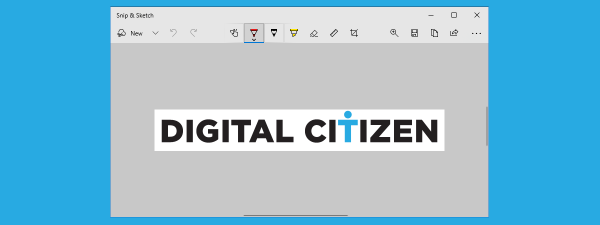
For more control, use the Snipping Tool. Press Windows + Shift + S to open it and select from rectangular, freeform, window, or full-screen modes. This lets you capture exactly what you need on any Dell display.

After taking a snip, use the toolbar to draw, highlight, or crop before saving. You can also copy the image to the clipboard or share it through email or chat apps.
3) Take screenshots while gaming with Xbox Game Bar
On Dell gaming laptops and desktops, press Windows + G to open the Xbox Game Bar. Click the camera icon or press Windows + Alt + prt scr to capture gameplay instantly. Screenshots save to Videos → Captures by default.

4) Use third-party screenshot apps
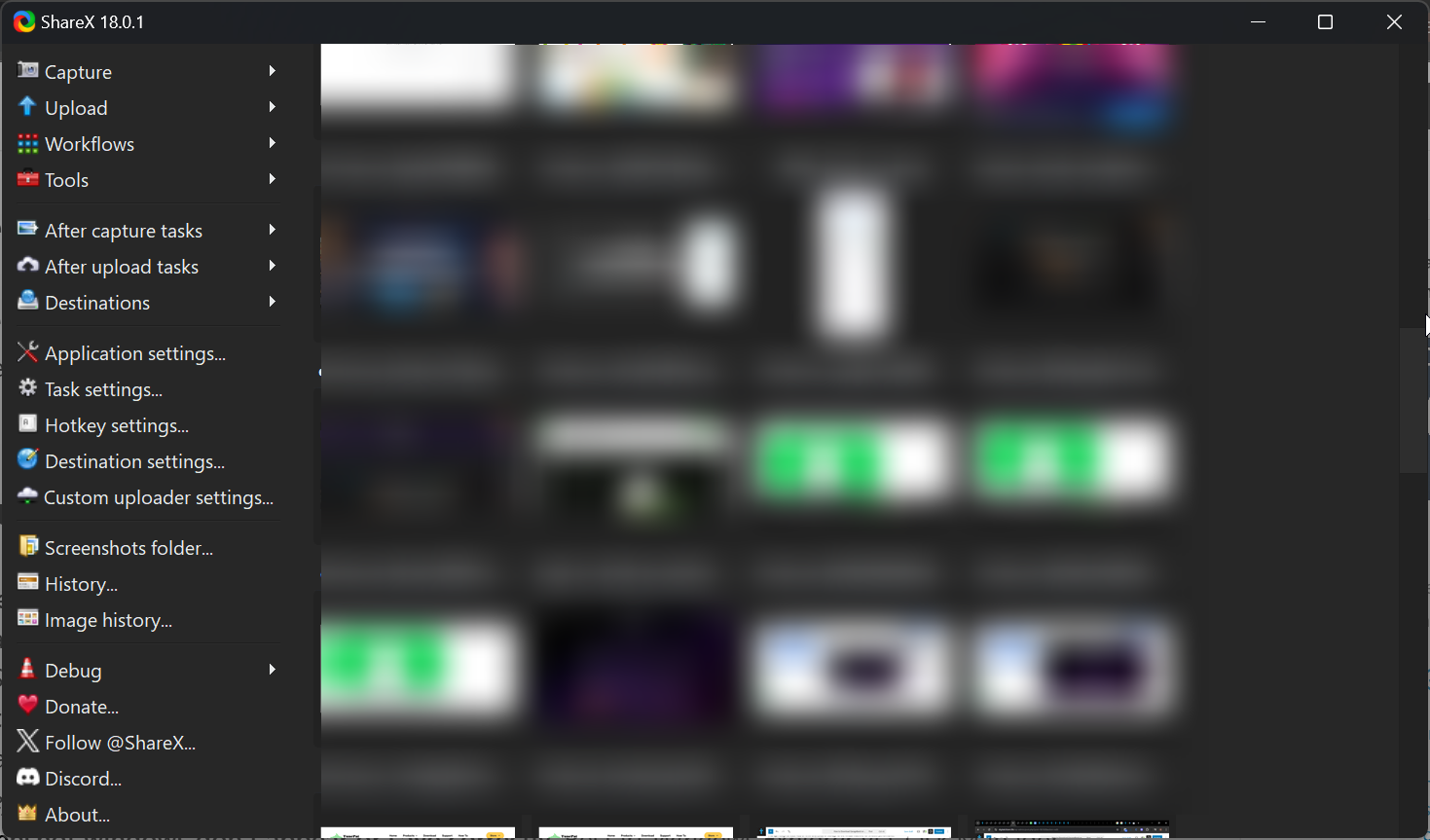
If you need extra features, tools like Lightshot, Greenshot, or ShareX offer editing and instant uploads. Power users can try Snagit or ScreenRec for capturing tutorials or presentations with advanced markup options.
5) Troubleshooting screenshot problems on Dell devices
- Screenshots aren’t saving: Check whether the Fn Lock is toggled, or if your keyboard driver needs updating. Also, ensure OneDrive’s auto-save feature isn’t changing your default save folder. Restart the Snipping Tool or use Paint to verify that screenshots copy to the clipboard correctly.
- Print Screen key is unresponsive: Use Windows + Shift + S to capture with the Snipping Tool. You can also remap the prt scr key to open the Snipping Tool automatically in Settings → Accessibility → Keyboard.
- Screenshot windows don’t appear or save correctly: Restart Windows Explorer via Task Manager. You can also close and reopen the Snipping Tool or reset it from Settings → Apps → Snipping Tool → Advanced options → Reset.
- Key commands are not responding: Update or reinstall your keyboard drivers and restart your PC.
Tips for Faster Screenshot Workflow
- Pin the Snipping Tool to your taskbar for quick access.
- Enable clipboard history with Windows + V to paste recent screenshots faster.
- Consider renaming images right after saving for easier sorting later.
FAQs
How do I take a screenshot on a Dell Chromebook? Press Ctrl + Show Windows for a full-screen shot or Ctrl + Shift + Show Windows to capture a custom region. The image saves to the Downloads folder automatically.
Why doesn’t my Print Screen key work? Make sure the Fn key isn’t locked, and check your keyboard layout in Windows settings. You can also try the Snipping Tool shortcut (Windows + Shift + S) as an alternative.
Can I record my screen instead of taking screenshots? Yes. Use the Snipping Tool’s recording option on Windows 11 or press Windows + G to start video capture with Xbox Game Bar.
Where can I find and manage my screenshots? By default, Windows saves screenshots under Pictures → Screenshots or Videos → Captures.
Summary
- Use Print Screen shortcuts for quick full-screen captures.
- Use the Snipping Tool for partial or edited screenshots.
- Use Xbox Game Bar for gaming or app captures.
- Troubleshoot keyboard or save-location issues if screenshots fail.
Conclusion
Capturing screenshots on a Dell computer is simple once you know the right shortcuts. Whether you prefer the Print Screen key, Snipping Tool, or Game Bar, each method can help you document or share what’s on your screen instantly.
If your shortcuts fail, checking Fn Lock, keyboard drivers, or clipboard settings usually restores functionality. After applying these fixes, your Dell PC should handle screenshots smoothly every time.

Discussion (0)
Be the first to comment.