




Syncing photos from your iPhone to your Apple Watch lets you keep your favorite memories on your wrist. Apple limits how photos sync, which often causes confusion when images fail to appear or update. This guide shows the fastest working method, explains the limits, and helps you fix common sync issues.
Table of contents
How photo syncing works on Apple Watch
Apple Watch does not mirror your entire iPhone photo library. It syncs a limited set of images chosen through the Watch app on your iPhone.
Where Apple Watch pulls photos from
Your Apple Watch syncs photos from a selected album, memories, or favorites stored on your iPhone. The watch never pulls photos directly from iCloud without going through the paired iPhone.
Sync limits you should know
Apple Watch stores a capped number of photos to save space. Image quality is optimized for the watch display, and large libraries never fully sync.
Sync photos from iPhone to Apple Watch (recommended method)
This method works best for most users and updates automatically when your album changes.
Select an album or memories
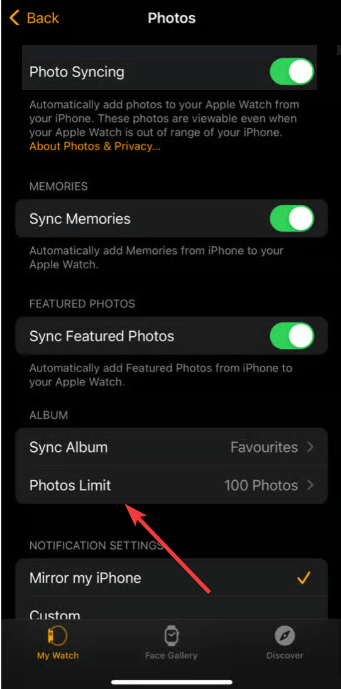
Open the Watch app on your iPhone, tap Photos, then choose Sync Album. Pick an album, favorites, or memories you want available on your Apple Watch.

Set the photo limit
Tap Photos Limit and choose how many images the watch can store. A lower limit syncs faster and avoids storage issues.
Sync individual photos only
Apple does not support one-off photo syncing, but you can work around this limit.
Create a dedicated album on iPhone
Create a new album in the Photos app and add only the images you want on your watch. Select this album in the Watch app to keep syncing clean and predictable.
Confirm photos synced successfully
Always verify syncing on the watch, not just on the iPhone.
Check in the Photos app on Apple Watch
Open the Photos app on your Apple Watch and scroll through synced images. Initial syncing may take several minutes, especially with larger albums.
Fix photos not syncing to Apple Watch
When photos fail to appear, the issue usually involves connectivity or iCloud settings.
Check iCloud Photos and connectivity
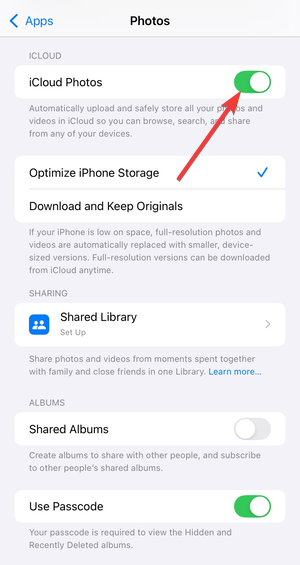
Turn on iCloud Photos on your iPhone and connect both devices to Wi-Fi. Bluetooth alone may slow or block large syncs.
Restart and resync properly
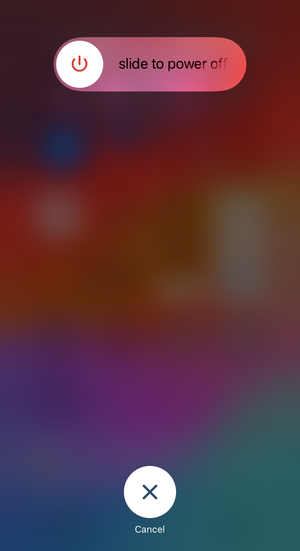
Restart your iPhone first, then restart your Apple Watch. After both devices reconnect, leave them charging and near each other.
Re-pair Apple Watch if syncing is stuck
Use re-pairing only if syncing never starts or repeatedly fails. Re-pairing resets sync data but preserves your backup.
Understand what does not sync
Not all photo features behave the same on Apple Watch.
Live Photos, shared albums, and edits
Live Photos appear as still images on the watch. Shared albums and recent edits may not update immediately or may fail to sync at all.
Tips to keep photos syncing smoothly
- Keep your photo limit low for faster updates
- Use small, dedicated albums
- Charge both devices during initial sync
- Avoid frequent album changes during syncing
FAQs
Why are some photos missing on my Apple Watch?
Apple Watch stops syncing after reaching the photo limit or when connectivity drops.
How long does photo syncing take?
Small albums sync within minutes, while large collections may take much longer.
Can Apple Watch sync photos without iPhone nearby?
No. The paired iPhone controls photo syncing and must stay connected.
Summary
- Apple Watch syncs photos only through the Watch app on iPhone.
- Albums and photo limits control what appears on the watch.
- Connectivity and iCloud Photos settings affect sync reliability.
- Dedicated albums prevent most syncing problems.
Syncing iPhone photos to Apple Watch works best when you keep things simple. Use a small album, confirm sync directly on the watch, and troubleshoot connectivity before trying drastic fixes. Once configured correctly, photo syncing stays reliable with minimal maintenance, and you can use these photos to customize your Apple Watch face.



Discussion (0)
Be the first to comment.