




Kahoot makes learning and teamwork fun, but you need to log in before you can play or create quizzes. Whether you’re on a phone, tablet, or computer, the process is simple once you know where to look. This guide explains every method clearly and shows you how to fix common sign-in issues.
1) How to sign in on the web
Open the Kahoot homepage and select Log in. Next, choose your account type: personal, teacher, student, or professional. Now, select your login method - email or a connected SSO provider.
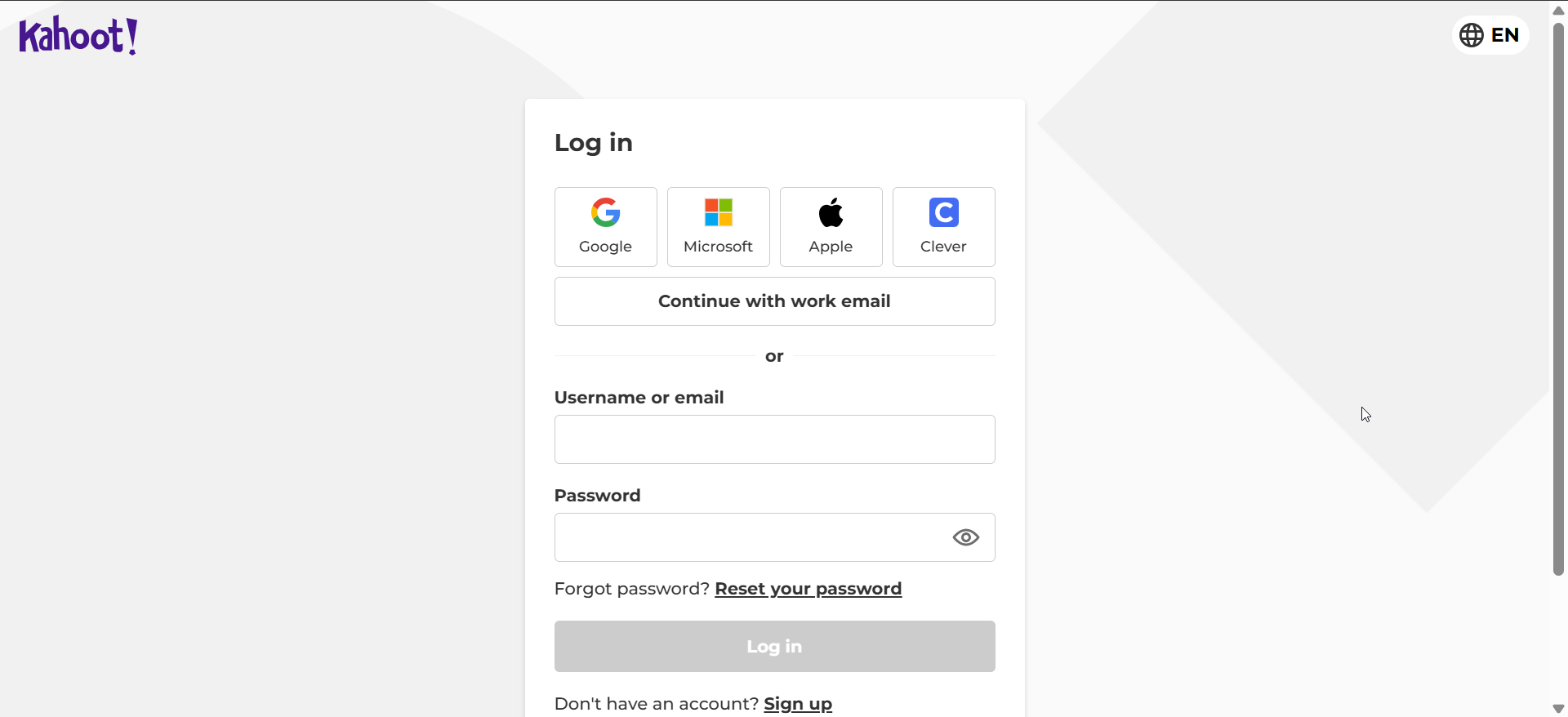
Lastly, enter your credentials and click Sign in. Once you’re signed in, your Kahoot dashboard loads automatically so you can host, play, or edit quizzes.
Tip: If the login page fails to load or loops back, clear cookies and cache, disable browser extensions, or use a private window. If you forgot your password, request a reset and confirm your email before retrying.
2) How to sign in on the mobile app
Open the Kahoot app on your device and tap Log in on the main screen. Next, select your preferred sign-in method - Google, Apple, Microsoft, or email. Lastly, enter your credentials and tap Continue.
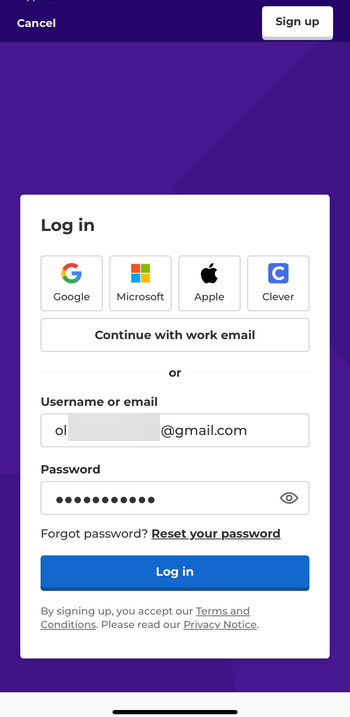
Tip: If you can’t log in, check that your connection is stable and the app is updated. You can reinstall the app or use the password reset option to recover access quickly.
3) Signing in with school or work accounts
Many organizations use Kahoot with single sign-on for extra security. Follow these steps if you’re logging in through an institution or business workspace.
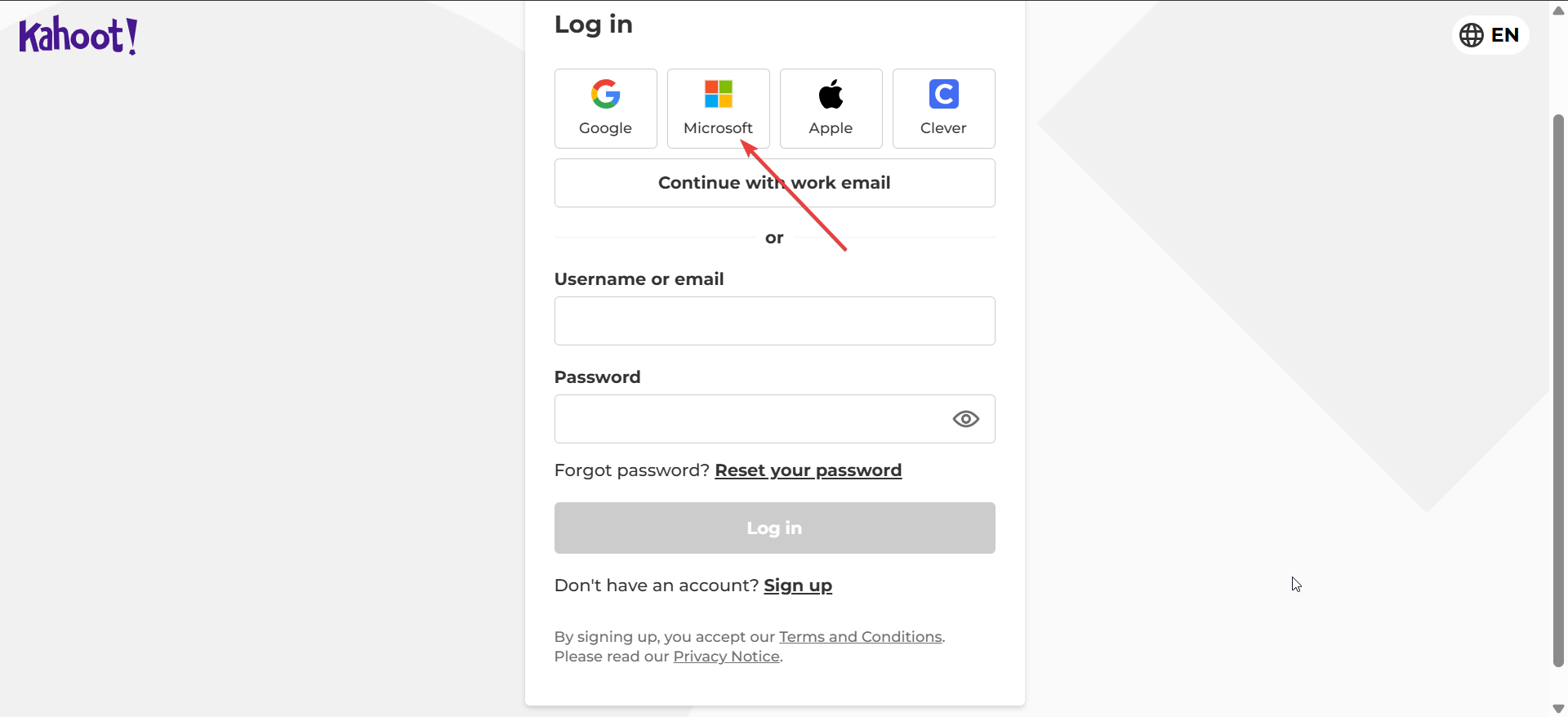
For school account, select Continue with Google or Continue with Microsoft, then pick your school-issued account. The system redirects you through your institution’s authentication page and logs you in automatically.
For Kahoot! for Work users, sign in through your company’s workspace link or from the invite email sent by your admin. If you see a permission error, confirm that your license is active and tied to your organization’s domain.
4) Resetting your password
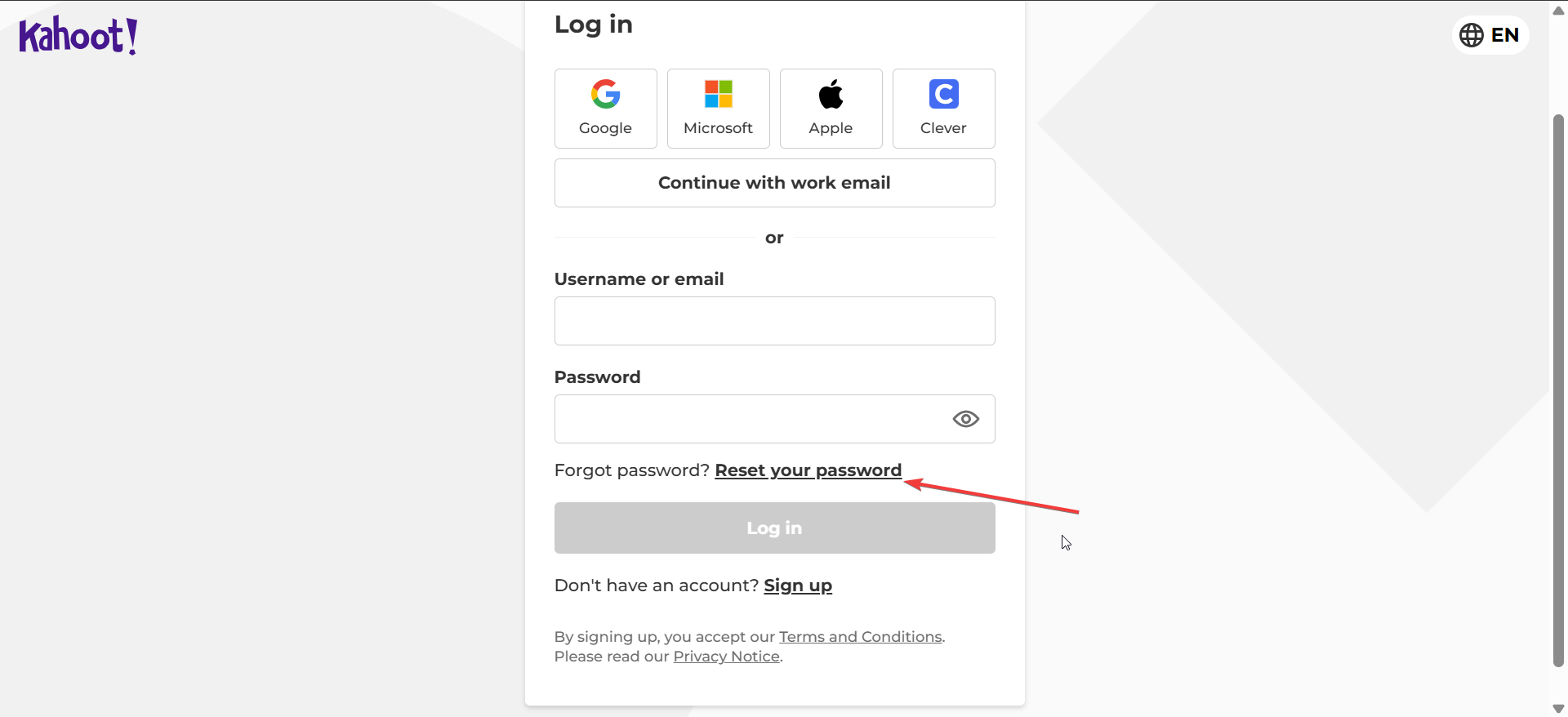
If you can’t remember your password, click the Reset your password link next to Forgot password? on the login screen. Enter your registered email and open the reset link sent to your inbox. Set a new password and log back in right away.
5) Managing multiple accounts
Many users have both personal and school Kahoot accounts. To avoid conflicts, keep them separate by signing out fully before switching or using different browsers for each account.
- Use distinct browser profiles for each login.
- Sign out completely before switching accounts.
- Link SSO accounts only once to prevent duplication.
Troubleshooting common login errors
- Incorrect password: Reset it from the login page.
- Account not verified: Confirm your email before logging in again.
- Blocked domain: Use a supported institutional or personal email.
- Server error: Wait a few minutes—Kahoot may be updating its systems.
Security and privacy best tips
- Protect your account by using strong passwords
- Avoid public devices
- Don't share your login details
- Consider enabling two-factor authentication when available.
FAQs about signing into Kahoot
Can I log in without an email? No, you need an email or linked SSO account.
Why can’t I log into my school account at home? Some institutions restrict access outside their network - contact your IT admin.
Can I stay signed in on multiple devices? Yes, but log out from shared devices to protect your data.
How do I sign out properly? Click your profile icon, select Sign out, and close your browser tab.
Summary
- You can sign into Kahoot on the web or mobile app using email, Google, Microsoft, Apple, or Clever accounts.
- Choose the right login method
- If you forget your password, use the Forgot password link to reset it safely.
- Clear cookies, update your browser, or reinstall the app
- Keep your accounts separate
- Use strong passwords and avoid public devices
Conclusion
You can sign into Kahoot using email, Google, Microsoft, Apple, or Clever accounts on any device. Stick to one login method for consistency, keep your credentials safe, and follow the troubleshooting steps above if you run into errors. Once signed in, you’re ready to start hosting and playing quizzes again.


Discussion (0)
Be the first to comment.