




A Logitech headset works well for gaming, meetings, and everyday audio on Windows. Most setup issues come from incorrect ports, wireless pairing problems, or Windows selecting the wrong device. This guide shows how to connect your headset, configure it in Windows, and fix common sound or mic issues.
But before you start, note that you need to know the correct connection method for your Logitech headset, whether it uses USB, a wireless dongle, 3.5 mm audio, or Bluetooth. Some Logitech G models also benefit from Logitech G Hub for EQ and mic tuning.
Once you determine the type of device you have, you can now proceed to the steps in the following sections.
1) Connect your Logitech headset to the PC
Connecting the headset correctly prevents Windows from misidentifying the device or failing to enable the microphone.
USB and wireless dongle headsets
USB models and wireless dongle headsets usually activate automatically after connection. Plug the cable or dongle into a direct USB port on your PC for the best detection and stability.
3.5 mm wired headsets
3.5 mm headsets must connect to the correct audio jack. Many PCs use a single combo port, while others have separate headphone and microphone jacks that require a splitter.
Bluetooth Logitech headsets
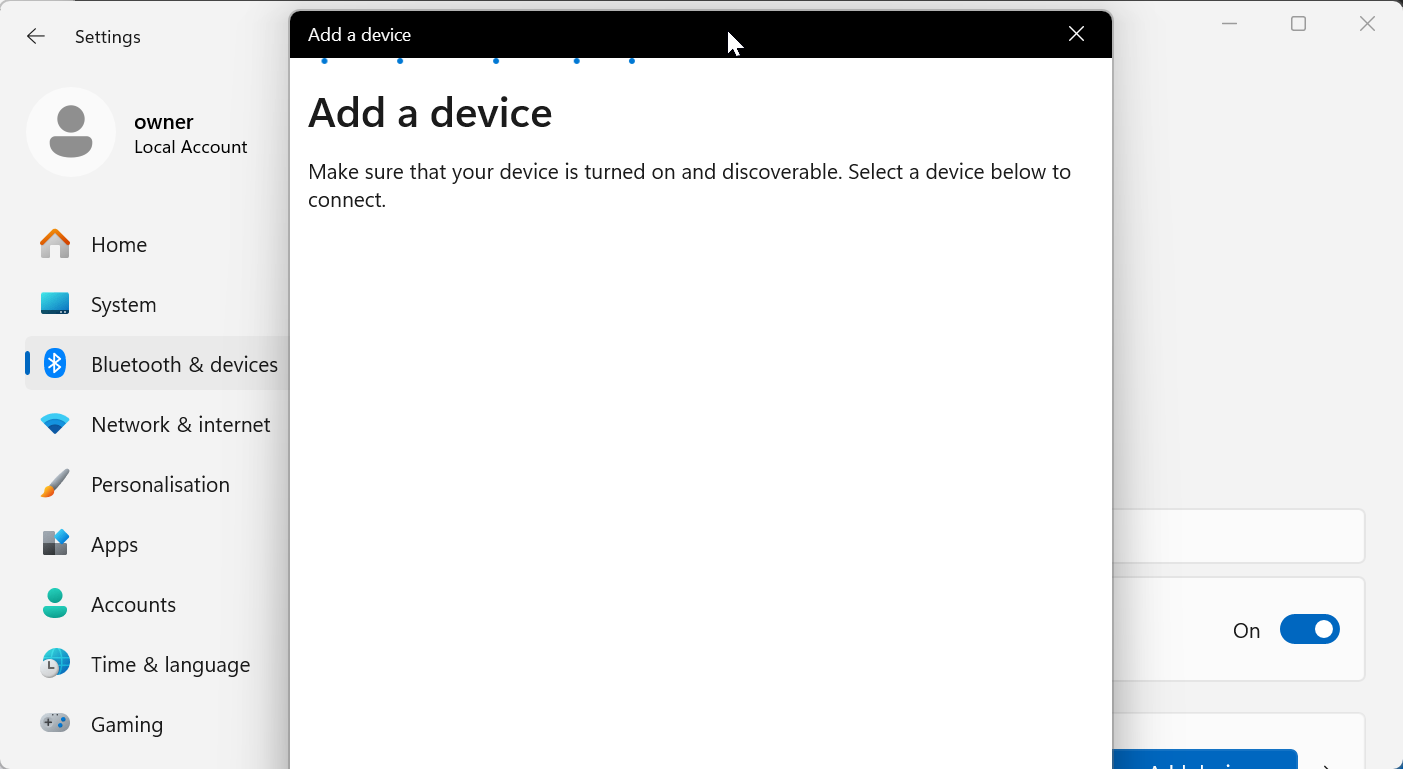
Bluetooth models require pairing through Windows Settings. Press the Windows key + I and select the Bluetooth & devices option. Next, select Add device and choose Bluetooth. From here, wait till your PC discovers the headset and follow the onscreen instructions to pair the devices.
2) Select the headset as the default device in Windows
Windows may not switch to the headset automatically, so you must choose it as the default for both sound and mic input.
Choose the output device
Press the Windows key + X and select Settings. Next, click System in the left pane and select Sound. Now, click the Add device button under the Output section and select your Logitech headset.

This tells Windows to send system audio to the headset.
Choose the input device
Select the headset microphone under the Input section. This activates voice input for calls, gaming chat, and recording apps. You can also test your microphone on Windows after connecting it.

3) When to update drivers or firmware
Updates help resolve detection issues, crackling, disconnects, and missing features.
Update headset firmware through G Hub
G Hub shows available updates for supported headsets. Running the update improves compatibility and may fix mic or audio bugs.
Update Windows and audio drivers
Windows updates and chipset drivers improve device recognition and reduce audio conflicts with Logitech headsets. Press the Windows key + I to open Settings. Click the Windows Update option in the left pane.

Finally, click the Check for updates button and install all available updates.
4) Troubleshooting common detection and audio issues
- Headset connected, but no sound: Ensure the headset is selected as the Output device. Low system volume or app-specific volume settings can also silence audio.
- Microphone not detected: Check the Input device list. Windows privacy settings may block mic access, and outdated G Hub versions can prevent the mic from activating.
- Wireless dongle not pairing: Move the dongle to a direct USB port and power-cycle the headset. Blinking lights often indicate pairing mode, and re-pairing usually restores connection stability.
Tips for better audio performance
- Use direct USB ports instead of hubs: USB hubs can limit power or cause connection instability. Plug your USB headset or wireless dongle directly into the PC.
- Keep Bluetooth devices close and unobstructed: Bluetooth interference increases as the distance grows. Keeping the headset close improves responsiveness and reduces dropouts.
- Configure levels and enhancements: Adjusting output volume, mic gain, and sidetone prevents distortion and improves clarity. Disabling certain enhancements also helps reduce background noise.
- Use Logitech G Hub for EQ and microphone tuning: G Hub presets improve sound for gaming, music, and movies. Mic filters in G Hub add noise reduction and voice clarity that basic Windows settings lack.
FAQs
Why can’t my PC detect my Logitech headset? Detection issues usually happen due to incorrect ports, wireless pairing problems, or selecting the wrong input/output device in Windows.
Does every Logitech headset require G Hub? Only Logitech G models use G Hub. Standard USB and 3.5 mm headsets work without additional software.
Why does my mic sound quiet or muffled? Low mic gain, outdated firmware, or active noise filters may weaken microphone clarity. Adjusting these settings often fixes the issue.
How do I know if the dongle and headset are paired? Most dongles show a steady light when paired. A blinking light often means pairing mode or signal loss.
Summary
- Check your Logitech headset type.
- Connect using USB, 3.5 mm, Bluetooth, or a wireless dongle.
- Select the Output and Input devices in Windows.
- Adjust sound levels and mic gain for clarity.
- Use Logitech G Hub for tuning and firmware updates.
Conclusion
A Logitech headset becomes easy to set up once you connect the correct cable or wireless dongle, select it in Windows, and fine-tune the sound and microphone settings. Most issues resolve quickly with device selection, pairing checks, or a simple firmware update. With these steps, your headset should deliver clear audio and reliable microphone performance for work, gaming, and everyday use.

Discussion (0)
Be the first to comment.