




Setting up an Xfinity WiFi box gives you fast and reliable home internet, whether you use it for streaming, gaming, remote work, or smart home devices. The setup process stays simple, and at the time of writing, Xfinity still supports both new and refurbished gateway models. Once you activate your WiFi box and connect your devices, you can customize your network for better speed and security.
This guide walks you through every step needed to unbox, connect, activate, configure, and secure your Xfinity WiFi box. The instructions work for most Xfinity gateways, including newer models with dual-band WiFi, automatic channel optimization, and parental controls. After the setup, your network will be ready for everyday use across phones, laptops, streaming devices, and consoles.
Set up your Xfinity WiFi box
Follow these steps to unbox, connect, activate, and customize your Xfinity WiFi box. Keep the default network name and password nearby during the setup.
Unbox your equipment
Start by opening the package and checking that all required parts are included. Most Xfinity kits come with a WiFi box, power adapter, coaxial cable, and an Ethernet cable.
- Remove the Xfinity WiFi box and accessories from the box.
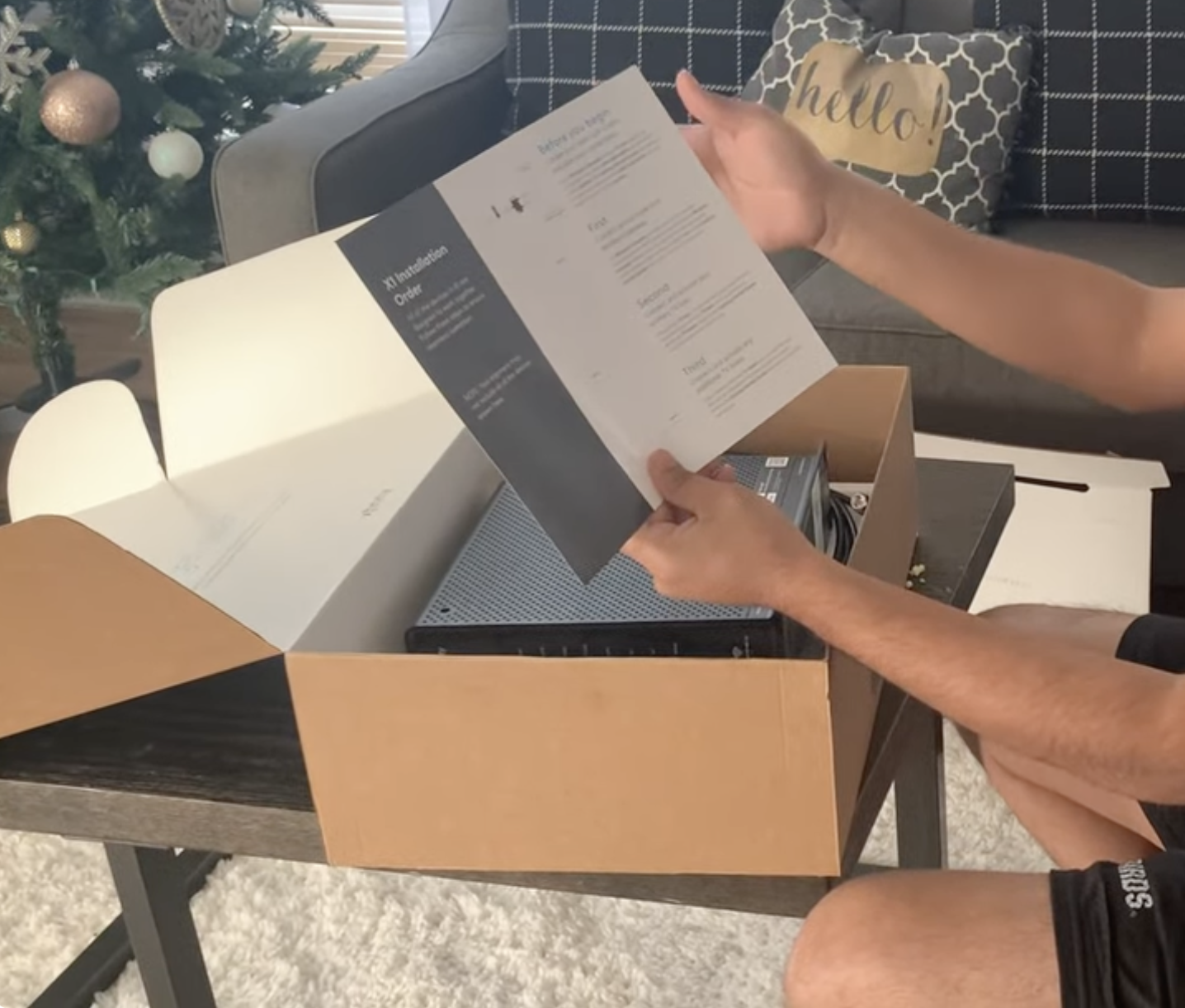
- Locate the default WiFi name and password printed on the label.
- Find a central area in your home for the best signal coverage.
Connect the power and coaxial cables
The cables provide power and internet access to your WiFi box. The connection only takes a few seconds.
- Attach the power adapter to the back of the WiFi box and plug it into a wall outlet.

- Screw the coaxial cable into the cable wall jack and then into the WiFi box.
- Wait for the lights to stabilize, which typically takes a few minutes.

Activate your internet service
Activation links your WiFi box to your Xfinity account. The quickest method uses your phone.
- Connect your phone to the default WiFi name shown on the label.
- Open the Xfinity app and sign in with your account.
- Follow the on-screen instructions to activate the WiFi box.
- Wait for the app to confirm that the gateway is online.
Connect your devices
Once activation finishes, connect all your household devices to the new WiFi network.
- Open WiFi settings on your phone, laptop, or smart TV.
- Select your Xfinity network name from the list.
- Enter the default password to join the network.
- Repeat for every device you want to connect.
Customize your WiFi settings
Change your network name and password to make your connection more secure and easier to identify.
- Open the Xfinity app and select your WiFi box.
- Choose the option to edit your WiFi name and password.
- Save the changes and reconnect devices with the new details.
Enable parental controls and security features
Xfinity includes built-in tools that help you manage online safety and restrict certain content when needed.
- Open the Xfinity app and go to the parental controls section.
- Choose which devices require filters or time limits.
- Turn on advanced security to block risky sites automatically.
Troubleshooting common problems
If your Xfinity WiFi box does not work correctly during setup, try these quick fixes.
- No connection: Recheck coaxial and power cables, then restart the gateway.
- Weak signal: Move the WiFi box to a higher or more central area.
- Slow speeds: Restart the gateway and limit heavy devices during testing.
- Devices can’t join: Verify the WiFi password or reset the WiFi name in the app.
- Flashing lights: Wait a few minutes; activation may still be in progress.
Tips
- Place your WiFi box away from walls and large appliances.
- Use the 5 GHz band for gaming and streaming when possible.
- Update your gateway firmware through the Xfinity app when available.
- Rename guest networks to keep household devices secure.
- Restart your WiFi box weekly to maintain top performance.
FAQ
Do I need the Xfinity app to activate my WiFi box?
Yes. The Xfinity app provides the required activation steps and helps manage security, settings, and troubleshooting.
Can I set up the Xfinity WiFi box without a coax cable?
No. A coax connection is required unless you signed up for a fiber-based service with different equipment.
How long does setup usually take?
Most homes complete activation in under 10 minutes once the cables are connected.
Can I connect devices with Ethernet instead of WiFi?
Yes. Plug any device directly into an Ethernet port on the gateway for a more stable connection.
Summary
- Unbox your Xfinity WiFi box and locate the network details.
- Connect the power and coaxial cables and wait for the lights to stabilize.
- Activate the box using the Xfinity app.
- Connect devices to the default WiFi network.
- Customize your WiFi name and password and enable parental controls.
Conclusion
Setting up your Xfinity WiFi box takes only a few minutes, and once activated, it delivers a stable connection for everyday use. After you connect your devices and update your WiFi name and password, you can enable security features that keep your home network safer. With the correct placement and basic upkeep, your Xfinity gateway will support fast speeds and reliable connections for work, entertainment, and smart devices throughout your home.
Discussion (0)
Be the first to comment.